1
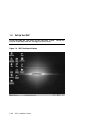
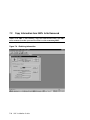
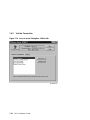
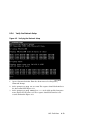
1. Start ConsoleWorks from the SRM Console desktop.
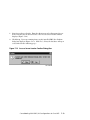
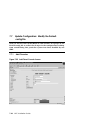
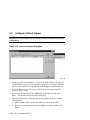
2. Select Consoles in the left navigation panel, then Add Console at the top of
the screen. The type is Telnet. Do not attempt to add a console if eight
consoles already exist. (Privileges required: Admin – R W C; Console –
none)
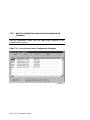
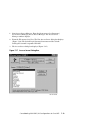
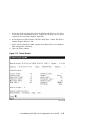
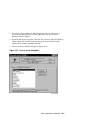
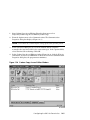
3. In the left navigation panel select Consoles. The Show Consoles screen
displays.
NOTE: If the addition is such that there are more than 8 consoles, you
need to have the appropriate licenses, as noted in Chapter 1.
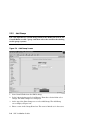
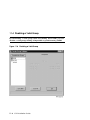
4. At the top of the Show Consoles screen select Add Console. The Add Console
screen displays.
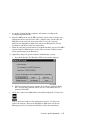
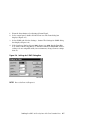
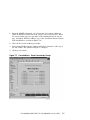
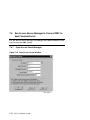
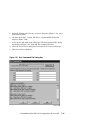
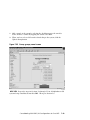
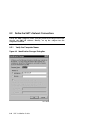
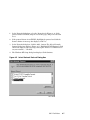
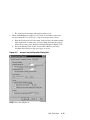
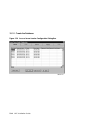
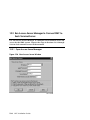
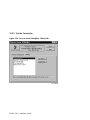
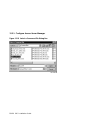
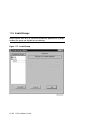
5. From the Type dropdown menu select Telnet. Click the Add Console button.
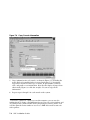
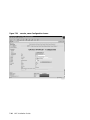
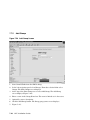
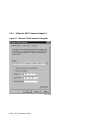
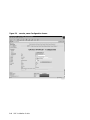
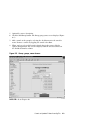
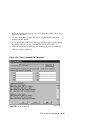
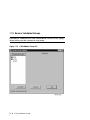
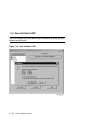
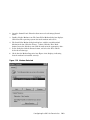
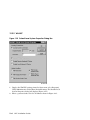
The Add Telnet Console screen displays (Figure 9–2).
6. Enter the information requested for the console.
7. Enter a name and a description for the console. The console name must be
unique.
8. Select Yes in the Logged list box. In the block to the right of the list box
enter D:\Cwks\Log.
9. In the IP Host block enter 90.0.0.x. The value of x consists of odd numbers
beginning with 1 for the terminal server for the first AlphaServer, 3 for the
terminal server for the second AlphaServer, and so on, up to 99. (Even
numbers are reserved for future expansion.)
10. In the IP Port block enter a number between 2001 and 2008; the last digit is
the terminal server port to which the console is attached. This number must
be unique for each console.
11. Do not select the Raw Data checkbox.
Continued on page 9-7
Create or Update Default.config File
9-5