1
Page 30 of 98
•
RSVP
Test
The Black Box Toolkit
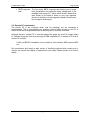
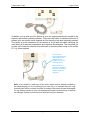
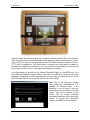
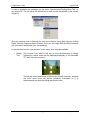
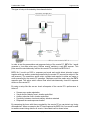
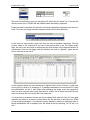
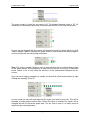
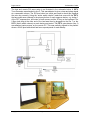
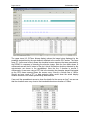
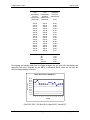
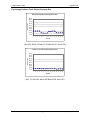
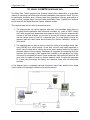
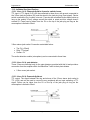
In the RSVP test two bitmaps are alternately displayed with the chosen
frequency. One bitmap has a 32x32 white block on the left, with a black
block on the right whereas the other bitmap has the reverse. One optodetector should be positioned over the left and right block. The central
white blocks are displayed on every frame.
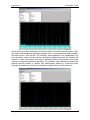
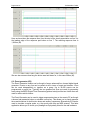
Alternating activity between opto-detectors should be seen as alternate
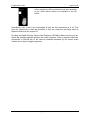
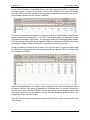
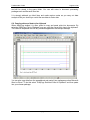
bitmaps are displayed at the chosen frequency. In the screen shot above
we can see the simulated effect of two images being presented at very
high speed. Where the first daytime woodland scene is replaced by a
similar scene at sunset with a blurring effect.
•
Video
Test
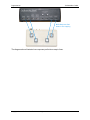
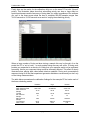
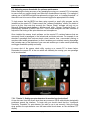
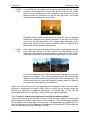
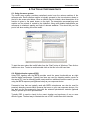
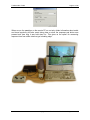
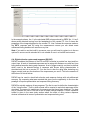
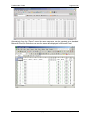
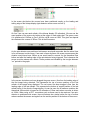
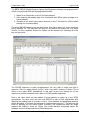
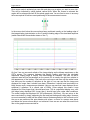
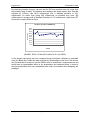
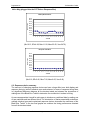
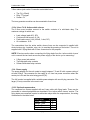
In the video test a black and white block has been superimposed onto the
lower right hand corner of a video stimulus. An opto-detector can be
positioned over the block. In this case when a cyclist with a white jumper
rides past the block will change from black to white and a tone will sound.
In your own paradigms you could use the block to indicate the onset and
duration of a stimulus. This could be picked-up by an opto-detector and
responses could be detected using the optional toolkit response pad. This
would ensure that you knew with absolute certainty where the stimulus
occurred in the video relative to the response.
Before you test the timing of your own paradigm you are advised to make use of the toolkit
software to benchmark the sensor check utility to ensure you’ve correctly setup the
sensors and adjusted the thresholds accordingly. You should bear in mind that the
presentation timing of our utility may not be exact on your specific hardware.
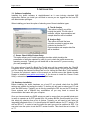
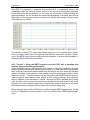
7.3.2. Tutorial 2: Setting-up microphones for monitoring auditory stimuli
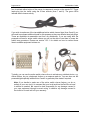
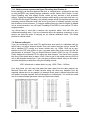
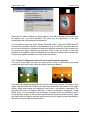
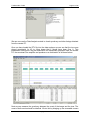
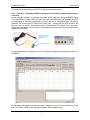
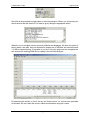
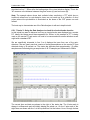
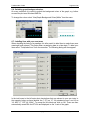
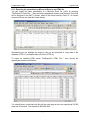
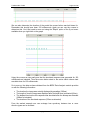
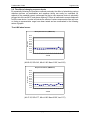
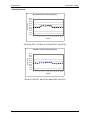
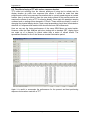
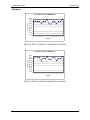
The sensor check utility can be used to produce tones of various durations. These will be
played through the default audio device on the remote PC. This is useful when adjusting
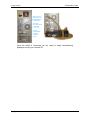
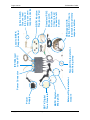
the sensitivity of the toolkits digital microphone(s). You should begin by positioning one or
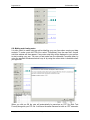
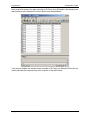
more microphones next to the speakers or headphones of the remote PC. Next select one
of the tone schedules from the “Microphone” menu.
Copyright © 2004 The Black Box Toolkit Ltd. All rights reserved.