1
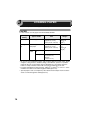
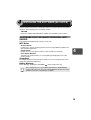
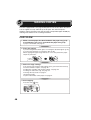
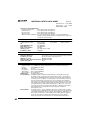
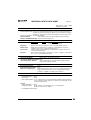
Flow of installation
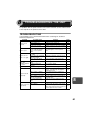
Refer to the following table and then begin installation.
Operating
system
Windows XP
Windows 98
Interface
Reference pages for how to install
USB/
Parallel
USB
Installing onto Windows XP (USB/parallel interface)
(p.21)
Installing onto Windows 98/Me/2000 (USB interface) (p.25)
Installing onto Windows 95/98/Me/NT4.0/2000
(Parallel interface) (p.28)
Installing onto Windows 98/Me/2000 (USB interface) (p.25)
Installing onto Windows 95/98/Me/NT4.0/2000
(Parallel interface) (p.28)
Installing onto Windows 98/Me/2000 (USB interface) (p.25)
Installing onto Windows 95/98/Me/NT4.0/2000
(Parallel interface) (p.28)
Installing onto Windows 95/98/Me/NT4.0/2000
(Parallel interface) (p.28)
Parallel
USB
Windows Me
Parallel
USB
Windows 2000
Windows 95/
NT 4.0
Parallel
Parallel
4
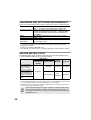
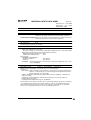
INSTALLING THE SOFTWARE
The following term is used in this section.
MFP
Means the unit as a printer and scanner.
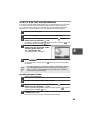
• For this description, it is assumed that the mouse is configured for
right hand operation.
• To print or scan, the MFP must be in the online state.
• The scanner feature only works when using a USB interface cable.
• If any error message appears, solve the problem following the
instructions on the screen. After your problem is solved, the installing
procedure will be continued. Depending on your problem, you may
have to exit the installer. In this case, click the "Cancel" button to exit
the installer. After solving your problem, reinstall the software from the
beginning.
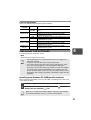
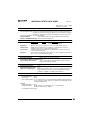
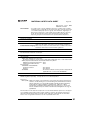
Installing onto Windows XP (USB/parallel interface)
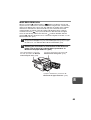
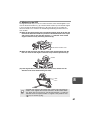
Before starting the installation, make sure the USB or parallel interface cable is not
connected to the MFP.
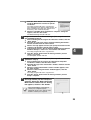
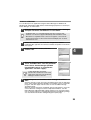
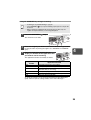
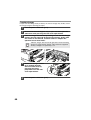
1
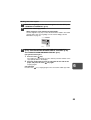
Insert the supplied CD-ROM into your CD-ROM drive.
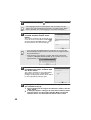
2
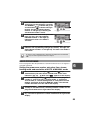
Click the "start" button, click "My Computer" (
double-click the CD-ROM ( ) icon.
), and then
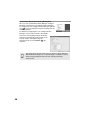
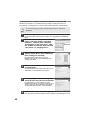
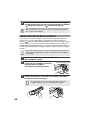
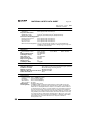
When any of "Found New Hardware Wizard" messages appear during
the software installation, be sure to click the "Cancel" button.
21