1
5
FAQ
WLAPGMN User Manual
There are 2 ways for solving your problems:
(1) First, please see following “FAQ” to check your problem.
(2) Please go to http://www.corega-asia.com, click “Supports”=>select
“Online Customer Support”, => fill in the form, =>click “submit”. We’ll
reply you as soon as possible.
Q1. Can't open the utility program.
Ans:
1.Verify the computer has configured the TCP/IP, if yes, please verify
the setting is correct (Please refer to [4. Step1. Setting TCP/IP]).
2.Verify the WLAPGMN installation is correct. (Please refere to 2.
[Hardware Installation].)
3. Verify the wireless LAN adapter installation is correct. (Please refere
to the manual of wireless LAN adapter].)
4.Verify the process of Setting Utility Program is correct.(Please
refere chapter 4.)
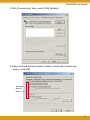
5. Please verify the item [Proxy server] in web browser is unchecked: :
6. Uncheck the [Work offline] item in IE6.0, open IE 6.0 => click File
=> uncheck the [v Work Offline] item.
Q2. Computer installed wireless LAN adater can't connect to WLAPGMN.
Ans:
1. Keep the WLAPGMN far away from interference(ex:2.4GHz electric
equipment).
2. Shorten the distance between wireless device, and avoid the
barrier,s ex:cement or reinforced concrete wall.
3. Verify the setting of wireless LAN adapter is consistent with the
WLAPGMN.Ex: Infrastructure mode, ESSID, WEP Key, Channel,
Security(WEP/WPA) settings.
4. Verify all the devices(ex: Hub/Router/Modem) wired connected
with WLAPGMN are normal running.
Q3. How to improve the communication quality?
Ans:
1. Move the WLAPGMN away from RC/wood/flagstone/brick/anti-
31