1
SCAN
3
Scanning from a TWAIN-Compliant Application
(part 1)
The SHARP scanner driver is compatible with the TWAIN standard, allowing it to be used with a variety of TWAIN-compliant
applications. Below is a step-by-step guide for acquiring a scanned image to the Sharpdesk desktop screen using Sharpdesk.
1
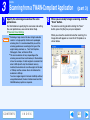
Place the original(s) you wish to scan on the
document glass/SPF/RSPF.
☞For information on setting an original for scanning,
3
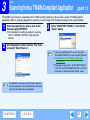
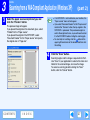
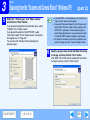
Select "SHARP MFP TWAIN A", and click the
"Select" button.
refer to "NORMAL COPYING" in the Operation
Manual.
2
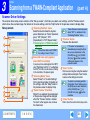
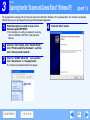
Start Sharpdesk and then click the "File" menu
and select "Select Scanner".
●
Note
Note
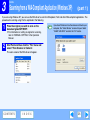
If you are using Windows XP, you can also select
"WIA-SHARP AR-XXXX" to scan using the WIA driver.
☞Scanning from a WIA-Compliant Application
(Windows XP)
● Depending on your system, "SHARP MFP TWAIN A
1.0 (32-32)" and "WIA-SHARP AR-XXXX 1.0 (32-32)"
may appear in the above "Select Source" screen.
The method for accessing "Select Scanner" depends
upon the application. For more information, refer to the
manual or the help file of your application.
CONTENTS
I N D E X
21