1
Pegasus-E_Copy_Ex.book
50 ページ
2009年7月22日 水曜日 午後2時4分
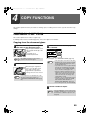
COPY FUNCTIONS
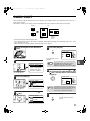
SELECTING THE ORIGINAL SIZE
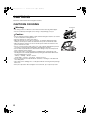
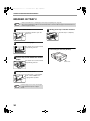
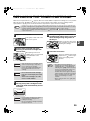
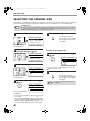
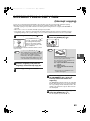
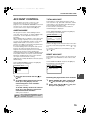
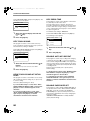
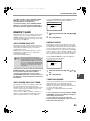
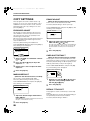
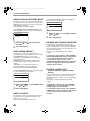
If you loaded a non-standard size* original or the original size was not correctly detected, set the original size manually.
Perform the following steps after placing the document in the document feeder tray or on the document glass.
Note
1
* Standard sizes:
The following sizes can be detected correctly: A3, B4, A4, A4R, A5 (11" x 17", 8-1/2" x 14", 8-1/2" x 13", 8-1/2" x
11", 8-1/2" x 11"R, 5-1/2" x 8-1/2"). If a non-standard size original is placed (including special sizes), the closest
standard size may be displayed, or the original size may not appear.
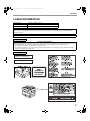
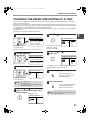
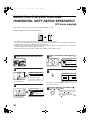
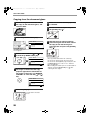
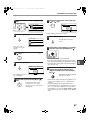
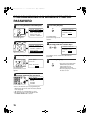
Press the [SPECIAL FUNCTION] key.
ON LINE
DATA
LINE
DATA
SPECIAL
FUNCTION
COPY EXPOSURE PAPER SE
SCAN COLOUR MODE RESOLUT
The special function
screen will appear.
2
ED COPY
LEX SCAN
LEX SCAN
ACC
3
OK
GHI
PQRS
PY
AN
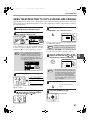
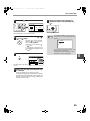
The original size selection
screen will appear.
ORIG. SIZE ENTER
AB
A3
B4
A4
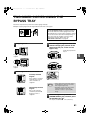
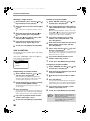
Select the original size with the [ ] or
[ ] key.
The selected original size
is highlighted.
ORIG. SIZE ENTER
AB
A3
B4
A4
• To select an inch original size, press the [ ] key and
go to step 6.
• If you selected "SIZE INPUT", follow steps 4 through 6
of the procedure in "USING THE BYPASS TRAY TO
COPY A SPECIAL SIZE ORIGINAL" (page 51) to set
the horizontal and vertical dimensions of the original.
50
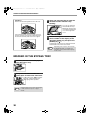
You will return to the base
screen and the selected original
size will appear in the original
size display.
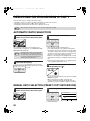
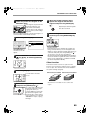
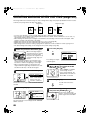
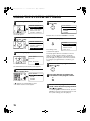
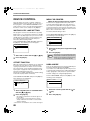
Selecting an inch original size
6
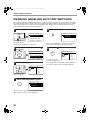
Select the original size with the [ ] or
[ ] key.
ORIG. SIZE ENTER
INCH
11x17
812 x14
812 x11
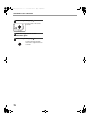
Press the [OK] key.
BACK
4
SPECIAL FUNCTION
SPECIAL MODES
ORIG. SIZE ENTER
PAPER SIZE SET
DISPLAY CONTRAST
Press the [OK] key.
OK
SPECIAL FUNCTION
SPECIAL MODES
ORIG. SIZE ENTER
PAPER SIZE SET
DISPLAY CONTRAST
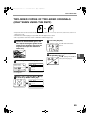
Select "ORIG. SIZE ENTER" from the
menu with the [ ] or [ ] key.
PQ
5
To return to selection of AB original sizes, press the
[ ] key to return to step 4.
7
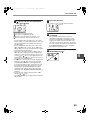
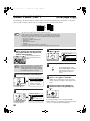
Press the [OK] key.
OK
Note
You will return to the base
screen and the selected original
size will appear in the original
size display.
To cancel an original size selection, press
the [CA] key.






![2 Premere il tasto [OK].](http://vs1.manualzilla.com/store/data/006118806_1-1ef2b0cf1d92b0a8f692c275d25998d6-150x150.png)