1
Pegasus-E_Copy_Ex.book
67 ページ
2009年7月22日 水曜日 午後2時4分
CONVENIENT COPY FUNCTIONS
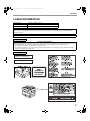
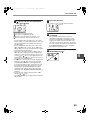
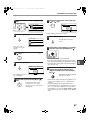
5
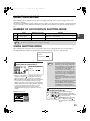
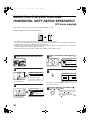
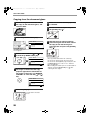
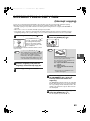
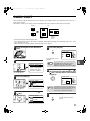
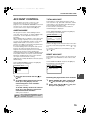
Select "2in1/4in1" with the [ ] or [ ]
key.
Select the borderline setting with the
[ ] or [ ] key.
SPECIAL MODES
DUAL PAGE COPY
2in1/4in1
XY ZOOM
[OK]:CHANGE
PQ
ED COPY
LEX SCAN
LEX SCAN
ACC
6
10
2in1
PATTERN 1
BORDER
Select solid line, broken line, or none.
Press the [OK] key.
11
OK
2in1/4in1
OFF
2in1
4in1
[OK]:CHANGE
The 2 in 1 / 4 in 1
selection screen will
appear.
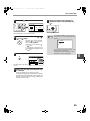
Press the [OK] key.
OK
12
You will return to the base
screen.
Select other copy settings as needed
and then press the [START] key ( ).
MNO
7
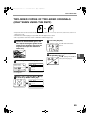
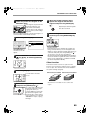
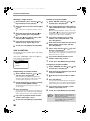
Select "2in1" or "4in1" with the [ ] or
[ ] key.
WXYZ
@.-_
AD-END
8
Press the [OK] key.
OK
2in1
PATTERN 1
The settings for 2 in 1 or
4 in 1 will appear.
9
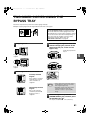
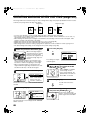
• The copy ratio will be set automatically.
• If you placed the originals in the document feeder
tray, copying will start after all originals are scanned.
• If you placed the first original on the document glass,
go to the next step.
BORDER
NO
Select the layout with the [ ] or [ ]
key.
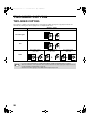
For the layouts that can be
selected, see "2 in 1 copy
layouts" or "4 in 1 copy layouts"
on page 66.
13
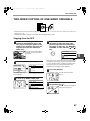
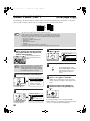
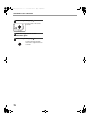
When the START indicator lights,
replace the original with the next
original and then press the [START]
key ( ).
Repeat step 13 until all originals
have been scanned.
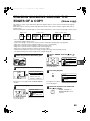
• Copies will be output each time two originals for 2 in
1 copy or four originals for 4 in 1 copy have been
scanned.
• To start copying before all originals have been
scanned (after only one original has been scanned
for 2 in 1 or after three originals or less have been
scanned for 4 in 1), press the [READ-END] key ( ).
• To cancel the 2 in 1 or 4 in 1 settings, select "OFF" in
step 7.
67
5














![2 Premere il tasto [OK].](http://vs1.manualzilla.com/store/data/006118806_1-1ef2b0cf1d92b0a8f692c275d25998d6-150x150.png)