1
TROUBLESHOOTING
Table of Contents SECTIONS
1
2
3
Problem: Bad video image quality (one or both channels)
•
•
•
•
5
6
Mouse
Solutions:
•
4
The computer does not detect my mouse, or my mouse does not work
when I switch computers or reboot.
Check that all video cables are inserted properly to the Switch,
computer, and display.
With everything connected, power-cycle the Belkin Secure Flip
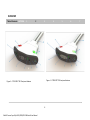
KVM Switch to reset the video. Make sure the Video Diagnostic
LED is solid green.
Check that the display that you are using supports the resolution
and refresh-rate setting on your computer.
Lower the video resolution of your PCs.
Connect the display directly into the computer you are having
trouble with to see if the problem still appears
• Check that the mouse you are using is connected properly to the Switch.
• Check that the USB cable between the Switch and the computer is
completely connected.
• Try connecting to a different USB port on the computer.
• Make sure the mouse works when directly plugged into the computer
(the HID USB driver is installed on the computer). Rebooting may be
necessary when trying this.
• Make sure you are not using a wireless mouse or a mouse with an
integrated USB hub or other USB-integrated devices. These are not
supported by the switch due to security policy.
• If the computer is coming out of standby mode, allow up to one minute
to regain mouse function.
• Try a different mouse.
For extending USB, use only active USB extenders (over CAT5 cable).
17
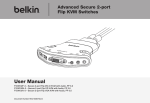
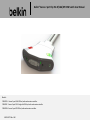
Belkin® Secure 2 port Flip DVI-D/VGA/DP KVM Switch User Manual
7