1
p2280a.book Page 1 Thursday, May 17, 2001 5:00 PM
www.hp.com/go/pcaccessories
hp Adaptec ultra
160 scsi adapter
card
p2280a
installation guide
installationshanbuch
guide d’installation
guía de instalación
léase este primero
guida di installazione
p2280a.book Page 2 Thursday, May 17, 2001 5:00 PM
Notice
The information contained in this document is subject to change without notice. Hewlett-Packard makes no warranty of any kind with
regard to this material, including, but not limited to, the implied warranties of merchantability and fitness for a particular purpose.
Hewlett-Packard shall not be liable for errors contained herein or for incidental or consequential damages in connection with the
furnishing, performance, or use of this material. Hewlett-Packard assumes no responsibility for the use or reliability of its hardware or software
on equipment that is not furnished by Hewlett-Packard or equipment for which it is not intended. This document contains proprietary
information that is protected by copyright. All rights are reserved. No part of this document may be photocopied, reproduced, or
translated to another language without the prior written consent of Hewlett-Packard Company.
Acrobat® and Adobe® are trademarks of Adobe Systems Incorporated and may be registered in certain jurisdictions. Adaptec is a
trademark of Adaptec Corporation. SCSI Select™ is a trademark of Adaptec Corporation. Microsoft®, MS®, MS-DOS®, Windows®, and
Windows NT® are U.S. registered trademark of Microsoft Corporation.
Hinweis
Inhaltliche Änderungen vorbehalten. Hewlett-Packard übernimmt keine Garantie welcher Art auch immer für diese Ausrüstung,
einschließlich der (doch nicht begrenzt auf die) Qualitätsgarantie und die Garantie bezüglich Eignung für einen bestimmten Zweck.
Hewlett-Packard haftet nicht für in dieser Dokumentation enthaltene Fehler oder für unbeabsichtigte oder indirekte Schäden in
Verbindung mit der Lieferung, der Leistung oder der Benutzung der Ausrüstung. Hewlett-Packard übernimmt keine Haftung fur den
Betrieb oder die Zuverlässigkeit seiner Software, wenn diese auf Hardware benutzt wird, die nicht von Hewlett-Packard geliefert wurde.
Dieses Dokument enthalt proprietäre Informationen, die durch das Copyright geschützt sind. Alle Rechte vorbehalten. Dieses Dokument
darf ohne vorherige schriftliche Genehmigung der Hewlett-Packard Company weder ganz noch teilweise fotokopiert, reproduziert oder
übersetzt werden
Acrobat® and Adobe® are trademarks of Adobe Systems Incorporated and may be registered in certain jurisdictions. Adaptec is a
trademark of Adaptec Corporation. SCSI Select™ is a trademark of Adaptec Corporation. Microsoft®, MS®, MS-DOS®, Windows®, and
Windows NT® are U.S. registered trademark of Microsoft Corporation.
Avertissement
Les informations contenues dans ce document peuvent être modifiées sans préavis. Hewlett-Packard ne donne aucune garantie de
quelque sorte que ce soit concernant, sans que ce soit limitatif, les garanties implicites de qualité commerciale de ce matériel, ou la bonne
adaptation de celui-ci à un usage particulier. Hewlett-Packard n’est pas responsable des erreurs pouvant apparaître dans ce manuel et
n’est pas non plus responsable des dommages directs ou indirects résultant de l’équipement, des performances et de l’utilisation de ce
matériel. Hewlett-Packard ne saurait être tenu pour responsable de l’utilisation et de la fiabilité de son logiciel sur des matériels non
fournis par Hewlett-Packard. Les informations contenues dans ce document sont originales et protégées par copyright. Tous droits
réservés. L’acheteur s’interdit en conséquence de les photocopier, de les reproduire ou de les traduire dans toute autre langue, sauf
accord préalable et écrit de Hewlett-Packard.
Acrobat® and Adobe® are trademarks of Adobe Systems Incorporated and may be registered in certain jurisdictions. Adaptec is a
trademark of Adaptec Corporation. SCSI Select™ is a trademark of Adaptec Corporation. Microsoft®, MS®, MS-DOS®, Windows®, and
Windows NT® are U.S. registered trademark of Microsoft Corporation.
Aviso
La información contenida en este documento está sujeta a cambios sin previo aviso. Hewlett-Packard no ofrece ningún tipo de garantía
con respecto a este material, incluyendo, pero sin limitarse a, las garantías implícitas de comerciabilidad e idoneidad para un fin
determinado. Hewlett-Packard no asume responsabilidad alguna por los posibles errores contenidos o por los daños casuales o emergentes
relacionados con el suministro, funcionamiento o uso de este material. Hewlett-Packard no asume responsabilidad alguna por el uso o
fiabilidad de su software en equipos que no hayan sido fabricados por Hewlett-Packard. Este documento contiene información patentada,
protegida por las leyes del copyright. Reservados todos los derechos. Ninguna parte de este documento puede ser fotocopiada,
reproducida o traducida a otro idioma sin la autorización previa y por escrito de Hewlett-Packard Company.
Acrobat® and Adobe® are trademarks of Adobe Systems Incorporated and may be registered in certain jurisdictions. Adaptec is a
trademark of Adaptec Corporation. SCSI Select™ is a trademark of Adaptec Corporation. Microsoft®, MS®, MS-DOS®, Windows®, and
Windows NT® are U.S. registered trademark of Microsoft Corporation.
Avviso
Le informazioni contenute in questo documento sono soggette a cambiamento senza preavviso. Hewlett-Packard non rilascia garanzie di
alcun tipo riguardo a questo materiale, comprese le garanzie implicite di commerciabilità e di idoneità per uno scopo particolare. HewlettPackard non sarà ritenuta responsabile per errori contenuti in questo documento, né per danni accidentali o conseguenti alla fornitura,
alle prestazioni o all’uso di questo materiale. Hewlett-Packard non si assume alcuna responsabilità riguardo all’uso o all’affidabilità del
proprio software su apparecchiature di altri produttori. Questo documento contiene informazioni di proprietà protette da copyright. Tutti
i diritti sono riservati. Nessuna parte di questo documento può essere fotocopiata, riprodotta o tradotta in un’altra lingua senza un
precedente consenso scritto di Hewlett-Packard Company.
Acrobat® and Adobe® are trademarks of Adobe Systems Incorporated and may be registered in certain jurisdictions. Adaptec is a
trademark of Adaptec Corporation. SCSI Select™ is a trademark of Adaptec Corporation..
Microsoft®, MS®, MS-DOS®, Windows®, and Windows NT® are U.S. registered trademark of Microsoft Corporation.
HPFrance, Business Desktop Division, 38053 Grenoble Cedex 9, France
© 2001 Hewlett-Packard Company
p2280a.book Page 3 Thursday, May 17, 2001 5:00 PM
English...................................................................... 1
Deutsch .................................................................... 2
Français.................................................................... 3
Español..................................................................... 4
Italiano...................................................................... 5
gh .............................................................................. 6
p2280a.book Page 4 Thursday, May 17, 2001 5:00 PM
p2280a.book Page 1 Thursday, May 17, 2001 5:00 PM
1
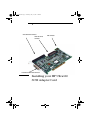
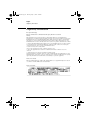
8-bit Ultra SCSI connector
Ultra 160 16-bit
connector
LED connector
External 8-bit connector
External 8-bit Ultra SCSI connector
Installing your HP Ultra160
SCSI Adapter Card
p2280a.book Page 2 Thursday, May 17, 2001 5:00 PM
English
What’s in the HP Ultra160 SCSI Adapter Kit?
What’s in the HP Ultra160 SCSI Adapter Kit?
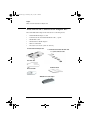
The Ultra160 SCSI adapter kit includes the following items:
•
•
•
•
•
•
1 Ultra160 SCSI adapter card
1 terminated internal Ultra160 SCSI cable, 3 point
1 SCSI LED cable
1 Wide/Narrow SCSI adapter
1 drivers CD-ROM
1 Installation Guide (this document).
HP Ultra160 SCSI Adapter Card
1 terminated internal Ultra160 SCSI cable
1 x 3-point connector cable
SCSI LED cable
Drivers CD-ROM
Installation Guide
“Wide/Narrow” SCSI adapter
2 English
p2280a.book Page 3 Thursday, May 17, 2001 5:00 PM
English
Before You Install the Card
Before You Install the Card
CAUTION
Your PC and SCSI adapter card can be permanently damaged by
static electricity. Before handling the card, touch the unpainted part
of your PC’s metal chassis. Maintain grounding by wearing a wrist
strap attached to the chassis. Handle the card by its backplate and
top edge. Do not touch the edge connector.
Supported Platforms
To find out which PCs support the HP P2280A Ultra160 SCSI
adapter card, go to the following HP Web site:
www.hp.com/go/pcaccessories.
Supported Operating Systems
This manual describes how to install the Ultra160 SCSI adapter card
for operating systems supported by HP:
•
•
•
•
Windows 98 Second Edition
Windows 2000
Windows NT 4.0
Windows XP (when available)
Instructions on installing the Ultra160 SCSI adapter card for
MS-DOS (5.0 and above) can be found in the readme text file
provided on the drivers CD-ROM.
English 3
p2280a.book Page 4 Thursday, May 17, 2001 5:00 PM
English
Installing the Ultra160 SCSI Adapter Card
Installing the Ultra160 SCSI Adapter Card
For complete instructions on how to install an adapter card, refer to
your PC’s documentation. The following steps are guidelines only.
WARNING
For your safety, never remove the PC’s cover without first removing
the power cord from the power outlet and any connection to a
telecommunications network. Always replace the cover before
switching the PC on again.
1
With the PC turned off, disconnect the power cord and any
connection to a telecommunications network, and then remove
the cover.
2
Choose an empty PCI slot. If you do not know how to identify a
PCI slot, refer to your PC’s documentation.
Depending on the PC model, you may need to remove the
accessory slot’s retaining bracket. Refer to your PC’s
documentation if necessary.
Insert the Ultra160 SCSI adapter card into the PCI accessory slot
without bending it.
3
4
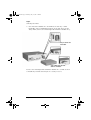
The adapter card may be
installed in a minitower or
desktop model.
5
NOTE
Ensure that the adapter card is properly seated, then connect the
SCSI LED cable to the connector on the SCSI adapter card and
the connector marked “SCSI LED” on the system board.
“SCSI LED” connector on the system board is only present on some
systems.
6
7
Replace the slot’s screw or retaining bracket, as appropriate.
Replace the cover. Reconnect the power cord and any
connection to a telecommunications network.
4 English
p2280a.book Page 5 Thursday, May 17, 2001 5:00 PM
English
Connecting a SCSI Device
Connecting a SCSI Device
Connecting an External SCSI Device
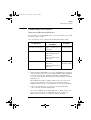
If you require an external SCSI cable, refer to the table below to find
out which cable to order.
You can purchase these cables from an HP authorized reseller.
For SCSI Device
Order SCSI Cable
Part Number
Description
External Narrow (high density)
C2908A, 1 m thumb screw to
thumb screw
HDTS50 to HDT50
External Narrow (low density)
K2286, 1 m bail to latch up
K2296, 1m thumb screw to
thumb screw
K2297, 1.5 m thumb screw to
thumb screw
HDTS50 to LDBL50
External Wide
C2906A, 2 m thumb screw to
thumb screw
C2907A, 5 m thumb screw to
thumb screw
HDTS50 to HDTS68
HDTS50 to HDTS68
An external SCSI device is connected as follows:
1
Assign an unused SCSI ID to the device. SCSI IDs range from 0 to
7 for external devices since it is an 8-bit SCSI bus. The SCSI ID 0
is reserved for the first SCSI hard disk drive and SCSI ID 7 is
reserved for the SCSI controller (the default for narrow and wide
SCSI devices).
The SCSI ID is usually configured with a selector on the rear
panel of the SCSI device. Refer to the Installation Guide
supplied with the device for information on selecting a SCSI ID.
2
Connect the SCSI device to your PC’s external 8-bit SCSI
connector with a shielded SCSI cable.
To connect additional external SCSI devices, daisy-chain each
device to the previous one until all devices are connected.
Ensure that each device is assigned a unique SCSI ID.
English 5
p2280a.book Page 6 Thursday, May 17, 2001 5:00 PM
English
Connecting a SCSI Device
3
Check that the SCSI device is terminated correctly—either
internally or by a terminating resistor on the last device in the
daisy chain (refer to the manual provided with the SCSI device).
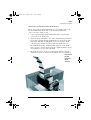
Step 2: Connect the
SCSI Cable
Step 3: Make sure the SCSI
device is terminated
Refer to the manual provided with the SCSI device to find out how
to install any software that may be necessary to use it.
6 English
p2280a.book Page 7 Thursday, May 17, 2001 5:00 PM
English
Connecting a SCSI Device
Connecting an Internal 16-bit SCSI Device
When connecting an internal SCSI device you should connect the
internal U160 16-bit SCSI cable to the internal U160 16-bit
connector on the adapter card.
1
Connect the internal U160 16-bit SCSI cable to the internal
connector on the SCSI card.
2
Assign an unused SCSI ID to the device. SCSI IDs range from 0 to
15 for wide 16-bit SCSI. The SCSI ID 0 is reserved for the first
SCSI hard disk drive and SCSI ID 7 is reserved for the SCSI
controller (the default for narrow and wide SCSI devices).
The SCSI ID is usually configured with jumpers on the SCSI
device. Refer to the Installation Guide supplied with the device
for information on selecting a SCSI ID.
3
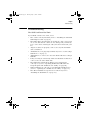
SCSI Terminator
HP SCSI cables have their own terminators. Ensure that the
termination option on all the internal SCSI devices is disabled.
Ultra 160 (16bit) SCSI
Cable with 3
68-pin
connector
English 7
p2280a.book Page 8 Thursday, May 17, 2001 5:00 PM
English
Connecting a SCSI Device
4
Insert the SCSI device into a free shelf in your PC. Refer to the
documentation that came with your PC for more information.
5
Connect the data and power cables to the SCSI device.The
connectors are shaped to go in one way only.
6
Replace your PC’s cover and reconnect all cables and power
cords.
To find out how to complete this installation, refer to “Updating
SCSI-Related Fields in the Setup Program and “SCSI Select™”
Utility” on page 10.
8 English
p2280a.book Page 9 Thursday, May 17, 2001 5:00 PM
English
Connecting a SCSI Device
Connecting an Internal 8-bit SCSI Device
When connecting an internal 8-bit SCSI device you should connect
an internal 8-bit SCSI cable to the internal 8-bit Ultra SCSI
connector on the adapter card.
NOTE
Internal 8-bit SCSI cable is not provided with the HP Ultra 160 SCSI
Adapter card
1
Connect the internal 8-bit SCSI cable to the internal 8-bit Ultra
SCSI connector on the SCSI card.
2
Assign an unused SCSI ID to the device. SCSI IDs range from 0 to
7 for narrow 8-bit SCSI. The SCSI ID 0 is reserved for the first
SCSI hard disk drive and SCSI ID 7 is reserved for the SCSI
controller (the default for narrow and wide SCSI devices).
The SCSI ID is usually configured with jumpers on the SCSI
device. Refer to the Installation Guide supplied with the device
for information on selecting a SCSI ID.
3
Ensure that a termination is present at the end of the cable, or
that the termination option on the internal SCSI device is
enabled.
4
Insert the SCSI device into a free shelf in your PC. Refer to the
documentation that came with your PC for more information.
5
Connect the data and power cables to the SCSI device.The
connectors are shaped to go in one way only.
6
Replace your PC’s cover and reconnect all cables and power
cords.
To find out how to complete this installation, refer to “Updating
SCSI-Related Fields in the Setup Program and “SCSI Select™”
Utility” on page 10.
English 9
p2280a.book Page 10 Thursday, May 17, 2001 5:00 PM
English
Updating SCSI-Related Fields in the Setup Program and “SCSI Select™” Utility
Updating SCSI-Related Fields in the
Setup Program and “SCSI Select™” Utility
After installing the SCSI card, you will need to update certain SCSIrelated fields in both the HP Setup Program and the SCSI
Configuration utility.
Updating the HP Setup Program
1
Restart the PC.
2
Press F2 when F2=Setup is displayed on the screen during
startup. The opening window of the HP PC Setup utility is
displayed.
Which Fields Need Updating?
The list below gives guidelines on how to configure a SCSI adapter.
The field names used in your version of the Setup program may be
slightly different to those shown below. You will need to:
3
4
Enable or Disable Plug and Play (PnP):
•
For Windows 98 and Windows 2000 users, ensure that Plug
and Play is Enabled.
•
For Windows NT 4.0 users, ensure that Plug and Play
is Disabled.
Ensure that the SCSI device is assigned the correct boot device
priority.
a
If you want to boot from a SCSI device, select
Boot>Hard Disk Drives and change the boot order so that the
SCSI hard disk drive you want to boot from appears first in
the list. Then, select Boot>Boot Device Priority and change the
device priority so that Hard Drive is below Removable Devices,
and above other devices, such as CD-ROMs.
10 English
p2280a.book Page 11 Thursday, May 17, 2001 5:00 PM
English
Updating SCSI-Related Fields in the Setup Program and “SCSI Select™” Utility
Updating the “SCSI Select™” Utility
1
Restart the PC.
2
Press Ctrl+A when prompted during startup. The opening
window of the SCSI Configuration utility is displayed.
Which Fields Need Updating?
You will need to set the correct data transfer mode for SCSI devices.
For more information on configuring SCSI devices, refer to the
manual that came with your SCSI device.
For more information on configuring the Ultra160 SCSI adapter
card, refer to the SCSI Administrator’s Guide available on HP’s
web site at: www.hp.com/go/pcaccessories.
English 11
p2280a.book Page 12 Thursday, May 17, 2001 5:00 PM
English
Installing the SCSI Driver
Installing the SCSI Driver
CAUTION
Make sure you have installed the SCSI adapter card before you install
the driver software.
Windows 98
1
Start your PC. Windows 98 will automatically detect the SCSI
Adapter Card.
2
In the Add New Hardware Wizard window, you will be prompted to
install the driver for a PCI SCSI bus controller. Select Search for
the best driver for your device.
3
Insert your driver CD-ROM in your drive. Select Specify location
and enter the path of the drivers on the CD-ROM
For example, D:\Win98, where D: is the CD-ROM drive.
The wizard will find the 29160, 29160N Ultra 160 PCI SCSI Controller.
Windows NT 4.0
1
Restart the PC.
2
In the Start menu, click Settings>Control Panel.
3
Double-click the SCSI Adapters icon.
4
Click the Drivers tab, and then Add....
5
In the Install Driver window, click Have Disk.
6
Insert the SCSI driver’s CD-ROM in your drive.
7
At the prompt, type D:\nt4_0\nt4\ and press Enter (where D:
is the CD-ROM drive).
8
Select Adaptec 19160, 29160(N). 39160, AHA-3960D, AIC-7892/7899
Ultra 160 PCI SCSI Controller (NT4) and click OK.
9
At the prompt, type D:\nt4_0\nt4\ and press Enter (where D:
is the CD-ROM drive).
The driver files will be copied onto your system.
10 When prompted, restart your PC to complete the installation.
11 Remove the CD-ROM from the drive.
12 English
p2280a.book Page 13 Thursday, May 17, 2001 5:00 PM
English
Installing the SCSI Driver
If You Have Also Installed a New SCSI Hard Disk Drive
NOTE
For Windows NT 4.0 installation on a new SCSI hard disk drive,
follow the procedure outlined below.
First you need to create a Windows NT 4.0 driver floppy disk from
the driver CD-ROM.
NOTE
1
Insert the driver CD-ROM into your disk drive and start the
computer to boot on your CD-ROM.
2
Insert a blank formatted floppy disk, and label it “Adaptec ASC29160N PCI SCSI driver for NT 4.0”.
3
Follow the instructions to create a driver floppy disk for
Windows NT 4.0.
4
Remove the floppy disk and CD-ROM then reboot your
computer.
5
Insert the NT 4.0 Installation CD-ROM into your drive.
6
Press the F6 key when this message appears on screen. ‘Windows
set-up is inspecting your hardware configuration’. The opening window
of the setup utility is displayed.
During this process you will be asked to press S. This allows you to
specify any additional hardware devices (such as you SCSI adapter
card) that have been installed on your PC.
7
Insert the floppy disk and follow the instructions.
If you install Windows NT 4.0 from the HP CD Recovery
NOTE
This step is necessary only for the HP Vectra VL400 and Vectra
VL800 CD Recovery, and only for Windows NT 4.0.
1
Insert the Image Creation and Recovery CD-ROM into the CDROM drive and restart your system..
2
Select ‘Install Operating System’ from the menu. You may have a
choice of more than one Operating System, simply select the one
you want
3
Follow the onscreen instructions.
4
When the copy operation is complete a message will appear.
Remove the Image Creation and Recovery CD-ROM from the
drive.
English 13
p2280a.book Page 14 Thursday, May 17, 2001 5:00 PM
English
Installing the SCSI Driver
5
Insert the HP Ultra160 SCSI Adapter card CD-ROM and restart
your PC.
6
Press F2 in the onscreen menu
7
Remove the HP Ultra160 SCSI Adapter card CD-ROM from the
drive when prompted to reboot
8
The recovery operation will continue
Windows 2000 Professional
Your SCSI PCI controller is automatically detected and installed by
Windows 2000
Windows XP
1
Start the PC and run Windows XP.
2
WIndows XP will automatically detect the card and install the
necessary drivers.
14 English
p2280a.book Page 15 Thursday, May 17, 2001 5:00 PM
English
Troubleshooting
Troubleshooting
The SCSI Card Does Not Work
If your SCSI card does not work, check:
•
•
•
•
•
•
•
•
•
The card is correctly installed (refer to “Installing the Ultra160
SCSI Adapter Card” on page 4).
The SCSI cables. In particular, check that the cable connections
are secure and that the cables are not damaged. If you find any
loose connections or damaged cables, fix them and restart your
PC.
All power cables are properly connected to any internal SCSI
devices installed.
All SCSI devices are properly terminated (refer to “Connecting a
SCSI Device” on page 5).
All SCSI devices connected to the same SCSI cable have a unique
SCSI ID.
Parity checking is consistently enabled or disabled on all devices
connected to the same SCSI cable.
The SCSI-related fields in the HP PC Setup program are
correctly set (refer to “Updating SCSI-Related Fields in the
Setup Program and “SCSI Select™” Utility” on page 10).
SCSI termination is correctly set for all installed SCSI devices
(refer to “Updating the “SCSI Select™” Utility” on page 11).
The driver installation steps have been followed (refer to
“Installing the SCSI Driver” on page 12).
English 15
p2280a.book Page 16 Thursday, May 17, 2001 5:00 PM
English
HP Support Services
HP Support Services
Service and support options are provided from HP’s Electronic
Support Center:
For HP Vectra PCs
www.hp.com/go/vectrasupport
For HP Kayak PC Workstations
www.hp.com/go/kayaksupport
For HP Brio PCs
www.hp.com/go/briosupport
16 English
p2280a.book Page 17 Thursday, May 17, 2001 5:00 PM
English
Specifications
Specifications
Interface
Adaptec ASC-29160N Ultra 160 SCSI PCI Adapter
Physical Dimensions
• Height: 10.7cm (4.2-inch)
• Length: 17.8cm (7.0-inch)
Environmental Operating
Range
• Operating temperature: 0° to 55° C
Power Requirements
Operating voltage: +5 V ± 5% @1.5 A
• Humidity: RH of 5% to 90% (noncondensing)
English 17
p2280a.book Page 18 Thursday, May 17, 2001 5:00 PM
English
Regulatory Information
Regulatory Information
FCC (for USA only)
Federal Communications Commission Radio Frequency Interference Statement
Warning:
This equipment has been tested and found to comply with the limits for a Class B digital device,
pursuant to Part 15 of the FCC Rules. These limits are designed to provide reasonable protection against
harmful interference in a residential installation. This equipment generates and uses, and can radiate
radio frequency energy and, if not installed and used in accordance with the instructions, may cause
harmful interference to radio communications. However, there is no guarantee that interference will not
occur in a particular installation. If this equipment does cause harmful interference to radio or television
reception, which can be determined by turning the equipment off and on, the user is encouraged to
correct the interference by one or more of the following measures:
• reorient or relocate the receiving antenna
• increase the separation between the equipment and the receiver
• connect the equipment into an outlet on a circuit different from that to which the receiver is
connected
• consult the dealer or an experienced radio/TV technician for help.
Hewlett-Packard’s FCC Compliance Tests were conducted with HP-supported peripheral devices and
HP shielded cables, such as those you receive with your system. Changes or modifications not expressly
approved by Hewlett-Packard could void the user’s authority to operate the equipment.
Notice for Canada
This Class B digital apparatus complies with Canadian ICES-003. Cet appareil numérique de la Class B
est conforme à la norme NMB-003 du Canada.Canada
Notice for Japan
18 English
p2280a.book Page 19 Thursday, May 17, 2001 5:00 PM
English
Hardware Warranty
Hardware Warranty
This HP accessory is covered by a limited hardware warranty for a period of one year from the date of
purchase by the original end-user. The type of service provided is return to an HP or repair-authorized
reseller service-center.
At Hewlett-Packard's discretion, a defective accessory will be repaired or replaced by a new unit, either
of the same type or of an equivalent model.
If this accessory is purchased and used together with an HP Vectra, Brio or Kayak, it will be covered by
the warranty of this computer or workstation, under the same conditions of service and duration.
Please, refer to the warranty statement provided with your HP PC for warranty limitations, customer
responsibilities and other terms and conditions.
FOR CONSUMER TRANSACTIONS IN AUSTRALIA AND NEW ZEALAND: THE WARRANTY TERMS
CONTAINED IN THIS STATEMENT, EXCEPT TO THE EXTENT LAWFULLY PERMITTED, DO NOT
EXCLUDE, RESTRICT OR MODIFY AND ARE IN ADDITION TO THE MANDATORY STATUTORY
RIGHTS APPLICABLE TO THE SALE OF THIS PRODUCT TO YOU.
English 19
p2280a.book Page 20 Thursday, May 17, 2001 5:00 PM
English
HP Software Warranty
HP Software Warranty
THIS WARRANTY STATEMENT TAKES PRECEDENCE OVER ANY OTHER
SOFTWARE WARRANTY STATEMENT INCLUDED WITH THIS PRODUCT
Ninety-Day Limited Software Warranty
HP warrants for a period of NINETY (90) DAYS from the date of the purchase that
the software product will execute its programming instructions when all files are
properly installed. HP does not warrant that the software will be uninterrupted or
error free. HP does not warrant to the performance of usefulness of any software
provided with your computer product. Unless otherwise expressly provided by HP, it
is your own responsibility to obtain the latest version of any software and support
directly from the software owner or authorized distributor. In the event that this
software product fails to execute its programming instructions during the warranty
period, Customer’s remedy shall be a refund or repair. Should HP be unable to
replace the media within a reasonable amount of time, Customer’s alternate remedy
shall be a refund of the purchase price upon return of the product and all copies
Removable Media (If supplied)
HP warrants the removable media, if supplied, upon which this product is recorded
to be free from defects in materials and workmanship under normal use for a period
of NINETY (90) DAYS from the date of purchase. In the event the media proves to be
defective during the warranty period, Customer’s remedy shall be to return the
media to HP for replacement. Should HP be unable to replace the media within a
reasonable amount of time, Customer’s alternate remedy shall be a refund of the
purchase price upon return of the product and destruction of all other nonremovable
media copies of the software product.
Notice of Warranty Claims
Customer must notify HP in writing of any warranty claim not later than thirty (30)
days after the expiration of the warranty period.
The above warranty shall not apply to defects resulting from: misuse; unauthorized
modification; operation or storage outside the environmental specifications for the
product; in-transit damage; improper maintenance; or defects resulting from use of
non-HP software, accessories, media, supplies, consumables, or such items not
designed for use with the product.
HP MAKES NO OTHER EXPRESS WARRANTY, WHETHER WRITTEN OR ORAL
WITH RESPECT TO THIS PRODUCT. ANY IMPLIED WARRANTY OF
MERCHANTABILITY OR FITNESS FOR A PARTICULAR PURPOSE IS LIMITED TO
THE DURATION OF THE EXPRESS WARRANTY SET FORTH ABOVE. SOME
STATES OR PROVINCES DO NOT ALLOW LIMITATIONS ON HOW LONG AN
IMPLIED WARRANTY LASTS, SO THE ABOVE LIMITATIONS OR EXCLUSION MAY
NOT APPLY TO YOU.
Limitation of Liability and Remedies
THE REMEDIES PROVIDED ABOVE ARE CUSTOMER’S SOLE AND EXCLUSIVE
REMEDIES. IN NO EVENT SHALL HP BE LIABLE FOR ANY DIRECT, INDIRECT,
SPECIAL, INCIDENTAL OR CONSEQUENTIAL DAMAGES (INCLUDING LOST
PROFIT) WHETHER BASED ON WARRANTY, CONTRACT, TORT OR ANY OTHER
LEGAL THEORY. Some states or provinces do not allow the exclusion or limitation of
incidental or consequential damages, so the above limitation or exclusion may not
apply to you.
FOR CONSUMER TRANSACTIONS IN AUSTRALIA AND NEW ZEALAND: THE
WARRANTY TERMS CONTAINED IN THIS STATEMENT, EXCEPT TO THE
EXTENT LAWFULLY PERMITTED, DO NOT EXCLUDE, RESTRICT OR MODIFY
AND ARE IN ADDITION TO THE MANDATORY STATUTORY RIGHTS APPLICABLE
TO THE SALE OF THIS PRODUCT TO YOU.
20 English
p2280a.book Page 21 Thursday, May 17, 2001 5:00 PM
English
HP Software License Agreement
HP Software License Agreement
CAREFULLY READ THIS LICENSE AGREEMENT BEFORE PROCEEDING TO OPERATE THE
HP ACCESSORY. RIGHTS IN THE SOFTWARE ARE OFFERED ONLY ON THE CONDITION
THAT THE CUSTOMER AGREES TO ALL TERMS AND CONDITIONS OF THIS LICENSE
AGREEMENT. PROCEEDING TO INSTALLING AND USING THE ACCESSORY INDICATES
YOUR ACCEPTANCE OF THESE TERMS AND CONDITIONS. IF YOU DO NOT AGREE TO THE
LICENSE AGREEMENT, YOU MUST NOW DESTROY ANY MASTER DISKETTES OR CD-ROMS,
OR RETURN THE COMPLETE ACCESSORY AND SOFTWARE FOR A FULL REFUND.
UNLESS OTHERWISE STATED BELOW, THIS HP SOFTWARE PRODUCT LICENSE
AGREEMENT SHALL GOVERN THE USE OF ALL SOFTWARE THAT IS PROVIDED TO YOU,
THE CUSTOMER, AS PART OF THE HP ACCESSORY. IT SHALL SUPERSEDE ANY NON-HP
SOFTWARE LICENSE TERMS THAT MAY BE FOUND ON-LINE, OR IN ANY DOCUMENTATION
OR OTHER MATERIALS CONTAINED IN THE ACCESSORY PRODUCT PACKAGING.
Note: Operating System Software by Microsoft is licensed to you under the Microsoft End User
License Agreement (EULA) contained in the Microsoft documentation.
The following License Terms govern the use of the software:
USE. Customer may use the software on any one computer. Customer may not network the
software or otherwise use it on more than one computer. Customer may not reverse assemble or
decompile the software unless authorized by law.
COPIES AND ADAPTATIONS. Customer may make copies or adaptations of the software (a) for
archival purposes or (b) when copying or adaptation is an essential step in the use of the
software with a computer so long as the copies and adaptations are used in no other manner.
OWNERSHIP. Customer agrees that he/she does not have any title or ownership of the software,
other than ownership of the physical media. Customer acknowledges and agrees that the
software is copyrighted and protected under the copyright laws. Customer acknowledges and
agrees that the software may have been developed by a third party software supplier named in
the copyright notices included with the software, who shall be authorized to hold the Customer
responsible for any copyright infringement or violation of this Agreement.
TRANSFER OF RIGHTS IN SOFTWARE. Customer may transfer rights in the software to a third
party only as part of the transfer of all rights and only if Customer obtains the prior agreement of
the third party to be bound by the terms of this License Agreement. Upon such a transfer,
Customer agrees that his/her rights in the software are terminated and that he/she will either
destroy his/her copies and adaptations or deliver them to the third party.
SUBLICENSING AND DISTRIBUTION. Customer may not lease, sublicense the software or
distribute copies or adaptations of the software to anyone in physical media or by
telecommunication without the prior written consent of Hewlett-Packard.
TERMINATION. Hewlett-Packard may terminate this software license for failure to comply with
any of these terms provided Hewlett-Packard has requested Customer to cure the failure and
Customer has failed to do so within thirty (30) days of such notice.
UPDATES AND UPGRADES. Customer agrees that the software does not include updates and
upgrades which may be available from Hewlett-Packard under a separate support agreement.
EXPORT CLAUSE. Customer agrees not to export or re-export the software or any copy or
adaptation in violation of the U.S. Export Administration regulations or other applicable
regulation.
U.S. GOVERNMENT RESTRICTED RIGHTS. Use, duplication, or disclosure by the U.S.
Government is subject to restrictions as set forth in subparagraph (c)(1)(ii) of the Rights in
Technical Data and Computer Software clause in DFARS 252.227-7013. Hewlett-Packard
Company. 3000 Hanover Street, Palo Alto, CA 94304 U.S.A. Rights for non-DOD U.S. Government
Departments and Agencies are as set forth in FAR 52.227-19(c)(1,2).
(9 Nov 1998)
English 21
p2280a.book Page 22 Thursday, May 17, 2001 5:00 PM
p2280a.book Page 23 Tuesday, May 15, 2001 11:54 AM
p2280a.book Page 24 Tuesday, May 15, 2001 11:54 AM
Part Number: P2280-90027
Printed 05/2001
50%
Paper not bleached with chlorine