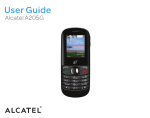
1
1 2 Content Safety and Use .......................................................8 1. Your Mobile .....................................................18 1.1 Layout....................................................18 1.2 Basic Information ..................................20 1.3 Keypad...................................................21 1.4 Idle Screen Icons....................................23 1.5 Main Menu Icons...................................25 2. Getting Started .................................................26 2.1 Set-up.....................................................26 2.2 Charging the battery ..............................27 2.3 Headset ..................................................29 2.4 Micro-SD card .......................................30 3. Basic Function .................................................31 3.1 Power On/Off.........................................31 3.2 Making Calls..........................................32 3.2.1 By enter phone No. directly ........32 3.2.2 By fast index ...............................32 3.2.3 By call records ............................32 3 3.2.4 By speeddial................................33 3.2.5 Conference Call ..........................33 3.3 Answering Calls.....................................34 3.4 Setting during Conversation ..................34 4. Contact.............................................................35 4.1 Contact menu .........................................35 4.2 Consulting your contact (“View”) .........36 4.2.1 Available options in the contacts list ........................................................36 4.2.2 Making the call ...........................37 4.2.3 Group ..........................................37 4.2.4 Searching for a name by its first letter .....................................................37 5. Message ...........................................................38 5.1 New Message.........................................38 5.2 Inbox......................................................39 5.3 Outbox ...................................................40 5.4 Drafts .....................................................40 5.5 Text Template.........................................41 5.6 Smiley....................................................41 4 5.7 Setting....................................................41 5.8 Memory Status.......................................42 6. Call Record ......................................................42 6.1 Missed Calls ..........................................42 6.2 Incoming Calls.......................................43 6.3 Outgoing Calls .......................................43 6.4 Duration .................................................44 6.5 Delete Record ........................................44 7. Profiles.............................................................44 7.1 Normal ...................................................44 7.2 Meeting..................................................45 7.3 Outdoor..................................................45 7.4 Silent......................................................46 8. MP3 .................................................................46 8.1 MP3 player ............................................46 8.2 Play list ..................................................47 8.3 MP3 Setting ...........................................48 9. Setting..............................................................49 9.1 Display...................................................49 9.1.1 Wallpaper ....................................49 5 9.1.2 Brightness ...................................49 9.1.3 Backlight.....................................49 9.1.4 Keypad backlight ........................49 9.2 Call ........................................................50 9.2.1 Call waiting.................................50 9.2.2 Call Forward ...............................50 9.3 Phone .....................................................51 9.3.1 Language ....................................51 9.3.2 Time Format................................51 9.3.3 Date Format ................................51 9.3.4 Auto Key Lock............................52 9.3.5 Answer Mode..............................52 9.3.6 Min. Reminder............................52 9.4 Ringtone.................................................52 9.5 Security..................................................53 10. Tools ..............................................................55 10.1 Alarm ...................................................55 10.2 Memo...................................................56 10.3 Calculator.............................................56 10.4 Stopwatch ............................................57 6 10.5 World time ...........................................57 10.6 USB disk..............................................57 11 Game...............................................................58 11.1 Tetris ....................................................58 11.2 Push box...............................................59 12 Gallery ............................................................60 12.1 SD Card ...............................................60 12.2 Memory Status.....................................61 13. Characters and Symbols Table.......................61 14. Warranty ........................................................63 15. Accessories ....................................................67 16. Troubleshooting .............................................68 7 Safety and Use Thank you for purchasing this product. We recommend that you read this chapter carefully before using your phone. The manufacturer disclaims any liability for damage, which may result as a consequence of improper use or use contrary to the instructions contained herein. •TRAFFIC SAFETY: Given studies, which show that using a mobile phone while driving a vehicle constitutes a real risk, even when the hands-free kit is used (car kit, headset...), drivers are requested to refrain from using their mobile when the vehicle is not parked. When switched on, your phone emits electromagnetic waves that can interfere with the vehicle’s electronic systems such as ABS anti-lock brakes or airbags. To ensure that there is no problem: - do not place your phone on top of the dashboard or within an airbag deployment area, - check with your car dealer or the car manufacturer to make sure that the dashboard is adequately shielded from mobile phone RF energy. 8 • CONDITIONS OF USE: Switch the phone off before boarding an aircraft to avoid prosecution. Switch the phone off when you are in health care facilities, except in designated areas. As with many other types of equipment now in regular use, mobile telephones can interfere with other electrical or electronic devices, or equipment using radio frequency. Switch the phone off when you are near gas or flammable liquids. Strictly obey all signs and instructions posted in a fuel depot, petrol station, or chemical plant, or in any potentially explosive atmosphere. When the phone is switched on, it should be kept at least 15 cm from any medical devices such as a pacemaker, a hearing aid or insulin pump, etc. In particular when using the phone, you should hold it against the ear on the opposite side to the device, if any. To avoid hearing impairment, pick up the call before holding your phone to your ear. Also move the handset away from your ear while using the “hands-free” mode because the amplified volume might cause hearing damage. Do not let small children use the phone without supervision. When replacing the cover please note that your phone may contain substances that could create an allergic reaction. 9 Always handle your phone with care and keep it in a clean and dust-free place. You are advised to switch off the telephone from time to time to optimize its performance. Do not allow your phone to be exposed to adverse weather or environmental conditions (moisture, humidity, rain, infiltration of liquids, dust, sea air, etc).The manufacturer’s recommended operating temperature range is -10°C to +55°C.Over 55°C the legibility of the phone’s display may be impaired, though this is temporary and not serious. Do not open or attempt to repair your mobile phone by yourself. Do not drop, throw or bend your mobile phone. Do not paint it. Use only Alcatel batteries, battery chargers, and accessories that are compatible with your phone model. (See Accessories List, page 64). T&A Mobile Phones Limited and its affiliates disclaim any liability for damage caused by the use of other chargers or batteries. The UIM card mentioned in this manual is only used for UIM version. In some countries we use NON-UIM version. It is country dependent. Your phone should not be disposed of in a municipal waste. Please 10 check local regulations for disposal of electronic products. Remember to make back-up copies or keep a written record of all important information stored in your phone. Some people may suffer epileptic seizures or blackouts when playing video games. These seizures or blackouts may occur even if a person never had a previous seizure or blackout. If you have experienced seizures or blackouts, or if you have a family history of such occurrences, please consult your doctor before playing video games on your phone. Parents should monitor their children’s use of video games. All persons should discontinue use and consult a doctor if any of the following symptoms occur: convulsion, eye or muscle twitching, loss of awareness, involuntary movements, or disorientation. To limit the likelihood of such symptoms, please take the following safety precautions: - Take a minimum of a 15-minute break hourly. - Play in a room in which all lights are on. - Play at the farthest distance possible from the screen. When you play games on your phone, you may experience occasional discomfort in your hands, arms, shoulders, neck, or other parts of your body. Follow these instructions to avoid problems such as tendinitis, 11 carpal tunnel syndrome, or other musculoskeletal disorders: - Take a minimum of a 15 minute-break every hour of game playing. - If your hands, wrists, or arms become tired or sore while playing, stop and rest for several hours before playing again. - If you continue to have sore hands, wrists, or arms during or after playing, stop the game and see a doctor. Prolonged exposure to music at full volume on the music player may damage the listener's hearing. This symbol on your telephone, the battery and the accessories means that these products must be taken to collection points at the end of their life: - Municipal waste disposal centers with specific bins for these items of equipment - Collection bins at points of sale. They will then be recycled, preventing substances being disposed of in the environment, so that their components can be reused. In European Union countries: These collection points are accessible free of charge. All products with this sign must be brought to these collection points. 12 In non European Union countries: Items of equipment with this symbol should not be thrown into ordinary bins if your country or your region has suitable recycling and collection facilities; instead they are to be taken to collection points for them to be recycled. • BATTERY: Before removing the battery from your phone, please make sure that the phone is switched off. Observe the following precautions for battery use: - Do not attempt to open the battery (due to the risk of toxic fumes and burns). - Do not puncture, disassemble or cause a short-circuit in a battery, - Do not burn or dispose of a used battery in household rubbish or store it at temperatures above 60 °C. Batteries must be disposed of in accordance with locally applicable environmental regulations. Only use the battery for the purpose for which it was designed. Never use damaged batteries or those not recommended by T&A Mobile Phones Limited and/or its affiliates. • CHARGERS: Mains powered chargers will operate within the temperature range of: 13 0 °C to 40 °C. The chargers designed for your mobile phone meet with the standard for safety of information technology equipment and office equipment use. They should be used for this purpose only. Your telephone is equipped with a built-in antenna. For optimal operation, you should avoid touching it or damaging it. • RADIOWAVES: Proof of compliance with international standards (ICNIRP) or with European Directive 1999/5/EC (R&TTE) mobile phone models before they is can required be put of all on the market. The protection of the health and safety for the user and any other person is an essential requirement of these standards or this directive. THIS MOBILE PHONE COMPLIES WITH INTERNATIONAL AND EUROPEAN REQUIREMENTS REGARDING EXPOSURE TO RADIO WAVES. Your mobile phone is a radio transmitter/receiver. It was designed and manufactured to comply with the radiofrequency (RF) exposure thresholds recommended by international requirements (ICNIRP) 1 1 and by the Council of the The ICNIRP requirements are applicable in the following regions: Central America (except Mexico), South America, North and South Africa, Pacific 14 European Union (Recommendation 1999/519/EC)2. These limits are part of a set of requirements and establish authorized radiofrequency levels for the public. These limits were established by independent groups of experts on the basis of regular and detailed scientific assessments. They include a significant safety margin intended to ensure the safety of all, regardless of age or state of health. The exposure standard for mobile phones is determined by a measurement unit known as the Specific Absorption Rate or “SAR”. The SAR limit is set by international requirements or by the Council of the European Union at 2 watts/kilogram (W/kg) averaged over 10 grams of body tissue. The tests used to determine SAR levels were carried out on the basis of standard usage modes with the phones transmitting at their maximum power level over the entire range of frequency bands. Although the SAR was established at the highest certified level, the Asia (except Taiwan and Korea), Australia. 2 The European recommendation (1999/519/EC) is applicable in the following regions: Europe, Israel. 15 actual SAR level for the mobile phone during use is generally much lower than the maximum values. In fact, since mobile phones are designed to operate at many different power levels, they only use the minimum level of power required to provide a connection to the network. In theory, the closer you are to a base station antenna, the lower the power level required by the mobile phone. The highest tested SAR value for this mobile phone for use at the ear and compliance against the standard is 1.0 W/kg. While there may be differences between the SAR levels on various phones and at various positions, they all meet the relevant International guidelines and EU requirements for RF (radio-waves) exposure. The World present Health scientific Organisation information does (WHO) considers that not indicate the need for any special precautions for use of mobile phones. If individuals are concerned, they might choose to limit their own or their children’s RF exposure by limiting the length of calls, or using “hands-free” devices to keep mobile phones away from the head and body (fact sheet n° 193). Additional information about electromagnetic fields and public health are available Your telephone is equipped with a built-in antenna. For optimal 16 operation, you should avoid touching it or damaging it. • RUIM version or NON-RUIM version: RUIM version (with UIM card) and NON-RUIM (without UIM card) version are available for CDMA products. It is operator dependent. Please consult your operator for detailed information. This manual is created based on RUIM version. Note & Warning Note: To help you to better use the phone Warning: To help you to avoid damaging or losing data Disclaimer There may be certain differences between the user manual description and the phone’s operation, depending on the software release of your telephone or specific operator services. T&A Mobile Phones Limited reserves the right, in the customer’s interest, to alter material or technical specification without prior 17 notice. 1. Your Mobile 1.1 Layout Forward key Play/Pause key Backward key Micro-SD Card Slot (also named as T-Flash card) 18 Navigation key: Message Contact Left softkey: Access the menu Confirm an option Send key: Pickup / Send call Call record(short keypress) Number key 1-9 Speeddial(long keypress) Lock/Unlock keypad (long keypress) Right softkey: Contact/delete/back End key: Switch on/off/ end call/ Back to idle screen Vibrator(long keypress) change input method 19 1.2 Basic Information Item Dimension Spec 96.5mm*45mm*17.5mm (L*W*H) Weight 80g(including battery) Display 65k, CSTN,128×128 User 600k available memory External Micro –SD card up to 1GB memory (also named as T-Flash card) Contact 300 Call Record 60 SMS 300 Capacity:800mA Voltage:3.7V Battery Talk time: 100-180 mins Standby time: 60-120 hours Working Temperature:-10℃~+55℃ 20 Note: Talk time and standby time are network dependent. 1.3 Keypad Key Function Menu / Confirm (ok ) Return to the previous screen To end calls when calling To close popup menu In edition mode: Delete a character ( short keypress) Delete all characters (long keypress) Pickup or send calls 21 Key Function Switch on / off (long keypress) End call / Back to idle screen Terminate data modem connection In idle screen: Press to access SMS Press to access Contact Navigation keys In other status: move the Up and Down keys to choose / : go to Play list Side keys :Play / Pause MP3 In Idle screen: Input “+” by long pressing key 0 Number Input numbers to make a call key 0∼9 In edition mode:input space by short press key 0 Lock or unlock the keypad (long keypress) In main menu: go to left function 22 Key Function In edition mode:change input method (short keypress) In dialing mode:input “P” (long keypress) In idle screen:activate or deactivate vibrator (long keypress) In main menu: go to right function Note: (1)Long keypress means no less than 2 seconds. Short keypress means less than 2 seconds. (2)You can go directly to the menu by pressing number 1-9 . (3)“P”is used for extention. When call a number with extention you can dial Phone Number +P + extention or dial the phone number, once it get through , dial the extention. 1.4 Idle Screen Icons Icon Function Network signal strength indicator 23 Missed call Roaming In conversation Data modem activated New SMS SMS is full Normal mode activated Meeting mode activated Outdoor mode activated Silent mode activated Headset inserted Play in background with headset inserted Play in background Alarm programmed Call firewall activated SMS firewall activated Call and SMS firewall activated SD card 24 Battery charge level 1.5 Main Menu Icons 1,Gallery 2,Call Record 3,Tools 4,Profiles 5,Message 6,MP3 7, Games 8,Setting 9,Contact Note: In main menu you can press down, and and key to go up and key to go left and right, or you can press number 1-9 to directly access to the function. E.g. press “6” to access [MP3] directly. 25 2. Getting Started 2.1 Set-up Inserting the UIM card (If any, since some operators are using NON-UIM version) Fit the UIM card with the chip facing downloads. Slide the UIM card into its compartment. Push the UIM card with your finger to release it. Removing and installing the back cover Inserting and removing the battery 26 Align the tab on top of the battery with the slot in the battery compartment of your phone. Press down the battery until the latch is securely in place. Note: Long press the key to power off the phone. Pls wait for 10 senconds before you take out the battery to avoid any damage to the phone memory. 2.2 Charging the battery The switching charger includes a plug type according the local norm and after insert the cable, the charger can be plugged to the phone with a jack. (Please only use Alcatel chargers) Please firstly insert the cable (included in the package) into the charger 27 The phone supports PC charging: connect the phone and computer USB port with the mini USB cable (included in the package), the battery can be charged with the power provided by the computer 28 Note: (1)Before connecting to the charger, make sure the battery is inserted correctly; (2)Do not force the plug into the socket (3)To achieve the best performace of the battery we suggest you charge the battery for12 to 14 hours for the first 3 times. (4)The battery will be auto discharged if not being used for long time. Please charge the battery before use. (5)Don’t use the battery or charger with any damage. (6)The battery performace will be very poor after being charged and discharged for hundreds of times. Pls change the battery once the working time is obviously shorter. 2.3 Headset One headset is included in the package. Before using the headset 29 please disconnect the charger first since they share the same jack. Once the headset is inserted will appear on the idle screen. The headset can be used to listen to the music, answer and end the phone call by long pressing the button in the headset. During the conversation please speak to the mike in the headset so that the receiver can hear you clearly. 2.4 Micro-SD card Micro-SD card(hereinafter as SD card), , is an external memory card. You can store the multimedia files here. Note: (1)The card is easily broken. Don’t bend or scratch it. Protect it from water, dust or static. (2)There are lots of cards with different brands in the market. To avoid compatbility problem we suggest you use SD card with good brand.. (3) The phone supports the SD card up to 1GB. 30 3. Basic Function 3.1 Power On/Off Long press the key to power on and off. If phone password or PIN code is activated you have to input the right password before you can use the phone. Please go to [Menu /Security Setting] to set [PIN] code and [Phone password]. If the keypad is locked, long press then long press key to power off. 31 key to unlock and 3.2 Making Calls 3.2.1 By enter phone No. directly In idle screen, enter the phone number (please enter city code first if it is a long distance fix line) and press key to make calls. 3.2.2 By fast index In idle screen, enter “Number + #” to lead to a record in the [Contact] (The Number is the record index in the [Contact]) and then press key to make calls. 3.2.3 By call records In idle screen, press and key to access Call Records. Use to pick up the number and then press call. 32 key to make 3.2.4 By speeddial In idle screen, long press key 1 to 9 to call speeddial numbers. If no speeddial is set yet, the phone will remind you “No speeddial, set now?”, press left softkey to access [Contact] to choose number for speeddial. Please refer to [Contact/Speeddial] for the settings. 3.2.5 Conference Call When you are talking to the second party over phone you can simply call the third party from [Contact] or enter the third party’s number and then press . Once the third part answers the call you can press again to start a conference call. Note: (1)If the contact has several numbers, the default number is the first one. ( 2 ) Please contact your operator to activate the funciton for conference call before use it. 33 3.3 Answering Calls For incoming calls, if the name and number have been saved, the name and number will be displayed, otherwise only number will be displayed. Press to answer the incoming call. You can also set other keys to answer the incoming calls, please refer to [Menu /Phone Setting/Answer Mode]. Note: The incoming line identification function has to be activated by your operator to display the incoming call number. 3.4 Setting during Conversation During conversation,press left softkey [Menu] for the following functions: [Silent/Unmute], [Contact] and [Message]. Silent/Unmute:the receivers can’t hear caller’s voice. Contact:to access contact function Message: to access message function. 34 4. Contact The [Contact] allows you to store phone numbers and names (or files) either in the UIM memory and/or the phone memory. You may store up to 300 entries in the phone memory. You can access your [Contact] in idle screen by pressing right softkey , or press “9” in main menu. 4.1 Contact menu View: Access the list of contacts (alphabetic order). Search: to search for a contact (alphabetic order) Add: to enter number and name of a new contact. (If you add a contact to [Phone], you can edit name, 3 numbers, Email , Address, URL, Remark, Incoming call ringtone and Group) Group: group together names by category: [Family], [Business], [Friends], [VIP], [Schoolmates], [Phone Records] and [UIM Records]. Speed Dial: to set speed dial numbers for number key 1 to 9 Copy All: to copy all the records in phone to UIM card or all the record in UIM card to phone 35 Delete All: to delete all the records in phone or in UIM card My Number: to enter your own phone numbers for future reference. Memory Status: to check the number of contacts and the memory space left. 4.2 Consulting your contact (“View”) From the idle screen, select [Contact] then [View] to access the list of your contacts. The names are sorted in alphabetical order. 4.2.1 Available options in the contacts list Once you have selected a name, press the left softkey to access the following options: View: to display the name, phone number and location (UIM card or Phone) Call: to call the number you have selected Send Message: to create a message to send to the selected contact. Send Contact: to send the current contact to several recipients by SMS Edit: to edit the data of the selected contact. Delete: to delete the selected contact. 36 Copy to Phone/ UIM: Copy the file to the phone or UIM contact. 4.2.2 Making the call Press the key when the name is selected to make a call or select [Call] in the options menu. 4.2.3 Group You can group together names by category ([Family], [Business], [Friends], [VIP], [Schoolmates], [Phone Records] and [UIM Records]) and select a special ringtone. For each group, you can select the following options: View: to check the contacts in the group Modify Group name: to change the name of the group. Group Ring: to set a special ringtone for that group. 4.2.4 Searching for a name by its first letter You can search for the person’s name by pressing the key associated with the first letter of his/her name. For instance, if you press twice, names starting with “B” will be displayed. 37 5. Message From your phone, you can read, write, send and receive SMS message and share them with other phones. To access the message from the idle screen, press the top of the key or press the left softkey and select [Message]. 5.1 New Message In the [Message] menu, select [New Message] and enter your message. Press the left softkey to access the following list: Send:send the current message. When no number is edited for destination, you can either enter the number directly or go to [Contact] by pressing left softkey to pick up one number. Once a number is entered, press left softkey to [Send Only], [Send & Save], [Save Only] and [Contact]. [Send Only] to send the current SMS, [Send & Save] to send the current SMS and save it to [Outbox], [Save Only] to save the current SMS to [Drafts] and [Contact] to choose destinations (up to 9 receivers). Save:to save the current SMS to [Drafts] 38 Text Template:to choose one text template to insert into current SMS. Smiley:to choose one smiley to insert into current SMS. Domain:to choose one net symbol to insert into current SMS Contact:to choose one contact from [Contact] to insert into current SMS. 5.2 Inbox In the [Inbox], read and unread messages are shown with different icons. Press the left softkey to access the following list: View: to check the detailed information about current SMS and then, by pressing left softkey, the following functions are available:[Reply], [Delete], [Forward], [Extract number], [Call] and [Prefix]. Reply:to reply SMS to the sender Delete:to delete the current SMS Delete all:to delete all the SMS in [Inbox] Forward:to edit and send the current SMS to someone else Call:to call the sender 39 5.3 Outbox The [Outbox] includes sent and unsent messages. Press the left softkey to access the following list: View: to check the detailed information about current SMS and then, by pressing left softkey, to delete or forward it Forward:to edit and send the current SMS to someone else Delete:to delete the current SMS Delete all:to delete all the SMS in [Outbox] 5.4 Drafts The [Drafts] includes all the unfinished messages. Press the left softkey to access the following list: Edit:to edit the current SMS Send:to send the current SMS Delete:to delete the current SMS Delete all:to delete all the SMS in [Drafts] 40 5.5 Text Template A list of predefined message are available. Select one, edit it if required, and then send it. 5.6 Smiley A list of predefined smiley are available. Select one, edit it if required, and then send it. 5.7 Setting You can change the message setting here: Save Option:to choose save position [Phone] or [Card]. If you choose [Phone] the received SMS will only be saved to UIM card after the phone memory is full. Validity period:you can choose 12 hours, 1 day, 3 days or Max Delivery Report:to [Activate] or [Deactivate] this function. Once activated you’ll receive the confirmation [Sent or Unsent] from the network after you send the SMS. Priority:to choose [Normal], [Interactive], [Urgent] or [Emergency] 41 5.8 Memory Status To check the memory status in phone and UIM card. 6. Call Record From the idle screen, press the key and your phone displays a call list. Each call is displayed with an icon indicating the type of the call (Missed calls, Incoming calls, Outgoing calls). Select a phone number in the list and press the key to redial it or press the left softkey to access the following options:[View], [Save], [Call], [Send Message], [Delete]. 6.1 Missed Calls The [Missed Calls] includes all the missed calls. Press the left softkey to access the following list: 42 View:to check the detailed information of the current record Save:to save the number to [Contact] Call:to call this number Send Message: to send SMS to the current number Delete:to delete the current record 6.2 Incoming Calls You can check all the incoming calls here. Press left softkey to access the following list: [View], [Save], [Call], [Send Message] and [Delete]. Please refer to [Missed Calls] for detailed operation. 6.3 Outgoing Calls You can check all the outgoing calls here. Press left softkey to access the following list: [View], [Save], [Call], [Send Message] and [Delete]. Please refer to [Missed Calls] for detailed operation. 43 6.4 Duration To check the duration for [Last Call], [Total incoming], [Total outgoing] and [Total duration]. Press key and to choose, left softkey to check the duration. 6.5 Delete Record To delete the records for [Missed Calls], [Incoming Calls], [Outgoing Calls] and [Delete All]. Press key and to choose, left softkey to delete. 7. Profiles 7.1 Normal You can [Activate] the [Normal] profile directly or [Customize] it by setting [Volume], [Alert mode] and [Ringtone]. 44 Volume:Press key and to adjust the volume for [Ringtone], [Receiver] and [Key beep] Alert mode: to choose [Ringtone], [Vibrate], [Ring+Vibrate] or [Close] Ringtone:to [Activate] or [Deactivate] the Ringtone for [Incoming call], [SMS alert], [Alarm Tone], [key beep], [Power On/Off tone] and [Warning Tone] Note: You can deactivate the [Power On / Off tone] in [Ringtone] for each profile. 7.2 Meeting You can [Activate] the [Meeting] profile or [Customize] it. Please refer to [Normal] for detailed operation. 7.3 Outdoor You can [Activate] the [Outdoor] profile or [Customize] it. Please 45 refer to [Normal] for detailed operation. 7.4 Silent You can [Activate] the [Silent] profile or [Customize] it. Please refer to [Normal] for detailed operation. 8. MP3 You can access the MP3 player directly by pressing side key in idle screen. 8.1 MP3 player If the play list is empty, press right softkey to exit and go to [Play List] to add music. If there is music in the list, press pause, to play previous song, to play or to play next song and right softkey to exit the player interface and to play in background. When play in the background, press to interface, and to access [Play list]. 46 access player Shortcut:In idle screen, press and to access [Play list] to add or play MP3; press to access MP3 player and press again to play ( if there’s MP3 song in the play list). 8.2 Play list To display all the available music. If the list is empty press left softkey to [Add Single Chip] or [Add Folder ]; if the list is not empty press left softkey to [Play], [Add Single Chip], [Add Folder ], [Delete] or [Delete All]. Play:to play the songs in the current list Add Single Clip : to add a song in [SD Card] to play list Add Folder: to add all the songs in [SD Card ] to play list Delete:to delete the current song in the play list Delete:to delete all the songs in the play list(not delete the songs in [SDCard ]) or Shortcut:In idle screen, press setting 47 to access play list for Note: Please only save the mid or MP3 files in [MUSIC] file or root directory of SD card. The phone can’t identify the mid or MP3 files in other folders of SD card. The Vimicro 968 MP3 chip (the MP3 chip of this phone) supports: both ISO 11172-3 and ISO 13818-3 layer III audio; all sample rates and bit rates, in stereo or mono; all sample rates and bit rates, in stereo or mono; CBR and VBR. The MP3 player will be paused if there’s an coming call, SMS, Alarm, ringtone changing or any activity related to speek when playing music. The MP3 player will play from the very beginning , not from the paused part, after the activity. 8.3 MP3 Setting You can set the following items: [Play Mode], [Music effect] and [Change skin] Play Mode: to choose the play mode you want: [Single], [Single Cyc], [Sequence], [Play All Cyc] or [Random] Music effect: the following effect are available: [Normal], [Classical], [Club Music], [Popular], [Base], [Electron Music], [Country Music], [Rock] and [Dance]. Change skin: two skins are available 48 9. Setting 9.1 Display In idle screen, go to [Menu/Setting/Display] to set: [Wallpaper], [Brightness], [Backlight] and [Keypad backlight] 9.1.1 Wallpaper To choose the wallpaper you like from [Basic wallpaper]. 9.1.2 Brightness Press and to adjust the screen brightness 9.1.3 Backlight To set the backlight on for [10 Sec], [30 Sec], [60 Sec] or [Always On] 9.1.4 Keypad backlight To [Activate] or [Deactivate] the keypad backlight 49 9.2 Call In idle screen, go to [Menu/Setting/Call] to set: [Call Waiting] and [Call Forward] 9.2.1 Call waiting Once [Call Waiting] is activated (network support needed for this feature) you can answer a second call when you are already on a line. The network will remind you for the second call (the reminding way is network dependent). You can [Accept] or [End] the new call and press key to switch between the two calls. 9.2.2 Call Forward Once [Call Forward] is activated you can forward your incoming calls to a designated number under the condition of [Unconditional], [When busy], [No answer] or [Default]. Unconditional: to forward all the incoming calls to a designated number without condition When busy: to forward all the coming calls to a designated number if your phone is busy 50 No answer: to forward all the coming calls to a designated number if your phone is no answer Default: to forward all the coming calls to a designated number if your phone is switched off or no signal 9.3 Phone In idle screen, go to [Menu/Setting/Phone ] to set: [Language], [Time Format], [Date Format], [Auto Key Lock], [Answer Mode] and [Min. Reminder]. 9.3.1 Language To choose one of the languages supported by the phone. Two languages are supported by the phone. 9.3.2 Time Format To choose between [12 Hours] and [24 Hours] 9.3.3 Date Format [dd-mm-yyyy], [mm-dd-yyyy] or [yyyy-mm-dd] 51 9.3.4 Auto Key Lock To [Activate] or [Deactivate] the [Auto Key Lock]. Once the [Auto Key Lock] is activated the keypad will be auto locked if no key pressing activity in a few seconds and long press key * to unlock 9.3.5 Answer Mode To answer the calls by [Any Key] or [Send Key]. If [Any key] is on you can answer incoming calls by pressing any key except key . 9.3.6 Min. Reminder To set [Min. Reminder] as [Close], [45 sec.], [50 sec.] or [55 sec.] 9.4 Ringtone In idle screen, go to [Menu/Setting/Ringtone] to set the ringtone for: [Incoming calls], [SMS alert], [Alarm tone], [Key beep], [Power on] and [Power off ]. Incoming calls: to choose the ringtone for incoming calls from the embedded 18 ringtones or [SD Card] SMS alert: to choose the ringtone for SMS from the embedded 5 52 ringtones or [SD Card] Alarm tone: to choose the ringtone for SMS from the embedded 5 ringtones or [SD Card] Key beep: [Normal Tone] or [Kata Tone] Power on: to choose the ringtone for power on from the embedded 5 ringtones Power off: to choose the ringtone for SMS from the embedded 5 ringtones 9.5 Security In idle screen, go to [Menu/Setting/Security] and enter the phone password (the original password: 0000) to set: [Phone password], [PIN], [Data password], [Call Firewall], [SMS Firewall] and [Factory Reset]. Phone password: [Activate], [Deactivate] or [Modify] the phone password Pin: [Activate], [Deactivate] or [Modify] the Pin code Data password: [Activate], [Deactivate] or [Modify] the data password. Once activate and set the data password you can choose the 53 data you want to protect: [Contact], [Message] and [Call Record] Call Firewall: including [Incoming barring] and [Outgoing barring]. For [Incoming barring], if [All] is activated no number can call you; if you choose [partly] and edit one set of number, e.g 133, then all the number start with 133 can’t call you; if you activate [Contact only], then only the numbers saved in your [Contact] can call you. For [Outgoing barring], if [All] is activated you can’t call any number except emergency numbers; if you choose [partly] and edit one set of number, e.g 021, then you can’t call any number starting with 021; if you activate [Contact only], then you can only call the numbers saved in your [Contact]. SMS Firewall: including [Receiving barring] and [Outgoing barring] For [Receiving barring], if [All] is activated you can’t receive any SMS; if you choose [partly] and edit the number you want to bar, e.g 1398, then you can’t receive the SMS sent by the numbers starting with 1398; if you activate [Contact only], then you can only receive the SMS sent from the numbers saved in your [Contact]. For [Outgoing barring], if [All] is activated you can’t send any SMS; if you choose [partly] and edit the number you want to bar, e.g 1398, then you can’t send SMS to all the numbers starting with 1398; if you 54 activate [Contact only], then you can only send SMS to the numbers saved in your [Contact]. Note: (1)The UIM card will be locked if you enter the wrong PIN code 3 time continuously. (2)You can only enter the right PUK code to unlock your phone once the UMI card is locked. Please contact you operator to get the PUK. (3)If you enter the wrong PUK code for 10 times continuously the UIM card will become invalid forever. Please contact your operator to get a new card. 10. Tools 10.1 Alarm Your phone has alarm facility to edit 3 alarms. Choose one alarm and press left softkey to edit it: enter time with number keys; press key 55 and to choose the item to edit; press * or # to set [Activate/Deactivate] and [Once/Everyday/Workday/Weekend] and press left softkey to confirm the setting. 10.2 Memo In idle screen, go to [Menu/Tools/Memo] to display all the memos. If no record, press left softkey to add one memo; if there’re records, press left softkey to [View], [Edit], [Add], [Delete] or [Delete All]. View: to check the current record Edit: to edit the current record Add: to add a new record Delete: to delete the current record Delete All: to delete all the records 10.3 Calculator Your phone has calculator facility: use number keys to enter numbers, * to enter decimal, # to enter minus, enter operator and left softkey to get the result. 56 and to 10.4 Stopwatch Press left softkey to activate the stopwatch and right softkey to stop. During the timing press left softkey to save the record (up to 6 records). Once stopped, press left softkey to reset and right softkey to exit. 10.5 World time This feature can help you to check the time for different cities all over the world. Press and to choose the city you want to check. 10.6 USB disk You can use your phone as a USB disk. Before activate this feature make sure that you have insert the SD card correctly and the USB cable have connected to a computer. Press left softkey to activate or deactivate the USB disk. An icon will appear in the taskbar at the right bottom of the computer. Once the USB disk is activated, in the removable disk of the computer 57 you ‘ll find a folder named “MUSIC”. Please save the mid and MP3 files here. Note: The phone can’t identify the mid and MP3 files in other folders except “Music”.Please only save them in “MUSIC” or the root directory of the removable disk. To save power please deactivae this function if you don’t use it. Since the configuration of each computer is quite diferent, to avoid any compatibility problem please only use the USB interface at the backside of the host computoer 11 Game 11.1 Tetris The aim of this game is to make as many complete lines of bricks as possible by adjusting the directions and positions of the dropping brick. 58 Key Function Rotate the brick Move left Move right Drop the brick Pause Activate or deactivate the music effect Replay Exit 11.2 Push box The aim of this game is to push the box to the designated position. Key Function Last level Next Level Go up Go left 59 Go right Go down Activate or deactivate the music effect 12 Gallery 12.1 SD Card Press the left softkey to access the following list: [Play], [Set as ringtone], [Set as SMS alert], [Set as alarm tone], [Delete], [Delete All], [Rename] and [Property]. Note: 1,The phone can only identyfy the mid and mp3 files in [Music] and root directory of SD card. 2,If the music is playing in backgroud the following four options will not available: [Delete], [Delete All], [Rename] and [Property] 3,You can use up to 18 symbols to rename a file and the following symbols can’t be included: \ / : * ? ” < > | 60 12.2 Memory Status To check the memory status for [Phone] and [SD Card] 13. Characters and Symbols Table To enter a word in normal mode, press the key corresponding to the desired letter several times until the letter appears. Key Upper Case Lower Case .,-()%!1 .,-()%!1 61 AB C2 abc2 DEF3 def3 GHI4 ghI4 JKL5 jkl5 MNO6 mno6 PQRS7 pqrs7 TUV8 tuv8 WXYZ9 wxyz9 In idle screen: long press to lock or unlock the keypad In edition mode: short press to display the symbols bar, long press the enter * In main menu: go to left function In edition mode: short press to enter space In number mode: short press to enter 0 and long press to enter space In edition mode: short press to change input methods 62 In dialing mode: long press to enter P (for extention) In idle screen: long press to change to vibrator In main menu: go to right function This table is given for information purposes only. It may vary depending on the language and the model. Symbols Bar: Short press key Press key to display the symbols bar: or to page down Press the number or * or # before each symbol to insert the symbol 14. Warranty Congratulations on choosing this mobile phone - we hope that you will be completely satisfied with it. Your phone is guaranteed against any deviation from technical specifications for a period of twelve (12) months from the date specified 63 on your original invoice3.The warranty terms defined in the manual also apply to the battery and accessories but for a period of six (6) months4 from the date of purchase shown on your original invoice. Under the terms of this warranty, you must inform your vendor (or any maintenance centre approved by T&A Mobile Phones Limited or its affiliates, which are listed on our website www.tctmobile.com) without delay, of any defect and present the invoice given to you at the time of purchase. The vendor or maintenance centre will decide whether to replace or repair, as appropriate, all or any part of the telephone or accessory found to be defective; this warranty covers the cost of parts 3 The warranty period may vary if overriding statutory provisions are applicable in your country. 4 The life of a rechargeable Alcatel telephone battery in terms of conversation time, standby time, and total service life, will depend on the conditions of use and network configuration. Batteries being considered expendable supplies, the specifications state that you should obtain optimal performance for your Alcatel phone during the first six months after purchase and for approximately 200 more recharges. 64 and labour but excludes any other costs. Repair or replacement may be carried out using reconditioned components offering equivalent functionality. Servicing under the terms of this warranty, especially repair, modification or replacement of products, shall entitle to a THREE (3) month warranty unless there are statutory provisions to the contrary. This warranty shall not apply to damage or defects to your telephone and/or accessory caused by: 1) failure to follow the instructions for use or installation, 2) failure to comply with technical and safety standards applicable in the geographical area where the equipment is used, 3) improper maintenance of batteries and other sources of energy, and of the overall electric installation, 4) accidents or consequences of theft of the vehicle in which the telephone is transported, acts of vandalism, lightning, fire, humidity, infiltration of liquids, inclement weather, 5) connecting or integrating the phone into equipment not supplied or not recommended by T&A Mobile Phones Limited or its affiliates, without their express written consent for such,, 6) any servicing, modification or repair performed by individuals not authorized by T&A Mobile Phones Limited or its affiliates, the vendor or 65 the approved maintenance centre, 7) use of the equipment for a purpose other than that for which it was designed, 8) normal wear, 9) malfunctions caused by external causes (e.g., radio interference from other equipment, power or telephone line voltage fluctuations), 10) modifications made to the equipment even if required by changes in regulations and/or modification of network parameters, 11) faulty connections resulting from unsatisfactory radio transmission or caused by the absence of radio relay coverage. In accordance with the applicable law, T&A Mobile Phones Limited or its affiliates guarantee your product against hidden defects (defects inherent in the design, manufacture, etc.). The above provisions constitute the only claims enforceable against the manufacturer and vendor in the event of defects in the phone or accessory. There are no express warranties, whether written or oral, other than this printed limited warranty. All implied warranties, including without limitation the implied warranties of merchantability or fitness for a particular purpose, are limited to the duration of this limited warranty. In 66 no event shall T&A Mobile Phones Limited or its affiliates be liable for incidental or consequential damages of any nature whatsoever, including but not limited to loss of profits, commercial loss, to the full extent those damages can be disclaimed by law. Some countries/states do not allow the exclusion or limitation of incidental or consequential damages, or limitation of the duration of implied warranties, so the preceding limitations or exclusions may not apply to you. 15. Accessories5 Battery Data Cable (T5001985AAAA) (T5001431AAAA) 3 Only use your phone with Alcatel batteries, chargers and accessories compatible with your model. 67 Charger Headset (T5000436**AA) (T5000361AAAA) 16. Troubleshooting Before contacting the aftersales department, you are advised to follow the instructions below: z You are advised to switch off the phone from time to time to optimize its performance. z You are advised to fully charge the battery ( ) for optimal operation. z Avoid storing large amounts of data in your phone as this may affect the performance of your phone And carry out the following checks: My phone does not switch on: 68 z Press z Check the battery charge level z Check the battery contacts, remove and reinstall your battery, until the screen comes on then turn your phone back on My phone does not charge properly: z Make sure that your battery is not completely discharged; the battery charge indicator can take several minutes and may be accompanied by a quiet hissing sound. z Make sure charging is carried out under normal conditions (00C to +400C) z Make sure your battery is inserted. It must be inserted before plugging in the charger z Make sure you are using Alcatel Battery and charger UIM card error: z Make sure the UIM card was correctly inserted z Make sure that your UIM card is still valid z Make sure the chip on your UIM card is clean, not damaged or scratched. The phone reminds you to enter PUK: 69 z Please contact your operator to get the PUK z Enter PUK to unlock the phone. Unable to make outgoing calls: z Make sure you have dialed a valid number z For international calls, make sure you have entered the country code and area codes z Make sure your phone is connected to a network, and that the network is not overloaded or unavailable z Check your subscription with your operator (credit, UIM card valid, etc) z Make sure you have not barred outgoing calls. The sound quality of the calls is not optimal z You can adjust the volume during a call by means of the and z keys Check the radio reception icon The caller can’t hear you during the call: z Check whether you mike is blocked or not My phone does not connect to a network: z Try connecting in anther location 70 z Verify the network coverage with your operator z Check with your operator that your UIM card is still valid z Try connecting at a later time if the network is overloaded. The music file in SD card can’t be identified: z Number limitation In root directory of SD card: whether the number of mid file exceeds 100 In root directory of SD card: whether the number of MP3 file exceeds 100 In MUSIC file of SD card: whether the number of mid file exceeds 100 In MUSIC file of SD card: whether the number of MP3 file exceeds 100 z Length of the file name The name of the file saved in SD card is up to 18 characters 71 Alcatel logo and Alcatel name are trademarks of Alcatel used under license by T&A Mobile Phones Limited. All rights reserved. © Copyright 2007 T&A Mobile Phones Limited T&A Mobile Phones Limited reserves the right, in the customer’s interest, to alter material or technical specification without prior notice. 72