1
Establishing authentication policies for HBAs
16
Establishing authentication policies for HBAs
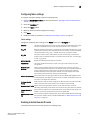
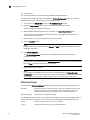
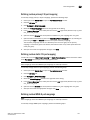
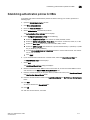
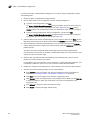
To establish and enable authentication policies for HBAs as the log in to a fabric, perform the
following steps.
1. Open the Switch Administration window.
2. Click Show Advanced Mode.
3. Select the Security Policies tab.
4. Select Authentication under Security Policies.
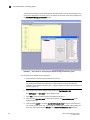
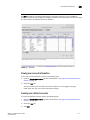
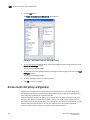
The Authentication Policy Settings screen displays.
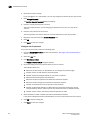
5. Under Configure Authentication Policy, do the following.
•
•
•
•
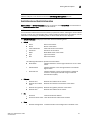
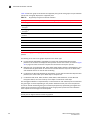
Select the Authentication Type. The choices are FCAP, DHCHAP, or both.
Select the Switch Authentication Policy Mode. The choices are Passive, Active, On, or Off.
Select the Hash Type used. The choices are SHA1, MD5, or both.
Select the DH-Group Type. The choices are 0 (no DH authentication), 1 (1024 bit), 2 (1280
bit), 3 (1536 bit), or 4 (2048 bit).
• Use the Device Authentication Policy Mode selector to set the desired mode. The choices
are On, Off, or Passive.
• Click Apply.
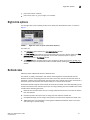
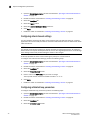
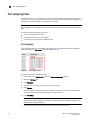
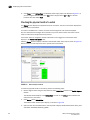
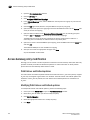
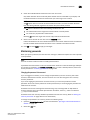
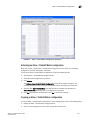
6. If your authentication method uses a shared secret, select the Shared Secret Keys tab.
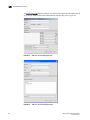
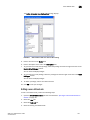
The Shared Secret Keys screen displays.
7.
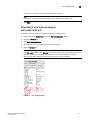
Select Add.
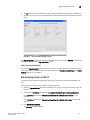
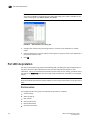
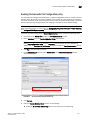
The Add Shared Secret Keys dialog box displays.
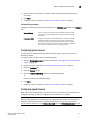
8. Browse to select the switch WWN or name and domain ID, or enter the switch WWN or name
and domain ID in the Switch WWN: Name/Domain ID field.
9. Enter the shared secret key for the peer device (an HBA in this case) in the Peer Shared Secret
and Confirm Peer Shared Secret fields.
10. Enter the shared secret for switch in the Local Shared Secret and Confirm Local Shared Secret
fields.
11. Click Add.
An entry is added in the Switch WWN box.
12. Click OK.
13. Add more shared secrets, if needed.
Web Tools Adminstrator’s Guide
53-1002152-01
213