1
Alarm and Starter System
www.firstechonline.com | www.compustar.com
CM6000 Install Guide
At the end of menu 4, if diesel mode or auxiliary setting functions were enabled – or if any of the auxiliary outputs were set to “Program”, the duration of these settings can now be adjusted.
Following the auxiliary and diesel settings (if selected), the POC options will be displayed on the OP500. The
POCs can be set between 0 (default) and 19.
STEP 3: When finished with the adjustment of the various option settings, press and hold the “W” (write) button until the OP500 chirps, which is approximately 2.5 seconds. This will write the settings to the control module. Wait until the module displays “Success” before disconnecting it from the antenna cable.
To reset the options, hold the “R” (reset) button and the “W” (write) button for 2.5 seconds. Release then write
the reset, hold the “W” button until the OP500 chirps, which is approximately 2.5 seconds.
Option Programming Using a Remote
Using a remote is a timed process so read this section in its entirety before beginning. IMPORTANT: Special
Option Groups cannot be programmed with a remote – the OP500 must be used.
STEP 1: Select the option menu that contains the desired programming option.
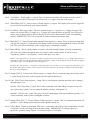
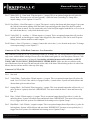
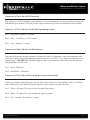
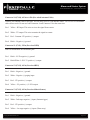
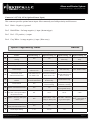
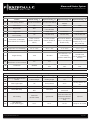
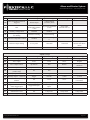
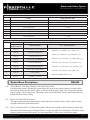
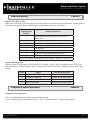
To program options use the following button combinations:
Copyright 2009 Firstech, LLC.
Select Option 2
Select Option 3
Select Option 4
Tap Button
4
Tap Button
4
Tap Button
4
Tap Button
4
Select Option 1
(1 + 2) for 2.5 seconds then
(1 + 2) for 2.5 seconds
(1 + 2) for 2.5 seconds then
(1 + 4) for 2.5 seconds
(1 + 4) for 2.5 seconds then
(1 + 2) for 2.5 seconds
(1 + 4) for 2.5 seconds then
(1 + 4) for 2.5 seconds
Wait for corresponding parking light flash
and/or siren chirp before selecting the
option
Scroll Through
Menu
(Wait for chirp
between each tap)
Option
Menu 1
Option
Menu 2
Option
Menu 3
Option
Menu 4
With 2 Way
Remotes
(Wait for chirp
between each tap)
How to Program Options with 2-Way Remotes
Tap Button
1
Tap Button
1
Tap Button
1
Tap Button
1
Tap Button
2
Tap Button
2
Tap Button
2
Tap Button
2
Tap Button
3
Tap Button
3
Tap Button
3
Tap Button
3
Tap Button
4
Tap Button
4
Tap Button
4
Tap Button
4
Page 30