1
chapter 4
Synchronic Controls
Adjusting Synchronic
Parameters
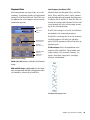
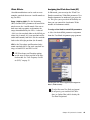
Editing Parameters Using a Mouse
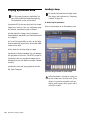
You can adjust rotary controls with a mouse by
dragging horizontally or vertically. Parameter
values increase as you drag upward or to the
right, and decrease as you drag downward or to
the left.
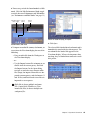
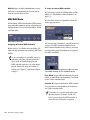
To type a parameter value:
1 Click on the parameter text that you want to
edit.
2 Change the value.
• Type the desired value.
– or –
• To increase a value, press the Up Arrow on
your keyboard. To decrease a value, press
the Down Arrow on your keyboard.
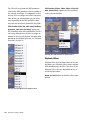
3 Do one of the following:
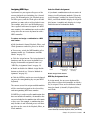
Editing Parameters Using a Computer
Keyboard
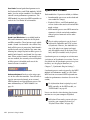
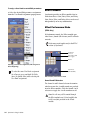
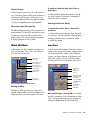
Each rotary control has a corresponding parameter text field directly below it. This displays the
current value of the parameter. You can edit the
numeric value of a parameter with your computer keyboard.
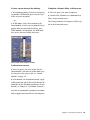
• Press Enter on the numeric keyboard to input the value and remain in keyboard editing mode.
– or –
• Press Enter on the alpha keyboard (Windows) or Return (Mac) to enter the value
and leave keyboard editing mode.
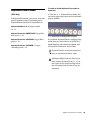
To move forward through the different parameters, press the Tab key. To move backward, press Shift+Tab.
Chapter 4: Synchronic Controls
17