1
For the following languages, a PDF version of the Owner’s Manual can be found on the CD-ROM.
Deutsch, Français, Italiano, Español, Português, Nederlands
Flowchart: Using the QUAD-CAPTURE for Recording
DAW (Digital Audio Workstation) is the generic term used for music creation software.
Install the driver (p. 14).
Do you have a DAW?
Yes.
No.
Windows/Mac OS X
Prepare the DAW software,
such as Ableton Live,
GarageBand, Logic, etc.
Set the input/output audio device on the DAW (p. 24, p. 27).
Connect a guitar or microphone to the QUAD-CAPTURE (p. 25).
Adjust the input gain level.
QUAD-CAPTURE (p. 25)
Control panel (p. 29)
Adjust the preamp or compressor
(p. 29, p. 30).
Recording
USING THE UNIT SAFELY
Before using this unit, carefully read the sections entitled: “USING THE UNIT SAFELY” and “IMPORTANT NOTES” (p. 3;
p. 5). These sections provide important information concerning proper operation of the unit. Additionally, in order
to feel assured that you have gained a good grasp of every feature provided by your new unit, the Owner’s Manual
should be read in its entirety. The manual should be saved and kept on hand as a convenient reference.
About
WARNING and
CAUTION Notices
Used for instructions intended to alert the
user to the risk of death or severe injury
should the unit be used improperly.
Used for instructions intended to alert the
user to the risk of injury or material
damage should the unit be used
improperly.
* Material damage refers to damage or
other adverse effects caused with
respect to the home and all its
furnishings, as well to domestic animals
or pets.
About the Symbols
The symbol alerts the user to important instructions or
warnings.The specific meaning of the symbol is
determined by the design contained within the triangle. In
the case of the symbol at left, it is used for general
cautions, warnings, or alerts to danger.
The symbol alerts the user to items that must never be
carried out (are forbidden). The specific thing that must
not be done is indicated by the design contained within
the circle. In the case of the symbol at left, it means that
the unit must never be disassembled.
The symbol alerts the user to things that must be
carried out. The specific thing that must be done is
indicated by the design contained within the circle. In the
case of the symbol at left, it means that the power-cord
plug must be unplugged from the outlet.
ALWAYS OBSERVE THE FOLLOWING
• Do not open or perform any internal
modifications to the unit.
• Make sure you always have the unit placed
so it is level and sure to remain stable. Never
place it on stands that could wobble, or on
inclined surfaces.
• Do not attempt to repair the unit, or replace
parts within it (except when this manual
provides specific instructions directing you
to do so). Refer all servicing to your retailer,
the nearest Roland Service Center, or an
authorized Roland distributor, as listed on
the “Information” page.
• This unit, either alone or in combination
with an amplifier and headphones or
speakers, may be capable of producing
sound levels that could cause permanent
hearing loss. Do not operate for a long
period of time at a high volume level, or
at a level that is uncomfortable. If you
experience any hearing loss or ringing in the
ears, you should immediately stop using the
unit, and consult an audiologist.
• Never install the unit in any of the following
locations.
• Subject to temperature extremes
(e.g., direct sunlight in an enclosed
vehicle, near a heating duct, on top of
heat-generating equipment); or are
• Damp (e.g., baths, washrooms, on wet
floors); or are
• Exposed to steam or smoke; or are
• Do not place containers containing liquid
on this product. Never allow foreign objects
(e.g., flammable objects, coins, wires) or
liquids (e.g., water or juice) to enter this
product. Doing so may cause short circuits,
faulty operation, or other malfunctions.
• Subject to salt exposure; or are
• Humid; or are
• Exposed to rain; or are
• Dusty or sandy; or are
• Subject to high levels of vibration and
shakiness.
3
USING THE UNIT SAFELY
• Immediately disconnect the USB cable,
and request servicing by your retailer,
the nearest Roland Service Center, or an
authorized Roland distributor, as listed on
the “Information” page when:
• Objects have fallen into, or liquid has
been spilled onto the unit; or
• Try to prevent cords and cables from
becoming entangled. Also, all cords and
cables should be placed so they are out of
the reach of children.
• Never climb on top of, nor place heavy
objects on the unit.
• If smoke or unusual odor occurs
• The unit has been exposed to rain (or
otherwise has become wet); or
• The unit does not appear to operate
normally or exhibits a marked change in
performance.
• In households with small children, an adult
should provide supervision until the child is
capable of following all the rules essential
for safe operation of the unit.
• Protect the unit from strong impact.
(Do not drop it!)
• DO NOT play a CD-ROM disc on a
conventional audio CD player. The resulting
sound may be of a level that could cause
permanent hearing loss. Damage to
speakers or other system components may
result.
4
• Disconnect all cords coming from external
devices before moving the unit.
• Always turn the phantom power off
when connecting any device other than
condenser microphones that require
phantom power. You risk causing damage
if you mistakenly supply phantom power
to dynamic microphones, audio playback
devices, or other devices that don’t
require such power. Be sure to check the
specifications of any microphone you intend
to use by referring to the manual that came
with it.
(This instrument’s phantom power: 48 V DC, 6 mA Max)
IMPORTANT NOTES
Power Supply
Maintenance
• Before connecting this unit to other devices, turn off the
power to all units. This will help prevent malfunctions
and/or damage to speakers or other peripheral devices.
• For everyday cleaning, wipe the unit with a soft, dry
cloth or one that has been slightly dampened with
water. To remove stubborn dirt, use a cloth impregnated
with a mild, non-abrasive detergent. Afterwards, be sure
to wipe the unit thoroughly with a soft, dry cloth.
Placement
• Using the unit near power amplifiers (or other
equipment containing large power transformers) may
induce hum. To alleviate the problem, change the
orientation of this unit; or move it farther away from the
source of interference.
• This device may interfere with radio and television
reception. Do not use this device in the vicinity of such
receivers.
• Noise may be produced if wireless communications
devices, such as cell phones, are operated in the vicinity
of this unit. Such noise could occur when receiving
or initiating a call, or while conversing. Should you
experience such problems, you should relocate such
wireless devices so they are at a greater distance from
this unit, or switch them off.
• Never use benzine, thinners, alcohol or solvents of any
kind, to avoid the possibility of discoloration and/or
deformation.
Repairs and Data
• Please be aware that all data contained in the unit’s
memory may be lost when the unit is sent for repairs.
Important data should always be written down on
paper (when possible). During repairs, due care is taken
to avoid loss of data. However, in certain cases (such as
when circuitry related to memory itself is out of order),
we regret that it may not be possible to restore such
data, and Roland assumes no liability concerning such
loss of data.
• Do not expose the unit to direct sunlight, place it near
devices that radiate heat, leave it inside an enclosed
vehicle, or otherwise subject it to temperature extremes.
Excessive heat can deform or discolor the unit.
• When moved from one location to another where the
temperature and/or humidity is very different, water
droplets (condensation) may form inside the unit.
Damage or malfunction may result if you attempt to use
the unit in this condition. Therefore, before using the
unit, you must allow it to stand for several hours, until
the condensation has completely evaporated.
• Depending on the material and temperature of the
surface on which you place the unit, its rubber feet may
discolor or mar the surface.
You can place a piece of felt or cloth under the rubber
feet to prevent this from happening. If you do so,
please make sure that the unit will not slip or move
accidentally.
• Do not put anything that contains water (e.g., a flower
vase) on this unit. Also, avoid the use of insecticides,
perfumes, alcohol, nail polish, spray cans, etc., near the
unit. Swiftly wipe away any liquid that spills on the unit
using a dry, soft cloth.
5
IMPORTANT NOTES
Additional Precautions
• Please be aware that contents in memory can be
irretrievably lost as a result of a malfunction, or improper
operation of the unit. To protect yourself against the
risk of loosing important data, we recommend that you
periodically save a backup copy of important data you
have stored in the unit’s memory.
• Unfortunately, it may be impossible to restore the
contents of data that was stored in the unit’s memory
once it has been lost. Roland Corporation assumes no
liability concerning such loss of data.
• Use a reasonable amount of care when using the unit’s
buttons, sliders, or other controls, and when using
its jacks and connectors. Rough handling can lead to
malfunctions.
• When connecting / disconnecting all cables, grasp the
connector itself—never pull on the cable. This way
you will avoid causing shorts, or damage to the cable’s
internal elements.
• Microsoft, Windows and Windows Vista are either
registered trademarks or trademarks of Microsoft
Corporation.
• Windows® is known officially as: “Microsoft® Windows®
operating system.”
• VST is a trademark of Steinberg Media Technologies
GmbH.
• ASIO is a trademark of Steinberg Media Technologies
GmbH.
• Company names and product names appearing in this
document are registered trademarks or trademarks of
their respective owners.
• MMP (Moore Microprocessor Portfolio) refers to a patent
portfolio concerned with microprocessor architecture,
which was developed by Technology Properties Limited
(TPL). Roland has licensed this technology from TPL
Group.
• To avoid disturbing your neighbors, try to keep the
unit’s volume at reasonable levels. You may prefer to use
headphones, so you do not need to be concerned about
those around you.
• When you need to transport the unit, package it in the
box (including padding) that it came in, if possible.
Otherwise, you will need to use equivalent packaging
materials.
• Some connection cables contain resistors. Do not use
cables that incorporate resistors for connecting to this
unit. The use of such cables can cause the sound level to
be extremely low, or impossible to hear. For information
on cable specifications, contact the manufacturer of the
cable.
Handling CDs
• Avoid touching or scratching the shiny underside
(encoded surface) of the disc. Damaged or dirty CD discs
may not be read properly. Keep your discs clean using a
commercially available CD cleaner.
Copyright © 2011 ROLAND CORPORATION
All rights reserved. No part of this publication may be reproduced in any form without the written
permission of ROLAND CORPORATION.
Roland is a registered trademark of Roland Corporation in the United States and/or other countries.
6
Contents
USING THE UNIT SAFELY......................3
Checking the Driver Settings........................ 35
IMPORTANT NOTES...............................5
Viewing the Control Panel in the
Foreground.......................................................... 35
Contents of the Package......................8
Panel Descriptions..............................10
Front Panel........................................................... 10
Checking the Version of the Control
Panel....................................................................... 35
Troubleshooting.................................36
Problems When Installing the Driver.......... 36
Rear Panel............................................................. 12
Problems When Using the QUADCAPTURE............................................................... 37
Driver Installation...............................14
Limitations When Using the 192 kHz
Setting................................................................... 43
Confirm that Sound can be Heard............... 21
Basic Use...............................................23
Changing Computer Settings to Avoid
Problems............................................................... 44
Setup for Playback............................................. 23
Driver Signing Options Setting
(Windows XP).......................................... 44
Output Device Settings....................... 24
Power Management Settings............ 45
Setup for Recording.......................................... 25
System “Performance” Settings
(Windows)................................................ 46
Adjusting the Input Level................... 25
Adjusting the Input Level
Automatically.......................................... 26
Input Device Settings........................... 27
Setting from the Control Panel........28
Starting up the Control Panel....................... 28
Setting the Preamp........................................... 29
Setting the Compressor.................................. 30
Setting the Input Mixer................................... 31
Setting the Sampling Rate............................. 31
Selecting the Sound Output from the
COAXIAL OUT (3/4) Jack.................................. 32
Setting the System Volume................ 47
Voice Communication Software
Settings (Windows 8.1/8/7)................ 48
Monitoring Function Settings
(Windows 8.1/8/7)................................. 48
Reinstalling the Driver..................................... 49
Deleting the Driver................................ 49
Advanced Driver Settings............................... 51
Main Specifications............................53
Index......................................................55
Saving and Loading Your Settings............... 32
Saving Settings....................................... 32
Loading Settings.................................... 32
Initializing the Settings.................................... 33
Checking the Signal Flow............................... 33
Setting the Input from the COAXIAL IN
(3/4) Jack............................................................... 33
Changing the AUTO-SENS Setting
Method.................................................................. 34
Checking Synchronization with Other
Digital Equipment............................................. 34
7
Contents of the Package
After you open the package, please check that all items are present.
(If any accessories are missing, please contact the place of purchase.)
QUAD-CAPTURE
Owner’s Manual
This is the document you’re reading. Keep it at hand for reference when needed.
QUAD-CAPTURE Driver CD-ROM
This CD-ROM contains the QUAD-CAPTURE drivers and demo songs.
* Do not play a CD-ROM disc on a conventional audio CD player.
The resulting sound may be of a level that could cause permanent hearing loss, or damage to
speakers or other system components may result.
* Before you open the included CD-ROM, you should read the “License agreement.” Opening the
CD-ROM will be taken to mean your acceptance of the license agreement.
* Avoid touching or scratching the shiny underside (encoded surface) of a disc. Damaged or dirty
discs may not be read properly. Use a commercially available CD-ROM/DVD-ROM cleaner to keep
your disc clean.
USB cable
Use this cable to connect the QUAD-CAPTURE to the USB connector of your computer.
* Please use only the included USB cable. If you require a replacement due to loss or damage,
please contact the nearest Roland Service center, or an authorized Roland distributor, as listed
on the “Information” page.
Ableton Live Lite Serial Number Card
The Ableton Live Lite serial number card contains a serial number that you will need when you
install Ableton Live Lite. This serial number cannot be reissued. Please take care not to lose it.
For details on the installation procedure and other information, refer to http://roland.cm/livelite .
Please be aware that Roland does not provide support for Ableton Live Lite..
8
Contents of the Package
License agreement
This agreement allows you to use certain software whose copyright is the property of Roland
Corporation.
You must read this before opening the CD-ROM.
You’ll need to provide the following items
• External amplifier, speakers, headphones, etc., for listening to the sound that is output via the
QUAD-CAPTURE
• Microphone, guitar, etc., for inputting audio to the QUAD-CAPTURE
• Digital coaxial cable (when connecting a digital device)
9
Panel Descriptions
Note
Do not connect the QUAD-CAPTURE to the computer until the driver has been installed (p. 14).
Front Panel
1
1
3
4
5
2
6
3
2
7
8
9
10
1. INPUT 1L jack, INPUT 2R jack (Combo input jacks)
These are analog audio input jacks with microphone preamps.
They accommodate both XLR type and phone type plugs,
allowing you to use the type appropriate for the equipment
you’re connecting. They also support either balanced or
unbalanced connections.
XLR type:
-60– -6 dBu
Phone type:
-50–+4 dBu
XLR type
Phone type
(unbalanced)
Switch the [Hi-Z (INPUT 1)] switch (p. 13) or [PHANTOM] switch (p. 13)
depending on the equipment that is connected.
TRS phone
type
(balanced)
* The INPUT 2R jack is fixed at low impedance. If you connect a guitar or bass to the INPUT 2R jack
directly, audio input volume will be insufficient.
* This instrument is equipped with
balanced (XLR/TRS) type jacks. Wiring
diagrams for these jacks are shown on
the right. Make connections after first
checking the wiring diagrams of other
equipment you intend to connect.
2.
1: GND
2: HOT
3: COLD
GND (SLEEVE)
HOT (TIP)
COLD (RING)
[SENS 1L] knob, [SENS 2R] knob (Input sensitivity knobs)
Adjust the volume of the audio signal that is input via the INPUT 1L jack or INPUT 2R jack.
3. Input level indicator
Indicates the input level of the audio signal.
Indicates the value of the input sensitivity that is currently set if the AUTO-SENS setting (p. 26) is set to
on and an audio signal is not input for a certain amount of time.
10
Panel Descriptions
4. PEAK indicator
Lights up when the input signal level is too high. Use the [SENS 1L] and [SENS 2R] knobs to adjust
the input level so that the PEAK indicator does not light.
5. [AUTO-SENS] button
Switches on/off the AUTO-SENS setting.
The AUTO-SENS setting allows you to optimize the input level by analyzing the input audio signal (p.
26).
6. USB indicator
Lights up when the QUAD-CAPTURE is connected to a computer and the computer has detected the
QUAD-CAPTURE.
7. [MONO] button
Switches the monitoring of the input signals arriving
at the INPUT 1L and INPUT 2R jacks between stereo
and monaural.
[MONO] button
Monitored sound
Extinguished
Stereo
Lit
Monaural
If you connect a guitar or bass to the INPUT 1L jack
and do not use the INPUT 2R jack, set this to monaural ([MONO] button lighted).
Even if this is set to monaural ([MONO] button lighted), the audio signal sent via USB to your
computer will be stereo.
8. [MIX] knob
Volume
Adjusts the monitor volume.
As you turn this knob to the left (towards
PLAYBACK), the levels of the audio signals
arriving at the various input jacks are
lowered. On the other hand, as you turn
this knob to the right (towards INPUT), the
output level of the audio signal output by
the computer is lowered. When positioned
at the center, the input levels of the audio
signal output by the computer and the
levels of the audio signals arriving at the
various input jacks will all be at 100%.
100%
INPUT
0%
100%
PLAYBACK
0%
9. [OUTPUT] knob
Adjusts the volume of the audio signals output from the PHONES jack, OUTPUT 1L jack, and OUTPUT
2R jack.
10. PHONES jack
Used to connect headphones. This jack will output the same signal as the OUTPUT 1L and OUTPUT
2R jacks. Even if headphones are connected, sound will be output from the OUTPUT 1L and OUTPUT
2R jacks.
11
Panel Descriptions
Rear Panel
11
12
12
13
14
14
15
16
17
11. USB connector
Connects the QUAD-CAPTURE to a computer that is compatible with USB 2.0.
Before connecting, you must install the driver (p. 14).
12. MIDI OUT/IN connectors
Connect the MIDI OUT connector to your MIDI sound module, etc. Connect the MIDI IN connector to
your MIDI keyboard or MIDI controller.
13. COAXIAL IN (3/4)/OUT (3/4) jacks
The COAXIAL IN (3/4) jack inputs the digital audio signal. The COAXIAL OUT (3/4) jack outputs the
digital audio signals.
* While the QUAD-CAPTURE is synchronized with external digital equipment, a small pop noise
may be heard, but this does not indicate a malfunction.
14. OUTPUT 1L/2R jacks (balanced TRS type)
Outputs the analog audio signal.
* When using balanced TRS jacks with the OUTPUT 1L/2R
jacks, they should be wired as shown in the illustration.
Make connections only after first checking the pin outs of
the other equipment you intend to connect.
12
GND (SLEEVE)
HOT (TIP)
COLD (RING)
Panel Descriptions
15. [GROUND LIFT] switch
Normally, this switch should be set to “NOR” (NORMAL).
If you experience noise due to a ground loop, etc., you may
be able to eliminate the noise by setting this to “LIFT,” which
disconnects the GND (SLEEVE) pin of the OUTPUT 1L/2R
(balanced TRS type) jacks from ground.
OUTPUT 1L/2R jacks
(balanced TRS type)
NOR
LIFT
16. [PHANTOM] switch
Switches on or off the supply of phantom power to the XLR type jacks of the INPUT 1L and INPUT 2R
jacks.
Connected equipment
[PHANTOM] switch
Condenser microphone(s)
48V
Other equipment
OFF
* You must leave phantom power turned off unless condenser microphones requiring phantom
power are connected to the XLR type jacks. Supplying phantom power to a dynamic microphone
or to an audio playback device may cause malfunctions. For details on the requirements of your
microphone, refer to its owner’s manual.
* QUAD-CAPTURE’s phantom power supply: DC 48 V, 6 mA maximum
17. [Hi-Z (INPUT 1)] switch
Switches the impedance of the INPUT 1L jack. You can select high impedance (Hi-Z) or low
impedance (Lo-Z) as appropriate for the connected equipment.
Connected equipment
[Hi-Z (INPUT 1)] switch
Guitar or bass
ON
Other equipment
OFF
13
Driver Installation
Windows
Mac OS X
Note
Do not connect the QUAD-CAPTURE to the computer until you are directed to do so.
A “driver” is software that transfers data between the QUAD-CAPTURE and application
software running on your computer when your computer and the QUAD-CAPTURE are
connected.
1. Start up the computer without the QUAD-CAPTURE connected.
Disconnect all USB cables other than those for a USB keyboard and/or USB mouse (if used).
Windows
Log on to the computer with a user account that has administrator privileges.
2. Exit all applications that are running.
3. Insert the included CD-ROM into the CD-ROM drive.
Windows
If the AutoPlay dialog box appears, click [Open folder to view files].
4. Of the following, double-click the relevant file on the included CD-ROM to start
the installer.
Operating System
File
Windows
[Setup] in the [WinDriver] folder
Mac OS X
[QuadCapture_USBDriver] in the [MacDriver] folder
Refer to the Roland website for information about drivers and compatibility with the latest
operating system versions.
http://www.roland.com/
14

Windows
users: continue to p. 15

Mac OS X
users: continue to p. 18
Driver Installation
Windows
5. When a confirmation screen regarding user account control appears, click [Yes]
or [Continue].
6. When “The QUAD-CAPTURE Driver will be installed on your computer.” appears,
click [Next].
7. Click [Next] again.
Windows 8.1/8/7/Windows Vista
If a dialog box regarding Windows security appears, click [Install].
Windows XP
If the “Software Installation” dialog box appears, click [Continue] to proceed with the
installation.
If you cannot proceed, click [OK] to cancel the installation. Change the settings as
described in “Driver Signing Options Setting (Windows XP)” (p. 44) and try installing again.
8. When “Ready to install the driver.” appears,
connect the QUAD-CAPTURE to the
computer using the USB cable.
* Turn down the volume on any peripheral devices
before connecting the USB cable.
* This unit is equipped with a protection circuit. A
brief interval (a few seconds) after power up is
required before the unit will operate normally.
* Always make sure to have the volume level
turned down before switching on power. Even
with the volume all the way down, you may still hear some sound when the power is
switched on, but this is normal, and does not indicate a malfunction.
It may take several minutes for the driver to be installed.
Windows 8.1/8/7/Windows Vista
If other messages appear, follow the instructions on the screen. The driver will be installed
automatically.
Windows XP
“Found new hardware” will appear in the lower-right corner of the screen.
Windows 8.1/8/7/Windows Vista users: continue to p. 16
Windows XP users: continue to p. 17
15
Driver Installation
9.
Windows 8.1/8/7/Windows Vista
When “Installation has been completed.” appears, click [Close].
If the “System Settings Change” dialog box appears, click [Yes] to restart Windows.
10. Open the “Control Panel,” click [Hardware and Sound], and then click [Sound].
If you have selected Icon view or Classic view, double-click [Sound].
11. Click the [Playback] tab, select the QUAD-CAPTURE’s [1-2], and then click [Set
Default].
12. Click [OK].
Proceed to p. 21
If you cannot select the QUAD-CAPTURE, refer to “Problems When Using the QUAD-CAPTURE”
(p. 37).
If the QUAD-CAPTURE is selected as the output device, the computer’s audio alerts will be
played using the QUAD-CAPTURE; they will not be heard from the computer’s speakers.
16
Driver Installation
Windows XP
9. If a dialog box that asks whether you want
to connect to Windows Update appears,
select [No, not this time] and click [Next].
10. Select [Install the software automatically
(Recommended)] and click [Next].
11. If the “Hardware Installation” dialog box appears,
click [Continue Anyway] to proceed with the
installation.
12. When “Completing the Found New Hardware
Wizard” appears, click [Finish].
13. When “Installation has been completed.” appears,
click [Close].
If the “Change System Settings” dialog box appears, click [Yes] to restart Windows.
14. Open the “Control Panel,” click [Sounds, Speech, and Audio Devices], and
then click [Sounds and Audio Devices].
If you have selected Classic view, double-click [Sounds and Audio Devices].
15. Click the [Audio] tab and select [1-2 (QUAD-CAPTURE)].
When connecting an external MIDI sound module, select [MIDI (QUAD-CAPTURE)] in the
[Sound playback] area.
16. Click [OK].
Proceed to p. 21
If you cannot select the QUAD-CAPTURE, refer to “Problems When Using the QUADCAPTURE” (p. 37).
If the QUAD-CAPTURE is selected as the output device, the computer’s audio alerts will be
played using the QUAD-CAPTURE; they will not be heard from the computer’s speakers.
17
Driver Installation
Mac OS X
If the “Authenticate” or “Installer requires that you type your password” dialog box appears during
the installation, enter an administrator password and click [OK].
5.
When “Welcome to the QUAD-CAPTURE Driver installer” appears, click [Continue].
6. If the screen for selecting the installation destination appears, select the startup
disk and click [Continue].
7. When the installation type appears, click [Install] or [Upgrade].
8. Click [Continue Installation] in the next screen.
9. When installation has finished, click [Restart] to restart the computer.
It may take some time for the computer to restart.
10. After the computer restarts, connect the
QUAD-CAPTURE to the computer using the
USB cable.
* Turn down the volume on any peripheral devices
before connecting the USB cable.
* This unit is equipped with a protection circuit. A
brief interval (a few seconds) after power up is
required before the unit will operate normally.
* Always make sure to have the volume level turned down before switching on power. Even
with the volume all the way down, you may still hear some sound when the power is switched
on, but this is normal, and does not indicate a malfunction.
11. Open “System Preferences” and click [Sound].
12. Click the [Output] tab and select [QUAD-CAPTURE].
13. When you have finished making these settings, quit “System Preferences.”
If you cannot select the QUAD-CAPTURE, refer to “Problems When Using the QUAD-CAPTURE”
(p. 37).
If the QUAD-CAPTURE is selected as the output device, the computer’s audio alerts will be
played using the QUAD-CAPTURE; they will not be heard from the computer’s speakers.
18
Driver Installation
14. Open the [Applications] folder and then the [Utilities] folder, and then double-click
[Audio MIDI Setup].
The “Audio MIDI Setup” dialog box will appear.
15. Open the MIDI device settings dialog box.
Operating System
Operation
Mac OS X 10.6 or later
Select [Show MIDI Window] in the [Window] menu.
(The “MIDI Studio” window will appear.)
Mac OS X 10.5 or earlier
Click the [MIDI Devices] tab.
16. Confirm that [QUAD-CAPTURE] appears in the “MIDI Studio” window or the “Audio
MIDI Setup” dialog box.
If [QUAD-CAPTURE] does not appear or if it is grayed out, it means that the QUAD-CAPTURE is
not being detected properly. Click [Rescan MIDI]. Also try disconnecting and reconnecting the
QUAD-CAPTURE’s USB cable.
17. Click [Add Device].
[new external device] will appear.
18. Click the added [new external device], and then click [Show Info].
19. Enter “QUAD-CAPTURE” in the [Device Name] field, and then click [Apply].
19
Driver Installation
20. Using your mouse, drag and connect ▲/▼ (which represent the input/output ports
of each device) of the [QUAD-CAPTURE] and added [QUAD-CAPTURE], so that they
are connected as shown in the figure.
17
18
21, 23
16
22
20
21. Click [Test Setup].
If you have a sound module connected to the QUAD-CAPTURE’s MIDI OUT connector, the
following step will cause it to produce a fairly laud sound, so please reduce the volume of your
sound module before continuing.
22. Click the QUAD-CAPTURE’s ▼.
23. Click [Test Setup] and complete the confirmation.
24. Close the “MIDI Studio” window or the “Audio MIDI Setup” dialog box.
Proceed to p. 21
20
Driver Installation
Confirm that Sound can be Heard
Windows
Mac OS X
1. Connect the headphones or amplified speakers as shown in the figure.
Headphones
Front panel
Amplified speakers
Rear panel
* To prevent malfunction and/or damage to speakers or other devices, always turn down the
volume, and turn off the power on all devices before making any connections.
2. Open the folder named [Sample] on the included CD-ROM, and copy the file
“TTears” (.mp3) to the desktop.
3. Double-click the file “TTears” (.mp3) that has been copied to the desktop.
Windows
Windows Media Player starts.
Mac OS X
iTunes starts.
Click the playback button to play the sample file.
The software that starts and is used to play the sample file may vary depending on your
computer environment. If different software starts, play the sample file as described in the
owner’s manual for the software you are using.
* Use of the demo song supplied with this product for any purpose other than private, personal
enjoyment without the permission of the copyright holder is prohibited by law. Additionally,
this data must not be copied, nor used in a secondary copyrighted work without the
permission of the copyright holder.
21
Driver Installation
4. Adjust the volume.
Use the QUAD-CAPTURE’s [OUTPUT] knob to adjust the volume.
If the sample file can be heard, the computer and QUAD-CAPTURE are connected properly and
the driver has been successfully installed.
If you cannot hear the sample file, refer to “Problems When Using the QUAD-CAPTURE” (p. 37).
22
Basic Use
This section explains the basic connections and data flow of the QUAD-CAPTURE.
Refer also to the block diagram on the back cover.
Precautions Concerning the Use of DAW Software
Before using the DAW software, please note the following points.
• Connect the QUAD-CAPTURE to the computer before starting the DAW software.
• Do not disconnect the QUAD-CAPTURE from the computer while the DAW software is
running. After exiting the DAW software, disconnect the QUAD-CAPTURE.
• Select the QUAD-CAPTURE for the DAW software’s audio device setting.
• The QUAD-CAPTURE will not operate in the Mac OS X Classic environment. Use the QUADCAPTURE when the Classic environment is not running.
Setup for Playback
Connect the QUAD-CAPTURE to a computer using the USB cable. MIDI data and audio data are
transferred in both directions via the USB cable.
By connecting headphones or amplified speakers as shown in the illustration, you can monitor
playback from your DAW software or the sound from an instrument or audio device connected to
the QUAD-CAPTURE.
Headphones
Front panel
Amplified speakers
Rear panel
Computer
23
Basic Use
Output Device Settings
To play audio and MIDI data on your DAW software, select the QUAD-CAPTURE as the audio and
MIDI output device. For details about settings, refer to the documentation for your DAW software.
Audio Output Device
Device name
QUAD-CAPTURE
MME,
WDM/KS
ASIO
Core Audio
1-2
(QUAD-CAPTURE)
1-2
1, 2
✓
3-4
(QUAD-CAPTURE)
3-4
3, 4
✓
MIDI Output Device
Device name
QUAD-CAPTURE
24
44.1 kHz–
96 kHz
192 kHz
✓
Basic Use
Setup for Recording
Audio signals from the INPUT 1L jack, INPUT 2R jack, and COAXIAL IN (3/4) jack can be sent to your
DAW software and recorded.
When connecting equipment to the INPUT 1L jack and INPUT 2R jack, check the setting of the
[PHANTOM] and [Hi-Z (INPUT 1)] switches (p. 13).
Guitar
Condenser microphone
Computer
• Example:
Connect a guitar to the INPUT 1L jack.
→ Set the [Hi-Z] switch to “ON.”
Connect a condenser microphone to the INPUT 2R jack.
→ Set the [PHANTOM] switch to “48V.”
* Howling could be produced depending on the location of microphone(s) relative to speakers.
This can be remedied by:
1. Change the orientation of the microphone(s).
2. Relocate the microphone(s) at a greater distance from the speakers.
3. Lower the volume levels.
Adjusting the Input Level
Adjust the input level by using the [SENS 1L] knob (for equipment connected to the INPUT 1L jack)
or the [SENS 2R] knob (for equipment connected to the INPUT 2R jack).
25
Basic Use
Adjusting the Input Level Automatically
The AUTO-SENS setting allows you to have the optimum input level be set automatically, based on
an analysis of the audio signal being input.
1. Connect equipment to the INPUT 1L or INPUT 2R jack.
2. Press the [AUTO-SENS] button.
The [AUTO-SENS] button blinks and the unit is made ready for the automatic adjustment.
* The AUTO-SENS setting does not work for jacks that are not connected.
3. Play the loudest section of the song.
The input sensitivity is automatically adjusted so it matches the input level.
When you press the [AUTO-SENS] button, the [AUTO-SENS] button stops fast-blinking, and lights
solidly; at this point, the automatic adjustment has been completed.
If you press the [AUTO-SENS] button when it is lit, or turn the [SENS 1L] or [SENS 2R] knob while the
AUTO-SENS setting is activated, the AUTO-SENS setting will be disabled and the [AUTO-SENS] button
will turn off.
26
Basic Use
Input Device Settings
To record audio and MIDI data on your DAW software, select the QUAD-CAPTURE as the audio and
MIDI input device. For details about settings, refer to the documentation for your DAW software.
Audio Input Device
Device name
QUAD-CAPTURE
MME,
WDM/KS
ASIO
Core Audio
44.1 kHz–
96 kHz
1-2
(QUAD-CAPTURE)
1-2
1, 2
✓
3-4
(QUAD-CAPTURE)
3-4
3, 4
✓
MAIN
(QUAD-CAPTURE)
MAIN
5, 6
✓
192 kHz
✓
MIDI Input Device
Device name
QUAD-CAPTURE
27
Setting from the Control Panel
You can control the AUTO-SENS setting via the QUAD-CAPTURE’s control panel, which is installed on
the computer. The QUAD-CAPTURE control panel also provides for control of the QUAD-CAPTURE’s
internal preamps, compressor, input mixer, and DIGITAL OUT SELECTOR.
You cannot control any function other than input gain of the preamp and the AUTO-SENS setting
using the QUAD-CAPTURE itself.
The control panel will be available for use after you’ve installed the dedicated driver. For more about
using the control panel, you can also select “Show README” from the QUAD-CAPTURE control panel.
Windows version
From the [Driver] menu, select [Show README].
Mac OS X
version
From the [QUAD-CAPTURE Control Panel] menu, select [Show README].
WAVE OUT
WAVE IN
1–4
INPUT 1L
5–6
1–4
INPUT
MIXER
INPUT 2R
COAXIAL IN
(3/4)
1–2
PHONES
OUTPUT
1L/2R
Direct mixer
1–4
DIGITAL OUT
SELECTOR
COAXIAL
OUT (3/4)
Starting up the Control Panel
Access the QUAD-CAPTURE control panel as follows.

Windows
Open the “Control Panel” and double-click the [QUAD-CAPTURE] icon.
If you don’t see the QUAD-CAPTURE icon, switch to Icon view (Windows 8.1/8/7) or Classic view
(Windows Vista/Windows XP).

Mac OS X
Open the [Applications] folder, then double-click [QUAD-CAPTURE Control Panel].
28
Setting from the Control Panel
Setting the Preamp
Screen Indication
Setting
Description
Low cut
Enables the low-cut filter for the input.
The cutoff frequency is 100 Hz.
Phase
Inverts the phase of the input signal.
Adjusts the input gain over a range of 0–54 dB, in steps of 1 dB.
The input level indicator of the QUAD-CAPTURE varies according to
the gain setting.
Input gain
When setting the input gain from the control panel, the [AUTO-SENS]
button lights up. (This indicates that the input gain value differs from
the position of the [SENS 1L] or [SENS 2R] knob.)
Switches the AUTO-SENS setting on/off.
When you click [AUTO-SENS], the [AUTO-SENS] button on the
QUAD-CAPTURE lights up/goes out.
AUTO-SENS
29
Setting from the Control Panel
Setting the Compressor
Screen Indication
30
Setting
Description
Gate
Mutes signals below a specified level (in dB).
Bypass
When set to off, the compressor is enabled. When set to on, the
compressor is disabled.
Threshold
Specifies the signal level (in dB) at which the compressor begins
operating.
Ratio
Specifies the compression ratio by which the audio signal is to be
compressed.
Attack
Time
Specifies the time (in msec) from when the input level exceeds the
threshold level until the compressor begins to operate.
Release
Time
Specifies the time (in msec) from when the input level falls below the
threshold level until the compressor stops operating.
Gain
Adjusts the output level (in dB) of the compressor.
Stereo
Link
When you set this function to on, the compressor setting of the
INPUT 2R jack will follow that of the INPUT 1L jack.
Setting from the Control Panel
Setting the Input Mixer
You can control the monitor level of the audio data being input via the INPUT 1L jack, INPUT 2R jack,
or COAXIAL IN (3/4) jack.
Adjusting the monitor level does not affect the recording level.
Setting the Sampling Rate
The sampling rate setting of the QUAD-CAPTURE automatically changes to match the rate of the
audio data that is played, or the rate that your DAW software is set to when recording.
You can also change the sampling rate of the QUAD-CAPTURE manually. Click
of the SAMPLE
RATE, then select another sampling rate. In this case, you may also need to change the sampling rate
of the DAW software.
* The sampling rate cannot be changed during playback or recording, or when equipment is
connected to the COAXIAL IN (3/4) jack.
* When the sampling rate is switched, a small pop noise may be heard, but this does not indicate a
malfunction.
31
Setting from the Control Panel
Selecting the Sound Output from the COAXIAL OUT
(3/4) Jack
You can select the sound (from either the computer (WAVE OUT 1-2, WAVE OUT 3-4) or from the
direct mixer) to be output from the COAXIAL OUT (3/4) jack.
DIGITAL OUT SELECTOR
DIRECT MIX (from the direct mixer)
WAVE OUT 1-2 (from the computer)
COAXIAL OUT (3/4)
WAVE OUT 3-4 (from the computer)
1. From the “Device” menu, select [Device Settings].
The dialog appears.
2. From the “Digital Out” drop-down list, select the sound to be output.
* No sound is output from the COAXIAL OUT (3/4) jack when operating at a sampling rate of 192
kHz.
Saving and Loading Your Settings
From the QUAD-CAPTURE control panel, you can save the current settings as a file, or load previously
saved settings from a file.
The following settings are saved.
• Preamp settings (p. 29)
• Compressor settings (p. 30)
• Direct mixer settings (p. 31)
• DIGITAL OUT SELECTOR settings (p. 32)
Saving Settings
1. From the “Device” menu, select [Save settings].
2. Specify the file in which the settings are to be saved.
Loading Settings
1. From the “Device” menu, select [Load settings].
2. Specify the file that contains the settings you want to load.
32
Setting from the Control Panel
Initializing the Settings
The QUAD-CAPTURE allows you to initialize each setting.
1. From the “Device” menu, select [Initialize].
The confirmation screen will appear.
2. Click [OK] to carry out the initialization, or click [Cancel] to cancel without initializing.
Checking the Signal Flow
You can check the signal flow by displaying a block diagram.
1. From the “Device” menu, select [Show the signal flow].
Setting the Input from the COAXIAL IN (3/4) Jack
You can set whether the digital signal is received or not.
1. From the “Device” menu, select [Device settings].
2. From the items in “Digital In,” select “AUTO” or “OFF.”
Indication
AUTO
OFF
Description
A digital signal that is input from the COAXIAL IN (3/4) jack will be received.
The QUAD-CAPTURE will switch to the same sampling rate as the incoming digital signal.
The digital signal that is input from the COAXIAL IN (3/4) jack will not be received.
33
Setting from the Control Panel
Changing the AUTO-SENS Setting Method
You can choose whether to have the AUTO-SENS setting (p. 26) finish automatically or manually, and
you can set the maximum value for the recording level. The recording level will be set automatically
according to the maximum volume that was input during the AUTO-SENS setting time.
1. From the “Device” menu, select [Device settings].
2. From the items in “AUTO-SENS,” select “AUTO” or “MANUAL.”
Indication
Description
AUTO
The AUTO-SENS setting will finish automatically after there has been no input for
approximately four seconds, after the [AUTO-SENS] button was pressed.
MANUAL
The AUTO-SENS setting will not finish until you press the [AUTO-SENS] button again.
3. Using “AUTO-SENS Margin,” you can change the maximum value of the recording level
that is detected.
Range for Margin: -12–0
Value
Description
-6 (Default value)
The maximum value for the recording level is set at -6 dBFS. This setting provides a good
overall balance.
0
The maximum value for the recording level is set at 0 dBFS. Clipping will occur if audio
that exceeds the recording level detected by AUTO-SENS is input.
-12
The maximum value for the recording level is set at -12 dBFS. The recording level will be
reduced.
Checking Synchronization with Other Digital
Equipment
You can check the synchronization status in the CLOCK area of the QUAD-CAPTURE control panel.
34
Indication
Description
INTERNAL
The QUAD-CAPTURE’s internal clock is used.
EXTERNAL
The QUAD-CAPTURE is operating in synchronization with the digital signal being input to
the COAXIAL IN (3/4) jack.
Setting from the Control Panel
Checking the Driver Settings
You can check or modify the driver settings. For details, refer to “Advanced Driver Settings” (p. 51).

Windows
From the “Driver” menu, select [Driver Settings].

Mac OS X
From the “QUAD-CAPTURE Control Panel” menu, select [Driver Settings].
Viewing the Control Panel in the Foreground
You can set the software so the QUAD-CAPTURE control panel always appears in the foreground.

Windows
From the “Driver” menu, select [Always on top].

Mac OS X
From the “QUAD-CAPTURE Control Panel” menu, select [Always on top].
Checking the Version of the Control Panel
You can check the version of the control panel.
1. Select the “About Driver & Control Panel” menu.
35
Troubleshooting
If you experience problems, read this chapter first. It contains tips for solving most problems. If this
chapter cannot help you solve a problem, please refer to the support section of our website. If the
problem is not resolved, refer to the contact information listed at the end of this document.
Roland support website: http://www.roland.com/
Problems When Installing the Driver
Problem
Confirmation
Resolution
Installer does not
start
Are you attempting to install from a
networked DVD-ROM drive?
You cannot install from a networked DVD-ROM
drive.
Are you logged on with a user account
that does not have administrator
privileges?
Cannot install
Warning or error
appears during
installation
(Windows)
Installer does not
exit
“Found New
Hardware Wizard”
appears again
after driver
was installed
(Windows XP)
Numeral such as
“2-” appears at
the beginning of
a device name
(Windows)
36
Log on to the computer with a user account that
has administrator privileges.
For details, consult the administrator for your
computer system.
Is the “Driver Signing Options” setting set
to [Block]? (Windows XP)
Change the “Driver Signing Options” setting (p. 44).
Are other programs or resident programs
(such as antivirus programs) running?
Be sure to exit all other programs before
installation.
In the “Device Manager,” do you see
“Other device,” “Unknown device,” or a
device for which “?,” “!,” or “x” is displayed?
Reinstall the QUAD-CAPTURE driver (p. 49).
Is your computer running on battery
power?
Connect the power cord to the computer.
Other than a mouse and keyboard, are
any USB devices connected?
Make sure that there are no USB devices connected
to the computer (other than a mouse and
keyboard) during installation.
Is the QUAD-CAPTURE connected to
a USB hub that is not connected to a
power supply?
Use a USB hub that connects to a power supply.
Did you connect the QUAD-CAPTURE to
a different USB connector than the one
you used when installing the driver?
Did you connect the QUAD-CAPTURE to
a different USB connector than the one
you used when installing the driver?
If you change the USB connector to which the
QUAD-CAPTURE is connected, the “Found New
Hardware Wizard” may appear again even if the
driver has already been installed on the computer.
Follow step 9 of the driver installation procedure (p.
17) and install the driver.
If you connect the QUAD-CAPTURE to a different
USB connector than the one you used when
installing the driver, a numeral may appear with the
device name.
To have the device name appear without the
numeral, connect the QUAD-CAPTURE to the same
USB connector used during installation, or reinstall
the driver (p. 49).
Troubleshooting
Problems When Using the QUAD-CAPTURE
Problem
Confirmation
Resolution
Is the driver installed?
Install the driver (p. 14).
Is the QUAD-CAPTURE’s USB indicator
off?
Is the QUAD-CAPTURE’s device name
displayed?
Is another program using the
QUAD-CAPTURE?
Cannot select
or use QUADCAPTURE device
Did the computer enter standby
(suspend) mode, hibernate mode, or
sleep mode while the QUAD-CAPTURE
was connected?
Did you disconnect and reconnect
the USB cable while using the
QUAD-CAPTURE?
Was the QUAD-CAPTURE connected to
the computer while the computer was
starting up?
Are you using the Windows Media Player
included with Windows? (Windows
8.1/8/7/Windows Vista)
Cannot change
driver settings
(Windows 8.1/8/7)
No sound from
computer’s
speakers
Make sure that the QUAD-CAPTURE is connected to
the computer correctly.
If the problem is not resolved, reinstall the driver
(p. 49).
Exit all programs that are using the QUADCAPTURE, disconnect the QUAD-CAPTURE’s USB
cable, and then reconnect it.
If the problem is not resolved, reinstall the driver
(p. 49).
Exit all programs that are using the QUADCAPTURE, disconnect the QUAD-CAPTURE’s USB
cable, and then reconnect it.
If the problem is not resolved, reinstall the driver
(p. 49).
Exit all programs that are using the QUADCAPTURE, disconnect the QUAD-CAPTURE’s USB
cable, and then reconnect it.
If the problem is not resolved, restart the computer.
Exit all programs that are using the QUADCAPTURE, disconnect the QUAD-CAPTURE’s USB
cable, and then reconnect it.
If the problem is not resolved, restart the computer.
Connect the QUAD-CAPTURE after the computer
has started up.
With some computers, the QUAD-CAPTURE cannot
be used if it is connected to the computer while the
computer is starting up.
Use different software.
MIDI devices cannot be selected in Windows Media
Player.
Are you using a multichannel WDM
audio port? (Windows XP)
If you want to select the COAXIAL IN (3/4)/OUT
(3/4) jacks as input/output destinations, disable the
multichannel WDM audio port (p. 51).
Have you configured “Audio MIDI
Setup”? (Mac OS X)
Configure Audio MIDI Setup (p. 19).
Is the monitoring function of Windows
enabled?
Disable the monitoring function (p. 48).
This is not a malfunction.
When using the QUAD-CAPTURE, no sound is heard
from the computer’s speakers.
Connect headphones or audio playback system
(external monitors) to the QUAD-CAPTURE.
37
Troubleshooting
Problem
Confirmation
Resolution
Can you hear sound by connecting
headphones?
If you can hear sound through headphones
connected to the PHONES jack, check that you have
correctly connected your audio playback system
(external monitors), and adjust the volume of your
equipment.
If the sound in your headphones is inaudible or too
soft, check the other troubleshooting items.
Is the [OUTPUT] knob of the QUADCAPTURE turned down?
Sound played by
your computer is
inaudible or too
soft
Insufficient
volume from your
guitar
Insufficient
volume from your
microphone
38
Also, is the [MIX] knob of the QUADCAPTURE turned to “INPUT” ?
Use the QUAD-CAPTURE’s [OUTPUT] knob or [MIX]
knob to adjust the volume.
Is the DIGITAL OUT SELECTOR setting
correct?
When outputting from the COAXIAL OUT (3/4) jack,
change the DIGITAL OUT SELECTOR setting in the
control panel to PLAYBACK 1-2 or PLAYBACK 3-4
(p. 32).
Is the computer’s volume setting turned
down?
Adjust the computer’s volume setting (p. 47).
Are you using voice communication
software? (Windows 8.1/8/7)
Disable automatic volume adjustment (p. 48).
Is the driver’s audio buffer size too small?
Increase the buffer size (p. 51).
Are you using the correct connector?
Connect your guitar to the INPUT 1L jack (p. 10).
Is the [Hi-Z (INPUT 1)] switch set to
“OFF”?
Set the [Hi-Z (INPUT 1)] switch to “ON” (p. 13).
Is the input level too low?
Use the [SENS 1L] knob to adjust the input level
(p. 10).
Could you be using a connection cable
that contains a resistor?
Use a connection cable that does not contain a
resistor.
Also check the contents of “The volume
level of the instrument connected to
input connector is too low.” (p. 39).
Also check the contents of “The volume level of
the instrument connected to input connector is
too low.”
Are you using the correct connector?
Connect your microphone with an XLR type plug
to the XLR type connector (INPUT 1L, INPUT 2R
jack) (p. 10).
Does the sensitivity of the microphone
match the nominal input level of the
QUAD-CAPTURE?
The QUAD-CAPTURE’s microphone nominal input
level is -60 dBu for the XLR type connector, and
-50 dBu for the TRS phone type connector. If the
sensitivity of the microphone is low, the level will
be low.
Also check the contents of “The volume
level of the instrument connected to
input connector is too low.” (p. 39).
Also check the contents of “The volume level of
the instrument connected to input connector is
too low.”
Troubleshooting
Problem
The volume level
of the instrument
connected to
input connector is
too low
Distorted sound
from a device
connected to the
input jack
Confirmation
Resolution
Is the [MIX] knob turned to the INPUT
side?
Turn the [MIX] knob toward the right to adjust the
volume (p. 11).
Is the input level too low?
If you’ve connected the device to the INPUT 1L or
INPUT 2R jack, try turning the [SENS 1L] or [SENS
2R] knob of the QUAD-CAPTURE toward the right to
increase the input level (p. 10).
Is the [INPUT 1], [INPUT 2], or [COAX
(3/4)] knob of the input mixer turned to
the left?
Check the position of the knob of the input mixer,
and adjust the input volume accordingly (p. 31).
Could you be using a connection cable
that contains a resistor?
Use a connection cable that does not contain a
resistor.
Is the PEAK indicator lighting up?
Turn the [SENS 1L] or [SENS 2R] knob toward the
left to reduce the input level (p. 10).
Is the [INPUT 1], [INPUT 2], or [COAX
(3/4)] knob of the input mixer turned to
the right?
Check the position of the knob of the input mixer,
and adjust the input volume accordingly (p. 31).
Are multiple programs running?
Exit programs that are not in use.
Is the software’s audio buffer size set
correctly?
Sound is
interrupted
during playback
or recording,
sound drops out
If the software allows you to adjust the audio buffer
size, change the buffer size.
Refer to the documentation for your software.
Is the driver’s audio buffer size set
correctly?
Increase the driver’s audio buffer size (p. 51).
Is the “Recording Margin” setting
appropriate? (Mac OS X)
If audio drops out or if noise is heard even if you
have adjusted the audio buffer size, increase the
“Recording Margin” setting (p. 52).
Is the system software up to date?
Run Windows Update or Microsoft Update and
make sure the system software is up to date.
Have you used Mac OS X Software
Update?
Run Software Update and make sure the system
software is up to date.
Are the drivers for the computer’s
internal chipset and graphics card up
to date?
Update to the latest drivers, as necessary.
Are the drivers for the computer’s LAN
hardware (wired and wireless) up to
date?
Install the latest LAN hardware drivers.
Is the computer’s power management
setting set to economy mode?
Check the power management setting and make
the appropriate setting (p. 45).
Is the system’s “Performance” setting
correct? (Windows)
Change the system’s “Performance” settings (p. 46).
Is the QUAD-CAPTURE connected to a
USB hub?
Connect the QUAD-CAPTURE directly to one of the
computer’s USB connectors.
If the problem is not resolved, disable the LAN.
39
Troubleshooting
Problem
Confirmation
Resolution
You must use the included USB cable.
Are you using the included USB cable?
Sound is
interrupted
during playback
or recording,
sound drops out
Some commercially available USB cables do not
meet the requirements of the USB standard,
and this may prevent the QUAD-CAPTURE from
operating correctly.
Is the monitoring function of Windows
enabled? (Windows 8.1/8/7)
Disable the monitoring function (p. 48).
Did you try to play back or record
immediately after the computer started
up or after it woke up from sleep mode?
Wait a while before attempting playback or
recording.
Is it possible that the digital signal
arriving as input has a different sampling
rate than the rate you’ve selected within
your software?
Set the sampling rate setting of the software
to match the sampling rate of the equipment
connected to the COAXIAL IN (3/4) jack.
When you are not using digital input, be sure to
disconnect anything connected to the COAXIAL IN
(3/4) jack.
Move as far away from the computer as possible.
Is a guitar connected?
Could you have left an unused
microphone or guitar connected?
Noise or
distortion occurs
elsewhere than in
the playback from
your computer
Is the [GROUND LIFT] switch set to
“NOR”?
40
Disconnect the unused microphone or guitar, and
turn the [SENS 1L] and [SENS 2R] knobs to the left
fully in order to lower the input level.
Try setting the [GROUND LIFT] switch of the QUADCAPTURE to “LIFT,” and check for any improvement
in noise level.
Normally, this switch should be set to “NOR.”
Do you have a MIDI sound module and
the QUAD-CAPTURE connected to your
computer with the USB cables, and have
the output of the MIDI sound module
connected to the INPUT 1L or INPUT 2R
jack of the QUAD-CAPTURE?
Have you connected the ground
terminal?
Recorded sound
is too loud or too
soft
If the noise decreases when you lower your guitar’s
volume, it may be that your guitar’s pickups are
being affected by noise from your computer or
display.
Set the [GROUND LIFT] switch to “LIFT.”
If the noise remains, connect the MIDI sound
module and the QUAD-CAPTURE to a self-powered
USB hub (a USB hub that uses an AC plug).
You may be able to solve the problem by
grounding a metal component of your computer or
the ground pin of your computer’s AC adaptor.
Also check whether there might be a device nearby
that is emitting a strong electromagnetic field, such
as a television or microwave oven.
Is the input level appropriate?
Use the [SENS 1L] or [SENS 2R] knob of the
QUAD-CAPTURE to adjust the input level. If your
software has an input level adjustment, check the
input level setting.
Does the sensitivity of the microphone
match the input level of the
QUAD-CAPTURE?
The QUAD-CAPTURE’s microphone input level is -60
dBu for the XLR type connector, and -50 dBu for the
TRS phone type connector. If the sensitivity of the
microphone is low, the level will be low.
Troubleshooting
Problem
Confirmation
Resolution
Is the driver installed?
Install the driver (p. 14).
Is the QUAD-CAPTURE’s sampling rate
set to 192 kHz?
If the QUAD-CAPTURE’s sampling rate is set to 192
kHz, the COAXIAL IN (3/4)/OUT (3/4) jacks cannot
be used.
Are the software’s input device and
output device configured?
Select the QUAD-CAPTURE as the input and output
device (p. 24, p. 27).
Is the QUAD-CAPTURE’s USB indicator
off?
Is there another program using the
QUAD-CAPTURE?
Cannot play back
or record
Did the computer enter standby
(suspend) mode, hibernate mode, or
sleep mode while the QUAD-CAPTURE
was connected?
Did you disconnect and reconnect
the USB cable while using the
QUAD-CAPTURE?
Make sure that the QUAD-CAPTURE is connected to
the computer correctly.
If the problem is not resolved, reinstall the driver
(p. 49).
Exit all programs that are using the QUADCAPTURE, disconnect the QUAD-CAPTURE’s USB
cable, and then reconnect it.
If the problem is not resolved, reinstall the driver
(p. 49).
Exit all programs that are using the QUADCAPTURE, disconnect the QUAD-CAPTURE’s USB
cable, and then reconnect it.
If the problem is not resolved, restart the computer.
Exit all programs that are using the QUADCAPTURE, disconnect the QUAD-CAPTURE’s USB
cable, and then reconnect it.
If the problem is not resolved, restart the computer.
Is the computer’s volume setting turned
down?
Adjust the computer’s volume setting (p. 47).
Are you using voice communication
software? (Windows 8.1/8/7)
Disable automatic volume adjustment (p. 48).
Was the QUAD-CAPTURE connected to
the computer while the computer was
starting up?
Is the driver’s audio buffer size too small?
Did the computer perform a processorintensive task while you were using the
QUAD-CAPTURE?
Connect the QUAD-CAPTURE after the computer
has started up.
With some computers, the QUAD-CAPTURE cannot
be used if it is connected to the computer while the
computer is starting up.
Increase the buffer size (p. 51).
Stop playback or recording, and then try playing
back or recording again.
If the problem is not resolved, exit all programs
that are using the QUAD-CAPTURE, disconnect the
QUAD-CAPTURE’s USB cable, and then reconnect it.
41
Troubleshooting
Problem
Cannot play back
or record
Cannot change
the sampling
rate in Advanced
Driver Settings or
software.
Cannot play or
record 24-bit
audio data
42
Confirmation
Is it possible that the digital signal
arriving as input has a different sampling
rate than the rate you’ve selected within
your software?
Resolution
Set the sampling rate setting of the software
to match the sampling rate of the equipment
connected to the COAXIAL IN (3/4) jack.
When you are not using digital input, be sure to
disconnect anything connected to the COAXIAL IN
(3/4) jack.
Are you using a sampling rate of 192
kHz?
When operating at a sampling rate of 192 kHz,
use the audio output device 1-2 and audio input
device 1-2. Audio input/output devices other than
audio output device 1-2 and audio input device 1-2
cannot be used.
Are you playing or recording audio data?
Change the sampling rate within the software
currently being used, or exit the software and then
change the sampling rate in the Driver Settings
dialog box.
Is there another program using the
QUAD-CAPTURE?
Exit the program that is using the QUAD-CAPTURE.
Is equipment connected to the COAXIAL
IN (3/4) jack?
Set the sampling rate setting of the software
to match the sampling rate of the equipment
connected to the COAXIAL IN (3/4) jack.
Is the Sound Control Panel open?
(Windows)
Close the Sound Control Panel.
Is the monitoring function of Windows
enabled? (Windows 8.1/8/7)
Disable the monitoring function (p. 48)
Does your software support 24-bit audio
data?
Check whether your software supports playback
and recording of 24-bit audio data.
Is the software set correctly?
Make sure that your software is set to play and
record 24-bit audio data.
Troubleshooting
Limitations When Using the 192 kHz Setting
If the QUAD-CAPTURE’s sampling rate is set to 192 kHz, its operation will be limited as follows.
• The COAXIAL IN (3/4)/OUT (3/4) jacks cannot be used.
• The 3-4 port of the audio output device and the 3-4 port and MAIN port of the audio input device
cannot be used (no sound is input/output).
43
Troubleshooting
Changing Computer Settings to Avoid Problems
Changing these computer settings can help you avoid the problems described in “Problems When
Installing the Driver” (p. 36) and “Problems When Using the QUAD-CAPTURE” (p. 37).
Driver Signing Options Setting (Windows XP)
If the “Driver Signing Options” setting is set to [Block], you cannot install the driver. Configure as
follows.
1. Open the “Control Panel,” click [Performance and Maintenance], and then click the
[System] icon.
If you have selected Classic view, double-click [System].
2. Click the [Hardware] tab, and then click [Driver Signing].
The “Driver Signing Options” dialog box will open.
3. In the “Driver Signing Options” dialog box, select [Warn] or [Ignore], and then click
[OK].
4. Click [OK] to close the “System Properties” dialog box.
5. Install the driver as described in “Driver Installation” (p. 14).
When you have completed the installation, return the “Driver Signing Options” setting to its original
setting.
44
Troubleshooting
Power Management Settings
If the sound is interrupted during a performance or if sounds are missing, you may be able to resolve
the problem by changing the computer’s power management settings.
Windows 8.1/8/7/Windows Vista
1. Open the “Control Panel,” click [System and Security] or [System and Maintenance],
and then click [Power Options].
• If you have selected Icon view in Windows 8.1/8/7, double-click the [Power Options] icon.
• If you have selected Classic view in Windows Vista, double-click the [Power Options] icon.
2. When “Select a power plan” appears, select [High performance].
3. Click [Change plan settings] next to [High performance].
If “High performance” is not displayed in Windows 8.1/8/7, click [Show additional plans].
4. Click [Change advanced power settings].
5. In the [Advanced settings] tab of the “Power Options” control panel, click the [+] mark
next to “Hard disk,” and then click the [+] mark next to “Turn off hard disk after.”
6. Click [Setting], click the down arrow, and then select [Never].
7. Click [OK] to close the “Power Options” window.
8. Close the “Edit plan settings” screen.
Windows XP
1. Open the “Control Panel,” click [Performance and Maintenance], and then click [Power
Options].
If you have selected Classic view, double-click [Power Options].
2. Click the [Power Schemes] tab, and set “Power schemes” to [Always On].
3. Click [OK] to close “Power Options Properties.”
Mac OS X
This setting is not available on certain versions of Mac OS X.
1. Open “System Preferences” and click [Energy Saver].
2. Click [Options].
3. Set “Processor Performance” to [Highest].
45
Troubleshooting
System “Performance” Settings (Windows)
If the sound is interrupted during a performance or if sounds are missing, you may be able to solve
the problem by changing the “Performance” setting of the system as described below.
Windows 8.1/8/7/Windows Vista
1. Open the “Control Panel,” click [System and Security] or [System and Maintenance],
and then click [System].
• If you have selected Icon view in Windows 8.1/8/7, double-click the [System] icon.
• If you have selected Classic view in Windows Vista, double-click the [System] icon.
2. Click [Advanced system settings] at the left.
3. When a User Account Control dialog box appears, click [Yes] or [Continue].
If you’re asked to enter an administrator password, log on to the computer with a user account that
has administrator privileges, and make the setting again.
4. Click [Settings] in “Performance,” and click the [Advanced] tab.
5. Select [Background services] and click [OK].
6. Click [OK] to close “System Properties.”
Windows XP
1. Open the “Control Panel,” click [Performance and Maintenance], and click [System].
If you have selected Classic view, double-click [System].
2. Click the [Advanced] tab, and click [Settings] in “Performance.”
3. Click the [Advanced] tab.
4. Select [Background services], and click [OK].
5. Click [OK] to close “System Properties.”
46
Troubleshooting
Setting the System Volume
If the playback volume is too loud or too quiet, try adjusting the system volume.
Windows 8.1/8/7
1. Open the “Control Panel” and set the display mode to “Category.”
2. Click [Hardware and Sound], and then click [Adjust system volume].
3. After the volume mixer appears, select the QUAD-CAPTURE’s [1-2 (QUAD-CAPTURE)]
from the “Device” pull-down menu and adjust the volume.
Windows Vista
1. Open the “Control Panel” and click [Hardware and Sound].
If you have selected Classic view, click [Control Panel Home] to exit Classic view.
2. Click [Adjust system volume] in “Sound.”
3. After the volume mixer appears, select the QUAD-CAPTURE’s [1-2] from the “Device”
menu and adjust the volume.
If [Mute] is set to “On,” click [Mute] to set it to “Off.”
Windows XP
1. Open the “Control Panel,” click [Sounds, Speech, and Audio Devices], and then click
[Sounds and Audio Devices].
If you have selected Classic view, double-click [Sounds and Audio Devices].
2. Click the [Audio] tab.
3. In the “Sound playback” area, make sure that [1-2 (QUAD-CAPTURE)] is selected as the
“Default device,” and click [Volume].
4. When the volume control appears, adjust the “Wave” volume.
If the mute check box is selected, clear the check box.
Mac OS X
1. Open “System Preferences” and click [Sound].
2. Click the [Output] tab.
3. In the “Select a device for sound output” area, make sure that [QUAD-CAPTURE] is
selected and use the “Output volume” slider to adjust the volume.
If the mute check box is selected, clear the check box.
47
Troubleshooting
Voice Communication Software Settings (Windows 8.1/8/7)
If you are using voice communication software, the volume of the audio device can be adjusted
automatically to suit the conversation.
Use the following procedure to disable automatic volume adjustment.
1. Open the “Control Panel,” click [Hardware and Sound], and then click [Sound].
If you have selected Icon view, click [Sound].
2. In the [Communications] tab, set “When Windows detects communications activity” to
[Do nothing].
3. Click [OK] to close “Sound.”
Monitoring Function Settings (Windows 8.1/8/7)
If the monitoring function of Windows is enabled, the input sound may be doubled (each sound is
echoed) or feedback may be heard.
Use the following procedure to disable the monitoring function of Windows.
1. Open the “Control Panel,” click [Hardware and Sound], and then click [Sound].
If you have selected Icon view, click [Sound].
2. In the “Recording” area, click the QUAD-CAPTURE’s [1-2 (QUAD-CAPTURE)], and then
click [Properties].
3. Click the “Listen” tab and clear the [Listen to this device] check box.
4. Click [OK] to close “Properties.”
5. Click [OK] to close “Sound.”
48
Troubleshooting
Reinstalling the Driver
If you experience problems installing the driver, use the following procedure and reinstall the driver.
1. Delete the QUAD-CAPTURE’s driver.
2. Install the driver again as described in “Driver Installation” (p. 14).
Deleting the Driver
If the computer does not detect the QUAD-CAPTURE correctly, use the following procedure to delete
the driver, and then install the driver again as described in “Driver Installation” (p. 14).
Windows
1. Start up the computer without the QUAD-CAPTURE connected.
Disconnect all USB cables other than those for a USB keyboard and/or USB mouse (if used).
2. Log on to the computer with a user account that has administrator privileges.
3. Insert the included CD-ROM into the computer’s DVD-ROM drive.
4. Double-click the [Uninstall] icon in the [WinDriver] folder on the included CD-ROM.
5. When a confirmation screen regarding user account control appears, click [Yes] or
[Continue].
6. When “The installed QUAD-CAPTURE driver will be uninstalled.” appears, click [OK].
If other messages appear, follow the instructions on the screen.
7. When “Uninstallation was completed.” appears, click [OK] to restart the computer.
49
Troubleshooting

Mac OS X
1. Start up the computer without the QUAD-CAPTURE connected.
Disconnect all USB cables other than those for a USB keyboard and/or USB mouse (if used).
2. Insert the included CD-ROM into the computer’s DVD-ROM drive.
3. Double-click [Uninstaller] in the [MacDriver] folder on the included CD-ROM.
4. When “This uninstalls QUAD-CAPTURE driver from this Mac.” appears, click [Uninstall].
If other messages appear, follow the instructions on the screen.
5. When “Are you sure you want to uninstall the driver?” appears, click [OK].
The authentication dialog box or the message “Uninstaller requires that you type your password” will
appear.
6. Enter the password and click [OK].
7. When “Uninstallation is completed.” appears, click [Restart] to restart the computer.
It may take some time for the computer to restart.
50
Troubleshooting
Advanced Driver Settings
You can set the input and output audio buffer size and ASIO-related settings.
Windows
When using Windows 8.1/8/7, driver settings cannot be changed while the monitoring function of
Windows is enabled. Disable the monitoring function (p. 48).
1. Exit all programs that are using the QUAD-CAPTURE.
2. Open the “Control Panel” and set the display mode as follows.
• Windows 8.1/8/7: Icon view
• Windows Vista/Windows XP: Classic view
3. Double-click the [QUAD-CAPTURE] icon.
4. From the “Driver” menu, select [Driver Settings].
The “QUAD-CAPTURE Driver Settings” dialog box will appear.
Setting
SAMPLE RATE
Description
You can display the current sampling rate. To change the sampling rate, select a
sampling rate from the menu.
* The sampling rate cannot be changed during playback or recording, or when
equipment is connected to the COAXIAL IN (3/4) jack.
You can display the current clock source.
CLOCK
INTERNAL
The internal clock is operating.
EXTERNAL
The clock is operating in sync with the equipment connected to the
COAXIAL IN (3/4) jack.
* The sampling rate of the input digital signal is also displayed.
You can adjust the input and output audio buffer size.
Audio Buffer Size
Decrease the buffer size to decrease latency. Increase the buffer size if audio drops out.
* After adjusting the buffer size, make sure to restart all programs that are using the
QUAD-CAPTURE. If using software that has an “audio device test” function, run the
test function.
You can use all audio channels via one WDM audio port by selecting this check box.
[Use Multichannel
WDM Audio Port]
check box (Windows
XP)
To use Cakewalk software, such as SONAR, with WDM/KS mode, select this check box.
[Use ASIO Direct
Monitor] check box
To use the ASIO Direct Monitor function of ASIO-compatible software, select this check
box.
* The modified setting will take effect after you turn the power of the QUAD-CAPTURE
off, then on again.
* If this check box is selected, you cannot use the WDM audio ports as 2-channel
(stereo) audio ports.
51
Troubleshooting
Setting
Description
[Match with the
ASIO sample rate]
(Windows 8.1/8/7/
Windows Vista)
You can match the Windows sound sampling rate (e.g., MME, DirectSound, or WASAPI)
with the ASIO sampling rate. Select this check box when using an ASIO-compatible
application concurrently with an application, such as Windows Media Player, that is
compatible with Windows sound.
[Show “README”]
You can display the online manual for the driver.
Mac OS X
1. Open the [Applications] folder, and double-click the [QUAD-CAPTURE Control Panel]
icon.
2. From the [QUAD-CAPTURE Control Panel] menu, select [Driver Settings].
The “Driver Settings” panel appears.
Setting
SAMPLE RATE
Description
You can display the current sampling rate. To change the sampling rate, select a
sampling rate from the menu.
* The sampling rate cannot be changed during playback or recording, or when
equipment is connected to the COAXIAL IN (3/4) jack.
You can display the current clock source.
CLOCK
INTERNAL
The internal clock is operating.
EXTERNAL
The clock is operating in sync with the equipment connected to the
COAXIAL IN (3/4) jack.
* The sampling rate of the input digital signal is also displayed.
You can adjust the driver’s input and output audio buffer size.
Audio Buffer Size
Recording Margin
Decrease the buffer size to decrease latency. Increase the buffer size if audio drops out.
* After adjusting the buffer size, make sure to restart all programs that are using the
QUAD-CAPTURE. If using software that has an “audio device test” function, run the
test function.
If audio drops out or if noise is heard, even if you have adjusted the buffer size setting
in the software and adjusted the “Audio Buffer Size” as explained above, increase the
recording margin setting.
Adjust this setting if the recorded audio data is not in time.
Recording Timing
52
* If the audio software is running, the new setting will not be applied immediately
when [Apply] is clicked. Quit all audio software; The new setting will be applied the
next time you start the software.
Main Specifications
USB Audio Interface: Roland QUAD-CAPTURE UA-55
Number of Audio Record/
Playback Channels
Sampling Rate: 96 kHz, 48 kHz, 44.1 kHz
Record: 4 channels
Playback: 4 channels
Sampling Rate: 192 kHz
Record: 2 channels
Playback: 2 channels
PC interface: 24 bits
Signal Processing
AD/DA Conversion: 24 bits
Internal: 40 bits
Sampling Rate
Nominal Input Level
AD/DA Conversion: 192 kHz, 96 kHz, 48 kHz, 44.1 kHz
DIGITAL (IN/OUT): 96 kHz, 48 kHz, 44.1 kHz
Input jacks 1–2 (XLR type): -60 to -6 dBu
Input jacks 1–2 (1/4-inch TRS phone type): -50 to +4 dBu
Nominal Output Level
OUTPUT 1–2: +0 dBu (balanced)
Head Room
14 dB
Input Impedance
Output Impedance
Frequency Response
Residual Noise Level
Dynamic Range
Input jacks 1–2 (XLR type): 4.8 k ohms (balanced)
Input jacks 1–2 (1/4-inch TRS phone type): 15 k ohms (balanced)
OUTPUT 1–2: 2 k ohms (balanced)
PHONES: 47 ohms
192.0 kHz:
20 Hz to 90 kHz (+0/-8 dB)
192.0 kHz:
20 Hz to 60 kHz (+0/-2 dB)
96.0 kHz:
20 Hz to 40 kHz (+0/-2 dB)
48.0 kHz:
20 Hz to 22 kHz (+0/-2 dB)
44.1 kHz:
20 Hz to 20 kHz (+0/-2 dB)
INPUT 1–2 → OUTPUT 1–2: -95 dBu typ.
(GAIN: min., 600 ohms terminated, IHF-A)
* Internal Direct Monitor Mixer setting
Input channel fader: Unity
AD block
INPUT 1–2: 104 dB typ. (GAIN: min.)
DA block
OUTPUT 1–2: 109 dB typ.
53
Main Specifications
XLR type (balanced, phantom power: +48 V, 6 mA Max)
* Current value per channel.
Input jacks 1–2
1/4-inch TRS phone type (balanced)
* INPUT 1 supports high impedance
Connectors
Headphones jack (Stereo 1/4-inch phone type)
OUTPUT jacks 1–2 (1/4-inch TRS phone type (balanced))
COAXIAL IN connector
COAXIAL OUT connector
MIDI connectors (In, Out)
USB connector
USB 2.0 (Hi-Speed)
Interface
Digital input/output Coaxial type (conforms to IEC60958)
MIDI IN/OUT
Power Supply
USB Bus Power
Current Draw
480 mA
Dimensions
184.6 (W) x 133.9 (D) x 44.3 (H) mm
7-5/16 (W) x 5-5/16 (D) x 1-3/4 (H) inches
Weight
0.57 kg / 1 lb 5 oz.
Owner’s Manual
Accessories
Driver CD-ROM
USB cable
Ableton Live Lite Serial Number Card
(0 dBu=0.775 Vrms)
* In the interest of product improvement, the specifications and/or appearance of this unit are
subject to change without prior notice.
54
Index
A
M
Audio MIDI Setup. . . . . . . . . . . . . . . . . . . . . . . . . . . . . . . . . . . 19
AUTO-SENS. . . . . . . . . . . . . . . . . . . . . . . . . . . . . . . . . . . . . . . . . 34
[AUTO-SENS] button. . . . . . . . . . . . . . . . . . . . . . . . . . . . . . . . 26
MIDI IN connector. . . . . . . . . . . . . . . . . . . . . . . . . . . . . . . . . . .
MIDI OUT connector . . . . . . . . . . . . . . . . . . . . . . . . . . . . . . . .
[MIX] knob. . . . . . . . . . . . . . . . . . . . . . . . . . . . . . . . . . . . . . . . . .
[MONO] button. . . . . . . . . . . . . . . . . . . . . . . . . . . . . . . . . . . . .
C
COAXIAL IN (3/4) jack . . . . . . . . . . . . . . . . . . . . . . . . . . . . . . . 12
Setting the input. . . . . . . . . . . . . . . . . . . . . . . . . . . . . . 33
COAXIAL OUT (3/4) jack. . . . . . . . . . . . . . . . . . . . . . . . . . . . . 12
Sound output. . . . . . . . . . . . . . . . . . . . . . . . . . . . . . . . . 32
Combo input jacks. . . . . . . . . . . . . . . . . . . . . . . . . . . . . . . . . . 10
Compressor. . . . . . . . . . . . . . . . . . . . . . . . . . . . . . . . . . . . . . . . . 30
Condenser microphone. . . . . . . . . . . . . . . . . . . . . . . . . 13, 25
Control panel. . . . . . . . . . . . . . . . . . . . . . . . . . . . . . . . . . . . . . . 28
AUTO-SENS setting method. . . . . . . . . . . . . . . . . . . 34
Check the version. . . . . . . . . . . . . . . . . . . . . . . . . . . . . 35
CLOCK. . . . . . . . . . . . . . . . . . . . . . . . . . . . . . . . . . . . . . . . 34
COMPRESSOR. . . . . . . . . . . . . . . . . . . . . . . . . . . . . . . . . 30
Driver settings. . . . . . . . . . . . . . . . . . . . . . . . . . . . . . . . 35
Foreground. . . . . . . . . . . . . . . . . . . . . . . . . . . . . . . . . . . 35
Initializing. . . . . . . . . . . . . . . . . . . . . . . . . . . . . . . . . . . . 33
Loading . . . . . . . . . . . . . . . . . . . . . . . . . . . . . . . . . . . . . . 32
MIXER. . . . . . . . . . . . . . . . . . . . . . . . . . . . . . . . . . . . . . . . 31
PREAMP. . . . . . . . . . . . . . . . . . . . . . . . . . . . . . . . . . . . . . 29
SAMPLING RATE . . . . . . . . . . . . . . . . . . . . . . . . . . . . . . 31
Saving. . . . . . . . . . . . . . . . . . . . . . . . . . . . . . . . . . . . . . . . 32
Signal flow. . . . . . . . . . . . . . . . . . . . . . . . . . . . . . . . . . . . 33
Starting up . . . . . . . . . . . . . . . . . . . . . . . . . . . . . . . . . . . 28
Synchronization with other digital equipment. 34
12
12
11
11
O
OUTPUT 1L jack. . . . . . . . . . . . . . . . . . . . . . . . . . . . . . . . . . . . .
OUTPUT 2R jack. . . . . . . . . . . . . . . . . . . . . . . . . . . . . . . . . . . . .
Output device . . . . . . . . . . . . . . . . . . . . . . . . . . . . . . . . . . . . . .
[OUTPUT] knob. . . . . . . . . . . . . . . . . . . . . . . . . . . . . . . . . . . . .
12
12
24
11
P
PEAK indicator. . . . . . . . . . . . . . . . . . . . . . . . . . . . . . . . . . . . . .
Phantom power. . . . . . . . . . . . . . . . . . . . . . . . . . . . . . . . . . . . .
[PHANTOM] switch. . . . . . . . . . . . . . . . . . . . . . . . . . . . . . . . . .
PHONES jack. . . . . . . . . . . . . . . . . . . . . . . . . . . . . . . . . . . . . . . .
Preamp. . . . . . . . . . . . . . . . . . . . . . . . . . . . . . . . . . . . . . . . . . . . .
11
13
13
11
29
Q
QUAD-CAPTURE control panel. . . . . . . . . . . . . . . . . . . . . . . 28
S
Sampling Rate. . . . . . . . . . . . . . . . . . . . . . . . . . . . . . . . . . . . . .
[SENS 1L] knob. . . . . . . . . . . . . . . . . . . . . . . . . . . . . . . . . . . . . .
[SENS 2R] knob . . . . . . . . . . . . . . . . . . . . . . . . . . . . . . . . . . . . .
Setup for Playback. . . . . . . . . . . . . . . . . . . . . . . . . . . . . . . . . .
Setup for Recording. . . . . . . . . . . . . . . . . . . . . . . . . . . . . . . . .
31
10
10
23
25
U
D
DAW. . . . . . . . . . . . . . . . . . . . . . . . . . . . . . . . . . . . . . . . . . . . . 2, 23
DIGITAL OUT SELECTOR. . . . . . . . . . . . . . . . . . . . . . . . . . . . . 32
Driver
Advanced settings. . . . . . . . . . . . . . . . . . . . . . . . . . . . 51
Delete. . . . . . . . . . . . . . . . . . . . . . . . . . . . . . . . . . . . . . . . 49
Install. . . . . . . . . . . . . . . . . . . . . . . . . . . . . . . . . . . . . . . . 14
Reinstall. . . . . . . . . . . . . . . . . . . . . . . . . . . . . . . . . . . . . . 49
Dynamic microphone. . . . . . . . . . . . . . . . . . . . . . . . . . . . . . . 13
USB connector. . . . . . . . . . . . . . . . . . . . . . . . . . . . . . . . . . . . . . 12
USB indicator. . . . . . . . . . . . . . . . . . . . . . . . . . . . . . . . . . . . . . . 11
X
XLR type jack . . . . . . . . . . . . . . . . . . . . . . . . . . . . . . . . . . . . . . . 13
G
[GROUND LIFT] switch . . . . . . . . . . . . . . . . . . . . . . . . . . . . . . 13
H
[Hi-Z (INPUT 1)] switch . . . . . . . . . . . . . . . . . . . . . . . . . . . . . . 13
I
INPUT 1L jack. . . . . . . . . . . . . . . . . . . . . . . . . . . . . . . . . . . . . . .
INPUT 2R jack. . . . . . . . . . . . . . . . . . . . . . . . . . . . . . . . . . . . . . .
Input device. . . . . . . . . . . . . . . . . . . . . . . . . . . . . . . . . . . . . . . .
Input level
Adjusting. . . . . . . . . . . . . . . . . . . . . . . . . . . . . . . . . . . . .
Adjusting automatically. . . . . . . . . . . . . . . . . . . . . . .
Input level indicator. . . . . . . . . . . . . . . . . . . . . . . . . . . . . . . . .
Input mixer. . . . . . . . . . . . . . . . . . . . . . . . . . . . . . . . . . . . . . . . .
Input sensitivity knobs. . . . . . . . . . . . . . . . . . . . . . . . . . . . . .
Install
Driver . . . . . . . . . . . . . . . . . . . . . . . . . . . . . . . . . . . . . . . .
10
10
27
25
26
10
31
10
14
55
For EU Countries
For China
56
For the USA
Model Name :
Type of Equipment :
Responsible Party :
Address :
Telephone :
DECLARATION OF CONFORMITY
Compliance Information Statement
UA-55
USB Audio Interface
Roland Corporation U.S.
5100 S. Eastern Avenue, Los Angeles, CA 90040-2938
(323) 890-3700
For EU Countries
This product complies with the requirements of EMC Directive 2004/108/EC.
Model Name :
Type of Equipment :
Responsible Party :
Address :
Telephone :
UA-5
USB Audio Interface
Edirol Corporation North America
425 Sequoia Drive, Suite 114, Bellingham, WA 98226
(360) 594-4276
For the USA
FEDERAL COMMUNICATIONS COMMISSION
RADIO FREQUENCY INTERFERENCE STATEMENT
This equipment has been tested and found to comply with the limits for a Class B digital device, pursuant to Part 15 of the
FCC Rules. These limits are designed to provide reasonable protection against harmful interference in a residential
installation. This equipment generates, uses, and can radiate radio frequency energy and, if not installed and used in
accordance with the instructions, may cause harmful interference to radio communications. However, there is no guarantee
that interference will not occur in a particular installation. If this equipment does cause harmful interference to radio or
television reception, which can be determined by turning the equipment off and on, the user is encouraged to try to correct the
interference by one or more of the following measures:
– Reorient or relocate the receiving antenna.
– Increase the separation between the equipment and receiver.
– Connect the equipment into an outlet on a circuit different from that to which the receiver is connected.
– Consult the dealer or an experienced radio/TV technician for help.
This device complies with Part 15 of the FCC Rules. Operation is subject to the following two conditions:
(1) this device may not cause harmful interference, and
(2) this device must accept any interference received, including interference that may cause undesired operation.
Unauthorized changes or modification to this system can void the users authority to operate this equipment.
This equipment requires shielded interface cables in order to meet FCC class B Limit.
For Canada
NOTICE
This Class B digital apparatus meets all requirements of the Canadian Interference-Causing Equipment Regulations.
AVIS
Cet appareil numérique de la classe B respecte toutes les exigences du Règlement sur le matériel brouilleur du Canada.
For C.A. US (Proposition 65)
WARNING
This product contains chemicals known to cause cancer, birth defects and other reproductive harm, including lead.
57
58
MEMO
59
+48V
INPUT 1L
INPUT 2R
COAXIAL IN
(3/4)
MIDI IN
Hi-Z/
Lo-Z
SENS
SENS
A/D
A/D
PHASE
PHASE
HPF
100Hz
HPF
100Hz
COMP
COMP
OUT 1/2
AUDIO
MAIN
IN 1/2
OUT
OUT 3/4
MIDI
IN 3/4
IN
Hi-SPEED USB
INPUT
MONO/
DIRECT MIXER
PHONES
MIDI OUT
(3/4)
COAXIAL OUT
OUTPUT 2R
OUTPUT 1L
STEREO
D/A
DIGITAL
OUT
SELECTOR
MIXER
MIX
OUTPUT
*
5
0
-
1
9
9
2
0
4
0
0
1
5
*

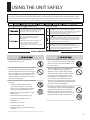
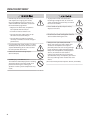


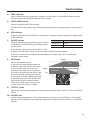
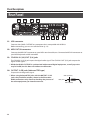


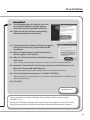
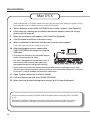
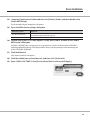


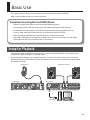
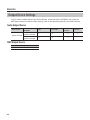
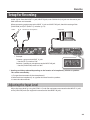
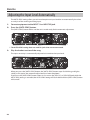
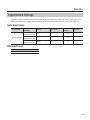

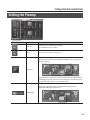
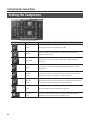

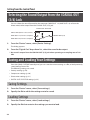


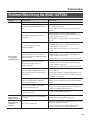
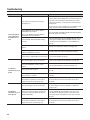
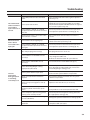
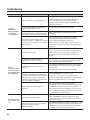
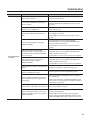
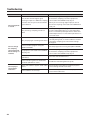
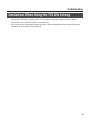

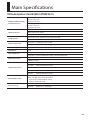
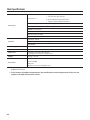
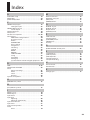



を見る](http://vs1.manualzilla.com/store/data/006607802_2-174c0ab6af6d5002d5e4b55dddb0de91-150x150.png)