1
13.3.2 Editing XF86Cong
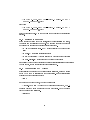
In order to use the driver in Clone mode, you need to dene in the XF86Cong,
one Device section as always. What will make the driver to switch mode is the
value of option "DesktopSetup". The valid option for Clone is "0x00000100".
Also you have to dene options "HSync2" and "VRefresh2", which are refered
to the second monitor (You can skip this since you will need to dene 2 monitor
sections).
(See the Device sections in the sample XF86Cong)
Then you have to congure your monitors. You will need 2 Monitor sections,
with the appropriate modelines and the appropriate settings for your 2 monitors.
Be sure that you follow the manufacture's specs if you don't want to burn your
monitors! The driver will use the same modeline for both screens and it will
select it according to the lower spec monitor.
(See the Monitor sections in the sample XF86Cong)
You will also need to dene as always a Screen section, with the desired
resolutions and depth of colors. Up to drivers 3.7.0, 16 bit color is not supported.
Also don't use a bigger virtual resolution, since Clone mode doesn't support
panning and scrolling. Also for R200 family (Radeon 8500-9000 Pro, Fire GL
8700/8800/E1) the maximum OpenGL resolution is 2048x2048 and for R300
family (Radeon 9500-9700 Pro, Fire GL X1/Z1) 2560x2560.
(See the Screen sections in the sample XF86Cong)
13.3.3 Problems
None known.
13.4 Xinerama conguration
You can nd the Xinerama XF86Cong-4 sample here:
http://www.rage3d.com/content/articles/atilinuxhowto/XF86Cong-4-Xinerama.gz
Xinerama setup is like the Dual Head one. Currently, despite the fact that I
tried hard, with 3.7.0 you can't get a Xinerama setup working!!!! If you follow
the instructions described below you will have a desktop which is a combination
of Dual Head and Clone. The rst screen is cloned on the second but you can
move the mouse cursor as if it was a Dual Head conguration. Basically you
can't setup a Xinerama from fglrxcong, so you will have to make your own
XF86Cong or edit the Xinerama XF86Cong sample. The instructions are
exactly the same as in Dual Head conguration, with the following dierences:
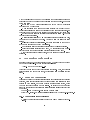
You have to set the following option in the "ServerFlags" section: Option
"Xinerama" "true"
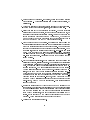
You have to disable DRI, because DRI and Xinerama can't co-exist. In both
Device sections set:
• Option "no_dri" "yes" # disable DRI
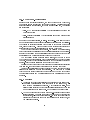
If you want to have overlapping screens you can use something like this, in the
"ServerLayout" Section:
23