1
79
USING COLDFUSION BUILDER
Managing Projects
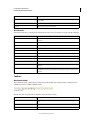
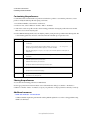
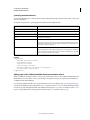
d Username/Password: User name and password of the server.
e Use Public Key Authentication: This option is available only if you select SFTP as the connection type. Public
key authentication lets you select a key-pair on your computer, and you copy the public key to the server.
f
Remote path: If you want to connect to a subfolder under the root of the remote site, specify the folder path.
g Click Advanced Options to specify the following:
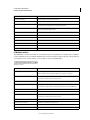
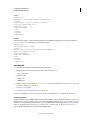
• Port: If you want to use a port other than 22, specify the port.
• If you want the FTP connect session to run in the background, select Use Passive Mode.
• If you work in a team environment, you sometimes want to upload files that overwrite others' changes. If so,
select Calculate Server/Client Time Offset Automatically as a precaution.
6 Click OK to add the FTP connection.
Upload, download, or synchronize projects, files, and folders
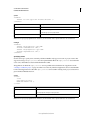
1 Right-click the project or file in the Navigator view and select Synchronize > Upload or Download.
2 From the Choose Site Connection dialog box, select the connection.
3 Click OK.
Import Ajax libraries
1 In the Navigator view, right-click the project in which you want to import Ajax libraries, and click Import.
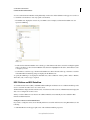
2 In the Import wizard, select ColdFusion > Ajax Library Import Wizard, and click Next.
3 Select the Ajax libraries that you want to import, and click Finish.
Working with Flash Builder projects
To work with a Flash Builder project in ColdFusion Builder, import the Flash Builder project into ColdFusion Builder.
After that, apply ColdFusion Builder functionality by selecting the Flash Builder project in the Navigator view, then
right-click and select Apply ColdFusion Nature.
Applying ColdFusion Builder functionality to the Flash Builder project lets you preview, edit, and debug the Flash
Builder project from within ColdFusion Builder.
Developing AIR applications
Adobe ColdFusion Builder provides you with tools to create Adobe® AIR® projects, debug, package, and digitally sign
Adobe AIR applications.
Create an AIR project
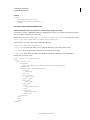
1 Select File > New > Project.
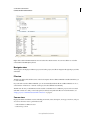
2 In the Create Project wizard, select HTML Projects > Adobe AIR Project, and click Next.
3 Enter the project name and the location of the files in the project.
Last updated 5/15/2012