1
50
USING COLDFUSION BUILDER
Code Editing in ColdFusion Builder
SQL Editor
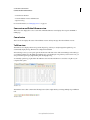
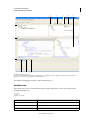
The CFML editor has an integrated SQL editor that lets you edit, write, and execute SQL statements.
To use the SQL editor, you must have a server configured and running in ColdFusion Builder. The SQL editor does
not support offline databases.
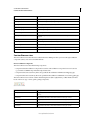
The SQL Editor supports Code Assist and code colorization for the following types of SQL statements:
• Select
• Insert
• Update
• Delete
Note: For SQL statements within the cfquery tag, Code Assist is available in the CFML Editor itself. You need not open
the SQL Editor for code completion hints.
Using SQL Editor
1 Do one of the following:
• Right-click in the CFML editor, and select SQL Editor.
• Use the keyboard shortcut Ctrl+Alt+S (Windows) or Command_Alt+S (Mac OS).
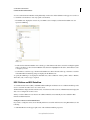
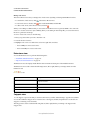
2 In the SQL Editor, select a server from the Server drop-down list and a database from the Datasources drop-down list.
3 Enter the SQL statement and do the following:
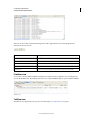
• Click Execute Query to display the results of the SQL statement in the Query Result tab. You can execute only
SELECT statements in the SQL Editor.
• Click OK to insert the SQL statement in the CFML editor at the current caret position. caret is the marker in the
CFML editor that indicates where the next character appears.
4 You can also copy SQL code blocks from the SQL Editor directly into the CFML editor by selecting the code block
and pressing Shift+Enter.
5 To edit a SQL code block in the CFML editor, select the code block, right-click, and select SQL Editor. The selected
code block appears in the SQL Editor.
For more information about basic SQL syntax and writing SQL statements, see Using SQLin the ColdFusion
Developer Guide.
SQL Code Assist
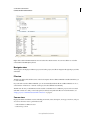
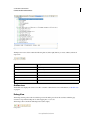
SQL Code Assist is available only for database table names and field names in the SQL statement.
By default, SQL Code Assist is turned on in ColdFusion Builder, and code hints for SQL statements are automatically
displayed in the CFML Editor. To turn off the automatic display of SQL Code Assist, do the following:
1 From the Window menu, select Preferences.
2 In the tree-view, select ColdFusion > Profiles > Editor > Code Assist.
3 Deselect Automatically Display SQL Code Assist When Typing.
Last updated 5/15/2012