1
The Basics
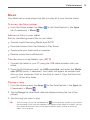
Home Screen Overview
Status Bar
QuickTap Bar
Touch Keys Bar
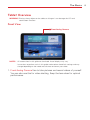
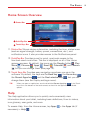
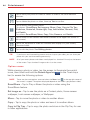
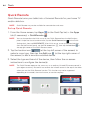
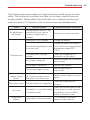
11. Status Bar Shows device information, including the time, status icons
(such as signal strength, battery power, connections, etc.), and
notification icons. It also provides access to the Notifications panel.
12. QuickTap Bar Provides icons for quick, one-touch access to the
functions used most often. This bar is displayed on all of the Home
screen canvases. By default, the icons are the Google folder , Play
Store , Chrome , Apps , Email , Calendar , and Camera
, but you can change them (see page 18).
13. Touch Keys Bar Provides easy navigation anywhere you are in the
software. By default, the keys are the Back key
, the Home key
,
the Recent Apps key
, and the Dual window key
, but you can
change them (see the Display settings menu).
TIP!
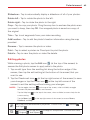
When you open an application, touch and hold the Recent Apps key
(in the Touch
keys bar at the bottom of the touchscreen) to check for the application's available
options.
Help
The Help application allows you to quickly and conveniently view
information about your tablet, including basic definitions, How-to videos,
icon glossary, user guide, and more.
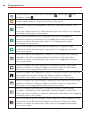
To access Help, from the Home screen, tap Apps
necessary) > Help .
> the Apps tab (if
9