1
Chapter 3 – Using the Web Management Software
Tools
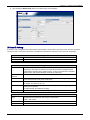
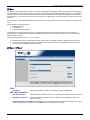
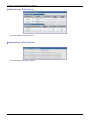
Tools > Tools
39B
69B
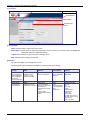
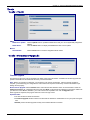
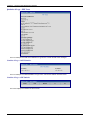
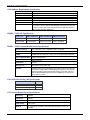
DDNS
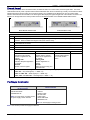
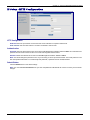
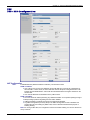
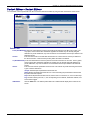
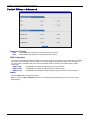
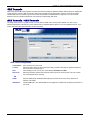
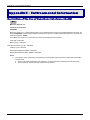
DDNS Force Update:
DDNS Status:
Modem
Reset Modem:
Click the Update button to update the DDNS server with your current dynamically assigned IP
address.
Click the Refresh button to display the DDNS Status after a forced update.
Click the Reset button to reset the integrated cellular modem.
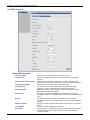
Tools > Firmware Upgrade
70B
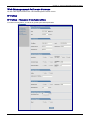
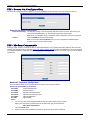
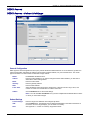
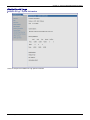
Firmware Upgrade
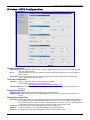
The firmware for the router can be upgraded to the latest version using this feature. All Multi-Tech firmware upgrades are
posted on the Multi-Tech Web site from which they can be downloaded.
Note: Before you upgrade your firmware, you should save your present configuration. After the firmware upgrade is
complete, you should verify your configuration to ensure that it is as expected. Particularly, check that the DHCP scope
settings are set properly.
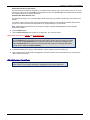
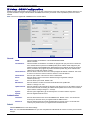
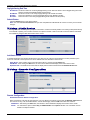
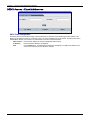
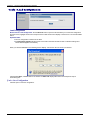
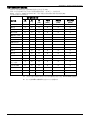
Browse File for Upgrade: Click the Browse button and locate the latest firmware version to be downloaded. Select the
mtcba-en2-u-xxx.bin file. Highlight the file name and press Enter so that the file name displays in the text box. Make sure
you select the correct BIN file; otherwise, your router can become inoperable. Then click the Upgrade button.
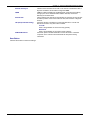
When upgrade is completed, the program will return to the main login screen.
Important Notes:
● The new firmware is written into the flash.
● A Firmware Upgrade will take at least 4 minutes while the firmware is downloaded. Do not cycle power during this
time.
● DO NOT perform firmware upgrade remotely via the Cellular wireless connection.
Multi-Tech Systems, Inc. MultiModem rCell User Guide
51