1
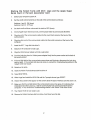
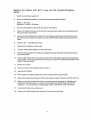
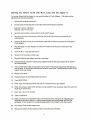
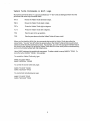
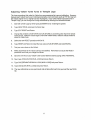
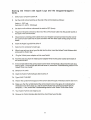
Starting the Valiant with M.I.T. Logo and the Grappler/Grappler+
Cards
1.
Switch your computer system off.
2.
Set the small colored switches on the side of the communicator as follows:
Switch 1: OFF (up)
Switches 2, 3, and 4: ON (down)
3.
Set both small switches underneath the turtle to OFF (down).
4.
Plug the D-shaped connector at the end of the communicator cable into the parallel socket at
the back of the communicator.
5.
Disconnect any existing printer cables from your Grappler card and connect the other end of
the communicator cable into the same connector with the ribbon cable exiting away from the
board.
6.
Insert the M.I.T. Logo disk into drive A.
7.
Switch on the computer to load Logo.
8.
9.
Plug the Valiant power adapter unit into a wall outlet.
Push the jack plug from the Valiant power adapter firmly into the power socket at the back of
the communicator.
10. If the red light behind the communicator screen does not illuminate, disconnect the jack plug
and try again. If the red light still does not come on, consult the Troubleshooting section in the
Valiant Turtle User Guide.
11. Switch on the turtle.
12. Insert the Valiant Turtle Software disk into drive A.
13. Type READ "MVALG.
14. When Logo has loaded the MVAL file and the? prompt returns, type RESET.
15. Answer the questions that appear on the screen about the type of interface and the slot it is in.
16. Make sure that the red light behind the communicator screen has gone off, indicating that
initialization has taken place (Le., that the communicator has synchronized itself with the
computer). If not, consult the Troubleshooting section in the Valiant Turtle User Guide.
17. Your Valiant Turtle is now ready to use.
18. Remove the Valiant interface disk from drive A and insert your file disk.
3