1
Input Configuration
1
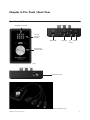
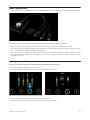
Connect a microphone or instrument to one of the combination balanced input jacks on Pro Tools | Duet’s breakout connector.
Pro Tools | Duet breakout cable
2
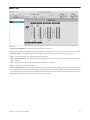
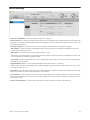
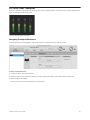
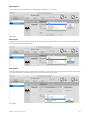
Open Pro Tools IO Control software (found in your Mac’s Applications folder), and select the Input tab.
3
Select the Analog Level setting that corresponds to the device you have connected to Pro Tools | Duet’s input(s).
For example, if you have an XLR microphone connected to input 1, select Mic from the Analog Level menu on channel 1. If you
have a ¼-in instrument connected to the input, then select Inst.
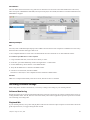
If you use a condenser microphone that requires phantom power, select the 48V box on the Input tab of the appropriate channel
in Pro Tools IO Control. Phantom power is indicated on Pro Tools | Duet’s display by a red dot above the microphone icon (see
“Input Tab” on page 12).
Setting Input and Output Levels
To set Pro Tools | Duet’s input level (i.e, the preamp gain of microphones and instruments):
1
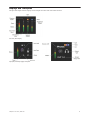
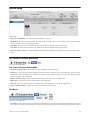
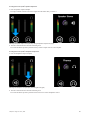
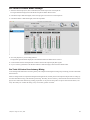
Press the Touchpad corresponding to the desired input.
The ring around the selected icon will be brighter than the others after you select it.
Selecting the Input Touchpad (left); setting the Input Level (right)
2
Turn the Controller Knob until the desired recording level is obtained.
The Controller Knob operates in parallel with Pro Tools IO Control’s input controls.
Chapter 5: Using Pro Tools | Duet
19