1
User’s Guide
Error Indicators
Error Indicators
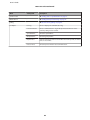
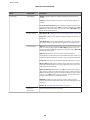
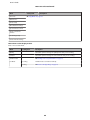
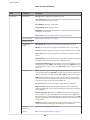
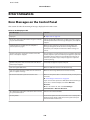
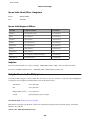
Error Messages on the Control Panel
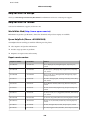
This section describes the meaning of messages displayed on the LCD screen.
Color 2.5-inch display models
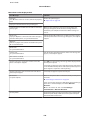
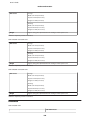
Error Messages
Solutions
Paper jam
& “Paper Jams” on page 123
Printer error. Turn power off and then on again. For details,
see your documentation.
Turn the product off and then back on. Make sure that no paper is
still in the product. If the error message still appears, contact Epson
support.
Communication error. Make sure the computer is
connected, then try again.
Make sure the computer is connected correctly. If the error
messages still appears, make sure that scanning software is
installed on your computer and that the software settings are
correct.
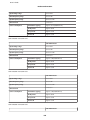
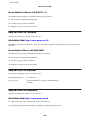
A printer’s ink pad is nearing the end of its service life.
Please contact Epson Support.
Press x button to resume printing. The message will be displayed
until the ink pad is replaced. Contact Epson support to replace ink
pads before the end of their service life. When the ink pads are
saturated, the product stops and Epson support is required to
continue printing.
A printer’s ink pad is at the end of its service life. Please
contact Epson Support.
Contact Epson support to replace ink pads.
Cannot recognize USB device.
Make sure USB device has been inserted correctly.
Cannot recognize the device. Make sure the connected
device is capable of storage.
Make sure the storage disk has been inserted correctly.
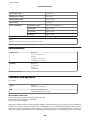
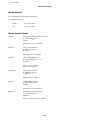
No dial tone detected. Try Check Fax Connection.
Make sure the phone cable is connected correctly and the phone
line works.
& “Connecting to a Phone Line” on page 64
If you connected the product to a PBX (Private Branch Exchange)
phone line or Terminal Adapter, turn off the Dial Tone
Detection.
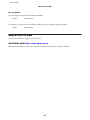
& Press K and then x. Then select Fax Settings >
Communication > Dial Tone Detection.
The combination of IP address and subnet mask is invalid.
See your documentation.
Refer the online Network Guide.
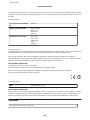
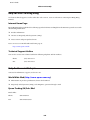
Recovery Mode
The firmware update has failed. You will need to re-attempt the
firmware update. Ready a USB cable and visit your local Epson
website for further instructions.
118