1
2.2.4
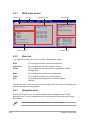
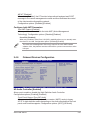
Menu items
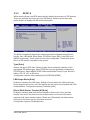
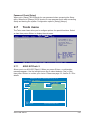
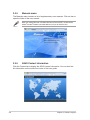
The highlighted item on the menu
bar displays the specific items for
that menu. For example, selecting
Main shows the Main menu items.
System Time
System Date
Legacy Diskette A
The other items (Advanced, Power,
Boot, Tool, and Exit) on the menu
bar have their respective menu
items.
2.2.5
Sub-menu items
SATA
SATA
SATA
SATA
SATA
SATA
1
2
3
4
5
6
Use [ENTER], [TAB],
or [SHIFT-TAB] to
select a field.
[06:22:54]
[Fri 05/04/2006]
[1.44M, 3.5 in]
[Not
[Not
[Not
[Not
[Not
[Not
Detected]
Detected]
Detected]
Detected]
Detected]
Detected]
Use [+] or [-] to
configure system.
IDE Configuration
System Information
Main menu items
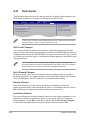
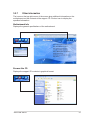
A solid triangle before each item on any menu screen means that the iteam has a
sub-menu. To display the sub-menu, select the item and press <Enter>.
2.2.6
Configuration fields
These fields show the values for the menu items. If an item is user- configurable,
you can change the value of the field opposite the item. You cannot select an item
that is not user-configurable.
A configurable field is enclosed in brackets, and is highlighted when selected. To
change the value of a field, select it then press <Enter> to display a list of options.
Refer to “2.2.7 Pop-up window.”
2.2.7
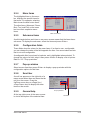
Pop-up window
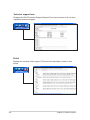
Select a menu item then press <Enter> to display a pop-up window with the
configuration options for that item.
2.2.8
Scroll bar
A scroll bar appears on the right side of a
menu screen when there are items that do
not fit on the screen. Press the
Up/Down arrow keys or <Page Up> /
<Page Down> keys to display the other
items on the screen.
2.2.9
General help
At the top right corner of the menu screen
is a brief description of the selected item.
ASUS P5B-VM DO
Pop-up window
Scroll bar
2-13