1
!828 Manual/Mac Page 42 Thursday, March 1, 2001 9:46 AM
Clock Source
This setting is very important because it
determines which audio clock the MOTU 828
system will follow.
If you do not have any digital audio connections to
your MOTU 828 (you are using the analog inputs
and outputs only), and you will not be slaving
Digital Performer to external SMPTE time code,
choose Internal.
If you are slaving the MOTU 828 to the ADAT sync
Input connector, choose ADAT 9-pin.
If you have digital audio devices connected to the
MOTU 828, or if you are not sure about the clock
source of your setup, be sure to read “Making sync
connections” on page 19 and “Clock Source” on
page 34.
Samples Per Buffer
The Samples Per Buffer setting can be used to
reduce the delay — or monitoring latency — that
you hear when live audio is patched through your
MOTU 828 hardware and Digital Performer. For
example, you might have MIDI instruments,
samplers, microphones, and so on connected to
the analog inputs of the MOTU 828. If so, you will
often be mixing their live input with audio material
recorded in Digital Performer.
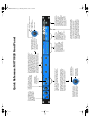
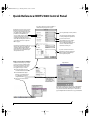
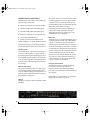
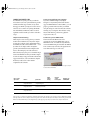
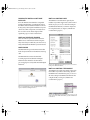
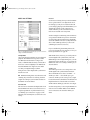
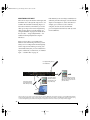
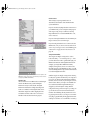
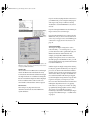
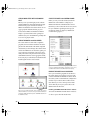
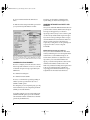
Figure 6-1: The ‘Configure Hardware Driver’ menu item produces the
MOTU 828 settings shown above. This window provides all of the
settings for your MOTU 828 hardware.
Sample rate
Choose either 44.1 or 48 KHz as the overall sample
rate for the MOTU 828 system and Digital
Performer. Newly recorded audio in Digital
Performer will have this sample rate. Imported
audio or soundbites in existing files that do not
match this sample rate will be displayed in the
Soundbites window with a red ‘X’ on its move
handle to indicate that it cannot be played.
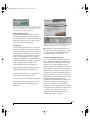
Smaller Samples Per Buffer settings reduce latency,
but they also put more demand on your computer’s
processor (as shown in the Performance Monitor
window). For best results, try 256 samples or lower,
which reduces latency enough to be inaudible for
most audio material. If Digital Performer gets
sluggish, try the next higher setting until the
computer feels responsive enough to you. Keep an
eye on the Processor meter in the Performance
monitor when making this adjustment. Be sure to
try playing some audio, too, as the processor meter
can jump up significantly during playback at lower
settings. You can also use Cue Mix Plus no-latency
42
T HE M O T U 8 2 8 AND DI G I T AL P E R F O R M E R