1
DivX Plus Player for Windows
DivX, LLC
User Guide
ALTERNATIVE METHODS
FOR BURNING
If your file is ready for playback and you would like to use
an alternative method for transferring your files, check these
methods below. If your files aren’t in the right profile for your
device, you can also use the DivX Plus Converter to convert
your videos.
USE YOUR DEFAULT OS BURNING ENGINE
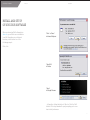
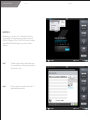
Step 1
Insert a blank CD or DVD into your CD/DVD
burner on your computer
USE ANY BURNING SOFTWARE
Step 2
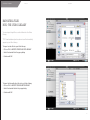
When prompted, select ‘Open writable CD
Folder using Windows Explorer’
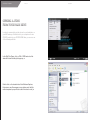
Step 3
Now copy or drag and drop your DivX file into
the CD folder that just opened.
Step 4
Select the ‘Write files to CD/DVD’ to start
burning the disc.
Step 5
Upon completion of the burn process, click
finished. That’s it, you’re done. Now you can
play your DivX video on your DivX Certified
device.
When using any other third-party burning software, make sure
that your file is burned as a data file. DivX Certified devices will
only be able to play back files burned as data.
Windows (XP, Vista, Windows 7):
20