1
w w w. d e l l . c o m | s u p p o r t . d e l l . c o m
R E I N S T A L L T H E P R I N T E R D R I V E R — See the printer documentation for
instructions.
Scanner Problems
HINT: Dell does not
cover the scanner’s
warranty. If you need
technical assistance for
your scanner, call the
scanner’s manufacturer.
See the scanner
documentation for the
correct phone number.
C H E C K T H E S C A N N E R D O C U M E N T A T I O N — See the scanner
documentation for setup and troubleshooting information.
U N L O C K T H E S C A N N E R — Ensure that your scanner is unlocked if it has a
locking tab or button.
RE S T AR T T H E C O MP U T E R A ND T R Y T H E S C A N N E R A G AI N
CHECK THE CABLE CONNECTIONS —
• If your scanner has a power cable, ensure that the power cable is firmly
connected to a working electrical outlet and that the scanner is turned on.
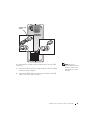
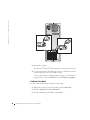
• Ensure that the scanner cable is firmly connected to the computer and to the
scanner.
VE R I F Y T H A T T H E S C A N N E R I S R E C O G N I Z E D B Y M I C R O S O F T ®
WINDOWS® —
1 Click the Start button.
2 Click Control Panel.
3 Click Printers and Other Hardware.
4 Click Scanners and Cameras.
If your scanner is listed, Windows recognizes the scanner.
R E I N S T A L L T H E S C A N N E R D R I V E R — See the scanner documentation for
instructions.
54
So l vi n g Pro b l em s