1
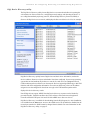
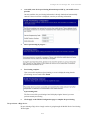
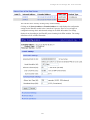
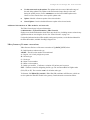
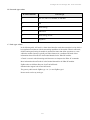
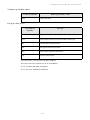
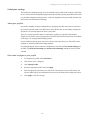
Configuration through the web interface Update PRL settings Note These settings apply to Digi cellular-enabled products that use the Sierra Wireless MC57xx series CDMA/EVDO modules. The Update PRL page is for loading a preferred roaming list (PRL) into the cellular module on the Digi device. A PRL is a database that resides in a mobile device that contains information used during the system selection and acquisition process. It is built by the mobile service provider, and is normally not accessible to users.The PRL indicates which bands, sub bands and service provider identifiers will be scanned and in what priority order. Without a PRL, a mobile device may not be able to roam, or obtain service outside of the home area. There may be cases where missing or corrupt PRL's can lead to not having service at all. On many networks, regularly updating the PRL is advised if the subscriber uses the device outside the home area frequently, particularly if they do so in multiple different areas. This allows the mobile device to choose the best roaming carriers, particularly “roaming partners” with whom the home carrier has a cost-saving roaming agreement, rather than using non-affiliated carriers. PRL files can also be used to identify home networks along with roaming partners, thus making the PRL an actual list that determines the total coverage of the subscriber, both home and roaming coverage. To load a PRL, fill in values for these settings: PRL File: The location and name of the PRL file to be loaded into the cellular module. Enter the PRL file’s pathname or click the Browse button and use the browse dialog to select the file. MSL/OTSL: The master subsidy lock (MSL) or a one-time subsidy lock (OTSL) associated with the module. This value is a six-digit activation or unlock code supplied by the mobile service provider. Click the Upload button to upload the PRL file to the cellular module. If the PRL loading/updating operation was successful, the status message PRL update successful is displayed in a blue box above the settings. If an error occurs, a red box with a message describing the error is displayed above the settings. PRL updates can also be done over the air by dialing the over-the-air (OTA) feature code *228. 113