1
Printing Photos
You can print beautiful snapshots and enlargements with or without white
borders. With proper care, photographs from your Epson Stylus C87 will last for
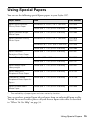
many years. For best results, always use Epson papers. (See “Using Special Papers”
on page 15 for more information.)
As with traditional photos, Epson recommends proper care that will minimize
color changes and lengthen display life:
■
Frame prints under glass or in a protective plastic sleeve to protect them from
atmospheric contaminants like humidity, smoke, and high levels of ozone.
■
As with all photographs, keep your prints away from direct sunlight.
■
For proper storage, keep your prints in a photo album or plastic photo storage
box in acid-free, archival sleeves commonly available from most camera stores.
■
Always keep unused paper in the original package.
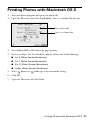
For instructions on loading photo paper, see page 6. Then see below for printing
in Windows, or page 21 for printing in Mac OS® X.
Printing Photos in Windows
1. Open the File menu and click Print.
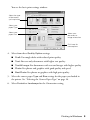
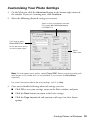
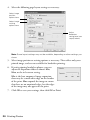
2. Make sure your printer is selected, then click Properties or Preferences. (If
you see a Setup, Printer, or Options button, click it. Then click Properties
or Preferences on the next screen.)
Printing Photos 17