1
Setting and Using the Control and Management Functions
Accessing Hard Disk of E5070B/E5071B from External PC
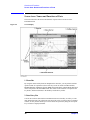
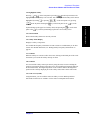
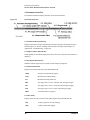
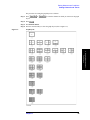
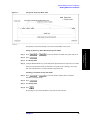
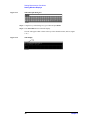
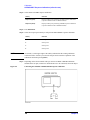
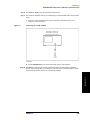
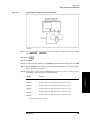
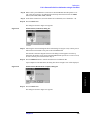
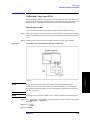
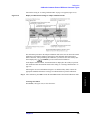
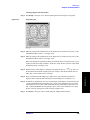
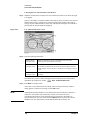
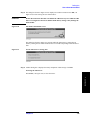
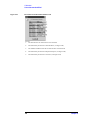
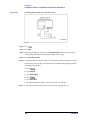
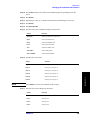
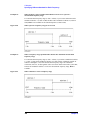
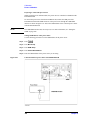
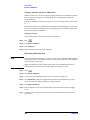
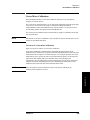
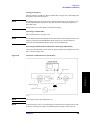
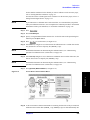
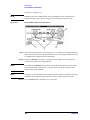
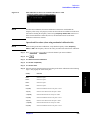
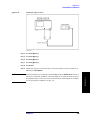
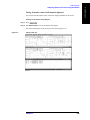
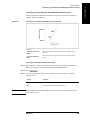
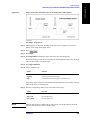
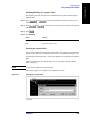
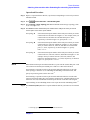
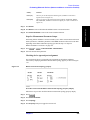
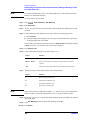
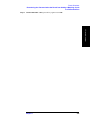
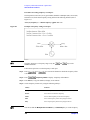
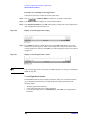
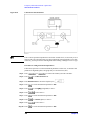
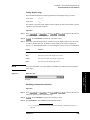
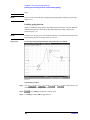
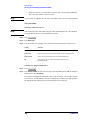
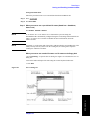
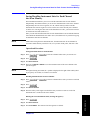
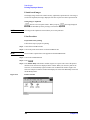
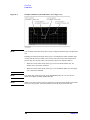
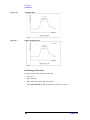
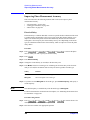
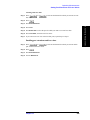
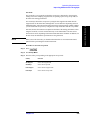
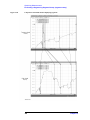
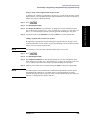
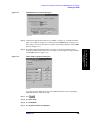
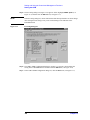
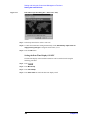
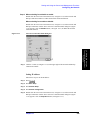
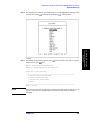
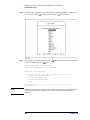
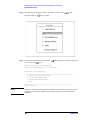
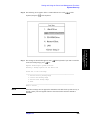
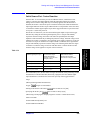
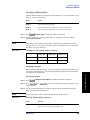
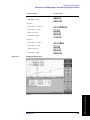
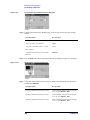
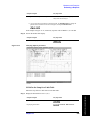
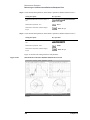
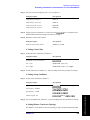
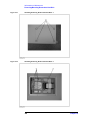
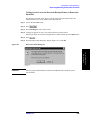
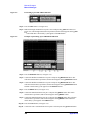
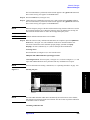
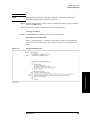
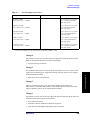
Step 6. The New Share dialog box (Figure 13-23) appears. Enter the share name (name used when
accessed from the external PC) in the Share Name box (1 in Figure 13-23) and click the
OK button (2 in Figure 13-23).
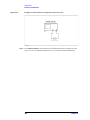
Figure 13-23
New Share dialog box
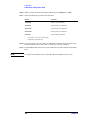
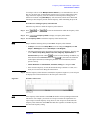
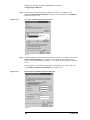
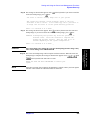
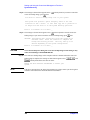
Step 7. In the USERS(D:) Properties dialog box, click the OK button (2 in Figure 13-22).
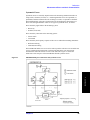
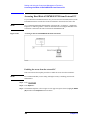
Accessing hard disk of E5070B/E5071B from external PC
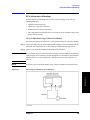
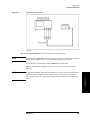
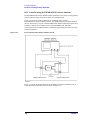
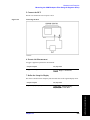
This section describes the procedure to connect to the hard disk (D drive) in the
E5070B/E5071B to which access has been made possible according to the procedure
described in “Enabling the access form the external PC” on page 444 from the external PC,
taking Windows NT ® as an example.
NOTE
For information on connection, see your PC's operation manual.
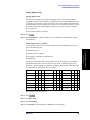
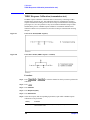
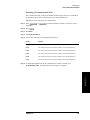
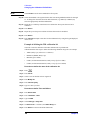
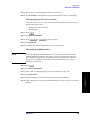
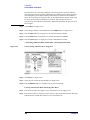
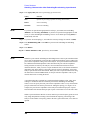
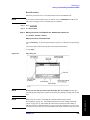
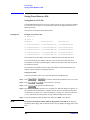
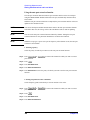
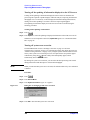
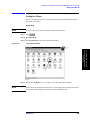
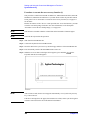
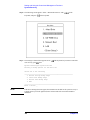
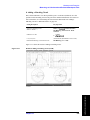
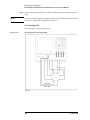
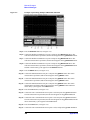
Step 1. From the Start menu, click Programs - Windows Explorer to start the Explorer.
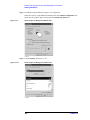
Step 2. From the Explorer's menu, click Tools - Map Network Drive....
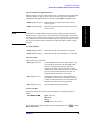
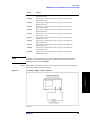
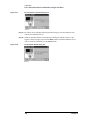
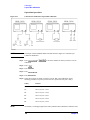
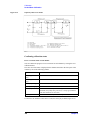
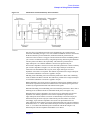
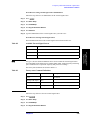
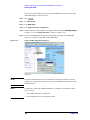
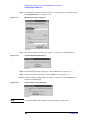
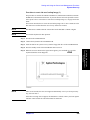
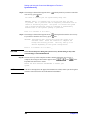
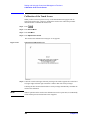
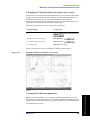
Step 3. The Map Network Drive dialog box appears. Select an appropriate drive, enter
\\C_NAME\S_NAME as the network path and then click the OK button.
C_NAME in the network path is the computer name of the E5070B/E5071B and S_NAME
is the share name of the D drive. For information on how to set the computer name, refer to
“Specifying computer name” on page 441; for information on how to set the share name,
refer to “Enabling the access form the external PC” on page 444.
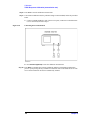
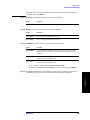
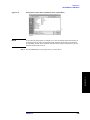
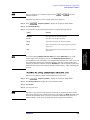
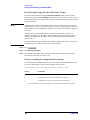
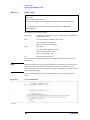
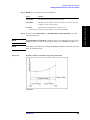
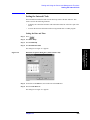
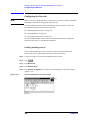
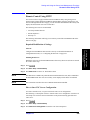
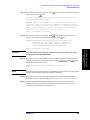
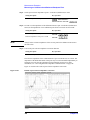
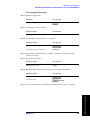
Step 4. The dialog box to enter the user name and the password appears. Enter an appropriate user
name and password and then click the OK button.
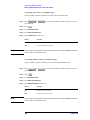
The user name and password differ depending on the setting made when enabling access
from the external PC. When you have set them according to “Enabling the access form the
external PC” on page 444, you can make connection using the user name, agena, without
the password.
446
Chapter 13