1
Troubleshooting
Appendix A
Appendix A:
Troubleshooting
This appendix consists of two parts: “Common Problems
and Solutions” and “Frequently Asked Questions.” This
appendix provides solutions to problems that may occur
during the installation and operation of this product. Read
the description below to solve your problems.
Common Problems and Solutions
None of the LEDs light up after I installed the Adapter.
Follow these instructions:
1 .
Unplug the Ethernet network cable from the
Adapter.
2 .
Unplug the Adapter from the electrical outlet.
3 .
Make sure the electrical outlet is working properly by
plugging another device into the outlet.
4 .
Connect the Ethernet network cable to the Adapter.
5 .
Plug the Adapter into the electrical outlet.
The Ethernet LED does not light up on the Adapter.
Check the Ethernet adapter on your computer or other
network device to see if the adapter is working properly.
(For more information, refer to the documentation for
your adapter.)
When I scan the powerline network, I don’t detect all the
powerline devices.
Make sure all devices on the powerline network have been
configured with the same Network Password; otherwise,
they will not be able to communicate with each other. If
you are adding a new Adapter to a pre-existing powerline
network with a unique Network Password (not the default),
then refer to the Security - Device Password section of
“Chapter 3: Using the Configuration Utility.”
I cannot connect to other computers on my powerline
network or to the Internet.
Follow these instructions:
1 .
Make sure all devices on the powerline network have
been configured with the same Network Password;
otherwise, they will not be able to communicate
with each other. Refer to “Chapter 3: Using the
Configuration Utility.”
2 .
If your powerline-networked devices cannot access
the Internet, make sure you have an Adapter
connected to the router. (The router must have its
own Adapter to join the powerline network.) Access
the Adapter connected to the router, and make sure
your router is part of the powerline network. Refer to
“Chapter 3: Using the Configuration Utility.”
3 .
If your powerline devices still cannot access the
Internet, make sure the IP addresses and TCP/IP (a
communications protocol) are set up correctly for
all of the powerline-networked computers. For more
information on IP addressing and TCP/IP, refer to
Windows Help.
Frequently Asked Questions
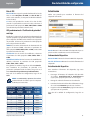
What kind of powerline technology does the PowerLine
AV Ethernet Adapter use?
The Adapter uses HomePlug AV technology, which
offers superior performance and security than previous
HomePlug standards, such HomePlug 1.1 and HomePlug
1.0.
How do HomePlug AV products handle signal interference
between two adjacent homes? How is eavesdropping
prevented?
To ensure network separation between homes, HomePlug
AV products use 128-bit AES security encryption, which
is enabled by default. To encrypt data, this security
method uses the Network Password you set using the
Configuration Utility. (If you did not set your own Network
Password, then it uses the default, HomePlugAV.)
Do HomePlug AV products cause interference with other
home networking or powerline products?
No. The HomePlug AV products can co-exist with wireless,
phoneline, and other powerline technologies. HomePlug
AV technology operates in a different frequency band
than powerline control and can co-exist with technologies
such as X-10, CEBus, and LonWorks.
Are HomePlug AV products backwards-compatible with
devices using previous HomePlug standards?
No. HomePlug AV products cannot communicate with
devices using previous standards; however, HomePlug
AV products can co-exist with devices using previous
HomePlug standards, such HomePlug 1.1 and HomePlug
1.0. Linksys recommends using HomePlug AV products for
maximum throughput and performance.
WEB: If your questions are not addressed here,
refer to www.linksys.eu, www.linksys.com, or
www.linksys.com/international
PowerLine AV Ethernet Adapter
10