1
-
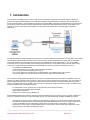
OpenManage’s IT Assistant provides support for network monitoring and can discover servers attached to IP networks.
IT Assistant’s console provides views of all managed systems, including health and alert status. Working in conjunction
with Server Administrator, IT Assistant provides robust discovery, inventory, and monitoring of Dell servers. It can also
monitor clients and network hardware, in addition to servers. Dell provides remote management of servers and blades
through a combination of hardware facilities, such as on-board management controllers, and supporting management
software capabilities, such as server console redirection; virtual keyboard, video, and mouse (KVM); Active Directory
authentication; and virtual boot media.
Opengear IM4200 gateways and SDTConnector client ship preconfigured with support for Dell's BMCs and DRAC cards and
associated OpenManage tools. They provide a reliable secure solution for accessing and controlling these service processors
and Dell servers and storage devices.
2. Connecting to BMC services
All PowerEdge servers contain a baseboard management controller (BMC), the service processor integrated into the
motherboard, designed to provide access to the PowerEdge server independently of the operating system. The BMC does not
have its own Ethernet NIC and shares one with the operating system. This NIC is configured with two IP addresses, one for the
operating system production network communications, and one for communication with the BMC.
Console redirection and serial over LAN (SOL)
The BMC can be used to redirect input and output of the serial port through its shared NIC. When coupled with console
redirection, it allows you to remotely access BIOS configuration and see the boot messages as your PowerEdge boots or
reboots.
If you also run an operating system console on the redirected serial port, after the system has booted you also have out-of-band
access to the operating system for disaster recovery, monitoring, rebooting the system, etc. There are several steps for setting
up SDTConnector and your operating system for SOL:
-
Configure the PowerEdge BMC and BIOS to enable console redirection
-
Install the Dell solproxy program on the client PC that will be running SDTConnector
-
Enable your operating system's serial console on the PowerEdge
-
Configure the Opengear SSH gateway to permit SOL
-
Configure SDTConnector to access the BMC using solproxy
-
Connect to the BMC using SOL
Enabling console redirection on the PowerEdge
This process is detailed in the document entitled "Optimizing Console Redirection" published in Dell Power Solution magazine,
and available online at www.dell.com/downloads/global/power/ps4q05-20040205-Hoke-OE.pdf. Below is a brief walk
through. Refer to the Dell document for a more thorough guide:
Ensure you have a suitable Telnet client. For Windows users, download the HyperTerminal Private Edition (6.3) and install
it of the client PC that will be running SDTConnector. The built is Windows telnet command and built in HyperTerminal
client are not suitable. Otherwise, your operating system's built in Telnet client should be suitable
Enable console redirection in the BIOS by rebooting the PowerEdge and pressing F2 during POST to enter BIOS setup:
o
o
o
Select Integrated Devices and press Enter
Select Serial Port 1 (or just Serial Port if only one is present) and press Spacebar until BMC NIC is selected
Press Escape to return
_____________________________________________________________________
Opengear Application Note: SDTConnector + Dell
Page 3 of 14