1
Technology Overview
Apple Cinema Displays
19
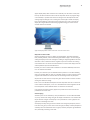
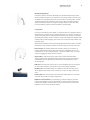
VESA mounting options
LCD displays have a tremendous advantage over CRT alternatives: Because of their
thinner and lighter design, more customers are discovering innovative ways of using
the displays, from integrating them into museum kiosks to mounting them on walls.
The VESA mount feature supports the wide variety of VESA-compliant mounting
solutions, allowing customers to configure the Apple displays in ways other than
just on the desktop (requires VESA mount adapter, sold separately).
Integration
For many PC manufacturers, the display is a peripheral device. For Apple, the display is
designed to be an integral part of a complete Macintosh or PC system. Our goal is to
create systems that give you modular flexibility and all-in-one simplicity. For example,
Apple flat-panel displays continue to feature a single-cable design that simplifies cable
management. The cable elegantly splits out for easy connection to DVI, FireWire, USB,
and power ports.
Apple flat-panel displays have the following integrated features that deliver smoother
performance, more consistent operation, and easier setup and use than other LCDs:
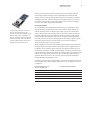
• DVI connector. The industry-standard DVI connector allows easy connection of
multiple Apple displays to Power Mac systems and PCs. PowerBook G4 users can
now attach a 20- or 23-inch display directly—without an adapter. Setup is a simple
matter of plugging the display into the computer.
• Single cable. A single cable carrying power, video, and the USB and FireWire
signals simplifies cable management and reduces clutter, an especially important
consideration when using the display with alternate mounting devices such as
articulating arms.
• USB ports. Dual USB ports make it easy to connect peripheral devices. Full support
for USB 2.0 delivers faster I/O performance when using multiple peripherals.
• FireWire ports. Two FireWire 400 ports in addition to the USB ports allow you to
attach digital video and still cameras, hard drives, scanners, an iSight camera, and
more.
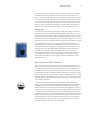
• Power button. The power button on the front of the display allows you to put the
system to sleep or wake it up with a single touch.
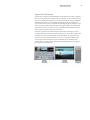
• Brightness control lockout. If you’re managing a creative workgroup, you want
to ensure that brightness can’t be adjusted after a display has been profiled and
calibrated. The Displays preference pane in Mac OS X v10.3 allows you to lock the
brightness controls on the side of the monitor.