1
Filter Builder
Label Toolbox provides a utility
that you can use to create, verify,
and select filters and expressions.
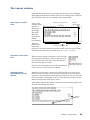
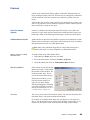
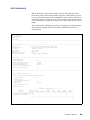
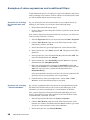
If you click the Filter Browser
button, it opens the Filter
Browser window. From this
window, you can access Filter
Builder to edit or create new
filters and expressions.
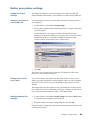
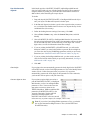
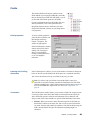
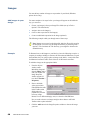
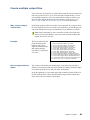
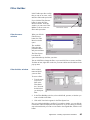
Filter Browser
window
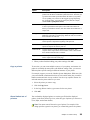
Filter Browser buttons
When you click the
Filter Browser
button, the Filter
Browser window
opens.
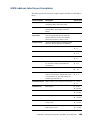
The Available
Filters box lists
predefined filters
and your own filters.
The Filter Syntax
box shows the
syntax that makes up the filter you select.
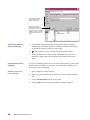
You can click Edit to change the filter, or you can click New to create a new filter.
To delete an item, right click on the one you want to delete and click delete in the
pop-up menu.
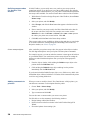
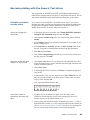
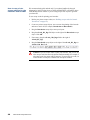
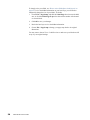
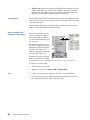
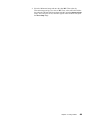
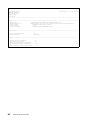
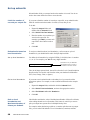
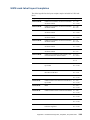
Filter Builder window
In this window
name and build
your new filter.
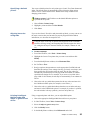
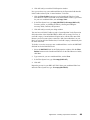
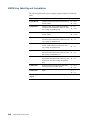
To create a filter:
1. Type the name
of your new
filter in the
Filter Name
box. You must
do this before
you build your
filter.
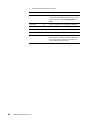
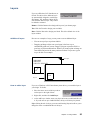
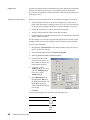
2. In the Filter Building tools box, select which field, operator, or function you
want to include in the filter.
3. Click Add. Your choice appears in the Filter Syntax box.
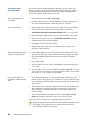
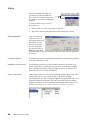
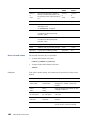
Now you can begin building your filter. If you make a mistake, you can click the
Clear button. This will empty the Filter Syntax box. If you are editing an existing
expression and decide you want to revert back to the original filter, click the reset
button.
Appendix A: Creating expressions and filters
97