1
Adobe LiveCycle ES
Post-Deployment Activities
Configuring LiveCycle ES Application Server Clusters Using JBoss
Viewing the log files
51
➤ To access LiveCycle Administration Console:
1. Type the following URL in a web browser:
http://[host name]:[port]/adminui
The default port number for JBoss is 8080.
2. In the User Name field, type administrator and, in the Password field, type password.
3. After logging in, you can click Services to access the service administration pages or Settings to access
the pages on which you can administer settings for different solution components.
Viewing the log files
Events, such as run-time or startup errors, are recorded to the application server log files. If you have
problems deploying to the application server, you can use the log files to help you find the problem. You
can open the log files by using any text editor.
Accessing solution component web applications
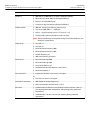
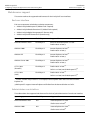
After LiveCycle ES is deployed, you can access the web applications associated with the following solution
components:
●
LiveCycle Reader Extensions ES
●
LiveCycle Workspace ES
●
LiveCycle Rights Management ES
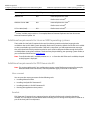
After accessing the web applications using the default administrator permissions to ensure that they are
accessible, you can create additional users and roles so that others can log in and use the applications. For
information, see User Management Help, accessible through the LiveCycle Administration Console.
Note: To access the Reader Extensions ES web application, you must apply a Reader Extensions ES
credential and apply the user roles for a new user. For more information, see the “Configuring SSL”
chapter in Administering LiveCycle ES at http://www.adobe.com/go/learn_lc_administration.
➤ To access the Reader Extensions ES web application:
1. Open a web browser and enter the URL http://[server name]/ReaderExtensions.
2. Log in using the default user name and password:
User name: administrator
Password: password
Note: You must have administrator or superuser privileges to log in using the default user name and
password. To allow other users to access the Reader Extensions ES web application, you must create
the users in User Management and grant them the role “Reader Extensions Web Application”.