1
4
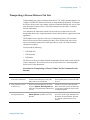
Using Microsoft Windows Operating System
The following instructions relate to software provided by Microsoft
Corporation. Agilent offers no warranty regarding the operation of such
software. The procedure described here may be changed by Microsoft at
some future time.
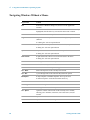
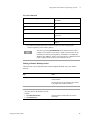
Installing the Client software
Step
Notes
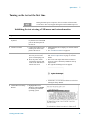
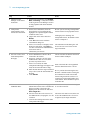
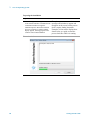
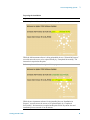
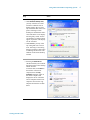
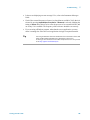
1 When the Welcome Screen appears, click
Perform additional tasks
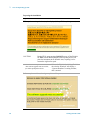
2 From the What do you want to do?
screen, click Set up Remote Desktop
Connection.
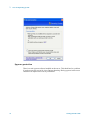
The Remote Desktop Connection InstallShield
Wizard appears.
3 Click Next.
Follow the on screen instructions provided by
the Wizard.
4 To access the installed software, click
Start > All Programs > Accessories >
Communications > Remote Desktop
Connection.
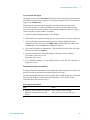
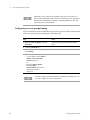
How to locate the computer name of the test set
To connect a remote computer to the test set, you need to know its Computer Name. The
Computer Name can be displayed as follows:
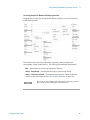
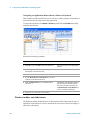
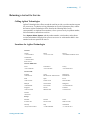
Locating the name from the Agilent application
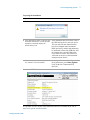
Step
Notes
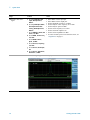
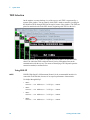
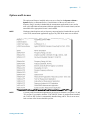
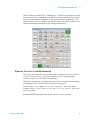
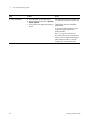
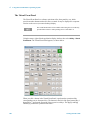
• On the test set front panel, press System, A page listing various parameters appears.The
Show, System.
test set’s computer name is shown in the list
next to the title Computer Name.
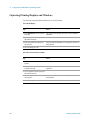
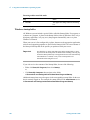
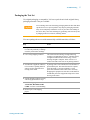
Locating the name from the Windows desktop (with a mouse):
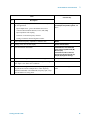
Step
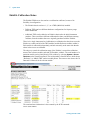
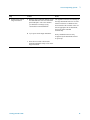
1 Click Start, Control Panel.
Notes
In the Control Panel window, select System
and Security, System.
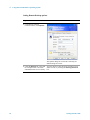
2 The computer name is displayed in the
System window, under the heading
“Computer name, domain, and workgroup
settings”.
Getting Started Guide
The Computer Name is listed as Full
computer name.
89