1
Appendix B: Upgrades
Software Driver Upgrade
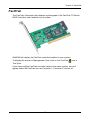
Follow this procedure to upgrade the FastTrak software drivers on your PC or
server.
Step 1: Preparation
You need one blank, formatted diskette to perform this procedure.
Step 2: Download Driver Files
1.
Go to the Promise website www.promise.com/support.
2.
Click on Downloads.
3.
Click on the Select Product popup menu and choose Windows Promise
FastTrak TX2200 or TX2300 depending on which FastTrak controller you
have.
4.
Click on the Select Category popup menu and choose Driver.
5.
Click the GO button.
The list of current drivers displays. Promise provides 32-bit and 64-bit
versions of its drivers. Be sure you select the appropriate driver for your
system.
6.
Click on the driver you want.
7.
In the File Download dialog box, click the Save button.
8.
In the Save As dialog box, direct the driver to save to a convenient location
on your PC.
9.
Copy the files to one of the blank, formatted floppy diskettes.
For Windows driver files: Unzip the downloaded driver package and copy the
files to the diskette.
For Linux driver files:
•
On a Windows PC, run the rawrite.exe utility and extract the image file
to the diskette.
•
On a Linux PC, run the command dd if=imagefilename
of=floppydevicename bs-10k to copy the image file to the diskette.
imagefilename = the disk image file name
floppydevice name = the device name, such as /dev/fd0.
10. Label the diskette FastTrak Driver.
Use the FastTrak Driver diskette to upgrade to the latest software driver. Go
to step 3, below.
119