1
Fiery Command WorkStation
Managing server resources
200
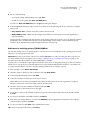
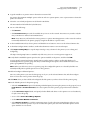
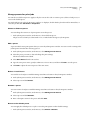
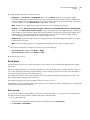
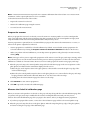
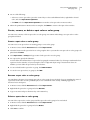
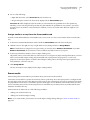
4 Specify more attributes for the new media in the New Media dialog, if required.
For more information about adding a new media in Paper Catalog, see Create a new Paper Catalog entry on
page 184.
5 Select the Add as smart media check box.
The new media is designated as a smart media, and every time a media with matching attributes is loaded in the
tray, the tray is automatically associated with the smart media.
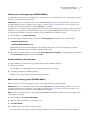
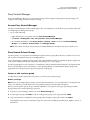
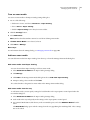
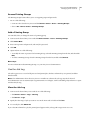
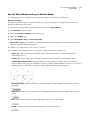
Add smart media from the Manage Smart Media dialog box
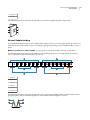
You can select a tray and use the Manage Smart Media dialog box to add smart media.
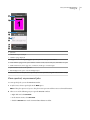
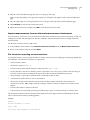
1 Select a tray in the Consumables pane.
2 Choose Manage Smart Media from the contextual menu.
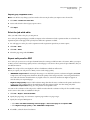
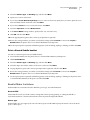
3 In the Manage Smart Media dialog, select a tray, click Add, and select Add from tray.
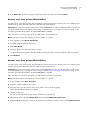
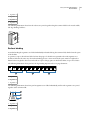
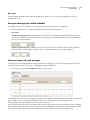
Managing smart media
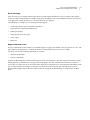
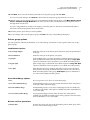
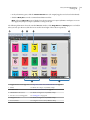
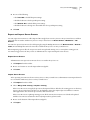
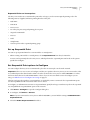
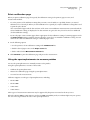
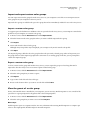
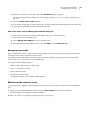
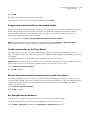
When smart media has been created, it is listed in the Manage Smart Media dialog. In this dialog, all available trays
are listed, and for each tray, all smart media are listed.
The Manage Smart Media dialog can be accessed from the Paper Catalog Settings dialog or from the contextual
actions menu for a selected tray in the Consumables pane.
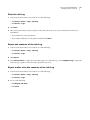
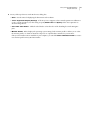
You can perform the following actions:
•
Add from either Paper Catalog or from a tray.
•
Remove a selected smart media.
•
Remove all smart media.
•
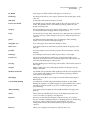
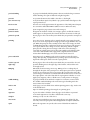
Modify the column headings.
The column headings are the available media attributes.
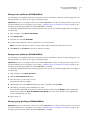
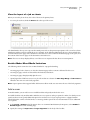
Monitor media status in a tray
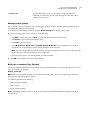
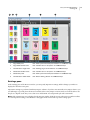
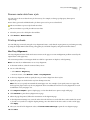
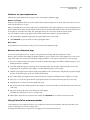
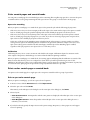
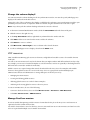
If your copier/printer supports reporting media levels in each tray, you can check the status from the Consumables
pane.
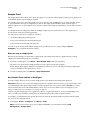
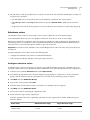
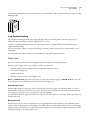
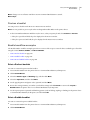
1 In the main Command WorkStation window, click the Consumables tab in the bottom left pane.
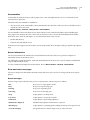
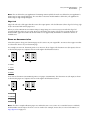
Each tray displays a visual graphic of the media loaded.
2 Place your cursor on a tray listing to display the level as a percentage.