1
Setting Up the MFC and PC to Work Together
Before You begin
•
You must set up the hardware and install the Brother Drivers before you can use your MFC as a printer and scanner in any Windows® application.
•
Please purchase the appropriate cable if you intend to use USB.
Use only a shielded parallel interface cable that is IEEE 1284-compliant and/or a USB cable that is no longer than 6 feet long (1.8 meters).
Follow the instructions in this guide for your operating system and interface.
For Windows® 95/98/98SE/Me/2000 Users
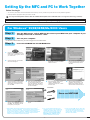
Step 1.
Turn the MFC power switch OFF and disconnect your MFC from your computer if you
already connected an interface cable.
Step 2.
Turn on your computer.
For Windows® 2000 Professional, you must be logged on as the Administrator.
Step 3.
Insert the CD-ROM into the CD-ROM drive.
1.
Insert the MFC Software Suite CDROM into your CD-ROM drive. If the
model name screen appears, click on
your model name.
2.
Click your language. The CD-ROM
main menu will appear.
3.
Click Install Software.
4.
Click MFC Software Suite in Main
Application, and then click Install.
Please see Note*1.
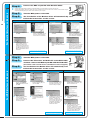
5.
The InstallShield Wizard Setup
window will appear briefly, followed
by the PaperPort® Setup window.
Click Yes.
6.
When the PaperPort® Setup window
displays your Name and Company,
either change or accept them, and
then click Next.
7.
When the Choose Destination
Location window displays the path
where the PaperPort® files will be
installed, either change or accept,
and then click Next.
8.
When the Register Today screen
appears, click Next. This is
registration for Paper Port®. Follow
the instructions.
9.
When the MFC Software Suite
Installation window appears, click
Next to begin installing the MFC
Software Suite. Please see Note*2.
For Parallel
123456789012345678901
123456789012345678901
123456789012345678901
123456789012345678901
123456789012345678901
123456789012345678901
123456789012345678901
1234567890123456789012345678901212345678901234567890123456789012
123456789012345678901
1234567890123456789012345678901212345678901234567890123456789012
123456789012345678901
1234567890123456789012345678901212345678901234567890123456789012
123456789012345678901
1234567890123456789012345678901212345678901234567890123456789012
123456789012345678901
123456789012345678901
1234567890123456789012345678901212345678901234567890123456789012
1234567890123456789012345678901212345678901234567890123456789012
123456789012345678901
1234567890123456789012345678901212345678901234567890123456789012
123456789012345678901
1234567890123456789012345678901212345678901234567890123456789012
123456789012345678901
123456789012345678901
1234567890123456789012345678901212345678901234567890123456789012
1234567890123456789012345678901212345678901234567890123456789012
123456789012345678901
1234567890123456789012345678901212345678901234567890123456789012
123456789012345678901
1234567890123456789012345678901212345678901234567890123456789012
123456789012345678901
1234567890123456789012345678901212345678901234567890123456789012
123456789012345678901
123456789012345678901
1234567890123456789012345678901212345678901234567890123456789012
1234567890123456789012345678901212345678901234567890123456789012
123456789012345678901
1234567890123456789012345678901212345678901234567890123456789012
123456789012345678901
1234567890123456789012345678901212345678901234567890123456789012
123456789012345678901
123456789012345678901
1234567890123456789012345678901212345678901234567890123456789012
1234567890123456789012345678901212345678901234567890123456789012
123456789012345678901
1234567890123456789012345678901212345678901234567890123456789012
123456789012345678901
123456789012345678901
1234567890123456789012345678901212345678901234567890123456789012
1234567890123456789012345678901212345678901234567890123456789012
123456789012345678901
1234567890123456789012345678901212345678901234567890123456789012
123456789012345678901
1234567890123456789012345678901212345678901234567890123456789012
123456789012345678901
1234567890123456789012345678901212345678901234567890123456789012
123456789012345678901
1234567890123456789012345678901212345678901234567890123456789012
123456789012345678901
123456789012345678901
123456789012345678901
123456789012345678901
123456789012345678901
123456789012345678901
123456789012345678901
Please see NEXT PAGE
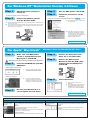
For USB
10. When the Setup Type
window
appears, select Standard, and then
click Next. The application files will
be copied to your computer.
11. The Connect Cable window will
appear.
*1 MFC Software Suite includes Printer Driver, Scanner Driver, ScanSoft™
PaperPort®, ScanSoft™ Text Bridge®, PC-FAX software, Remote Setup and
True Type fonts. PaperPort® is a document management application for
viewing scanned documents. ScanSoft™ TextBridge®, which is integrated into
PaperPort®, is an OCR application that converts an image into text and
inserts it into your default word processor package.
*2 If an error message appears during the
installation process, or you have previously
installed MFC Software Suite or MFL Pro,
you will first have to uninstall it. From the
Start menu, select Programs, Brother,
Brother MFL Pro, Uninstall, and then
follow the instructions on the screen.
–2–
*3 Even if you select NO, later you will be able
to launch the Brother Control Centre to use
the Scan key. See AutoLoad the Brother
Control Centre, Chapter 13 in the Owner’s
Manual on the CD-ROM.