1
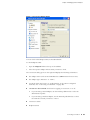
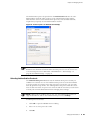
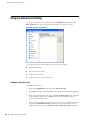
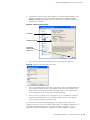
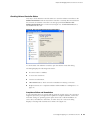
Odyssey Access Client User Guide Renaming an Adapter When you add a adapter to the OAC configuration, the adapter appears in the sidebar in the Adapters folder. A wired adapter has the default name Ethernet. A wireless adapter has the default name WiFi. If you use multiple wireless adapters, you can rename them to help distinguish one from another. To rename an adapter: 1. Right-click the adapter icon in the sidebar. 2. Select the Rename option, which highlights the adapter name. 3. Replace the current, highlighted name with the new name. (This is the same method used to rename a file in a Windows Explorer directory tree.) Removing an Adapter There are two ways to remove an adapter. Removing an Adapter Using the Adapter Dialog. To remove an adapter using the Adapter dialog: 1. Open the Configuration folder in the sidebar on the left and click Adapters. 2. In the Adapter dialog, select the wired or wireless adapter(s) that you want to remove. 3. Click Remove. Removing an Adapter Using the Sidebar Icon. To remove an adapter using the sidebar icon: 1. Right-click the adapter icon in the sidebar. 2. Select Remove. 3. A dialog prompts you for confirmation before removing the adapter. Select OK to proceed. When you remove an adapter, OAC stops using it. While the adapter might still be installed on your system, it does not operate with OAC unless you add it back to the OAC configuration. NOTE: When you remove an adapter from the OAC configuration, check the Windows Control Panel setting to ensure that the adapter is enabled for Windows again. Go to Control Panel > Network Connections > adapter name > Properties > Wireless Networks and select the Use Windows to configure my network settings check box. 28 Adding Network Adapters