1
7.1.2.2 Mac OS X
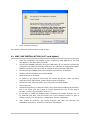
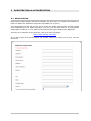
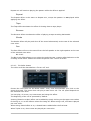
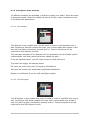
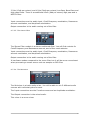
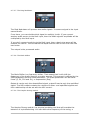
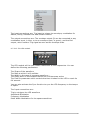
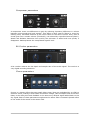
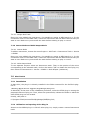
To access the Audio & MIDI preferences navigate to the Spark menu > Preferences. The
Audio & MIDI settings window will appear. Here you are able to configure the global
preferences of SPARK. These settings are saved automatically.
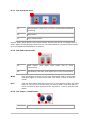
(Windows)
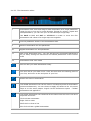
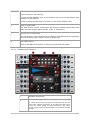
AUDIO DEVICE TYPE
(Mac OS X)
(Windows)
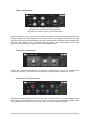
OUTPUT
DEVICE
Selects the appropriate driver for your audio device.
Chooses which audio output SPARK will send sound out of.
Default is “Built-in Output” on the Mac; for Windows we highly
suggest to use an adequate ASIO driver for your sound card.
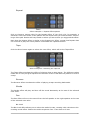
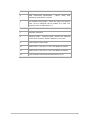
Test
Send out a short sine wave tone to help make sure sound is
being sent out the correct device.
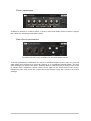
Sample Rate
Choose the sample rate: default is 44,100 Hz. Increasing the
sample rate increases the quality of sound, but adds a bigger
load to CPU.
Audio Buffer size
Chooses the audio buffer size, displayed in samples and
milliseconds. Default is 512 samples. Decreasing this number
lowers latency, but adds more load to CPU. Increasing lessens
load on CPU but increases latency (latency is the delay
between a note played and actual sonic output).
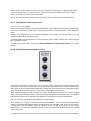
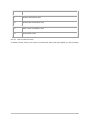
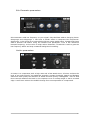
MIDI Output
Displays the available MIDI outputs that can be used to send
Midi data out or Midi Clock out from Spark Sequencer and Pads
in Standalone Mode.
MIDI Clock sample
offset
Set an offset on internal Spark Midi Clock to compensate audio
driver latency errors.
Active MIDI inputs
Displays the available MIDI inputs that can be used to control
SPARK.
ARTURIA – SPARK CREATIVE DRUM MACHINE – USER’S MANUAL
91




































![[EN] SPARK Manual April2011](http://vs1.manualzilla.com/store/data/005899229_1-00bdd099054b23c9b74e57dfb72b875f-150x150.png)