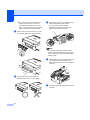
1
USER’S GUIDE DCP-330C DCP-540CN If you need to call Customer Service Please complete the following information for future reference: Model Number: DCP-330C and DCP-540CN (Circle your model number) Serial Number: 1 Date of Purchase: Place of Purchase: 1 The serial number is on the back of the unit. Retain this User's Guide with your sales receipt as a permanent record of your purchase, in the event of theft, fire or warranty service. Register your product on-line at http://www.brother.com/registration/ By registering your product with Brother, you will be recorded as the original owner of the product. Your registration with Brother: may serve as confirmation of the purchase date of your product should you lose your receipt; and may support an insurance claim by you in the event of product loss covered by insurance. © 2006 Brother Industries, Ltd. Compilation and Publication Notice Under the supervision of Brother Industries Ltd., this manual has been compiled and published, covering the latest product descriptions and specifications. The contents of this manual and the specifications of this product are subject to change without notice. Brother reserves the right to make changes without notice in the specifications and materials contained herein and shall not be responsible for any damages (including consequential) caused by reliance on the materials presented, including but not limited to typographical and other errors relating to the publication. i Table of Contents Section I 1 General General Information Using the documentation ....................................................................................... 2 Symbols and conventions used in the documentation ....................................2 Accessing the Software User’s Guide and Network User’s Guide (DCP-540CN only)..............................................................................................2 Viewing Documentation ...................................................................................2 Control panel overview .......................................................................................... 4 LCD display indications .................................................................................. 6 Basic Operations ............................................................................................. 6 Warning LED indications .................................................................................7 Printing Reports ............................................................................................... 7 2 Loading documents and paper Loading documents ............................................................................................... 8 Using the ADF (DCP-540CN only) .................................................................. 8 Using the scanner glass .................................................................................. 8 Scanning area .................................................................................................9 Acceptable paper and other media......................................................................10 Recommended media ...................................................................................10 Handling and using media .............................................................................11 Choosing the right media...............................................................................12 Loading paper, envelopes and other media ........................................................14 Loading paper and other media.....................................................................14 Loading envelopes, post cards and photo paper...........................................16 Printable Area ................................................................................................20 3 General setup Paper settings......................................................................................................21 Paper Type ....................................................................................................21 Paper Size .....................................................................................................21 LCD display .........................................................................................................21 LCD Contrast .................................................................................................21 Setting the backlight brightness .....................................................................22 Setting the Dim Timer for the backlight ........................................................22 Setting the Off Timer .....................................................................................22 ii Section II Copy 4 Making copies How to copy ......................................................................................................... 24 Making a single copy ..................................................................................... 24 Making multiple copies .................................................................................. 24 Stop copying .................................................................................................. 24 Copy options........................................................................................................ 24 Changing copy speed and quality ................................................................ 25 Enlarging or reducing the image copied ........................................................ 25 Making N in 1 copies or a poster (page layout) ............................................ 26 Sorting copies using the ADF (DCP-540CN only) ......................................... 27 Adjusting Brightness, Contrast and Colour.................................................... 27 Paper options ................................................................................................ 28 Setting your changes as a new default.......................................................... 29 Restoring all settings to the factory settings .................................................. 29 Section III Direct Photo Printing 5 Printing photos from a memory card PhotoCapture Center™ Operations..................................................................... 32 Printing from a memory card without a PC.................................................... 32 Scanning to a memory card without a PC ..................................................... 32 Using PhotoCapture Center™ from your computer....................................... 32 Using memory cards...................................................................................... 32 Memory card folder structure......................................................................... 33 Getting started ..................................................................................................... 34 Entering PhotoCapture mode ........................................................................ 34 Print Images......................................................................................................... 35 View Photo(s) ................................................................................................ 35 Print Index (Thumbnails) ............................................................................... 35 Print All Photos .............................................................................................. 36 Print Photos ................................................................................................... 36 DPOF printing ................................................................................................ 37 PhotoCapture Center™ print settings.................................................................. 38 Print Quality ................................................................................................... 39 Paper options ................................................................................................ 39 Adjusting Brightness, Contrast and Colour.................................................... 40 Cropping ........................................................................................................ 41 Borderless printing......................................................................................... 41 Setting your changes as a new default.......................................................... 41 Restoring all settings to the factory settings .................................................. 41 Scan to Card ....................................................................................................... 42 Entering Scan mode ...................................................................................... 42 How to scan to card ....................................................................................... 42 Understanding the Error Messages ..................................................................... 43 iii 6 Printing photos from a camera with PictBridge Before Using PictBridge.......................................................................................44 PictBridge requirements ................................................................................44 Using PictBridge ..................................................................................................44 Setting your digital camera ............................................................................44 Printing Images....................................................................................................45 DPOF printing ................................................................................................45 Understanding the Error Messages .....................................................................46 Section IV Software 7 Software and Network features Section V Appendixes A Safety and Legal Choosing a location .............................................................................................50 To use the machine safely.............................................................................51 Important Information for Australia ......................................................................54 IMPORTANT-For Your Safety .......................................................................54 Important safety instructions..........................................................................54 Important Information for New Zealand ...............................................................56 Important Safety Instructions .........................................................................56 IMPORTANT - For your safety ......................................................................58 IMPORTANT NOTICE ...................................................................................58 Important Information for Some Countries...........................................................59 Important Safety Instructions .........................................................................59 IMPORTANT - For your safety ......................................................................60 LAN connection (DCP-540CN only) ..............................................................60 Legal limitations for copying ..........................................................................61 Trademarks ...................................................................................................62 B Troubleshooting and Routine Maintenance Troubleshooting ..................................................................................................63 If you are having difficulty with your machine ................................................63 Error messages ...................................................................................................67 Changing LCD language ...............................................................................68 Document jam (DCP-540CN only) ................................................................69 Printer jam or paper jam ................................................................................69 Routine maintenance...........................................................................................71 Replacing the ink cartridges ..........................................................................71 Cleaning the outside of the machine .............................................................73 Cleaning the scanner.....................................................................................74 Cleaning the machine printer platen ..............................................................74 Cleaning the Paper Pick-up Roller ................................................................75 iv Cleaning the print head ................................................................................. 75 Checking the print quality .............................................................................. 76 Checking the printing alignment .................................................................... 77 Checking the ink volume ............................................................................... 77 Machine Information ............................................................................................ 77 Checking the serial number ........................................................................... 77 Packing and shipping the machine ...................................................................... 78 C Menu and Features On-screen programming...................................................................................... 80 Menu table ..................................................................................................... 80 Menu keys ........................................................................................................... 80 Menu table ..................................................................................................... 81 D Specifications General ................................................................................................................ 89 Print media........................................................................................................... 91 Copy .................................................................................................................... 92 PhotoCapture Center™ ....................................................................................... 93 PictBridge ........................................................................................................... 93 Scanner ............................................................................................................... 94 Printer .................................................................................................................. 95 Interfaces ............................................................................................................. 96 Computer requirements ....................................................................................... 97 Consumable items ............................................................................................... 98 Network (LAN) (DCP-540CN only) ...................................................................... 99 E Glossary F Index v Section I General General Information Loading documents and paper General setup I 2 8 21 1 General Information Using the documentation 1 Thank you for buying a Brother machine! Reading the documentation will help you make the most of your machine. Symbols and conventions used in the documentation The following symbols and conventions are used throughout the documentation. Bold Bold typeface identifies specific keys on the machine control panel. Italics Italicized typeface emphasizes an important point or refers you to a related topic. Courier New Text in the Courier New font identifies messages on the LCD of the machine. Viewing Documentation Viewing Documentation (For Windows®) To view the documentation, from the Start menu, point to Brother, DCP-XXXX (where XXXX is your model name) from the programs group, and then select User’s Guide. If you have not installed the software, you can find the documentation by following the instructions below: a Electrical Hazard icons alert you to possible electrical shock. Turn on your PC. Insert the Brother CD-ROM into your CD-ROM drive. b Hot Surface icons warn you not to touch machine parts that are hot. If the model name screen appears, click your model name. c If the language screen appears, click your language. The CD-ROM main menu will appear. Notes tell you how you should respond to a situation that may arise or give tips about how the operation works with other features. Improper Setup icons alert you to devices and operations that are not compatible with the machine. 1 This User’s Guide does not contain all the information about the machine such as how to use Printer, Scanner and Network. When you are ready to learn detailed information about these operations, read the Software User’s Guide and Network User’s Guide (DCP-540CN only) that is on the CD-ROM. Warnings tell you what to do to prevent possible personal injury. Cautions specify procedures you must follow or avoid to prevent possible damage to the machine or other objects. 2 1 Accessing the Software User’s Guide and Network User’s Guide (DCP-540CN only) 1 1 1 General Information b c d e Note If this window does not appear, use Windows® Explorer to run the setup.exe program from the root directory of the Brother CD-ROM. d Click User’s Guide. How to find Scanning instructions 1 There are several ways you can scan documents. You can find the instructions as follows: Double-click the Documentation icon. Double-click your language folder. Click the documentation you want to read. Software User’s Guide: Software User’s Guide in HTML format Network User’s Guide: Network User’s Guide (DCP-540CN only) in HTML format How to find Scanning instructions Software User’s Guide Scanning (For Windows® 98/98SE/Me/2000 Professional and Windows® XP) There are several ways you can scan documents. You can find the instructions as follows: ControlCenter3 (For Windows ® 98/98SE/Me/2000 Professional and Windows® XP) Software User’s Guide ControlCenter2 (For Mac OS® X 10.2.4 or greater) PaperPort® SE with OCR User’s Guide Network Scanning (For Mac OS® X 10.2.4 or greater) (DCP-540CN only) Instructions for scanning directly from ScanSoft® PaperPort®. The complete ScanSoft® PaperPort® SE with OCR User's Guide can be viewed from the Help selection in the ScanSoft ® PaperPort® with OCR application. a 1 Scanning (For Mac OS® X 10.2.4 or greater) Network Scanning (DCP-540CN only) Viewing Documentation (For Macintosh®) 1 Double-click the top page file. Presto!® PageManager® User’s Guide Instructions for scanning directly from Presto!® PageManager®. The complete Presto!® PageManager® User's Guide can be viewed from the Help selection in 1 the Presto!® PageManager® application. Turn on your Macintosh®. Insert the Brother CD-ROM into your CD-ROM drive. The following window will appear. 3 Chapter 1 Control panel overview 1 COPY 01 Quality Enlarge/Reduce Paper Type Paper Size Brightness Normal 100% Plain Pap A4 0 1 1 LCD (liquid crystal display) Displays messages on the screen to help you set up and use your machine. Also, you can adjust the angle of the LCD display by lifting it. 2 Number of Copies Use this key to make multiple copies. 3 Menu keys: d or c Press to scroll backward or forward to a menu selection. a or b Press to scroll through the menus and options. Menu Lets you access the main menu. OK Lets you select a setting. 4 4 Start keys: Colour Start Lets you start making copies in full colour. Also lets you start a scanning operation (in colour or mono, depending on the scanning setting in the ControlCenter software). Mono Start Lets you start making copies in monochrome. Also lets you start a scanning operation (in colour or mono, depending on the scanning setting in the ControlCenter software). General Information 1 10 9 8 7 6 5 01 Normal 100% Plain Pap A4 0 2 5 Stop/Exit 8 Stops an operation or exits from a menu. 6 7 On/Off You can turn the machine on or off. If you turn the machine off, it will still periodically clean the print head to maintain print quality. Ink Management Lets you clean the print head, check the print quality, and check the available ink volume. 4 3 Scan Lets you access Scan mode. 9 PhotoCapture Lets you access PhotoCapture Center™ mode. 10 Warning LED Turns red when the LCD displays an error or an important status message. Note Most of the illustrations in this User ’s Guide show the DCP-330C. 5 Chapter 1 LCD display indications 1 d The LCD shows the current machine status when the machine is idle. COPY MENU Paper Type Plain Paper Inkjet Paper Brother Photo Other Photo Select & Press 01 Normal 100% Plain Pap A4 0 Quality Enlarge/Reduce Paper Type Paper Size Brightness 20:48 MENU General Setup Paper Type Paper Size LCD Settings Ink indicator Lets you see the available ink volume. Basic Operations Select & Press Press Menu. Press a or b to choose General Setup. MENU General Setup Print Reports Machine Info. Initial Setup Select & Press OK Press OK. c Press a or b to choose Paper Type. MENU General Setup Paper Type Paper Size LCD Settings Select & Press Press OK. 6 Inkjet Pa A4 1 For example, to change the paper type to Inkjet Paper. a b OK Press OK. You can see the current setting on the LCD: 1 1 Press a or b to choose Inkjet Paper. Plain Pa A4 OK e Press Stop/Exit. OK General Information Warning LED indications The status LED (Light Emitting Diode) is a light that shows the DCP status. The LCD shows the current machine status when the machine is idle. 1 Printing Reports 1 1 The following reports are available: Help List A help list about how to quickly program your machine. User Settings Lists your settings. COPY Quality Enlarge/Reduce Paper Type Paper Size Brightness 01 Normal 100% Plain Pap A4 0 Network config. (DCP-540CN only) Lists your Network settings. How to print a report LED DCP status Description Ready The DCP is ready for use. a b Press Menu. c Press a or b to choose the report you want. Press OK. d Press Mono Start. Off Cover open Red The cover is open. Close the cover. (See Error messages on page 67.) Ink empty Replace the Ink cartridge with a new one. (See Replacing the ink cartridges on page 71.) Paper error Put paper in the tray or clear the paper jam. Check the LCD message. (See Error messages on page 67.) Other messages Check the LCD message. (See Error messages on page 67.) 1 Press a or b to choose Print Reports. Press OK. 7 2 Loading documents and paper Loading documents 2 You can make copies, and scan from the ADF (automatic document feeder) and from the scanner glass. Using the ADF (DCP-540CN only) Recommended environment Temperature: 20 to 30° C (68 to 86° F) Humidity: 50% to 70% Paper: 80 gsm A4 (20 lb LTR) Document Sizes Supported Length: 148 to 355.6 mm (5.8 to 14 in.) Width: 148 to 215.9 mm (5.8 to 8.5 in.) Weight: 64 to 90 gsm (17 to 24 lb) How to load documents Make sure documents written with ink are completely dry. a Fan the pages well. Make sure you put the documents face down, top edge first in the ADF until you feel them touch the feed roller. b Adjust the paper guides to fit the width of your documents. c Unfold the ADF Document Output Support Flap (1). 2 The ADF can hold up to 10 pages and feeds each sheet individually. Use standard 80 gsm (20 lb) paper and always fan the pages before putting them in the ADF. 2 2 1 2 CAUTION DO NOT leave thick documents on the scanner glass. If you do this, the ADF may jam. 2 Using the scanner glass 2 CAUTION DO NOT pull on the document while it is feeding. You can use the scanner glass to copy or scan pages of a book or one page at a time. Document Sizes Supported DO NOT use paper that is curled, wrinkled, folded, ripped, stapled, paper clipped, pasted or taped. DO NOT use cardboard, newspaper or fabric. 8 Length: Up to 297 mm (11.7 in.) Width: Up to 215.9mm (8.5 in.) Weight: Up to 2 kg (4.4 lb) 2 Loading documents and paper How to load documents Note To use the scanner glass, the ADF must be empty. a 2 Scanning area 2 The scanning area depends on the settings in the application you are using. The figures below show the areas you cannot scan on paper. Lift the document cover. 3 4 1 2 b Using the document guidelines on the left, center the document face down on the scanner glass. Usage Document Size Top (1) Left (3) Bottom (2) Right (4) Copy Letter 3 mm (0.12 in.) 3 mm (0.12 in.) A4 3 mm (0.12 in.) 3 mm (0.12 in.) Letter 3 mm (0.12 in.) 3 mm (0.12 in.) A4 3 mm (0.12 in.) 0 mm (0 in.) Scan c Close the document cover. CAUTION If you are scanning a book or thick document, DO NOT slam the cover or press on it. 9 2 Chapter 2 Acceptable paper and other media The print quality can be affected by the type of paper you are using in the machine. To get the best print quality for the settings you have chosen, always set the Paper Type to match the type of paper you load. You can use plain paper, inkjet paper (coated paper), glossy paper, transparencies and envelopes. We recommend testing various paper types before buying large quantities. For best results, use the Brother paper. When you print on inkjet paper (coated paper), transparencies and glossy paper, be sure to choose the correct media in the ‘Basic’ tab of the printer driver or in the Paper Type setting of the menu. When you print on Brother photo paper, load the instruction sheet included with the photo paper in the paper tray first, and then put the photo paper on the instruction sheet. When you use transparencies or photo paper, remove each sheet at once to prevent smudging or paper jams. Avoid touching the printed surface of the paper immediately after printing; the surface may not be completely dry and may stain your fingers. 10 Recommended media 2 To get the best print quality, we suggest using Brother paper. (See table below.) If Brother paper is not available in your country, we recommend testing various papers before purchasing large quantities. We recommend using ‘3M Transparency Film’ when you print on transparencies. Brother paper Paper Type Item A4 Plain BP60PA A4 Glossy Photo BP61GLA A4 Inkjet (Matte) BP60MA 10 x 15 cm Glossy BP61GLP 2 Loading documents and paper Handling and using media Store paper in its original packaging, and keep it sealed. Keep the paper flat and away from moisture, direct sunlight and heat. Improper Setup 2 DO NOT use the following kinds of paper: • Damaged, curled, wrinkled, or irregularly shaped paper The coated side of photo paper is shiny. Avoid touching the shiny (coated) side. Load photo paper with the shiny side facing down. Avoid touching either side of transparencies because they absorb water and perspiration easily, and this may cause decreased output quality. Transparencies designed for laser printers/copiers may stain your next document. Use only transparencies recommended for inkjet printing. 2 1 1 1 2 mm (0.08 in.) or longer • Extremely shiny or highly textured paper • Paper already printed on by a printer • Paper that cannot be arranged uniformly when stacked • Paper made with a short grain Paper capacity of the output paper tray 2 Up to 50 sheets of 20 lb Letter or 80 gsm A4 paper. Transparencies or photo paper must be picked up from the output paper tray one page at a time to avoid smudging. 11 Chapter 2 Choosing the right media 2 Paper type and size for each operation Paper Type Paper Size 2 Usage Copy Cut Sheet Cards Envelopes Printer Letter 216 × 279 mm (8 1/2 × 11 in.) Yes Yes Yes A4 210 × 297 mm (8.3 × 11.7 in.) Yes Yes Yes Legal 216 × 356 mm (8 1/2 × 14 in.) Yes – Yes Executive 184 × 267 mm (7 1/4 × 10 1/2 in.) – – Yes JIS B5 182 × 257 mm (7.2 × 10.1 in.) – – Yes A5 148 × 210 mm (5.8 × 8.3 in.) Yes – Yes A6 105 × 148 mm (4.1 × 5.8 in.) – – Yes Photo 10 × 15 cm (4 × 6 in.) Yes Yes Yes Photo L 89 × 127 mm (3 1/2 × 5 in.) – – Yes Photo 2L 13 × 18 cm (5 × 7 in.) – Yes Yes Yes Index Card 127 × 203 mm (5 × 8 in.) – – Post Card 1 100 × 148 mm (3.9 × 5.8 in.) – – Yes Post Card 2 (Double) 148 × 200 mm (5.8 × 7.9 in.) – – Yes C5 Envelope 162 × 229 mm (6.4 × 9 in.) – – Yes DL Envelope 110 × 220 mm (4.3 × 8.7 in.) – – Yes COM-10 105 × 241 mm (4 1/8 × 9 1/2 in.) – – Yes Monarch 98 × 191 mm (3 7/8 × 7 1/2 in.) – – Yes JE4 Envelope 105 × 235 mm (4.1 × 9.3 in.) – – Yes Transparencies Letter A4 12 Photo Capture 216 × 279 mm (8 1/2 × 11 in.) Yes – Yes 210 × 297 mm (8.3 × 11.7 in.) Yes – Yes Loading documents and paper Paper weight, thickness and capacity 2 Paper Type Weight Cut Sheet Plain Paper 64 to 120 gsm (17 to 32 lb) 0.08 to 0.15 mm (0.003 to 0.006 in.) 100 1 Inkjet Paper 64 to 200 gsm (17 to 53 lb) 0.08 to 0.25 mm (0.003 to 0.01 in.) 20 Glossy Paper Up to 220 gsm (Up to 58 lb) Up to 0.25 mm (Up to 0.01 in.) 20 2 Photo Card Up to 240 gsm (Up to 64 lb) Up to 0.28 mm (Up to 0.01 in.) 20 2 Index Card Up to 120 gsm (Up to 32 lb) Up to 0.15 mm (Up to 0.006 in.) 30 Post Card Up to 200 gsm (Up to 53 lb) Up to 0.23 mm (Up to 0.01 in.) 30 Envelopes 75 to 95 gsm (20 to 25 lb) Up to 0.52 mm (Up to 0.02 in.) 10 Transparencies – – 10 Cards Thickness No. of sheets 1 Up to 50 sheets for Legal size paper 80 gsm (20 lb). Up to 100 sheets of 80 gsm (20 lb) paper. 2 For Photo 10 x 15 cm and Photo L paper, use the Photo Paper Tray. See Loading photo paper on page 18. 2 13 Chapter 2 Loading paper, envelopes and other media Loading paper and other media b Press and slide the paper side guides (1) and paper length guide (2) to fit the paper size. 1 2 2 Note To print on Photo L or 10 × 15 cm paper, please see Loading photo paper on page 18. a 2 Pull the paper tray completely out of the machine. If the paper support flap is open, close it and lift the output paper tray cover (1). c Fan the stack of paper well to avoid paper jams and misfeeds. 1 Note Always make sure that the paper is not curled. 14 Loading documents and paper d Gently put the paper into the paper tray print side down and top edge first. Check that the paper is flat in the tray. e Gently adjust the paper side guides with both hands and the paper length guide to the paper. Make sure the paper side guides touch the sides of the paper. Note When you use Legal size paper, press and hold the universal guide release button as you slide out the front of the paper tray. Note Be careful that you do not push the paper in too far; it may lift at the back of the tray and cause feed problems. f Close the paper tray cover. 15 2 Chapter 2 g Slowly push the paper tray completely back into the machine. Loading envelopes, post cards and photo paper 2 Loading envelopes 2 Use envelopes that weigh from 75 to 95 gsm (20 to 25 lb). Some envelopes need margin settings to be set in the application. Make sure you do a test print first. h While holding the paper tray in place, pull out the paper support (1) until it clicks and unfold the paper support flap (2). CAUTION Do not use any of the following types of envelope, as they will cause paper feed problems: • If they are of a baggy construction. • That are embossed (have raised writing on them). • That have clasps or staples. • That are pre-printed on the inside. Note Glue 2 Double flap 2 Do not use the paper support flap for Legal paper. Occasionally you may experience paper feed problems caused by the thickness, size and flap shape of the envelopes you are using. 16 Loading documents and paper How to load envelopes and post cards a 2 Before loading, press the corners and sides of the envelopes or post cards to make them as flat as possible. If you have problems when printing on envelopes, try the following suggestions: a b Open the envelope flap. c Adjust the size and margin in your application. Note If the envelopes or post cards are ‘doublefeeding,’ put one envelope in the paper tray at a time. b 2 Make sure the open flap is either to the side of the envelope or to the back edge of the envelope when printing. Put the envelopes or post cards into the paper tray with the address side down and the leading edge (top of the envelopes) in first. Slide the paper side guides (1) and paper length guide (2) to fit the size of the envelopes or post cards. 1 2 17 2 Chapter 2 Loading photo paper 2 c Use the photo paper tray which has been assembled on the top of the paper tray to print on photo 10 × 15 cm and photo L size paper. You can leave paper in the standard paper tray when using the photo paper tray. a Put the photo paper into the photo paper tray and gently adjust the paper side guides to fit the paper. Make sure the paper side guides touch the sides of the paper. Press the photo paper tray release button with your left thumb and push the photo paper tray (the top part of the tray) back until it clicks into the photo printing position. Note • Be careful that you do not push the paper in too far; it may lift at the back of the tray and cause feed problems. • Always make sure that the paper is not curled. d 1 1 b Photo Paper Tray Press and slide the paper side guides (1) and paper length guide (2) to fit the paper size. 1 2 18 When you have finished printing photos return the photo paper tray to the normal printing position. Press the photo paper tray release button with your left thumb and pull the photo paper tray forward until it clicks. Loading documents and paper Note When the machine ejects small paper onto the output paper tray you may not be able to reach it. Make sure printing has finished, and then pull the tray completely out of the machine. 2 19 Chapter 2 Printable Area 2 The printable area depends on the settings in the application you are using. The figures below show the unprintable areas on cut sheet paper and envelopes. The machine can only print in the shaded areas when the Borderless print feature is available and turned on. Cut Sheet Paper Envelopes 3 3 4 1 4 1 2 2 Top (1) Bottom (2) Left (3) Right (4) Cut Sheet 3 mm (0.12 in.) 3 mm (0.12 in.) 3 mm (0.12 in.) 3 mm (0.12 in.) Envelopes 12 mm (0.47 in.) 24 mm (0.95 in.) 3 mm (0.12 in.) 3 mm (0.12 in.) Note The Borderless feature is not available for envelopes. 20 3 General setup Paper settings Paper Type Press Menu. c Press a or b to choose Paper Type. Press OK. d Press a or b to choose Plain Paper, Inkjet Paper, Brother Photo, Other Photo or Transparency. Press OK. e c Press a or b to choose Paper Size. Press OK. d Press a or b to choose Letter, Legal, A4, A5 or 10×15cm. Press OK. 3 3 To get the best print quality, set the machine for the type of paper you are using. a b 3 e 3 You can adjust the LCD contrast for a sharper and more vivid display. If you are having difficulty reading the LCD, try changing the contrast setting. a b Press Menu. c Press a or b to choose LCD Settings. Press OK. d Press a or b to choose LCD Contrast. Press OK. e Press a or b to choose Light, Med or Dark. Press OK. f Press Stop/Exit. Note The machine ejects paper with printed surfaces face up onto the paper tray in front of the machine. When you use transparencies or glossy paper, remove each sheet at once to prevent smudging or paper jams. a b 3 LCD Contrast Press Stop/Exit. You can use five sizes of paper for printing copies: Letter, Legal, A4, A5, and 10 × 15 cm (4 × 6 in.). When you change the size of paper you load in the machine, you will need to change the paper size setting at the same time. Press Stop/Exit. LCD display Press a or b to choose General Setup. Press OK. Paper Size 3 3 Press a or b to choose General Setup. Press OK. Press Menu. Press a or b to choose General Setup. Press OK. 21 Chapter 3 Setting the backlight brightness Setting the Off Timer 3 If you are having difficulty reading the LCD, try changing the brightness setting. a b Press Menu. c You can set how long the LCD stays on after the last key press. This is a power saving feature. The machine can print and scan when the LCD is off. a b Press Menu. Press a or b to choose LCD Settings. Press OK. c Press a or b to choose LCD Settings. Press OK. d Press a or b to choose Backlight. Press OK. d e Press a or b to choose Off Timer. Press OK. Press a or b to choose Light, Med or Dark. Press OK. e f Press Stop/Exit. Press a or b to choose 1 Min, 2 Mins, 3 Mins, 5 Mins, 10 Mins, 30 Mins or Off. Press OK. f Press Stop/Exit. Press a or b to choose General Setup. Press OK. Setting the Dim Timer for the backlight You can set how long the LCD backlight stays on after the last key press. a b Press Menu. c Press a or b to choose LCD Settings. Press OK. d Press a or b to choose Dim Timer. Press OK. e Press a or b to choose 10 Secs, 20 Secs, 30 Secs or Off. Press OK. f Press Stop/Exit. 22 Press a or b to choose General Setup. Press OK. 3 Press a or b to choose General Setup. Press OK. Note When the display is off you can press any key to turn it back on. 3 Section II Copy Making copies II 24 4 Making copies How to copy Making a single copy a Load your document. (See Loading documents on page 8.) b Press Mono Start or Colour Start. Making multiple copies 4 4 Load your document. c Press Mono Start or Colour Start. Quality Enlarge/Reduce Paper Type Paper Size Brightness 1 01 1 Normal 100% Plain Pap A4 0 No of Copies You can enter the number of copies you want by pressing + or - repeatedly. Press a or b to scroll through the copy options menu. Quality (See page 25.) Enlarge/Reduce (See page 25.) Note Paper Type (See page 28.) To sort the copies, press a or b to choose Stack/Sort. (See Sorting copies using the ADF (DCP-540CN only) on page 27.) To stop copying, press Stop/Exit. 4 You can change the copy settings from the default display. The LCD shows: 4 Press + or - repeatedly until the number of copies you want appears (up to 99). Stop copying Copy options COPY You can make up to 99 copies. a b 4 Paper Size (See page 28.) Brightness (See page 27.) Contrast (See page 27.) Color Adjust (See page 28.) 4 Stack/Sort (DCP-540CN only) (See page 27.) Page Layout (See page 26.) Set New Default (See page 29.) Factory Reset (See page 29.) When the option you want is highlighted, press OK. You can change the copy settings temporarily for the next copy. The machine returns to its default settings after 60 seconds. If you have finished choosing settings, press Mono Start or Colour Start. 24 Making copies Enlarging or reducing the image copied If you want to choose more settings, press a or b. Note You can choose an enlargement or reduction ratio. You can save some of the settings that you use most often by setting them as default. These settings will stay until you change them again. (See Setting your changes as a new default on page 29.) Changing copy speed and quality You can choose the copy quality. The factory setting is Normal. Fast Normal Best a b c Load your document. Enter the number of copies you want. Press a or b to choose Enlarge/Reduce. Press OK. 50% 69% A4 iA5 Fast copy speed and lowest amount of ink used. Use this setting to save time (documents to be proof read, large documents or many copies). Recommended setting for ordinary print outs. Good copy quality with adequate copy speed. 100%* a b c Load your document. d Press a or b to choose Fast, Normal or Best. Press OK. e If you do not want to change additional settings, press Mono Start or Colour Start. Enter the number of copies you want. 4 4 78% Use this setting to copy precise images such as photographs. The highest resolution and slowest speed. 4 83% 93% A4 iLTR 97% LTR iA4 104% EXE iLTR 142% A5 iA4 186% 10×15cmiLTR 198% 10×15cmiA4 200% Custom(25-400%) d Choose one of the options below: Use a or b to select the enlargement or reduction ratio you want. Press OK. Use a or b to select Custom(25400%). Press + or - to enter an enlargement or reduction ratio from 25% to 400%. Press OK. e If you do not want to change additional settings, press Mono Start or Colour Start. Press a or b to choose Quality. Press OK. Note Page Layout Options are not available with Enlarge/Reduce. 25 Chapter 4 e If you do not want to change additional settings, press Mono Start or Colour Start to scan the page. If you are making a poster or placed the document in the ADF, the machine scans the pages and starts printing. If you are using the scanner glass, go to f. f After the machine scans the page, press + (Yes) to scan the next page. g Put the next page on the scanner glass. Press OK. Repeat f and g for each page of the layout. • Make sure paper size is set to Letter or A4. h After all the pages have been scanned, press - (No) to finish. • If you are producing multiple colour copies, N in 1 copy is not available. Place your document face down in the direction shown below. Making N in 1 copies or a poster (page layout) 4 You can reduce the number of pages for copies by using the N in 1 copy feature. This allows you to copy two or four pages onto one page, which lets you save paper. You can also make a poster. When you use the poster feature your machine divides your document into sections, then enlarges the sections so you can assemble them into a poster. If you want to print a poster, use the scanner glass. Note • If Brother Photo or Other Photo has been chosen in the Paper Type setting for N in 1 copies, the machine will print the images as if Plain paper had been chosen. 2 in 1 (P) • (P) means Portrait and (L) means Landscape. 2 in 1 (L) • You can only make one poster copy at a time. 4 in 1 (P) a b c Load your document. d Press a or b to choose Off (1 in 1), 2 in 1 (P), 2 in 1 (L), 4 in 1 (P), 4 in 1 (L)or Poster(3 × 3). Press OK. 26 Enter the number of copies you want. Press a or b to choose Page Layout. Press OK. 4 in 1 (L) Making copies Poster (3 x 3) 4 You can make a poster size copy of a photograph. Adjusting Brightness, Contrast and Colour 4 Brightness 4 You can adjust the copy brightness to make copies darker or lighter. Sorting copies using the ADF (DCP-540CN only) You can sort multiple copies. Pages will be sorted in reverse order. a b c d e 4 a b c Load your document. d Press a or b to make a lighter or darker copy. Press OK. e If you do not want to change additional settings, press Mono Start or Colour Start. Load your document. Enter the number of copies you want. Press a or b to choose Stack/Sort. Press OK. Press a or b to choose Sort. Press OK. If you do not want to change additional settings, press Mono Start or Colour Start. 4 Enter the number of copies you want. Press a or b to choose Brightness. Press OK. Contrast 4 You can adjust the copy contrast to help an image look sharper and more vivid. a b c Load your document. d Press a or b to increase or decrease the contrast. Press OK. e If you do not want to change additional settings, press Mono Start or Colour Start. Enter the number of copies you want. Press a or b to choose Contrast. Press OK. 27 Chapter 4 Colour Saturation 4 Paper options a b c Load your document. d e a b c Load your document. Press a or b to choose Red, Green or Blue. Press OK. Press a to increase the colour saturation, or press b to decrease the colour saturation. Press OK. d Press a or b to choose Plain Paper, Inkjet Paper, Brother Photo, Other Photo or Transparency. Press OK. e If you do not want to change additional settings, press Mono Start or Colour Start. f 28 Enter the number of copies you want. Press a or b to choose Color Adjust. Press OK. Do one of the following: If you want to change saturation for another colour, go to step d. If you want to change additional settings, press a or b to choose Exit. Press OK. If you do not want to change additional settings, press Mono Start or Colour Start. Paper Type 4 4 If you are copying on special paper, set the machine for the type of paper you are using to get the best print quality. Enter the number of copies you want. Press a or b to choose Paper Type. Press OK. Paper Size If copying on paper other than A4 size, you will need to change the paper size setting. You can copy only on Letter, Legal, A4, A5 or Photo Card [10 cm (W) × 15 cm (H)] paper. a b c Load your document. d Press a or b to choose Letter, Legal, A4, A5 or 10x15cm. Press OK. e If you do not want to change additional settings, press Mono Start or Colour Start. Enter the number of copies you want. Press a or b to choose Paper Size. Press OK. 4 Making copies Setting your changes as a new default 4 You can save the copy settings for Quality, Paper Type, Brightness, Contrast and Color Adjust that you use most often by setting them the default settings. These settings will stay until you change them again. a Press a or b to choose your new setting. Press OK. Repeat this step for each setting you want to change. b After changing the last setting, press a or b to choose Set New Default. Press OK. c d Press + to choose Yes. 4 Press Stop/Exit. Restoring all settings to the factory settings 4 You can restore all the settings you have changed to the factory settings. These settings will stay until you change them again. a Press a or b to choose Factory Reset. Press OK. b c Press + to choose Yes. Press Stop/Exit. 29 Chapter 4 30 Section III Direct Photo Printing III Printing photos from a memory card 32 Printing photos from a camera with PictBridge 44 5 Printing photos from a memory card PhotoCapture Center™ Operations Printing from a memory card without a PC Using memory cards 5 5 Even if your machine is not connected to your computer, you can print photos directly from digital camera media. (See Print Images on page 35.) Scanning to a memory card without a PC You can scan documents and save them directly to a memory card. See Scan to Card on page 42. Using PhotoCapture Center™ from your computer You can access the memory card that is in the media drive (slot) of the machine from your PC. (See PhotoCapture Center™ for Windows® or Remote Setup & PhotoCapture Center™ for Macintosh ® in the Software User's Guide on the CD-ROM.) 32 Your Brother machine has media drives (slots) for use with popular digital camera media: CompactFlash®, Memory Stick® Memory Stick Pro™, SecureDigital™, MultiMediaCard™ and xD-Picture Card™. CompactFlash® Memory Stick ® Memory Stick Pro™ 5 SecureDigital™ xD-Picture Card™ MultiMediaCard™ miniSD™ can be used with a miniSD™ adapter. Memory Stick Duo™ can be used with a Memory Stick Duo™ adapter. Memory Stick Pro Duo™ can be used with a Memory Stick Pro Duo™ adapter. Adapters are not included with the machine. Contact a third party supplier for adapters. The PhotoCapture Center™ feature lets you print digital photos from your digital camera at high resolution to get photo quality printing. 5 5 Printing photos from a memory card Memory card folder structure Your machine is designed to be compatible with modern digital camera image files and memory cards; however, please read the points below to avoid errors: The DPOF file on the memory card must be in a valid format. (See DPOF printing on page 37.) The image file extension must be .JPG (Other image file extensions like .JPEG, .TIF, .GIF and so on will not be recognized). PhotoCapture Center™ printing without using a PC must be performed separately from PhotoCapture Center™ operations using the PC. (Simultaneous operation is not available.) 5 Your machine is designed to read memory cards that have been formatted by a digital camera. When a digital camera formats a memory card it creates a special folder into which it copies image data. If you need to modify the image data stored on a memory card with your PC, we recommend that you do not modify the folder structure created by the digital camera. When saving new or modified image files to the memory card we also recommend you use the same folder your digital camera uses. If the data is not saved to the same folder, the machine may not be able to read the file or print the image. IBM Microdrive™ is not compatible with the machine. The machine can read up to 999 files on a memory card. CompactFlash ® Type II is not supported. This product supports xD-Picture Card™ Type M / Type H (Large Capacity). Please be aware of the following: When printing the INDEX or IMAGE, the PhotoCapture Center™ will print all the valid images, even if one or more images have been corrupted. A portion of the corrupted image may be printed. 33 5 Chapter 5 Getting started 5 Firmly put the card into the correct slot. Entering PhotoCapture mode After you insert the media card, press the (PhotoCapture) key to illuminate it in green and display the PhotoCapture options on the LCD. The LCD shows: PHOTO 1 2 3 4 View Photo(s) 1 CompactFlash® Print Index 2 SecureDigital™, MultiMediaCard™ Print All Photos Stick®, 3 Memory Memory Stick Pro™ 4 xD-Picture Card™ PhotoCapture key indications: Print Photos Select & Press OK Press a or b to scroll through the PhotoCapture key options. View Photo(s) (See page 35.) Print Index (See page 35.) Print All Photos (See page 36.) Print Photos (See page 36.) Note PhotoCapture light is on, the media card is properly inserted. PhotoCapture light is off, the media card is not properly inserted. PhotoCapture light is blinking, the media card is being read or written to. CAUTION DO NOT unplug the power cord or remove the media card from the media drive (slot) while the machine is reading or writing to the card (the PhotoCapture key is blinking). You will lose your data or damage the card. The machine can only read one media card at a time so do not put more than one card in the slot. 34 If your digital camera supports DPOF printing, see DPOF printing on page 37. When the option you want is highlighted, press OK. 5 Printing photos from a memory card Print Images View Photo(s) 5 5 Print Index (Thumbnails) 5 The PhotoCapture Center™ assigns numbers for images (such as No.1, No.2, No.3, and so on). You can preview your photos on the LCD before you print them. If your photos are large files there may be a delay before each photo is displayed on the LCD. a Make sure you have put the media card in the correct slot. Press (PhotoCapture). b Press a or b to choose View Photo(s). Press OK. c d Press d or c to choose your photo. e Repeat step c and step d until you have chosen all the photos. f After you have chosen all the photos, do one of the following: Press OK and change the print setting. (See page 38.) If you do not want to change any settings, press Colour Start to print. Press + or - repeatedly to enter the number of copies you want. The PhotoCapture Center™ does not recognize any other numbers or file names that your digital camera or PC has used to identify the pictures. You can print a thumbnail page (Index page with 6 or 5 images per line). This will show all the pictures on the media card. a Make sure you have put the media card in the correct slot. Press (PhotoCapture). b Press a or b to choose Print Index. Press OK. c Press a or b to choose 6 Images/Line Fast or 5 Images/Line Photo. Press OK. 5 Images/Line Photo 6 Images/Line Fast Print time for 5 Images/Line will be slower than 6 Images/Line, but the quality is better. d Press Colour Start to print. 35 5 Chapter 5 Print All Photos 5 Print Photos 5 You can print all the photos on your media card. Before you can print an individual image, you have to know the image number. a a Make sure you have put the media card in the correct slot. Press (PhotoCapture). b Press a or b to choose Print All Photos. Press OK. c Press + or - repeatedly to enter the number of copies you want. d Do one of the following: Change the print setting. (See page 38.) If you do not want to change any settings, press Colour Start to print. Make sure you have put the media card in the correct slot. Press (PhotoCapture). b Print the Index. (See Print Index (Thumbnails) on page 35.) c Press a or b to choose Print Photos. Press OK. d Press + repeatedly to enter the image number that you want to print from the Index page (Thumbnails). If you want to choose a two digit number, press c to move the cursor to the next digit. (For example, enter 1, c, 6 to print image No.16.) Press OK. e Repeat step d until you have entered all the image numbers that you want to print. Note • Press - to decrease the image number. • You can enter all the numbers at one time by using the OK key for a comma. (For example, Enter 1, OK, 3, OK, 6 to print images No.1, No.3 and No.6.). 36 f After you have chosen all the image numbers, press OK again. g Press + or - repeatedly to enter the number of copies you want. Press OK. h Do one of the following: Change the print setting. (See page 38.) If you do not want to change any settings, press Colour Start to print. Printing photos from a memory card DPOF printing 5 DPOF stands for Digital Print Order Format. Major digital camera manufacturers (Canon Inc., Eastman Kodak Company, Fuji Photo Film Co. Ltd., Matsushita Electric Industrial Co. Ltd. and Sony Corporation) created this standard to make it easier to print images from a digital camera. If your digital camera supports DPOF printing, you will be able to choose on the digital camera display the images and number of copies you want to print. 5 When the memory card (CompactFlash®, Memory Stick®, Memory Stick Pro™, SecureDigital™, MultiMediaCard™ or xDPicture Card™) with DPOF information is put into your machine, you can print the chosen image easily. a Make sure you have put the media card into the correct slot. Press (PhotoCapture). The machine will ask you if you want to use DPOF setting. b c Press + to choose Yes. Do one of the following: Change the print settings. (See page 38.) If you do not want to change any settings, press Colour Start to print. 37 Chapter 5 PhotoCapture Center™ print settings 5 You can change the print settings temporarily for the next print. The machine returns to its default settings after 180 seconds. Note You can save the print settings you use most often by setting them as default. (See Setting your changes as a new default on page 41.) PHOTO Print Quality Paper Type Paper Size Brightness Contrast Print Start Press 1 1 01 Photo Other Pho 10x15cm 0 0 No of prints (For View Photo(s)) You can see the total number of photos that will be printed. (For Print All Photos, Print Photos) You can see the number of copies of each photo that will be printed. Menu Selections Options 1 Print Quality Normal/Photo Options 2 39 Paper Type Plain Paper/Inkjet Paper/ Brother Photo/Other Photo 39 Paper Size Letter/A4/10x15cm/13x18cm (When A4 or Letter is selected) Page 39 10x8cm 13x9cm 15x10cm 18x13cm 20x15cm Max. Size Brightness Light Dark 38 40 Printing photos from a memory card Menu Selections Options 1 Options 2 Page 40 Contrast Color Enhance 40 On/Off White Balance/Sharpness/ Color Density/Exit Cropping On/Off 41 Borderless On/Off 41 Set New Default Yes/No 41 Factory Reset Yes/No 41 Print Quality a Press a or b to choose Print Quality. Press OK. b Press a or b to choose Normal or Photo. Press OK. c If you do not want to change additional settings, press Colour Start to print. Paper options Paper Type a Press a or b to choose Paper Type. Press OK. b Press a or b to choose the type of paper you are using, Plain Paper, Inkjet Paper, Brother Photo or Other Photo. Press OK. c 5 5 Paper and print size 5 a Press a or b to choose Paper Size. Press OK. b Press a or b to choose the size of paper you are using, Letter, 10×15cm, 13×18cm or A4. Press OK. c If you chose Letter or A4, press a or b to choose the print size. Press OK. Example: Printed Position for A4 paper 5 1 2 3 10×8cm 13×9cm 15×10cm 4 5 6 18×13cm 20×15cm Max. Size 5 If you do not want to change additional settings, press Colour Start to print. 39 Chapter 5 d If you do not want to customize, press d or c to choose Off. Press OK and then go to step f. If you do not want to change additional settings, press Colour Start to print. Adjusting Brightness, Contrast and Colour Brightness a Press a or b to choose Brightness. Press OK. b Press a to make a lighter print or press b to make a darker print. Press OK. c If you do not want to change additional settings, press Colour Start to print. Contrast 5 5 You can choose the contrast setting. More contrast will make an image look sharper and more vivid. a Press a to increase the contrast or press b to decrease the contrast. Press OK. c If you do not want to change additional settings, press Colour Start to print. Colour Enhancement You can turn on the colour enhancement feature to print more vivid images. Printing time will be slower. a b 40 Press a or b to choose Color Enhance. Press OK. Do one of the following: If you want to customize the White Balance, Sharpness or Colour Density, press d or c to choose On and then go to step c. Press a or b to choose White Balance, Sharpness or Color Density. Press OK. d Press a or b to adjust the degree of the setting. Press OK. e Do one of the following: If you want to customize other colour enhancement, press a or b to choose other option. If you want to change other settings, press a or b to choose Exit, and then press OK. f If you do not want to change additional settings, Colour Start to print. Note • White Balance Press a or b to choose Contrast. Press OK. b c 5 This setting adjusts the hue of the white areas of an image. Lighting, camera settings and other influences will effect the appearance of white. The white areas of a picture may be slightly pink, yellow or some other colour. By using this setting, you can correct that effect and bring the white areas back to pure white. • Sharpness 5 This setting enhances the detail of an image, similar to adjusting the fine focus on a camera. If the image is not in true focus and you cannot see the fine details of the picture, then adjust the sharpness. • Colour Density This setting adjusts the total amount of colour in the image. You can increase or decrease the amount of colour in an image to improve a washed out or weak picture. Printing photos from a memory card Cropping 5 If your photo is too long or wide to fit the available space on your chosen layout, part of the image will automatically be cropped. Setting your changes as a new default 5 The factory setting is On. If you want to print the whole image, turn this setting to Off. You can save the print settings you use most often by setting them as the default settings. These settings will stay until you change them again. a Press a or b to choose Cropping. Press OK. a b Press a or b to choose Off (or On). Press OK. Press a or b to choose your new setting. Press OK. Repeat this step for each setting you want to change. c If you do not want to change additional settings, press Colour Start to print. b After changing the last setting, press a or b to choose Set New Default. Press OK. c d Press + to choose Yes. Cropping: On 5 ///////////////////////////////////////// ///////////////////////////////////////// Cropping: Off 5 5 Press Stop/Exit. Restoring all settings to the factory settings 5 You can restore all the settings you have changed to the factory settings. These settings will stay until you change them again. Borderless printing This feature expands the printable area to the edges of the paper. Printing time will be slightly slower. a Press a or b to choose Borderless. Press OK. b Press a or b to choose Off (or On). Press OK. c If you do not want to change additional settings, press Colour Start to print. a Press a or b to choose Factory Reset. Press OK. b c Press + to choose Yes. 5 Press Stop/Exit. 41 Chapter 5 Scan to Card Entering Scan mode 5 5 When you want to scan to card, press (Scan). The LCD shows: Selectable File Format 150dpi Color JPEG / PDF 300dpi Color JPEG / PDF 600dpi Color JPEG / PDF 200x100dpi B/W TIFF / PDF 200dpi B/W TIFF / PDF a SCAN Scan to E-mail Scan to Image Scan to OCR Scan to File Scan to Card Select & Press Quality Insert a CompactFlash ®, Memory Stick®, Memory Stick Pro™, SecureDigital™, MultiMediaCard™ or xD-Picture Card™ into your machine. WARNING Do not take out the media card while PhotoCapture is blinking to avoid damaging the card or data stored on the card. OK Press a or b to choose Scan to Card. press OK. If you are not connected to your computer only the Scan to Card selection will appear on the LCD. (See Software User’s Guide for details about the other menu options.) How to scan to card You can scan monochrome and colour documents into a memory card. Monochrome documents will be stored in PDF (*.PDF) or TIFF file formats (*.TIF). Colour documents may be stored in PDF (*.PDF) or JPEG (*.JPG) file formats. The factory setting is 150 dpi Color and the default file format is PDF. For monochrome documents, the factory setting is 200×100dpi B/W and the default format is TIFF. The machine automatically creates file names based on the current date. (For details, see the Quick Setup Guide.) For example, the fifth image scanned on July 1, 2006 would be named 01070605.PDF. You can change the colour and quality. 42 b Load your document. c Press d Press a or b to select Scan to Card, choose one of the options below: To change the quality press OK and go to step e. To start scanning press Mono Start or Colour Start. e Press a or b to select the quality, choose one of the options below: To change the file type press OK and go to step f. To start scanning press Mono Start or Colour Start. f Press a or b to select the file type. Press Mono Start or Colour Start. 5 (Scan). Printing photos from a memory card Understanding the Error Messages 5 Once you are familiar with the types of errors that can occur while you are using the PhotoCapture Center™, you can easily identify and troubleshoot any problems. Media Error This message will appear if you put in a media card that is either bad or not formatted, or when there is a problem with the media drive. To clear this error, take out the media card. 5 No File This message will appear if you try to access a media card in the drive (slot) that does not contain a .JPG file. Out of Memory This message will appear if you are working with images that are too large for the machine's memory. 43 6 Printing photos from a camera with PictBridge Using PictBridge Setting your digital camera Make sure your camera is in PictBridge mode. Some of the settings listed below may not be available for your PictBridge compatible digital camera. Your Brother machine supports the PictBridge standard, allowing you to connect to and print photos directly from any PictBridge compatible digital camera. Before Using PictBridge PictBridge requirements 6 Options Paper Size Letter, A4, 10x15cm, Printer Settings (Default setting) 2 Paper Type Plain Paper, Glossy Paper, Inkjet Paper, Printer Settings (Default setting) 2 6 Layout To avoid errors, remember the following points: The machine and the digital camera must be connected using a suitable USB cable. Borderless: On, Borderless: Off, Printer Settings (Default setting) 2 DPOF The image file extension must be .JPG (Other image file extensions like .JPEG, .TIF, .GIF and so on will not be recognized). PhotoCapture Center operations are not available when using the PictBridge feature. Camera Menu Selections setting 1 - Print Quality Normal, Fine, Printer Settings (Default setting) 2 Color Enhancement On, Off, Printer Settings (Default setting) 2 1 See DPOF printing for more details. 2 If your camera is set to use the Printer Settings (Default setting), the machine will print your photo using the settings below. Settings Options Paper Size 10x15cm Paper Type Glossy Paper Layout Borderless: On Print Quality Fine Color Enhancement Off Please refer to the documentation supplied with your camera for more detailed information on changing PictBridge settings. 44 6 6 6 Printing photos from a camera with PictBridge Printing Images a Make sure that your camera is turned off. Connect your camera to the PictBridge port (1) on the machine using the USB cable. 6 DPOF printing 6 DPOF stands for Digital Print Order Format. Major digital camera manufacturers (Canon Inc., Eastman Kodak Company, Fuji Photo Film Co. Ltd., Matsushita Electric Industrial Co. Ltd. and Sony Corporation) created this standard to make it easier to print images from a digital camera. If your digital camera supports DPOF printing, you will be able to choose on the digital camera display the images and number of copies you want to print. 6 1 1 PictBridge port Note Remove any memory cards from the machine before connecting the digital camera. b Turn on the camera. When the machine has recognized the camera, the LCD shows Camera Connected. When the machine starts printing a photo, the LCD will show Printing. WARNING To prevent damage to your machine, do not connect any device other than a PictBridge compatible camera to the PictBridge port. 45 Chapter 6 Understanding the Error Messages Once you are familiar with the types of errors that can occur while you are using PictBridge, you can easily identify and troubleshoot any problems. Out of Memory This message will appear if you are working with images that are too large for the machine's memory. Wrong USB device This message will appear if you connect a non-PictBridge compatible or broken device to the PictBridge port. To clear the error, unplug the device from the PictBridge port, then press On/Off to turn the machine off and then on again. For more detailed solutions see Error messages on page 67. 46 6 Section IV Software Software and Network features IV 48 7 Software and Network features The CD-ROM includes the Software User’s Guide and Network User’s Guide (DCP540CN only) for features available when connected to a computer (for example, printing and scanning). The guide has easy to use links that, when clicked, will take you directly to a particular section. c Click the heading you would like to read from the list at the left of the window. You can find information on these features: Printing Scanning ControlCenter3 (for Windows®) ControlCenter2 (for Macintosh®) Network Scanning (DCP-540CN only) PhotoCapture Center™ (For Macintosh®) a Make sure your Macintosh ® is turned on. Insert the Brother CD-ROM into your CD-ROM drive. b c Double-click the Documentation icon. d Click Software User's Guide or Network User’s Guide (DCP-540CN only) in the top menu, and then click the heading you would like to read from the list at the left of the window. Network Printing (DCP-540CN only) How to read the HTML User’s Guide This is a quick reference to use the HTML User’s Guide. (For Windows®) Note If you have not installed the software, see Viewing Documentation on page 2. a From the Start menu, point to Brother, DCP-XXXX (where XXXX is your model number) from the programs group, then click User’s Guide. b Click Software User’s Guide or Network User’s Guide (DCP-540CN only) from the top menu. 48 Double-click your language folder, and then double-click the top page file. 7 Section V Appendixes Safety and Legal Troubleshooting and Routine Maintenance Menu and Features Specifications Glossary V 50 63 80 89 100 A Safety and Legal Choosing a location Put your machine on a flat, stable surface that is free of vibration and shocks, such as a desk. Put the machine near a standard, grounded electrical socket. Choose a location where the temperature remains between 10° and 35° C (50° F and 95° F). CAUTION • Avoid placing your machine in a high-traffic area. • Avoid placing your machine on carpet. • DO NOT put the machine near heaters, air conditioners, refrigerators, medical equipment, chemicals or water. • DO NOT expose the machine to direct sunlight, excessive heat, moisture, or dust. • DO NOT connect your machine to electrical sockets controlled by wall switches or automatic timers. • Disruption of power can wipe out information in the machine's memory. • Do not connect your machine to electrical sockets on the same circuit as large appliances or other equipment that might disrupt the power supply. • Avoid interference sources, such as speakers or the base units of cordless phones. 50 A A Safety and Legal To use the machine safely A Please keep these instructions for later reference and read them before attempting any maintenance. WARNING There are high voltage electrodes inside the machine. Before you clean the inside of the machine, make sure you have unplugged the power cord from the electrical socket. Doing this will prevent an electrical shock. DO NOT handle the plug with wet hands. Doing this might cause an electrical shock. DO NOT pull in the middle of the power cord. Doing this might cause an electrical shock. 51 DO NOT put your hands on the edge of the machine under the document cover or the scanner cover. Doing this may cause injury. DO NOT touch the paper feed roller. Doing this may cause injury. DO NOT touch the area shaded in the illustration. Doing this may cause injury. 52 Safety and Legal When moving the machine you must lift it from the base, by placing a hand at each side of the unit as shown in the illustration. Do not carry the machine by holding the scanner cover. If the machine becomes hot, releases smoke, or generates any strong smells, immediately turn off the power switch and unplug the machine from the electrical socket. Call your Brother dealer or Brother Customer Service. If metal objects, water or other liquids get inside the machine, immediately turn off the power switch and unplug the machine from the electrical socket. Call your Brother dealer or Brother Customer Service. WARNING • This product must be installed near an electrical socket that is easily accessible. In case of an emergency, you must unplug the power cord from the electrical socket to shut off the power completely. • Always make sure the plug is fully inserted. 53 Important Information for Australia IMPORTANT-For Your Safety A A To ensure safe operation the three-pin plug supplied must be inserted only into a standard threepin power point which is effectively grounded through the normal household wiring. Extension cords used with the equipment must be three-conductor and be correctly wired to provide connection to ground. Incorrectly wired extension cords are a major cause of fatalities. The fact that the equipment operates satisfactorily does not imply that the power is grounded and that the installation is completely safe. For your safety, if in any doubt about the effective grounding of the power, consult a qualified electrician. Important safety instructions 1 Read all of these instructions. 2 Save them for later reference. 3 Follow all warnings and instructions marked on the product. 4 Unplug this product from the wall socket before cleaning the inside of the machine. Do not use liquid or aerosol cleaners. Use a damp cloth for cleaning. 5 Do not use this product near water. 6 Do not place this product on an unstable cart, stand, or table. The product may fall, causing serious damage to the product. 7 Slots and openings in the cabinet at the back or bottom are provided for ventilation. To ensure reliable operation of the product and to protect it from overheating, these openings must not be blocked or covered. The openings should never be blocked by placing the product on a bed, sofa, rug, or other similar surface. This product should never be placed near or over a radiator or heater. This product should never be placed in a built-in installation unless adequate ventilation is provided. 8 This product should be connected to an AC power source within the range indicated on the rating label. Do NOT connect it to a DC power source. If you are not sure, contact a qualified electrician. 9 This product is equipped with a 3-wire grounded plug, a plug having a third (grounded) pin. This plug will only fit into a grounded power outlet. This is a safety feature. If you are unable to insert the plug into the outlet, call your electrician to replace your obsolete outlet. Do not defeat the purpose of the grounded plug. 10 Do not place anything on top of the power cord including this machine. Do not allow the power cord to be stepped on. 11 Do not place anything in front of the machine that will block received faxes. Do not place anything in the path of received faxes. 12 Do not touch a document during printing. 54 A Safety and Legal 13 Never push objects of any kind into this product through cabinet slots, since they may touch dangerous voltage points or short out parts resulting in a risk of fire or electric shock. Never spill liquid of any kind on the product. 14 Do not attempt to service this product yourself, because opening or removing covers may expose you to dangerous voltage points and/or other risks. Refer all servicing to service personnel. 15 Wait until pages have exited the machine before picking them up. 16 Unplug this product from the electrical socket and refer servicing to Authorized Service Personnel under the following conditions: When the power cord is damaged or frayed. If liquid has been spilled into the product. If the product has been exposed to rain or water. If the product does not operate normally when the operating instructions are followed. Adjust only those controls that are covered by the operating instructions. Incorrect adjustment of other controls may result in damage and will often require extensive work by a qualified technician to restore the product to normal operation. If the product has been dropped or the cabinet has been damaged. If the product exhibits a distinct change in performance, indicating a need for service. 55 Important Information for New Zealand Important Safety Instructions 1 Read all of these instructions. 2 Save them for later reference. 3 Follow all warnings and instructions marked on the product. 4 Unplug this product from the wall outlet before cleaning the inside of the machine. Do not use liquid or aerosol cleaners. Use a damp cloth for cleaning. 5 The grant of a Telepermit for any item of terminal equipment indicates only that Telecom has accepted that the item complies with minimum conditions for connection to its network. It indicates no endorsement of the product by Telecom, nor does it provide any sort of warranty. Above all, it provides no assurance that any item will work correctly in all respects with another item of Telepermitted equipment of a different make or model, nor does it imply that any product is compatible with all of Telecom’s network services. 6 This equipment does not fully meet Telecom’s impedance requirements. Performance limitations may occur when used in conjunction with some parts of the network. Telecom will accept no responsibility should difficulties arise in such circumstances. 7 If a charge for local calls is acceptable, the “Dial Button” should not be used for local calls. Only the 7-digits of the local number should be dialled from your telephone. Do not dial the area code digit or the “0” prefix. 8 This equipment shall not be set to make automatic calls to the Telecom ‘111’ Emergency Service. 9 This equipment should not be used under any circumstances which may constitute a nuisance to other Telecom customers. 10 Not all telephones will respond to incoming ringing when connected to the extension socket. 11 The answer delay setting of this equipment shall not be set to less than the default setting as this will destroy Caller ID information. 12 All persons using this device for recording telephone conversations shall comply with New Zealand law. This requires that at least one party to the conversation is to be aware that it is being recorded. In addition, the Principles enumerated in the Privacy Act 1993 shall be complied with in respect to the nature of the personal information collected, the purpose for its collection, how it is to be used and what it disclosed to any other party. 13 Do not place this product on an unstable surface, stand, or table. The product may fall, causing serious damage to the product. 14 Slots and openings in the cabinet at the back or bottom are provided for ventilation. To ensure reliable operation of the product and to protect it from overheating, these openings must not be blocked or covered. The openings should never be blocked by placing the product on a bed, sofa, rug, or other similar surface. This product should never be placed near or over a radiator or heater. This product should not be placed in a built-in installation unless adequate ventilation is provided. 56 A A Safety and Legal 15 This product should be connected to an AC power source within the range indicated on the rating label. Do NOT connect it to a DC power source. If you are not sure, contact a qualified electrician. 16 This product is equipped with a 3-wire earthed plug. This plug will fit into only an earthed socket. This is a safety feature. If you are unable to insert the plug into the outlet, contact your electrician to replace your obsolete socket. Do not defeat the purpose of an earthed plug. 17 Do not place anything on top of the power cord including this machine. Do not allow the power cord to be stepped on. 18 Do not place anything in front of the machine that will block received faxes. Do not place anything in the path of received faxes. 19 Do not touch a document during printing. 20 Never push objects of any kind into this product through cabinet slots, since they may touch dangerous voltage points or short out parts resulting in a risk of fire or electric shock. Never spill liquid of any kind on the product. 21 Do not attempt to service this product yourself, because opening or removing covers may expose you to dangerous voltage points and/or other risks. Refer all servicing to service personnel. 22 Unplug this product from the mains power and telephone line sockets, and refer servicing to qualified Service Personnel under the following conditions: If the power cord is damaged or frayed. If liquid has been spilled into the product. If the product has been exposed to rain or water. If the product does not operate normally when the operating instructions are followed. Adjust only those controls that are covered by the operating instructions. Incorrect adjustment of other controls may result in damage and will often require extensive work by a qualified technician to restore the product to normal operation. If the product has been dropped or the cabinet has been damaged. If the product exhibits a distinct change in performance, indicating a need for service. 23 This unit will only work in conjunction with a tone signalling (DTMF) telephone, but some telephones are not compatible. Since noise or speech from the telephone can upset dialling from this unit, errors may result if the devices are used together in other than quiet conditions. 24 Where it is necessary to dial prefix digits, such as a Caller Display override code (“0196” or “0197”), this unit will have to be used in conjunction with an associated tone signalling (DTMF) telephone. 25 Note that some telephones are not compatible with this unit and dialling errors may result if the two devices are used together in other than quiet conditions. The Telecom Faults Service is not to be called should such problems arise. In such cases, it is recommended that the prefix and wanted number are dialled manually. 26 This equipment may not provide for the effective hand-over of a call to another device connected to the same line. 57 IMPORTANT - For your safety A To ensure safe operation the three-pin plug supplied must be inserted only into a standard threepin power point which is effectively grounded through the normal household wiring. Extension cords used with the equipment must be three-conductor and be correctly wired to provide connection to ground. Incorrectly wired extension cords are a major cause of fatalities. The fact that the equipment operates satisfactorily does not imply that the power is grounded and that the installation is completely safe. For your safety, if in any doubt about the effective grounding of the power, consult a qualified electrician. IMPORTANT NOTICE Under power failure conditions, this telephone may not operate. Please ensure that a separate telephone, not dependent on local power, is available for emergency use in emergencies. 58 A Safety and Legal Important Information for Some Countries A Important Safety Instructions A 1 Read all of these instructions. 2 Save them for later reference. 3 Follow all warnings and instructions marked on the product. 4 Unplug this product from the wall outlet before cleaning the inside of the machine. Do not use liquid or aerosol cleaners. Use a damp cloth for cleaning. 5 Do not place this product near water. 6 Do not place this product on an unstable cart, stand, or table. The product may drop, causing serious damage to the product. 7 Slots and openings in the cabinet and the back or bottom are provided for ventilation. To ensure reliable operation of the product and to protect it from overheating, these openings must not be blocked or covered. The openings should never be blocked by placing the product on a bed, sofa, rug, or other similar surface. This product should never be placed near or on a radiator or heater. This product should never be placed in a built-in installation unless proper ventilation is provided. 8 This product should be connected to an AC power source within the range indicated on the rating label. Do NOT connect it to a DC power source. If you are not sure, contact a qualified electrician. 9 This product is equipped with a 2-wire grounding type plug or a 3-wire grounding type plug (Only for Singapore, Malaysia, Hong Kong and India), a plug having two or three pins. This plug will only fit into only a grounding-type power outlet. This is a safety feature. If you are unable to insert the plug into the outlet, contact your electrician to replace your obsolete outlet. Do not defeat the purpose of the grounding-type plug. 10 Do not place anything on top of the power cord including this machine. Do not allow the power cord to be stepped on. 11 If an extension cord is used with this product, make sure that the total ampere ratings on the products plugged into the extension cord do not exceed the extension cord ampere rating. 12 Do not place anything in front of the machine that will block received faxes. Do not place anything in the path of received faxes. 13 Do not touch a document during printing. 14 Never push objects of any kind into this product through cabinet slots, since they may touch dangerous voltage points or short out parts resulting in the risk of fire or electric shock. Never spill liquid of any kind on the product. 15 Do not attempt to service this product yourself, as opening or removing covers may expose you to dangerous voltage points and/or other risks, and may void your warranty. Please refer all servicing to our Authorized Service Personnel. A list of Authorized Service Centres has been included for your convenience, or you may contact the Brother Dealer for Service. 59 16 Unplug this product from the wall outlet and refer servicing to Authorized Service Personnel under the following conditions: If the power cord is damaged or frayed. If the product has been spilled by liquid. If the product has been exposed to rain or water. If the product does not operate normally when the operating instructions are followed. Adjust only those controls that are covered by the operating instructions. Incorrect adjustment of other controls may result in damage and will often require extensive work by a qualified technician to restore the product to normal operation. If the product has been dropped or the cabinet has been damaged. If the product exhibits a distinct change in performance, indicating a need for service. 17 To protect your product against power surges, we recommend the use of a power protection device (Surge Protector). WARNING For protection against the risk of electrical shock, always disconnect all cables from the wall outlet before servicing, modifying or installing the equipment. This equipment may not be used on coin service lines provided by the telephone company or connected to party lines. Brother cannot accept any financial or other responsibilities that may be the result of your use of this information, including direct, special or consequential damages. There are no warranties extended or granted by this document. IMPORTANT - For your safety A To ensure safe operation, the supplied three-pin plug must be inserted only into a standard threepin electrical socket that is effectively grounded through the normal household wiring. The fact that the equipment operates satisfactorily does not imply that the power is grounded and that the installation is completely safe. For your safety, if in any doubt about the effective grounding of the power, consult a qualified electrician. LAN connection (DCP-540CN only) CAUTION DO NOT connect this product to a LAN connection that is subject to over-voltages. 60 A Safety and Legal Legal limitations for copying A It is an offence to make reproductions of certain items or documents with the intent to commit fraud. This memorandum is intended to be a guide rather than a complete list. We suggest you check with relevant legal authorities if in doubt about a particular item or document. The following are examples of documents which may not be copied: Money Bonds or other certificates of indebtedness Certificates of Deposit Armed Forces Service or Draft papers Passports Postage Stamps (cancelled or uncancelled) Immigration Papers Welfare documents Cheques or Drafts drawn by Governmental Agencies Identification Documents, badges or insignias Licences and Certificates of Title to motor vehicles Copyrighted works cannot be copied. Sections of a copyrighted work can be copied for ‘fair dealing’. Multiple copies would indicate improper use. Works of art should be considered the equivalent of copyrighted works. Licenses and Certificates of Title to motor vehicles may not be copied under certain state/provincial laws. 61 Trademarks The Brother logo is a registered trademark of Brother Industries, Ltd. Brother is a registered trademark of Brother Industries, Ltd. Multi-Function Link is a registered trademark of Brother International Corporation. © 2006 Brother Industries, Ltd. All rights reserved. Windows and Microsoft are registered trademarks of Microsoft in the U.S. and other countries. Macintosh and TrueType are registered trademarks of Apple Computer, Inc. PaperPort is a registered trademarks of ScanSoft, Inc. Presto! PageManager is a registered trademark of NewSoft Technology Corporation. Microdrive is a trademark of International Business Machine Corporation. CompactFlash is a registered trademark of SanDisk Corporation. Memory Stick is a registered trademark of Sony Corporation. SecureDigital is a trademark of Matsushita Electric Industrial Co. Ltd., SanDisk Corporation and Toshiba Corporation. SanDisk is a licensee of the SD and miniSD trademarks. MultiMediaCard is a trademark of Infineon Technologies and licensed to the MultiMediaCard Association. xD-Picture Card is a trademark of Fujifilm Co. Ltd., Toshiba Corporation and Olympus Optical Co. Ltd. PictBridge is a trademark. Memory Stick Pro, Memory Stick Pro Duo, Memory Stick Duo and MagicGate are trademarks of Sony Corporation. Each company whose software title is mentioned in this manual has a Software License Agreement specific to its proprietary programs. All other brand and product names mentioned in this User's Guide, the Software User's Guide and the Network User’s Guide are registered trademarks of their respective companies. 62 A B Troubleshooting and Routine Maintenance B Troubleshooting B If you think there is a problem with your machine, check the chart below and follow the troubleshooting tips. Most problems can be easily resolved by yourself. If you need additional help, the Brother Solutions Center offers the latest FAQs and troubleshooting tips. Visit us at http://solutions.brother.com. If you are having difficulty with your machine B Printing Difficulty Suggestions No printout Check the interface cable on both the machine and your computer. (See the Quick Setup Guide.) Make sure the machine is plugged in and not in Power Save mode. One or more ink cartridges are empty. (See Replacing the ink cartridges on page 71.) Check to see if the LCD is showing an error message. (See Error messages on page 67.) Check that the correct printer driver has been installed and chosen. Make sure that the machine is online. Click Start and then Printers and Faxes. Right-click and choose Brother DCP-XXXX (where XXXX is your model name), and make sure that Use Printer Offline is unchecked. Poor print quality Check the print quality. (See Checking the print quality on page 76.) Make sure that the Media Type setting in the printer driver or the Paper Type setting in the machine’s menu matches the type of paper you are using. (See Printing for Windows® or Printing and Faxing for Macintosh ® in the Software User's Guide on the CD-ROM.) Make sure that your ink cartridges are fresh. The following may cause ink to clog: The expiration date written on the cartridge package has passed. (Cartridges stay usable for up to two years if kept in their original packaging.) The ink cartridge was in your machine over six months. The ink cartridge may not have been stored properly before use. Try using the recommended types of paper. (See Acceptable paper and other media on page 10.) The recommended environment for your machine is between 20° C to 33° C (68° F to 91° F). White horizontal lines appear in text or graphics. Clean the print head. (See Cleaning the print head on page 75.) Try using the recommended types of paper. (See Acceptable paper and other media on page 10.) If you want to print on Photo L or 10 × 15 cm paper, make sure you use the photo paper tray. (See Loading photo paper on page 18.) The machine prints blank pages. Clean the print head. (See Cleaning the print head on page 75.) 63 Printing (Continued) Difficulty Suggestions Characters and lines are stacked. Check the printing alignment. (See Checking the printing alignment on page 77.) Printed text or images are skewed. Make sure the paper is loaded properly in the paper tray and the paper side guide is adjusted correctly. (See Loading paper and other media on page 14.) Make sure the Jam Clear Cover is set properly. Smudged stain at the top center of the printed page. Make sure the paper is not too thick or curled. (See Acceptable paper and other media on page 10.) Printing appears dirty or ink seems to run. Make sure you are using the recommended types of paper. (See Acceptable paper and other media on page 10.) Don't handle the paper until the ink is dry. Stains appear on the reverse side or at the bottom of the page. Make sure the printer platen is not dirty with ink. (See Cleaning the machine printer platen on page 74.) Make sure you are using the paper support flap. (See Loading paper and other media on page 14.) The machine prints dense lines on the page. Check Reverse Order in the Basic tab of the printer driver. The printouts are wrinkled. In the printer driver Basic tab, click Settings, and uncheck Bi-Directional Printing. Cannot perform ‘2 in 1 or 4 in 1’ printing. Check that the paper size setting in the application and in the printer driver are the same. Print speed is too slow. Try changing the printer driver setting. The highest resolution needs longer data processing, sending and printing time. Try the other quality settings in the printer driver Basic tab. Also, click the Settings, and make sure you uncheck Colour Enhancement. Set the borderless feature off. Borderless printing is slower than normal printing. (See Printing for Windows® or Printing and Faxing for Macintosh® in the Software User's Guide on the CD-ROM.) Colour Enhancement is not working properly. If the image data is not full colour in your application (such as 256 colour), Colour Enhancement will not work. Use at least 24 bit colour data with the Colour Enhancement feature. Machine feeds multiple pages. Make sure the paper is loaded properly in the paper tray. (See Loading paper and other media on page 14.) Check that more than two types of paper are not loaded in the paper tray at any one time. Printed pages are not stacked neatly. Make sure you are using the paper support flap. (See Loading paper and other media on page 14.) Printed pages double-feed and cause a paper jam. Make sure you pull out the paper support until it clicks. Machine does not print from Paint Brush. Try setting the Display setting to ‘256 colours.’ Machine does not print from Adobe Illustrator. Try to reduce the print resolution. (See Printing for Windows® or Printing and 64 Faxing for Macintosh ® in the Software User's Guide on the CD-ROM.) Troubleshooting and Routine Maintenance Copying Difficulties Difficulty Suggestions Vertical streaks appear on copies. If you see vertical streaks on copies, clean the scanner. (See Cleaning the scanner on page 74.) Poor copy results when using the ADF. (DCP-540CN only) Try using the scanner glass. (See Using the scanner glass on page 8.) Scanning Difficulties Difficulty Suggestions TWAIN/WIA errors appear while scanning. Make sure the Brother TWAIN/WIA driver is chosen as the primary source. In Poor scanning results when using the ADF. PaperPort® SE with OCR, click File, Scan and choose the Brother TWAIN/WIA driver. Try using the scanner glass. (See Using the scanner glass on page 8.) Software Difficulties Difficulty Suggestions Cannot install software or print. Run the Repair MFL-Pro Suite program on the CD-ROM. This program will repair and reinstall the software. ‘Device Busy’ Make sure the machine is not showing an error message on the LCD. PhotoCapture Center™ Difficulties Difficulty Suggestions Removable Disk does not work properly. 1 Have you installed the Windows® 2000 update? If not, do the following: 1) Unplug the USB cable. 2) Install the Windows® 2000 update, and see the Quick Setup Guide. After the installation the PC will be automatically restarted. 3) Wait about 1 minute after you restart the PC, and then connect the USB cable. Cannot access Removable Disk from Desktop icon. 2 Take out the memory card and put it back in again. 3 If you have tried ‘Eject’ from within Windows ®, take out the media card before you continue. 4 If an error message appears when you try to eject the media card, it means the card is being accessed. Wait a while and then try again. 5 If all of the above do not work, turn off your PC and machine, and then turn them on again. (You will have to unplug the power cord of the machine to turn it off.) Make sure you have put the media card into the media slot. 65 Network Difficulties Difficulty Suggestions Cannot print over the Network. Make sure that your machine is powered on and is online and in Ready mode. Print a Network Configuration list (see Printing Reports on page 7.) and check the current Network settings printed in this list. Reconnect the LAN cable to the hub to verify that the cabling and network connections are good. If possible, try connecting the machine to a different port on your hub using a different cable. If the connections are good, the machine shows LAN Active for 2 seconds. (If you are having Network problems, see the Network User’s Guide on the CD-ROM for more information.) The network scanning feature does not work. (For Windows® users only) The firewall setting on your PC may be rejecting the necessary network connection. Follow the instructions below to configure the Firewall. If you are using a personal Firewall software, see the User’s Guide for your software or contact the software manufacturer. <Windows® XP SP2 users> 1 Click the Start button, Settings, Control Panel and then Windows Firewall. Make sure that Windows Firewall on the Basic tab is set to On. 2 Click the Exceptions tab and Add port button. 3 Enter any name, port number (54295 for network scanning), choose UDP and click OK. 4 Make sure if the new setting is added and is checked, and then click OK. For Windows® XP SP1 user’s, please visit the Brother Solutions Center. Your computer cannot find your machine. <Windows® users> The firewall setting on you PC may be rejecting the necessary network connection. For detail, see the instruction above. <Macintosh ® users> Re-select your machine in the DeviceSelector application located in Macintosh HD/Library/Printers/Brother/Utilities or from the model of ControlCenter2. 66 Troubleshooting and Routine Maintenance Error messages B As with any sophisticated office product, errors may occur. If this happens, your machine identifies the error and shows an error message. The most common error messages are shown below. You can correct most errors by yourself. If you need more help, the Brother Solutions Center offers the latest FAQs and troubleshooting tips. Visit us at http://solutions.brother.com. Error Message Cause Action Cover is Open The scanner cover is not closed completely. Lift the scanner cover and then close it again. The ink cartridge cover is not completely closed. Firmly close the ink cartridge cover until it clicks. Print data is left in the machine's memory. Re-start printing from your computer. Print data is left in the machine's memory. The USB cable was unplugged while the computer was sending the data to the machine. Press Stop/Exit. The machine will cancel the job and clear it from the memory. Try to print again. The document was not inserted or fed properly, or the document scanned from the ADF was too long. See Using the ADF (DCP-540CN only) on page 8. Data Remaining Document Jam See Document jam (DCP-540CN only) on page 69. High Temperature The print head is too warm. Allow the machine to cool down. Ink Empty One or more of the ink cartridges is empty. The machine will stop all print operations. Replace the ink cartridges. (See Replacing the ink cartridges on page 71.) Low Temperature The print head is too cold. Allow the machine to warm up. Media Error The media card is either corrupted, improperly formatted, or there is a problem with the media card. Put the card firmly into the slot again to make sure it is in the correct position. If the error remains, check the media drive by putting in another media card that you know is working. Near Empty One or more of the ink cartridges are running out of ink. Order a new ink cartridge. No Cartridge An ink cartridge is not installed properly. Take out the ink cartridge and put it in again seating it properly. (See Replacing the ink cartridges on page 71.) No File The media card in the media drive does not contain a .JPG file. Put the correct media card into the slot again. 67 Error Message Cause Action No Paper Fed The machine is out of paper or paper is not properly loaded in the paper tray. Do one of the following: Refill the paper in the paper tray, and then press Mono Start or Colour Start. Remove the paper and load it again and then press Mono Start or Colour Start. Out of Memory The paper is jammed in the machine. See Printer jam or paper jam on page 69. The machine's memory is full. Copy operation in progress Press Stop/Exit and wait until the other operations in progress finish and then try again. Printing operation in progress Reduce print resolution. (For details, see Printing for Windows® or Printing and Faxing for Macintosh® in the Software User's Guide on the CD-ROM.) Paper Jam Paper is jammed in the machine. (See Printer jam or paper jam on page 69.) Unable to Change XX The machine has a mechanical problem. Unable to Clean XX Disconnect the machine from the power for several minutes, then reconnect it. Unable to Init. XX Unable to Print XX Unable to Scan XX Wrong Paper Size Paper is not the correct size. Wrong USB device A non-PictBridge compatible or Unplug the device from the PictBridge port, broken device has been then press On/Off to turn the machine off connected to the PictBridge port. and then on again. Changing LCD language You can change the LCD language. a b Press Menu. c Press a or b to select Local Language. Press OK. 68 Press a or b to select Initial Setup. Press OK. B Load the correct size of paper (Letter, Legal or A4), and then press Mono Start or Colour Start. d Press a or b to select your language. Press OK. e Press Stop/Exit. Troubleshooting and Routine Maintenance Document jam (DCP-540CN only) c Pull the jammed document out to the left. d e Close the document cover. B Documents can jam if they are not inserted or fed properly, or if they are too long. Follow the steps below to clear a document jam. Document is jammed in the top of the ADF unit a Take out any paper from the ADF that is not jammed. b c Open the ADF cover. B Pull the jammed document out to the right or left. Press Stop/Exit. Printer jam or paper jam B Take out the jammed paper depending on where it is jammed in the machine. Open and close the scanner cover to clear the error. a d e Pull the paper tray (1) out of the machine. Close the ADF cover. Press Stop/Exit. 1 Note To avoid future document jams close the ADF cover properly by pushing it gently in the middle. Document is jammed inside the ADF unit a Take out any paper from the ADF that is not jammed. b Lift the document cover. b B Pull out the jammed paper (1). 1 69 If you cannot remove the jammed paper from the front, or the error message still appears on the LCD after you have removed the jammed paper, please go to the next step. c e Lift the scanner cover (1) from the front side of the machine until it locks securely into the open position. Make sure that there is no jammed paper left inside the machine. 1 Remove the Jam Clear Cover (1). Pull the jammed paper out of the machine. 1 Note If the paper is jammed under the print head, unplug the machine from the power source, then move the print head to take out the paper. d 70 f Lift the scanner cover to release the lock (1). Gently push the scanner cover support down (2) and close the scanner cover (3). g Push the paper tray firmly back into the machine. Put the Jam Clear Cover back on. Make sure the cover is set properly. Troubleshooting and Routine Maintenance Routine maintenance Replacing the ink cartridges B B Your machine is equipped with an ink dot counter. The ink dot counter automatically monitors the level of ink in each of the 4 cartridges. When the machine detects an ink cartridge is running out of ink, the machine will tell you with a message on the LCD. The LCD will tell you which ink cartridge is low or needs replacing. Be sure to follow the LCD prompts to replace the ink cartridges in the correct order. Even though the machine tells you that an ink cartridge is empty, there will be a small amount of ink left in the ink cartridge. It is necessary to keep some ink in the ink cartridge to prevent air from drying out and damaging the print head assembly. a Open the ink cartridge cover. If one or more ink cartridges are empty, for example Black, the LCD shows Ink Empty Black. b Pull the lock release lever down and take out the ink cartridge for the colour shown on the LCD. c Open the new ink cartridge bag for the colour shown on the LCD, and then take out the ink cartridge. d Remove the protective yellow cap (1). 1 Improper Setup DO NOT touch the area shown in the illustration below. 71 Note Note If the protective yellow caps come off when you open the bag, the cartridge will not be damaged. e Each colour has its own correct position. Insert the ink cartridge in the direction of the arrow on the label. M If the LCD shows No cartridge after you install the ink cartridges, check that the ink cartridges are installed properly. WARNING If ink gets in your eyes, wash them out with water at once and call a doctor if you are concerned. brother XXXX CAUTION f Lift the lock release lever and push it until it clicks, and then close the ink cartridge cover. DO NOT take out ink cartridges if you do not need to replace them. If you do so, it may reduce the ink quantity and the machine will not know the quantity of ink left in the cartridge. DO NOT touch the cartridge insertion slots. If you do so, the ink may stain your skin. If ink stains your skin or clothing, wash with soap or detergent at once. If you mix the colours by installing an ink cartridge in the wrong position, clean the print head several times after correcting the cartridge installation. g 72 If you replaced an ink cartridge the LCD may ask you to verify that it was a brand new one. (For example, Did you change Black) For each new cartridge you installed, press + (Yes) to automatically reset the ink dot counter for that colour. If the ink cartridge you installed is not a brand new one, be sure to press - (No). If you wait until the LCD shows Near Empty and Ink Empty, the machine will automatically reset the ink dot counter. Once you open an ink cartridge, install it in the machine and use it up within six months of installation. Use unopened ink cartridges by the expiration date written on the cartridge package. DO NOT dismantle or tamper with the ink cartridge, this can cause the ink to leak out of the cartridge. Troubleshooting and Routine Maintenance Brother multifunction machines are designed to work with ink of a particular specification and will work to a level of optimum performance when used with genuine Brother Branded ink cartridges. Brother cannot guarantee this optimum performance if ink or ink cartridges of other specifications are used. Brother does not therefore recommend the use of cartridges other than genuine Brother Branded cartridges or the refilling of empty cartridges with this machine or the refilling of empty cartridges with ink from other sources. If damage is caused to the print head or other parts of this machine as a result of using incompatible products with this machine, any repairs required as a result may not be covered by the warranty. Cleaning the outside of the machine Clean the outside of the machine as follows: a B Pull the paper tray (1) completely out of the machine. 1 b Wipe the outside of the machine with a soft cloth to remove dust. c Lift the output paper tray cover and remove anything that is stuck inside the paper tray. d Wipe the inside and outside of the paper tray with a soft cloth to remove dust. e Close the output paper tray cover and put the paper tray firmly back in the machine. B CAUTION Use neutral detergents. Cleaning with volatile liquids such as thinner or benzine will damage the outside surface of the machine. DO NOT use cleaning materials that contain ammonia. DO NOT use isopropyl alcohol to remove dirt from the control panel. It may crack the panel. 73 Cleaning the scanner a B Lift the document cover (1). Clean the scanner glass (2) and white plastic (3) with isopropyl alcohol on a soft lint-free cloth. 1 3 Cleaning the machine printer platen WARNING Unplug the machine from the AC power outlet before cleaning the printer platen (1). If ink is scattered on or around the printer platen, wipe it off with a soft, dry, lint-free cloth. 2 b In the ADF unit, clean the white bar (1) and the glass strip (2) under it with isopropyl alcohol on a lint-free cloth. 1 1 2 a 74 B Clean the machine printer platen (1). Troubleshooting and Routine Maintenance Cleaning the Paper Pick-up Roller a Pull the paper tray completely out of the machine. b Unplug the machine from the electrical socket and remove the Jam Clear Cover (1). Cleaning the print head B B To ensure good print quality, the machine will regularly clean the print head. You can start the cleaning process manually if needed. Clean the print head and ink cartridges if you get a horizontal line in the text or graphics on your printed pages. You can clean Black only, three colours at a time (Yellow/Cyan/Magenta), or all four colours at once. Cleaning the print head consumes ink. Cleaning too often uses ink unnecessarily. 1 CAUTION DO NOT touch the print head. Touching the print head may cause permanent damage and may void the print head's warranty. c Clean the Paper Pick-up Roller (1) with isopropyl alcohol on a cotton swab. 1 a b Press Ink Management. c Press a or b to choose Black, Color or All. Press OK. The machine cleans the print head. When cleaning is finished, the machine will go back to standby mode automatically. Press a or b to choose Cleaning. Press OK. Note If you clean the print head at least five times and the print has not improved, call your Brother dealer. d Put the Jam Clear Cover back on. Make sure the cover is set properly. e f Re-connect the power cord. Slowly push the paper tray completely back into the machine. 75 Checking the print quality If faded or streaked colours and text appear on your output, some of the nozzles may be clogged. You can check this by printing the Print Quality Check Sheet and looking at the nozzle check pattern. a b Press Ink Management. c Press a or b to choose Print Quality. Press OK. Press a or b to choose Test Print. Press OK. d Press Colour Start. The machine begins printing the Print Quality Check Sheet. e Check the quality of the four colour blocks on the sheet. f Do one of the following: If all lines are clear and visible, press + to choose Yes, and go to step j. If you can see missing short lines as shown below, press - to choose No. OK Poor g The LCD asks you if the print quality is OK for black and three colours. Press + (Yes) or - (No). h The LCD asks you if you want to start cleaning. Press + (Yes). The machine starts cleaning the print head. i After cleaning is finished, press Colour Start. The machine starts printing the Print Quality Check Sheet again and then returns to step e. 76 B j Press Stop/Exit. If you repeat this procedure at least five times and the print quality is still poor, replace the ink cartridge for the clogged colour. After replacing the ink cartridge, check the print quality. If the problem still exists, repeat the cleaning and test print procedures at least five times for the new ink cartridge. If ink is still missing, call your Brother dealer. CAUTION DO NOT touch the print head. Touching the print head may cause permanent damage and may void the print head's warranty. Note i When a print head nozzle is clogged the printed sample looks like this. After the print head nozzle is cleaned, the horizontal lines are gone. Troubleshooting and Routine Maintenance Checking the printing alignment Checking the ink volume B You may need to adjust the printing alignment if after transporting the machine your printed text becomes blurred or images become faded. a b Press Ink Management. c Press a or b to choose Alignment. Press OK. d Press Mono Start or Colour Start. The machine starts printing the Alignment Check Sheet. e Check the 600 dpi and 1200 dpi test prints to see if number 5 most closely matches number 0. If the number 5 sample of both the 600 dpi and 1200 dpi are the best matches, press + (Yes) to finish Alignment Check, and go to step h. If another test print number is a better match for either 600 dpi or 1200 dpi, press - (No) to choose it. Press a or b to choose Test Print. Press OK. f For 600 dpi, press d or c to select the number of the test print that most closely matches the number 0 sample (1-8). Press OK. g For 1200 dpi, press d or c to select the number of the test print that most closely matches the number 0 sample (1-8). Press OK. h B You can check the ink that is left in the cartridge. a b Press Ink Management. c Press Stop/Exit. Press a or b to select Ink Volume. Press OK. The LCD shows the ink volume. Note You can check the ink volume from your computer. (See Printing for Windows® or Printing and Faxing for Macintosh® in the Software User's Guide on the CD-ROM.) Machine Information B Checking the serial number B You can see the machine’s serial number on the LCD. a b Press Menu. c Press a or b to select Serial No.. Press OK. d Press Stop/Exit. Press a or b to select Machine Info.. Press OK. Press Stop/Exit. 77 Packing and shipping the machine When you transport the machine, use the packing materials that came with your machine. If you do not pack the machine properly, you could void your warranty. CAUTION It is important to allow the machine to ‘park’ the print head after a print job. Listen carefully to the machine before unplugging it to make sure that all mechanical noise has stopped. Not allowing the machine to finish this parking process may lead to print problems and possible damage to the print head. a b Open the ink cartridge cover. c Install the yellow protective part, lift each lock release lever and push it until it clicks, and then close the ink cartridge cover. 78 Pull the lock release levers down and take out all ink cartridges. (See Replacing the ink cartridges on page 71.) CAUTION B If you are not able to find the yellow protective part, DO NOT remove the ink cartridges before shipping. It is essential that the machine be shipped with either the yellow protective parts or the ink cartridges in position. Shipping without them will cause damage to your machine and may void your warranty. d Unplug the machine from the electrical socket. e Using both hands, use the plastic tabs on both sides of the machine to lift the scanner cover until it locks securely into the open position then unplug the interface cable from the machine, if it is connected. f Lift the scanner cover to release the lock (1). Gently push the scanner cover support down (2) and close the scanner cover (3). Troubleshooting and Routine Maintenance g Wrap the machine in the bag and put it in the original carton with the original packing material. h Pack the printed materials in the original carton as shown below. Do not pack the used ink cartridges in the carton. i Close the carton and tape it shut. 79 C Menu and Features On-screen programming Menu keys Access the main menu. Access its menu of temporary settings. Since your programming is done on the LCD, we have created step-by-step on-screen instructions to help you program your machine. All you need to do is follow the instructions as they guide you through the menu selections and programming options. You can program your machine without the User’s Guide by using the Menu table that begins on page 81. These pages list the menu selections and options. C C Your machine is designed to be easy to use with LCD on-screen programming using the menu keys. User-friendly programming helps you take full advantage of all the menu selections your machine has to offer. Menu table C a b C Scroll through the current menu level. d Go back to the previous menu level. c Go to the next menu level. Go to the next menu level. Accept an option. Select the number to enter. Stop the current operation. 80 Menu and Features Menu table C The menu table will help you understand the menu selections and options that are found in the machine's programs. The factory settings are shown in Bold with an asterisk. Menu ( ) C Level1 Level2 Level3 Options Descriptions Page General Setup Paper Type — Plain Paper* Sets the type of paper in the paper tray. 21 Sets the size of the paper in the paper tray. 21 Adjusts the contrast of the LCD. 21 You can adjust the brightness of the LCD backlight. 22 You can set how long the LCD backlight stays on for after the last key press. 22 You can set how long the LCD stays on for after the last key press. 22 Inkjet Paper Brother Photo Other Photo Transparency Paper Size — Letter Legal A4* A5 10x15cm LCD Settings LCD Contrast Light Med* Dark Backlight Light* Med Dark Dim Timer Off 10 Secs 20 Secs 30 Secs* Off Timer Off* 1 Min 2 Mins 3 Mins 5 Mins 10 Mins 30 Mins The factory settings are shown in Bold with an asterisk. 81 Level1 Level2 Level3 Options Descriptions Page LAN (DCP-540CN only) TCP/IP BOOT Method Auto* Chooses the BOOT method that best suits your needs. See Network User's Guide on the CDROM Static RARP BOOTP DHCP IP Address [000-255]. Enter the IP address. [000-255]. [000-255]. [000-255] Subnet Mask [000-255]. Enter the Subnet mask. [000-255]. [000-255]. [000-255] Gateway [000-255]. Enter the Gateway address. [000-255]. [000-255]. [000-255] Node Name BRN_XXXXXX Enter the Node name. WINS Config Auto* Chooses the WINS configuration mode. Static WINS Server (Primary) 000.000.000.000 (Secondary) 000.000.000.000 DNS Server (Primary) 000.000.000.000 (Secondary) 000.000.000.000 APIPA On* Off Setup Misc. Ethernet Auto* 100B-FD 100B-HD 10B-FD 10B-HD The factory settings are shown in Bold with an asterisk. 82 Specifies the IP address of the primary or secondary server. Specifies the IP address of the primary or secondary server. Automatically allocates the IP address from the linklocal address range. Chooses the Ethernet link mode. Menu and Features Level1 Level2 Level3 Options Descriptions Page LAN (DCP-540CN only) Factory Reset — Yes Restores all network settings to the factory default. See Network User's Guide on the CDROM No (Continued) Help List — — User Settings — — Network Config (DCP-540CN only) — — Machine Info. Serial No. — — Lets you check the serial number of your machine. 77 Initial Setup Date/Time — — Puts the date and time in your machine. See Quick Setup Guide Local Language — English* Allows you to change the LCD language for your country. 68 Print Reports French 7 German Dutch Italian The factory settings are shown in Bold with an asterisk. 83 PhotoCapture ( ) C Level1 Level2 Level3 Options Descriptions Page View Photo(s) — — See the print settings table below. You can preview your photos on the LCD. 35 Print Index — — 6 Images/Line You can print a thumbnail page. 35 Fast 5 Images/Line Photo Print All Photos — — See the print settings table below. You can print all photos in your media card. 36 — — See the print settings table below. You can print an individual image. 36 Print Photos The factory settings are shown in Bold with an asterisk. Print Settings Option1 Option2 Option3 Option4 Descriptions Page Print Quality Normal — — Choose the print quality. 39 Paper Type Plain Paper — — Choose the paper type. 39 (When A4 or Letter is selected) — Choose the paper and print size. 39 — Adjusts the brightness. 40 Photo* Inkjet Paper Brother Photo Other Photo* Paper Size Letter A4 10x8cm 10x15cm* 13x9cm 13x18cm 15x10cm 18x13cm 20x15cm Max. Size* — Brightness Light 0 Dark The factory settings are shown in Bold with an asterisk. 84 Menu and Features Option1 Option2 Contrast Option3 Option4 Descriptions Page — — Adjusts the contrast. 40 Adjusts the hue of the white areas. 40 0 Color Enhance On White Balance Off* 0 Enhances the detail of the image. Sharpness 0 Adjusts the total amount of colour in the image. Color Density 0 Cropping On* — — Crops the image around the margin to fit the paper size or print size. Turn this feature off if you want to print whole images or prevent unwanted cropping. 41 — — Expands the printable area to fit the edges of the paper. 41 — — You can save your print settings. 41 — — You can restore all the settings to factory settings. 41 Off Borderless On* Off Set New Default Yes Factory Reset Yes No No The factory settings are shown in Bold with an asterisk. Copy (Default display) C Level1 Level2 Level3 Options Descriptions Page Quality — — Fast Choose the Copy resolution for your type of document. 25 Normal* Best The factory settings are shown in Bold with an asterisk. 85 Level1 Level2 Level3 Options Descriptions Page Enlarge/Reduce — — 50% You can choose the enlargement or reduction ratio for your type of document. 25 Choose the paper type that matches the paper in the tray. 28 Choose the paper size that matches the paper in the tray. 28 Adjusts the brightness of copies. 27 Adjusts the contrast of copies. 27 69% A4iA5 78% 83% 93% A4iLTR 97% LTRiA4 100%* 104% EXEiLTR 142% A5iA4 186% 10x15cmiLTR 198% 10x15cmiA4 200% Custom(25-400%) Paper Type — — Plain Paper* Inkjet Paper Brother Photo Other Photo Transparency Paper Size — — Letter Legal A4* A5 10x15cm Brightness — — Light 0 Dark Contrast — — 0 The factory settings are shown in Bold with an asterisk. 86 Menu and Features Level1 Level2 Level3 Color Adjust Red — Options Descriptions Page Adjusts the amount of Red in copies. 28 0 Green Adjusts the amount of Green in copies. — 0 Blue Adjusts the amount of Blue in copies. — 0 Stack/Sort (DCP-540CN only) — Page Layout — — Stack* Sort — Off(1 in 1)* 2 in 1 (P) You can choose to stack or sort multiple copies. 27 You can make N in 1 or Poster copies. 26 You can save your copy settings. 29 You can restore all the settings to factory settings. 29 2 in 1 (L) 4 in 1 (P) 4 in 1 (L) Poster(3x3) Set New Default — Factory Reset — — Yes No — Yes No The factory settings are shown in Bold with an asterisk. 87 Scan ( Level1 ) Option2 Option3 Descriptions Page Scan to E-mail — Option1 — — You can scan a monochrome or a colour document into your E-mail application. Scan to Image — — — You can scan a colour picture into your graphics application. See Software User's Guide on the CDROM Scan to OCR — — — You can have your text document converted to an editable text file. Scan to File — — — You can scan a monochrome or a colour document into your computer. Scan to Card 150 dpi Color* PDF*/JPEG (File Name) 300 dpi Color PDF*/JPEG XXXXXXXX You can choose the scan resolution and file format for your document. 600 dpi Color PDF*/JPEG 200x100 dpi B/W TIFF*/PDF 200 dpi B/W TIFF*/PDF The factory settings are shown in Bold with an asterisk. 88 42 D Specifications General D D Memory Capacity 32 MB ADF (automatic document feeder) Up to 10 pages Temperature: 20° C - 30° C (68° F - 86° F) Humidity: 50% - 70% Paper: [80 gsm (20 lb)] A4 Letter size Paper Tray 100 Sheets [80 gsm (20 lb)] Printer Type Ink Jet Print Method Black: Piezo with 94 × 1 nozzles Colour: Piezo with 94 × 3 nozzles LCD (liquid crystal display) 50.8 mm (2.0 in) Colour LCD Power Source AC 220 to 240V 50/60Hz Power Consumption (DCP-330C) Off: Average 5.5 W Standby: Average 7 W Operating: Average 21 W (DCP-540CN) Off: Average 5 W Standby: Average 8 W Operating: Average 35 W 89 Dimensions (DCP-540CN) (DCP-330C) 150 mm (5.9 in.) 180 mm (7.1 in.) 398 mm (15.7 in.) 398 mm (15.7 in.) 360 mm (14.2in.) 370 mm (14.6 in.) 351 mm (13.8 in.) 351 mm (13.8 in.) 443 mm (17.4 in.) 443 mm (17.4 in.) Weight 7.3 kg (16.06 lb) (DCP-330C) 8.0 kg (17.6 lb) (DCP-540CN) Noise Operating: 50 dB or less 1 Temperature Operating: 10 to 35° C (50° F to 95° F) Best Print Quality: 20 to 33° C (68° F to 91° F) Operating: 20 to 80% (without condensation) Best Print Quality: 20 to 80% (without condensation) Humidity 1 90 This depends on printing conditions. Specifications Print media Paper Input D Paper Tray Paper type: Plain paper, inkjet paper (coated paper), glossy paper 2, transparencies 1 2 and envelopes Paper size: Letter, Legal, Executive, A4, A5, A6, JIS B5, envelopes (commercial No.10, DL, C5, Monarch, JE4), Photo 2L, Index card and Post card 3. For more details, see Paper weight, thickness and capacity on page 13. Maximum paper tray capacity: Approx. 100 sheets of 80 gsm (20 lb) plain paper Photo Paper Tray Paper type: Plain paper, inkjet paper (coated paper) and glossy paper 2 Paper size: Photo 10×15cm (4×6in.) and Photo L Maximum paper tray capacity: Approx. 20 sheets Paper Output Up to 50 sheets of A4 plain paper (Face up print delivery to the output paper tray) 2 1 Use only transparencies recommended for inkjet printing. 2 For glossy paper or transparencies, we recommend removing printed pages from the output paper tray immediately after they exit the machine to avoid smudging. 3 See Paper type and size for each operation on page 12. 91 Copy D Colour/Monochrome Yes/Yes Document Size ADF Width: 148 mm to 215.9 mm (5.8 in. to 8.5 in.) ADF Height: 148 mm to 356 mm (5.8 in. to 14 in.) Scanner Glass Width: Max. 215.9mm (8.5 in.) Scanner Glass Height: Max. 297 mm (11.7 in.) Copy Width: Max. 210 mm (8.26 in.) Copy Speed Monochrome: Up to 18 pages/minute (A4 paper) 1 Colour: Up to 16 pages/minute (A4 paper) 1 Multiple Copies Stacks up to 99 pages Enlarge/Reduce 25% to 400% (in increments of 1%) Resolution (Monochrome) Scans up to 600×1200 dpi Prints up to 1200×1200 dpi (Colour) Scans up to 600×1200 dpi Prints up to 600×1200 dpi 1 92 Based on Brother standard pattern. (Fast mode/Stack Copy) Copy speeds vary with the complexity of the document. Specifications PhotoCapture Center™ Available Media D CompactFlash ® (Type I only) (Microdrive™ is not compatible) (Compact I/O card such as Compact LAN card and Compact Modem card are not supported.) Memory Stick ® Memory Stick Pro™ (Not available for music data with MagicGate™) MultiMediaCard™ Secure Digital™ xD-Picture Card™ 1 File Extension DPOF, EXIF, DCF (Media Format) Photo Print:JPEG 2 (Image Format) Scan to Card:JPEG, PDF (Colour) TIFF, PDF (Black) Number of Files Up to 999 files in the media card Folder File must be in the 3rd folder level of the Media Card. Borderless Letter, A4, Photo Card (10×15 cm) 3 1 xD-Picture Card™ Conventional Card from 16MB to 512MB xD-Picture Card™ Type M from 256MB to 1GB xD-Picture Card™ Type H from 256MB to 1GB 2 Progressive JPEG format is not supported. 3 See Paper type and size for each operation on page 12. PictBridge Compatibility D Supports the Camera & Imaging Products Association PictBridge standard CIPA DC-001. Visit http://www.cipa.jp/pictbridge for more information. Interface PictBridge (USB) Port 93 Scanner D Colour/Monochrome Yes/Yes TWAIN Compliant Yes (Windows® 98/98SE/Me/2000 Professional/XP 1) Mac OS® X 10.2.4 or greater WIA Compliant Yes (Windows® XP 1) Colour Depth 36 bit colour Processing (Input) 24 bit colour Processing (Output) (Actual Input: 30 bit colour/Actual Output: 24 bit colour) Resolution Up to 19200 × 19200 dpi (interpolated) 2 Up to 600 × 2400 dpi (optical) Scanning Speed Colour: up to 6.02 sec. Monochrome: up to 3.82 sec. (A4 size at 100 × 100 dpi) Document Size ADF Width: 148 mm to 215.9 mm (5.8 in. to 8.5 in.) ADF Height: 148 mm to 356 mm (5.8 in. to 14 in.) Scanner Glass Width: Max. 215.9 mm (8.5 in.) Scanner Glass Height: Max. 297 mm (11.7 in.) Scanning Width 210 mm (8.26 in.) Gray Scale 256 levels 1 Windows ® XP in this User’s Guide includes Windows® XP Home Edition, Windows® XP Professional, and Windows® XP Professional x64 Edition. 2 Maximum 1200 × 1200 dpi scanning when using the WIA Driver for Windows® XP (resolution up to 19200 × 19200 dpi can be selected by using the Brother scanner utility) 94 Specifications Printer Printer Driver D Windows® 98/98SE/Me/2000 Professional and XP 1 driver supporting Brother Native Compression mode and bi-directional capability Brother Ink Driver For Mac OS® X 10.2.4 or greater Resolution Up to 1200 × 6000 dpi 2 1200 × 2400 dpi 1200 × 1200 dpi 600 × 600 dpi 600 × 300 dpi 600 × 150 dpi Print Speed Monochrome: Up to 25 pages/minute 3 Colour: Up to 20 pages/minute 3 Printing Width 204 mm (216 mm) 4 Disk-Based Fonts 35 TrueType Borderless Letter, A4, A6, Photo Card, Index Card, Post Card 5 1 Windows® XP in this User’s Guide includes Windows® XP Home Edition, Windows® XP Professional, and Windows® XP Professional x64 Edition. 2 Output image quality varies based on many factors including, but not limited to input image resolution and quality and print media. 3 Based on Brother standard pattern. A4 size in draft mode. 4 When you set the Borderless feature to On. 5 See Paper type and size for each operation on page 12. 95 Interfaces USB D A USB 2.0 interface cable that is no longer than 6 feet (2.0 m). 1 LAN cable (DCP-540CN only) 1 96 Ethernet UTP cable category 5 or greater. Your machine has a full-speed USB 2.0 interface. This interface is compatible with Hi-Speed USB 2.0; however, the maximum data transfer rate will be 12 Mbits/s. The machine can also be connected to a computer that has a USB 1.1 interface. Specifications Computer requirements D Minimum System Requirements and Supported PC Software Functions Processor Computer Platform Supported PC Interface Minimum & Operating System PC Software Speed Version Functions Minimum Recom- Available Hard RAM mended Disk Space RAM for for Printing, Windows® 98, 98SE Scanning, Operating Me Removable 1 System 2000 Professional Disk 3 XP Home 32 MB 128 MB 120 MB 130 MB 64 MB 256 MB USB Intel® Ethernet Pentium® II or 10/100BASE-TX equivalent (DCP-540CN only) Drivers Applications 128 MB 256 MB 170 MB 220 MB XP Professional XPProfessional x64 Edition AMD Opteron™ 256 MB 512 MB 170 MB 220 MB AMD Athlon™64 Intel® Xeon™ with Intel® EM64T Intel® Pentium™ 4 with Intel® EM64T OS X 10.2.4 Apple® or greater Macintosh® Operating System Printing, USB 2 PowerPC G3 128 MB 256 MB 80 MB Scanning, 350MHz 4 Removable Ethernet 10/100BASE-TX Disk 3 (DCP-540CN only) 1 Microsoft® Internet Explorer 5 or greater. 2 Third party USB ports are not supported. 3 Removable disk is a function of PhotoCapture Center™. 4 Power PC G3/G4/G5, Intel Core Solo/Duo. 200 MB For the latest driver updates, access the Brother Solutions Center at http://solutions.brother.com 97 Consumable items Ink The machine uses individual Black, Yellow, Cyan and Magenta ink cartridges that are separate from the print head assembly. Service Life of Ink Cartridge Replacement Ink Cartridges Black - Approximately 500 pages at 5% coverageYellow, Cyan and Magenta - Approximately 400 pages at 5% coverage The first time you install a set of ink cartridges the machine will use an amount of ink to fill the ink delivery tubes for high quality print outs. This process will only happen once. With all following ink cartridges you can print the specified number of pages. The above figures assume continuous printing at a resolution of 600 x 600 dpi in normal mode after installing new ink cartridge. The number of pages a cartridge will print may change depending on how often you use the machine and how many pages you print with each use. The machine will automatically and periodically clean the print head assembly, a process that uses a small amount of ink. When the machine identifies a cartridge as empty there may be a small amount of ink left in it. This is necessary to prevent air from drying out and damaging the print head assembly. Replacement Consumables 98 <Black> LC57BK, <Yellow> LC57Y, <Cyan> LC57C, <Magenta> LC57M D Specifications Network (LAN) (DCP-540CN only) LAN D You can connect your machine to a network for Network Printing and Network Scanning (Windows® only). Also included is Brother BRAdmin Professional Network Management software for Windows® and BRAdmin Light for Mac OS ® X 10.2.4 or greater. Support for Windows® 98/98SE/Me/2000/XP Mac OS ® X 10.2.4 or greater Ethernet 10/100 BASE-TX Auto Negotiation (Wired LAN) Protocols TCP/IP ARP, RARP, BOOTP, DHCP, APIPA (Auto IP), NetBIOS Name Resolution, DNS Resolver, LPR/LPD, Custom Raw Port/Port9100, FTP Server, mDNS, TELNET, SNMP 99 E Glossary E This is a comprehensive list of features and terms that appear in Brother manuals. Availability of these features depends on the model you purchased. ADF (automatic document feeder) The document can be placed in the ADF and scanned one page at a time automatically. PictBridge Allows you to print photos directly from your digital camera at high resolution for photo quality printing. Brightness Changing the Brightness makes the whole image lighter or darker. Scanning The process of sending an electronic image of a paper document into your computer. Contrast Setting to compensate for dark or light documents, by making copies of dark documents lighter and light documents darker. Colour Enhancement Adjusts the colour in the image for better print quality by improving sharpness, white balance and colour density. Help list A printout of the complete Menu table that you can use to program your machine when you do not have the User's Guide with you. LCD (liquid crystal display) The display screen on the machine that shows interactive messages during OnScreen Programming and shows the date and time when the machine is idle. Menu mode Programming mode for changing your machine's settings. OCR (optical character recognition) The bundled ScanSoft® PaperPort® SE with OCR or Presto!® PageManager® software application converts an image of text to text you can edit. PhotoCapture Center™ Allows you to print digital photos from your digital camera at high resolution for photo quality printing. 100 Scan to Card You can scan a monochrome or colour document into a Media Card. Monochrome images will be in TIFF or PDF file format and colour images may be in PDF or JPEG file format. Temporary settings You can choose certain options for each copy without changing the default settings. User Settings A printed report that shows the current settings of the machine. F Index A ADF (automatic document feeder) ............. 8 ADF cover ................................................ 69 Apple® Macintosh® See Software User's Guide on the CD-ROM. .................................................. C Cleaning paper pick-up roller ...............................75 print head ..............................................75 printer platen .........................................74 scanner .................................................74 Consumable items ................................... 98 Control panel overview ..............................4 ControlCenter See Software User's Guide on the CD-ROM. .................................................. Copy brightness ............................................. 27 colour saturation ................................... 28 contrast .................................................27 enlarge/reduce ...................................... 25 multiple .................................................24 page layout ........................................... 26 paper size ............................................. 28 paper type ............................................. 28 quality ................................................... 25 Return to default ................................... 29 set new default ...................................... 29 single ....................................................24 sort (ADF only) ...................................... 27 using ADF ............................................. 24 E Envelopes ................................... 12, 16, 17 Error messages on LCD ..........................67 Ink Empty ..............................................67 Near Empty ........................................... 67 No Paper Fed .......................................68 Out of Memory ...................................... 68 Unable to Change .................................68 Unable to Clean ....................................68 Unable to Init. ........................................ 68 Unable to Print ..................................... 68 Unable to Scan ..................................... 68 G Gray scale ............................................... 94 H HELP LCD messages ..................................... 80 using Menu keys ............................... 80 Menu Table .................................... 80, 81 I Ink cartridges checking ink volume ............................. 77 ink dot counter ...................................... 71 replacing ............................................... 71 J Jams document ............................................. 69 paper .................................................... 69 L LCD (liquid crystal display) ...................... 80 Brightness ............................................ 22 Contrast ................................................ 21 Dim Timer ............................................. 22 Help List ................................................. 7 Language ............................................. 68 Off Timer .............................................. 22 M Macintosh® See Software User's Guide on the CD-ROM. ................................................. Maintenance, routine ............................... 71 Menu Table ............................................. 80 Mode, entering PhotoCapture ......................................... 5 Scan ....................................................... 5 101 N Network Printing See Network User's Guide on the CD-ROM. ............................................... Scanning See Software User's Guide on the CD-ROM. ............................................... P Paper ................................................ 10, 91 capacity .................................................13 size ................................................. 12, 21 size of document .....................................8 type ................................................ 12, 21 PaperPort® See Software User's Guide and PaperPort® User’s Guide on the CD-ROM. ................. Photo Paper Tray how to use .............................................18 PhotoCapture Center™ Borderless .............................................41 CompactFlash® .....................................32 Cropping ...............................................41 DPOF printing .......................................37 from PC See Software User's Guide on the CD-ROM. ............................................... Memory Stick Pro™ ..............................32 Memory Stick® ......................................32 MultiMediaCard™ .................................32 Preview photos .....................................35 Print settings Brightness ..........................................40 Colour enhancement ..........................40 Contrast .............................................40 Paper type & size ...............................39 Quality ......................................... 38, 39 Return to factory setting .....................41 Set new default ..................................41 Printing all photos ............................................36 index ..................................................35 photos ................................................36 Scan to Card .........................................42 SecureDigital™ .....................................32 specifications ........................................93 102 xD-Picture Card™ ................................ 32 PictBridge DPOF Printing ...................................... 45 Presto!® PageManager ® See Help in Presto!® PageManager® to access the User’s Guide. ......................... Print area ...................................................... 20 difficulties .............................................. 63 drivers ................................................... 95 improving quality .................................. 76 paper jams ............................................ 69 reports .................................................... 7 resolution .............................................. 95 specifications ........................................ 95 Programming your machine .................... 80 R Reducing copies ................................................... 25 Reports Help List ................................................. 7 how to print ............................................. 7 User Settings .......................................... 7 Resolution copy ...................................................... 92 print ...................................................... 95 scan ...................................................... 94 S Safety Instructions ................................... 54 Scanning See Software User's Guide on the CD-ROM. .................................................. Serial Number how to find .............................See inside front cover Shipping the machine .............................. 78 T Transparencies ........................... 10, 11, 13 Troubleshooting .......................................63 checking ink volume .............................77 document jam .......................................69 error messages on LCD ........................ 67 if you are having difficulty copying ..............................................65 Network ..............................................66 PhotoCapture Center™ .....................65 printing ...............................................63 scanning ............................................65 software ............................................. 65 paper jam ..............................................69 print quality ........................................... 76 W Windows® See Software User's Guide on the CD-ROM. .................................................. 103 For Australia Warranty – For details about the warranty on your Brother Product, please visit: www.brother.com.au Repair – For warranty service for your Brother Product you will need evidence of original purchase (e.g. a copy of the sales docket). Contact Brother International (Aust) Pty Ltd for details about your nearest Authorised Warranty Centre or visit: www.brother.com.au Support – For support for your Brother Product other than what you can resolve through the User Guide, Visit our website: www.brother.com.au or visit our Solutions website for FAQs (Frequently Asked Questions), Driver Updates & Utilities, Product Support: http://solutions.brother.com You can contact the Product Support Centre for any technical or customer care/support enquiry you may have about your Brother Product. Product Support Centre – Australia Brother Intenational (Aust) Pty Ltd Phone: 02 8875 6000 Fax: 02 9870 7223 email: [email protected] http://www.brother.com.au Visit us on the World Wide Web http://www.brother.com LP3294040 ARL/ASA/NZ Printed in China