1
./
5.
-
6
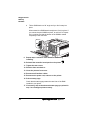
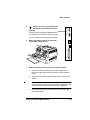
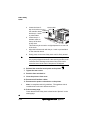
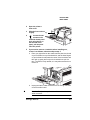
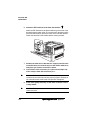
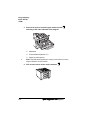
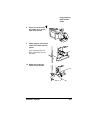
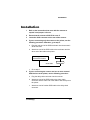
Attach the IDE hard disk to the hard disk bracket.
Attach the IDE hard disk to the bracket with the grooved-end of the
bracket facing the ribbon cable. The screw holes in the bottom of the
hard disk should match up with the holes on the hard disk bracket.
Fasten the hard disk to the bracket with the screws provided.
7
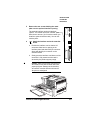
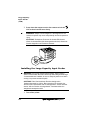
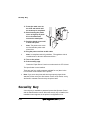
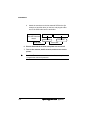
Position the hard disk so that the four support posts face the
controller board, the colored stripe on the ribbon cable faces
away from you, and the connector is down.
8
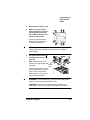
Insert ribbon cable connector pin 1 (the colored stripe side
of the cable) in hard disk connector pin 1.
Caution: Make sure that the ribbon cable connector and the
controller board connector pins are properly aligned. Damage to
the controller board could result if the pins are misaligned.
9
&'
Press down gently but firmly on the cable connector until it
is fully seated.
Caution: Do not push or pull with the ribbon cable. Use the
cable connector.