1
ULEAD BURN.NOW USER GUIDE 31
Creating a bootable disc
Placing a bootable disc in your disc drive automatically loads a boot image and powerson or reboots your system. Burn.Now creates bootable data discs using the ISO 9660 or
ISO 9660 + Joliet file system.
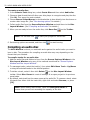
To create a bootable disc:
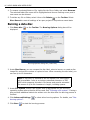
1. Select Bootable disc and the output disc type in the Select a Task dialog box. Then
click OK.
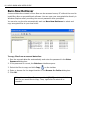
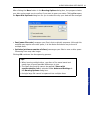
2. In Select bootable source, specify the bootable image source. A boot image can
come from a floppy disk, a USB flash drive which is not mapped as a hard drive, or a
file in your local drive. Make sure that you have your bootable floppy disk, USB flash
drive, or other source files ready.
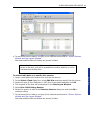
3. Follow the steps as you would for burning a data disc.
Converting audio files
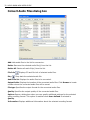
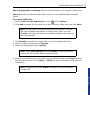
When creating an audio disc, you can convert audio files to several audio file formats:
mu-law (.au), MP3 (.mp3), MPEG Audio (.mpa), OGG Vorbis (.ogg), Microsoft WAV
(.wav), and Windows Media Audio (.wma).
Note: Install Apple QuickTime to use the mu-law format.
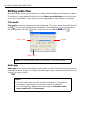
You can view the metadata information of your source files before you convert them.
These information include album title, track artist, genre, and year. These metadata can
be copied to your output file when you convert if you select an output format that also
supports metadata. Burn.Now has metadata support for .mp3, .ogg, .wav, and .wma file
formats.
Burn.Now