1
Contacts (Address Book)
12.6 Assign a Ringtone to a Contact
1. From the Home screen, tap
> Contacts.
2. Tap to select a contact >
> Set ringtone.
3. Tap to select a ringtone.
• The ringtone is played.
4. Tap OK to confirm.
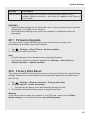
Note
• The default ringtone will be used if a specific ringtone is not assigned to a contact.
• The selected ringtone will only play if the caller id from the call matches the stored
contact number.
12.7 Import/Export Contacts
You can copy contacts from SD card to phone or from phone to SD card.
1.
2.
3.
4.
5.
From the Home screen, Tap
> Contacts.
Tap
> Import/export
Select where you want your contacts copied from > Next.
Select where you want your contacts copied to > Next.
Select the contacts you want to copy > OK.
12.8 Add Contact as a Favourite
1. From the Home screen, tap
> Contacts.
2. Select a contact from the contacts list > tap
.
3. The contact is saved to your favourites list if the star turns white.
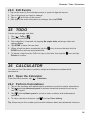
12.9 Edit a Contact
1.
2.
3.
4.
From the Home screen, tap
> Contacts.
> Edit.
Select a contact >
Go to the information field you wish to edit.
Tap DONE when you are finished.
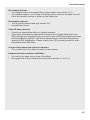
Note
To discard the changes you have made, tap X CANCEL then OK.
29