1
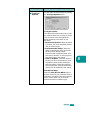
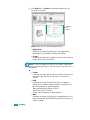
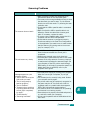
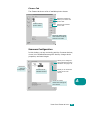
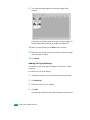
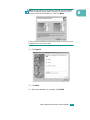
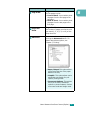
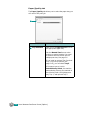
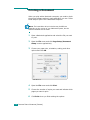
• Setting
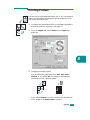
Customizing settings of Scan To basic functions. Allows
you to customize settings for Application, Email, OCR,
and Web functions.
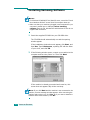
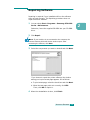
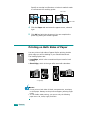
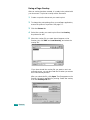
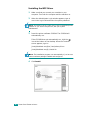
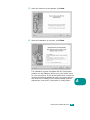
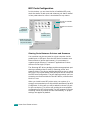
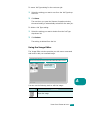
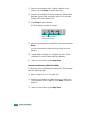
5 Click the service icon according to your job.
6 The SmarThru 4 opens for the selected service. Adjust the
scan settings.
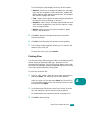
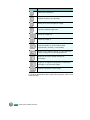
You can use the
button to receive on-line help, or refer
to the balloon that appears when you move the cursor over
a button on the SmarThru 4 window.
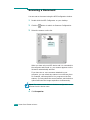
7 To start scanning, click Scan.
NOTE: If you want to cancel the scan job, click Cancel.
Scanning Process with TWAINenabled Software
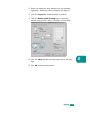
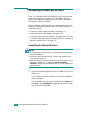
If you want to scan documents using other software, you will
need to use TWAIN-compliant software, such as Adobe
PhotoDeluxe or Adobe Photoshop. The first time you scan with
your machine, you will need to select it as your TWAIN source in
the application you will use.
The basic scanning process involves a number of steps:
• Place your photograph or page on the document glass.
• Open an application, such as PhotoDeluxe or Photoshop.
• Open the TWAIN window and setting the scan options.
• Scan and save your scanned image.
You need to follow the programme’s instructions for acquiring an
image. Please refer to the user’s guide for the application.
SCANNING
6.5
6