1
Chapter 6 Storage
Disk Management
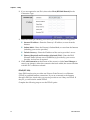
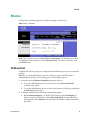
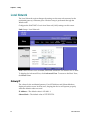
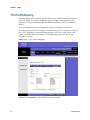
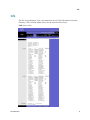
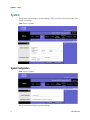
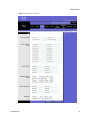
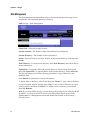
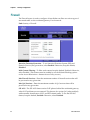
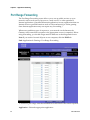
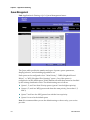
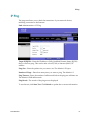
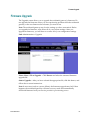
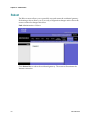
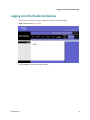
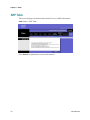
The Disk Management screen allows you to search and manage the storage device
connected to the residential gateway’s USB port.
Path: Storage > Disk Management
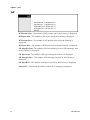
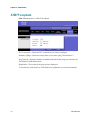
Select Disk—Select the storage location.
Current Location—The location of the current directory is displayed.
Current Directory—The number of files is displayed.
Search—Enter the term you want to look for in the current directory, and then click
Search.
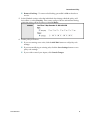
New Directory—To create a new directory, click New Directory, and follow the onscreen instructions.
Upload File—To upload a file to the current directory, select it from the list, and
then click Upload File. To upload all files in the current directory, select Select All.
The files are displayed with the following information: Type, Name, Size, and
Modified Date.
Click Refresh to update the on-screen information.
To delete a file or directory, select it and then click Delete. To copy a file or directory
to a new location, select it and then click Copy. To move a file or directory to a new
location, select it and then click Move. To rename a file or directory, select it and
then click Rename.
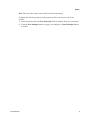
Note: If you have DDNS service, you can manage the storage device using the WAN
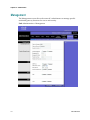
IP address. To allow WAN HTTP access, you must enable remote access on the
Administration > Management screen and disable the firewall on the Security >
Firewall screen.
84
3425-00669 Rev E