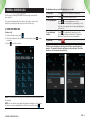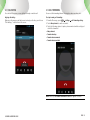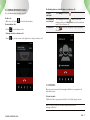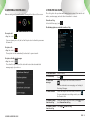
1
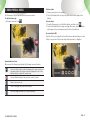
ETISALAT
SMARTPHONE
E-20
User Guide
Contents
1 Getting Started.............................................................................................. 4
1.1 Your Phone..................................................................................4
1.2 Phone Buttons.............................................................................5
1.3 Phone Slots, Ports & Jacks............................................................5
1.4 Charge the Battery.......................................................................6
1.4.1 Battery Tips............................................................................................... 6
1.5 Insert Battery/SD Card/SIM Card....................................................6
1.6 Using the Headset........................................................................7
1.7 Turn on the Phone........................................................................7
1.8 Sleep & Wake .............................................................................8
1.9 Touchscreen................................................................................8
1.10 Tips on Using the Touchscreen....................................................8
2 Home Screen & Basic Features...................................................................... 9
2.1 Customizing Your Home Screen...................................................10
2.2 Status & Notification Icons..........................................................11
2.2.1 Status Icons............................................................................................ 11
2.2.2 Notification Icons..................................................................................... 12
2.3 Search......................................................................................12
2.3.1 Search Settings....................................................................................... 13
2.4 Securing your Phone...................................................................13
2.5 Using the App Launcher.............................................................13
2.6 Using the Play Store...................................................................13
3 Onscreen Keyboard Basics.......................................................................... 14
3.1 Suggestions and Auto-Complete...................................................14
3.2 Default Keyboard Options...........................................................14
4 Making & Answering Calls.......................................................................... 15
4.1 Using the Phone Tab..................................................................15
4.1.1 Call Waiting............................................................................................. 16
4.1.2 Call Forwarding........................................................................................ 16
4.1.3 Working with Multiple Calls....................................................................... 17
4.1.4 Voicemail................................................................................................ 17
4.2 Answering & Rejecting Calls........................................................18
4.3 Using the Call Log Tab................................................................18
4.4 Using the Contacts Tab...............................................................19
4.4.1 Contact Synchronization........................................................................... 19
4.5 Contact Settings........................................................................20
5 Sending & Receiving Messages................................................................... 21
5.1 Sending messages......................................................................21
5.2 Managing Messages....................................................................22
5.3 Message Settings.......................................................................22
5.4 Additional Messaging Features....................................................23
6 Taking Photos & Videos.............................................................................. 24
6.1 view your pictures & video...........................................................26
6.2 Share Your Pictures & Video........................................................26
7 Browsing the Web....................................................................................... 27
7.1 Bookmarks, Most Visited & History...............................................28
7.2 Using multiple browser windows..................................................28
7.3 Set Your Home Page...................................................................28
7.4 Changing Browser Settings..........................................................29
8 Playing Music............................................................................................. 30
8.1 Playback Screen........................................................................30
8.2 Working with Playlists.................................................................31
8.3 Managing Music on Your Phone...................................................31
8.3.1 Transferring Music from Computer............................................................. 31
9 FM Radio.................................................................................................... 32
9.1 Controls ...................................................................................32
9.2 Set Favorite Channels.................................................................32
9.3 Channel management.................................................................32
9.4 Options and Settings..................................................................33
9.4.1 Settings.................................................................................................. 33
9.4.2 Enter Channel......................................................................................... 33
9.4.3 Scan Channel.......................................................................................... 33
9.4.4 Time Settings.......................................................................................... 33
10 Connections............................................................................................. 34
10.1 Using Wi-Fi ............................................................................34
10.2 Wireless Bluetooth® Connection.................................................34
10.2.1 Share files via Wireless Bluetooth® Connection.......................................... 35
10.3 Transferring Files between your Phone & Computer......................35
10.4 Connecting to Virtual Private Networks.......................................35
10.5 Sharing Your Phone’s Data Connection.......................................35
10.5.1 Share your Phone’s Data Connection via USB Tethering............................. 35
10.5.2 Share your Phone’s Data Connection as a Wi-Fi Hotspot............................ 36
10.6 Connecting to a Wireless Display (WiDi)......................................36
10.7 Control Your Phone from a PC....................................................36
PAGE : 2
11 Accounts.................................................................................................. 37
12 Email....................................................................................................... 38
12.1 Working with Accounts..............................................................40
12.1.1 Account Settings................................................................................... 40
13 Calendar.................................................................................................. 41
13.1 Viewing Your Events..................................................................41
13.2 Storing & Displaying Calendars..................................................42
13.3 Changing Calendar Settings.......................................................42
14 Gmail....................................................................................................... 43
14.1 Gmail Settings.........................................................................43
15 Other Phone Functions.............................................................................. 44
15.1 Updating Software....................................................................44
15.2 Downloads...............................................................................44
15.3 Managing Applications..............................................................45
15.4 Application Installer.................................................................45
15.5 Clock......................................................................................46
15.6 Calculator................................................................................46
15.7 Global Positioning System (GPS)...............................................47
15.7.1 Maps.................................................................................................... 47
15.7.2 Nav...................................................................................................... 47
16 Changing Phone Settings........................................................................... 48
16.1 Wireless & Networks.................................................................48
16.2 Device.....................................................................................49
16.3 Personal..................................................................................49
16.4 System....................................................................................50
17 Troubleshooting........................................................................................ 52
18 Safety, Regulatory & Legal........................................................................ 53
PAGE : 3
1 Getting Started
1.1 Your Phone
Congratulations on your new phone purchase.
This guide will help you quickly come up to speed on the important features
of your phone.
Keep in mind your phone has:
•Fast Processor: Featuring the Intel® Atom™ processor that enables fast
web browsing, super-responsive apps, and effortless multi-tasking, so that
enjoying the things you love to do has never been easier.
•Intelligent Camera: Featuring an advanced 5MP HD camera that lets you
capture images quickly - up to 7 photos a second - so you’ll never miss the
best shot, even in challenging environments.
•Great Entertainment: Easily create and share true HD-quality video, and
with super-smooth playback, your phone becomes a personal theatre you
can take with you anywhere.
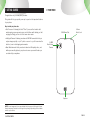
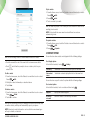
USB/Power Port
3.5mm
Audio Jack
5.0MP
Rear-Facing
Camera
Speaker
NOTE: Screen images and icons are simulated for the purpose of this guide. Actual
displays may vary. Instructions in this guide may change depending on the software
version on your device.
1.0 getting started
PAGE : 4
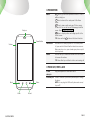
1.2 Phone Buttons
Buttons
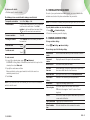
Press to go back to the previous screen or to close a
menu or dialog box.
Press to return to the center panel of the Home
screen.
Press to view recently used apps. Click on an app
to launch it. You can also access Task manager from this
screen. (See Managing Applications.)
Press to display actions and settings specific to the
current screen.
TIP: Press and hold
to launch the Search function.
Earpiece
Power Button
Volume
Power button
Press and hold to turn your phone on. To turn the phone
off, press and hold then follow the instructions onscreen.
When your phone is on, press to wake your phone or put it
into sleep mode.
Volume
Press on the top to increase the volume or on the bottom
to decrease the volume.
TIP: Press either top or bottom to silence an incoming call.
1.3 Phone Slots, Ports & Jacks
Back
Menu
Home
1.0 getting started
3.5 mm
audio jack
Plug in headphones or other audio device.
USB/Power port
Connect USB cord to phone and power adapter to charge
the phone.
NOTE: You can plug the USB cord to phone and connect
to your PC.
Recent
PAGE : 5
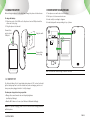
1.4 Charge the Battery
1.5 Insert Battery/SD Card/SIM Card
Before using your phone for the first time, charge the phone for three hours.
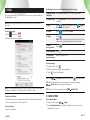
1.Turn phone over and locate slot on bottom.
2.Pull up on slot to remove back cover.
3.Insert card(s) according to diagram.
4.Insert battery with arrow pointing to top of phone.
To charge the battery:
1.Attach one end of the USB cord to the phone’s micro-USB port and the
other end to the plug.
2.Plug the phone into the wall.
Connect this
end to phone’s
USB port.
Plug into wall.
Connect this
end to plug.
TIP: For additional media storage, insert an SD card.
1.4.1 Battery Tips
For the best battery life, let your battery drain down to 15% or less (indicated
by the battery very low icon in the status bar) before recharging, and do not
leave your phone plugged in after it is fully charged.
To make your charge last as long as possible:
•Change the screen timeout rate and display brightness
(see Display Settings).
•Disable Wi-Fi when not in use (see Wireless & Networks Settings).
NOTE: For optimal charging, please use the USB cable and charger provided
with the phone.
1.0 getting started
PAGE : 6
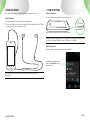
1.6 Using the Headset
1.7 Turn on the Phone
You can use your headset to listen to music or make phone calls.
To turn on the phone:
To use the headset:
1.Plug the headset into the audio jack on your phone.
2.Place the earbuds in your ears and position the microphone so that it picks
up your voice (if you are making a call).
•Hold down the power button to turn the phone on.
Hold down the power button to turn the phone on.
L
R
TIP: One press puts your phone into Sleep mode. Pressing and holding allows
you to choose Restart, Airplane mode, Silent mode, or Vibrate.
To turn the phone off:
•Hold down the power button and touch Power Off.
Hold down the power button,
then touch Power off to turn
the phone off.
TIP: Use the button near the right earbud to mute and unmute the
microphone.
1.0 getting started
PAGE : 7
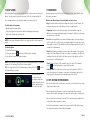
1.8 Sleep & Wake
1.9 Touchscreen
When your phone is on, you can put the phone in sleep mode and lock your
phone. Your phone will go into sleep mode if left idle, to save battery life.
Use your fingers on the touchscreen to perform actions, open objects, slide
the screen, and more.
You can wake and unlock your phone when you’re ready to use it.
Below are the different ways of interacting with your touchscreen.
To put the phone in sleep mode:
•Drag: Touch and hold an object then drag the object to a new location. For
example, drag any icon on the Home screen to a new location.
•Briefly press the power button.
•Double-tap: Quickly touch the screen twice to zoom in when using the
Gallery or on zoomed-out Browser pages. For example, double-touch a news
site to zoom in on the text.
Your phone goes into sleep mode, without disrupting any running
application, download, or phone call.
NOTE: If you press the power button for too long, you will see the power off
menu.
To wake the phone:
1.Press the Power button.
and slide it all the way to the right.
2.Place your finger on
3.Your phone’s screen will resume display.
•Slide: Quickly move your finger from one edge of the screen to the opposite
edge to scroll the display up, down, left or right. For example, quickly move
your finger from the left side of the Home screen to the right to scroll the
Home screen to a different panel.
NOTE: If your phone is secured, you must enter your password, pin, or pattern
to wake it. See Securing Your Phone for more details.
TIP: You can go directly to the Camera app by sliding the lock to
left after waking your phone.
•Pinch: When using Gallery or zoomed-out Browser pages, place two fingers
on the screen at once, then move your fingers together to zoom out or move
them apart to zoom in. For example, pinch your fingers apart to zoom out of
a news site in the Browser.
on the
When the phone is
in sleep mode and
you want to wake the
phone, press the power
button and then drag
the lock to the right.
•Touch: Touch an object on the screen to select or open it. For example,
touch
on the Home screen to open the Phone app.
•Touch and hold: Touch an object on the screen and continue to hold it to
reveal other options. For example, touch and hold an empty spot on the
Home screen to reveal options for adding items to the screen.
1.10 Tips on Using the Touchscreen
•Do not use sharp tools, such as pens or a stylus, on the touchscreen—these
might scratch the screen.
•Do not allow the touchscreen to come in contact with other electrical
devices. Electrostatic discharges can cause the touchscreen to malfunction.
•Do not allow the touchscreen to get wet. The touchscreen may malfunction
in humidity or when exposed to water.
•For the best performance, remove the screen protection film before using
the device and tap the screen with your fingertip.
1.0 getting started
PAGE : 8
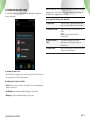
2 Home Screen & Basic Features
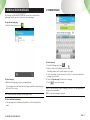
To scroll the Home screen:
•Slide the screen to the left or right.
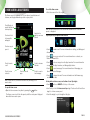
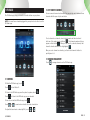
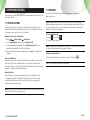
The Home screen is a gateway to all of your phone’s applications and
features, and displays whenever you turn on your phone.
Touch Google to
search the web via
text input tray.
Swipe left or
right to see more
panels.
Touch and hold
to change the
wallpaper.
Touch an app to
open it.
TIP: The bar at the bottom of the screen indicates which one of the five
panels is displayed.
To quickly access your phone’s main functions:
to make a call. For more information on calling, see Making and
•Touch
Answering Calls.
•Touch
to see your contacts. For more information on contacts, see
Make and Answer Calls.
Touch to make
a call.
Touch to view
contacts.
Touch to browse
the web.
Touch to view all
apps.
Touch to send a
text message.
TIP: To move an icon, touch and hold the icon, then drag it to a
new location.
To open the Home screen:
•Open the Home screen at any time by pressing the
button.
The Home screen is split into five panels, with the center panel displayed
when the Home screen opens.
2.0 home screen & Basic Features
•Touch
to choose an app from the App Launcher. For more information
on apps and the App Launcher, see Manage Applications.
•Touch
to send a message. For more information on Messaging, see
Send and Receive Messages.
to browse the web. For more information on the Browser app,
•Touch
see Browse the Web.
For help with your Home screen, use the Home Screen Tips widget:
•Touch
and touch WIDGETS at the top of the screen.
•Scroll until you find the Home screen tips widget. Touch and hold it and then
drag it to a Home screen panel.
•Touch the widget to cycle though the Help tips.
PAGE : 9
2.1 Customizing Your Home Screen
You can easily customize your Home screen by changing the background
picture (or wallpaper).
TIP: Rearrange items on your screen by touching and holding them and then
dragging them to a new location. You can also delete them by touching and
holding and then dragging them to the trash.
You can perform the following actions with folders.
To open a folder
Touch the folder. To make a new folder, stack
apps on top of each other in the home screen.
To add items to a folder
Drag an item on your Home screen into the
folder.
NOTE: You cannot put shortcuts in a
contact folder.
To remove items from a
folder
Touch and hold an item in the folder,
then release it on the Home screen or on
the trash icon.
To rename a folder
Open a folder, then touch and hold the title bar
and enter a new folder name.
To customize your Home screen:
•Touch and hold an empty space on the Home screen, then touch the type of
item you want to add and follow the prompts.
The following types of items are available:
•Gallery allows you to choose photos on your phone to set as the background
image for your screen.
•Live Wallpapers are animated background images for your screen.
•Wallpapers are static background images for your screen.
2.0 home screen & Basic Features
PAGE : 10
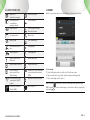
2.2 Status & Notification Icons
2.2.1 Status Icons
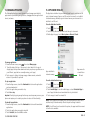
The status bar at the top of the screen displays important information about
your phone.
Below are the status and notification icons you can expect to see.
Notification icons
Status icons
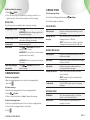
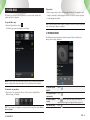
To open the notifications panel:
•Drag the status bar to the bottom of the screen.
Drag down
to display
notifications.
Touch to clear
notifications.
Touch a
notification to
respond.
To respond to a notification:
•Touch a notification in the panel to open its application. For example,
touching a new email notification opens the Email app’s inbox.
To clear notifications:
•Open the notifications panel and touch X at the top right.
Ongoing notifications, such as active downloads, will remain on the list.
NOTE: Installed apps may use their own unique notification icons.
Connected to mobile
network
Alarm set
Mobile network in use
Vibrate mode
Mobile network strength
Ringer silenced
Roaming
Battery very low
No signal
Battery low
No SIM card installed
Battery partially drained
Connected to Wi-Fi network
Battery full
Bluetooth wireless
technology on
Battery charging
Connected to wireless
product featuring
Bluetooth technology
GPS on
Airplane mode
Receiving location data from
GPS
Headset plugged in
To close the notifications panel:
•Drag the status bar back to the top of the screen.
NOTE: Select services are displayed across the top of the Notification panel
(Mobile Data, Wi-Fi, Bluetooth, GPS, Account sync, and Display Brightness).
Touch an icon to turn that service ON or OFF. Services that are ON are
illuminated and have a blue bar beneath them.
2.0 home screen & Basic Features
PAGE : 11
2.2.2 Notification Icons
2.3 Search
New text or
multimedia message
More notifications
Problem with text
or multimedia
message delivery
Call in progress
New voicemail
Call in progress using a
Bluetooth headset
Upcoming event
Missed call
Data syncing
Call forwarding on
Problem with sign-in or
sync
Song playing
USB storage full
Uploading data
Phone connected via
USB cable
Downloading data
System update available
Download finished
Phone sharing its
data connection via
USB tethering
Connected to or disconnected
from virtual private network
(VPN)
Phone sharing its data
connection as a Wi-Fi
hotspot
Application update available
Connected to Wireless
Display (WiDi)
Wi-Fi direct on
2.0 home screen & Basic Features
Search on your phone and on the web with the built-in Search function.
To run a search:
1.Touch the Google search box at the top of the Home screen.
2.Type a search term. As you type, Search displays matching results.
3.Touch a matching result to open it.
TIP: Touch the
icon next to a result to enter that result as search text.
TIP: Find items in a search-enabled app, such as Email or Music, by pressing
and holding
.
PAGE : 12
2.3.1 Search Settings
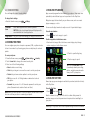
2.5 Using the App Launcher
You can change the default Search settings.
Apps are small programs that add features to your phone. Many apps come
preinstalled, and additional apps can be purchased in the Play Store.
To change Search settings:
•From the Search screen, press
Widgets are apps that run directly on your Home screen, such as a music
player, newspaper, or clock.
Settings.
Searchable
items
Select which applications to search by default.
NOTE: Only the selected applications will display and be
searched within the Search application.
Google Search
Set your location and manage your Google search history.
You can use the App launcher to easily access all of your installed apps.
To use the app launcher:
•Touch
, then touch an app to open it.
To add an app shortcut to the Home screen:
2.4 Securing your Phone
You can configure your phone to require a password, PIN, or pattern in order
to turn it on or wake it up. Securing your phone can help keep its contents
private.
To secure your phone:
1.From the Home screen, press
System settings
2.Touch Screen lock to change the current security lock.
3.Select one of the following settings:
•Touch and hold an app. Once the Home screen displays, drop the app
onto an empty spot on the Home screen.
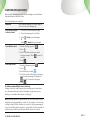
1. Touch to open the App tray.
Security.
2. Touch an app to open it.
TIP: Use the doubleTwist™ app
to seamlessly transfer your songs,
photos, and other personal media
from your PC to your phone.
•None disables screen locking.
•Slide lets you drag an icon across the screen to unlock your phone.
•Pattern lets you draw a custom pattern to unlock your phone.
•PIN lets you use a 4- to 16-digit number combination to unlock
your phone.
•Password lets you use a 4- to 16-character password to unlock your
phone. (Password must contain at least one letter.)
NOTE: Once you have selected a lock for your phone, you will need to enter
this lock each time you turn on or wake up your phone.
2.6 Using the Play Store
Almost any app you can imagine is available for purchase (and often for free)
in the Play Store.
To use the Play Store:
•Touch
, then touch
.
Search or browse for apps. You will be able to confirm that you want to
purchase an app and see the permissions it requires before installing it on
your phone.
TIP: Google™ Play Store can be used only when Google account is activated.
2.0 home screen & Basic Features
PAGE : 13
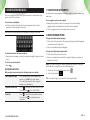
3 Onscreen Keyboard Basics
The onscreen keyboard lets you use your touchscreen to dial numbers, type
emails, enter URLs, and more.
To use the Onscreen Keyboard:
•Touch any text field to display the onscreen keyboard, then touch the
characters on the keyboard to enter text.
TIP: Move the insertion point by touching where you want to enter text.
3.1 Suggestions and Auto-Complete
The keyboard includes suggestions and auto-complete to make entering long
words easy.
To see suggestions and use auto-complete:
1.Begin entering text in a text field or message. Your phone displays
suggested words and punctuation directly above the keyboard.
2.Touch a suggested word or punctuation mark to enter it.
3.2 Default Keyboard Options
To change the default keyboard language:
1.Touch and hold the spacebar. (The spacebar displays the default language
currently used by the keyboard.)
2.Select a new default keyboard language.
To view the keyboard in landscape orientation:
•Turn your phone sideways to rotate the keyboard, making it larger and easier
to use.
To close the onscreen keyboard:
•Press
.
Onscreen Keyboard Options
While using the onscreen keyboard, the following options are available.
Switch keyboard display
Touch the \?123 key to enter numbers and
symbols, or the ABC key to enter letters.
To see additional symbols while in symbol
display, touch the =\< key.
Capitalize the next letter
to capitalize the next letter you enter.
Touch
Touch and hold
to turn CAPS LOCK on.
Delete text
to erase the last character entered.
Touch
Touch and hold
to continuously erase
characters.
3.0 Onscreen keyboard basics
To change the default keyboard input method:
1.Touch and hold the spacebar as above.
2.Select a new default input method (for example: Google voice typing or
SwiftKey 3 for Intel).
NOTE: If you have changed the default keyboard input method to SwiftKey
and would like to change back to the Android keyboard:
1. Touch and hold the SwifftKey option button:
2. Select Input method:
TIP: To use Arabic digits, press and hold on the English digits.
PAGE : 14
4 Making & Answering Calls
The following actions are available while you are on a call:
The Phone app allows you to make calls and easily store and find
your contacts.
You can move between the phone dialer, call history, contacts, and
favorites by touching the tabs at the top of the Phone app.
To hold a call
Touch
To mute a call
Touch
To use speakerphone
to turn speakerphone on or off.
Touch
Warning! To avoid damage to your hearing, do not
hold the phone against your ear when speakerphone
is turned on.
To use a Bluetooth
headset
Touch
to automatically transfer your calls
to a connected Bluetooth headset. See Wireless
Bluetooth Connection for more information.
To end a call
Touch
4.1 Using the Phone Tab
To make a call:
1.From the Home screen, touch
.
2.Touch the numbers on the dial pad to dial a number, using
corrections.
3.Touch
to dial the number.
to make
to hold or resume the current call.
to mute or unmute the call.
.
TIP: Once you start typing on the dial pad, the Phone app will search for
matches. The number of matches will appear in the lower right. Touch this
number to see the matches and select one.
NOTE: For international calls, first touch and hold 0 to enter + and then dial
the number.
NOTE: You can switch to any application without ending the call. Return to
the phone screen by expanding the notifications bar and touching
.
4.0 making & answering calls
PAGE : 15
4.1.1 Call Waiting
4.1.2 Call Forwarding
You can see if the person you are calling is already on another call.
You can set the forwarding behavior of your phone when receiving calls.
Outgoing call waiting:
When you call someone, and that person is already on the line, you will see a
“Call waiting...” notification on the screen.
To set up incoming call forwarding:
Settings
Call forwarding settings.
1.From the Phone app, press
2.Touch Always forward to enable or disable.
3.Touch the following options to input a phone number to which each type of
call will be forwarded:
• Always forward
• Forward when busy
• Forward when unanswered
• Forward when unreachable
NOTE: Once set, Call Forward conditional is active will appear on-screen.
4.0 making & answering calls
PAGE : 16
4.1.3 Working with Multiple Calls
You can make another call while on a call.
To add a call:
•While on a call, touch
and dial another number.
The following options are available when on a conference call:
To drop a
participant
Touch Manage, then touch
To talk privately
to a participant
. When you are done
Touch Manage, then touch
talking privately, touch Merge Calls to add the participant
back to the conference call.
To end the call
Touch
all callers.
To move between calls:
•Touch
to move between calls.
.
to end the conference call and disconnect
•To merge calls into a conference call:
•Touch
to join two or more calls together into a single conference call.
4.1.4 Voicemail
When you receive voicemail, the message notification icon appears in the
notifications panel.
To check voicemail:
•Within the Phone app, press and hold the 1 key. (May vary by carrier.)
TIP: You can also open the notifications panel and touch the
message notification.
4.0 making & answering calls
PAGE : 17
4.2 Answering & Rejecting Calls
4.3 Using the Call Log Tab
When receiving a call, you will see the following at the bottom of the screen:
The call log lists calls you have made, missed, and received. You can also call
entries, send messages, and add caller information to contacts.
To use the call log:
.
•From the Phone app, touch
The following options are available from the call log.
To accept a call:
•Drag the circle to
.
If you are already in a call, that call will be placed on hold while you answer
the new call.
To reject a call:
•Drag the circle to
.
The rejected call will automatically be directed to your voicemail.
To reject a call with a text message:
•Drag the circle to
.
The call will be rejected, and the caller will recieve the automated text
message reply of your choice:
To see more details
Touch an entry.
To call the entry
Touch
To send a text
message
Touch the entry to see more details, then touch
.
For more information on messaging, see Sending &
Receiving Messages.
To add to contacts
.
Touch the entry to see more details, then touch
For more information on adding contacts, see Using
the Contacts Tab.
To remove an entry
from the call log
Touch the entry to see more details, press
touch Remove from call log.
To remove all entries Press
from the call log
4.0 making & answering calls
.
, then
Clear Call Log.
PAGE : 18
4.4 Using the Contacts Tab
The Contacts tab displays the contacts from your accounts along with any
contacts you have added.
To communicate with contacts:
•Touch the contact, then touch one of the following icons:
Touch the phone number to call a contact.
4.4.1 Contact Synchronization
Touch
By default, contacts in your accounts and on your phone will be synchronized,
so that any changes to the contacts on your phone will be matched in your
accounts, and vice versa. See Accounts for more information.
Touch the email address to send an email.
Depending on your account settings, information you add or remove from your
phone will be synchronized with your external accounts. See Accounts for
more information.
To find a contact:
1.From the Phone app, touch the Contacts tab.
2.Scroll up and down to view all contacts.
3.Touch a name to call that contact.
4.0 making & answering calls
to send a text message.
To add a contact:
1.From the Contacts tab, touch
.
2.Enter contact information, filling in as many or as few of the fields
as desired.
3.Touch Done to create a new contact, or press
Discard to discard
the new contact without saving.
NOTE: If you have multiple accounts, select the account to which you want to
add the new contact.
PAGE : 19
To join contacts:
1.From the Home screen, touch the Contacts icon and then touch a contact.
Press
Edit.
2.Press
Join.
3.Touch a contact to join with.
TIP: The name and picture of the contact you select first will be used for the
resulting joined contact.
NOTE: Contacts with the same name from two different accounts are
automatically joined.
To separate contacts:
1.From the Home screen, touch the Contacts icon and then touch a contact.
Edit.
Press
2.Press
Separate.
4.5 Contact Settings
TIP: Use the following controls to add information about the contact:
•Touch the arrow at the end of the name field to view more name fields.
•Touch
and follow the prompts to choose or take a photo for your
contact’s icon.
To edit a contact:
1.From the homescreen, touch the Contacts icon and then touch a contact.
Edit.
Press
2.Modify the contact information, as described above.
3.Touch Done.
To delete a contact:
1.From the homescreen, touch the Contacts icon and then touch a contact.
Press
Delete.
2.Touch OK to confirm.
You can fine-tune how contacts are displayed with the following settings:
To set display options:
•From the Contacts tab, touch
Settings.
Sort list by
Set whether contacts are ordered by first or last name.
View contact
names
Set whether contacts display their first or last name first.
You can fine-tune a specific contact’s options with the following settings:
To set contact options:
•From the Contacts tab, touch a contact and then touch
.
Ringtone
Specify the desired ringtone.
All calls to
voicemail
Send the contact’s calls directly to voicemail.
TIP: Log into your Google account to manage your contacts online. Add, edit,
or remove contacts, and they will automatically sync to your phone.
NOTE: Read-only contact information—such as that from an external app—
will only be hidden, not deleted.
4.0 making & answering calls
PAGE : 20
5 Sending & Receiving Messages
5.1 Sending messages
The Message app allows you to send and receive text and multimedia
messaging threads (groups of sent and received messages).
To open the messaging app:
•From the Home screen, touch
.
To view a message:
•Within the Message app, touch a messaging thread.
The messages inside the thread will be displayed, with the newest message
at the top of the screen.
TIP: Threads with new messages are displayed in bold.
To send a message:
1.From the Message app, touch
.
2.Enter a recipient in the To field or touch
.
Matching numbers and contacts appear as you type.
3.Touch a matching contact or number to select it or enter a new number to
message a new contact.
4.Touch the Type message field and enter a message.
5.Touch
to send your message.
TIP: You can add smileys, subject headings, and more. See Message Options
below for more information.
TIP: You can send messages to groups.
To view a multimedia attachment:
•If the message has a multimedia attachment, touch the attachment to
view it.
5.0 sending & receiving messages
PAGE : 21
To attach multimedia to a message:
Attach.
1.Press
2.Select the desired type of attachment (for example, a music file or a
captured picture), then follow the prompts to send the message.
5.3 Message Settings
Message Options
The following settings are available:
The following actions are available while composing a message:
Save message as a draft
.
Press
ALTERNATE: Exiting the Message app will also
save any draft messages.
Resume working on a draft
Touch the message thread you were composing
and resume entering your message.
Discard a draft
Clear the message text.
Enter a smiley
Insert Smiley and touch the
Press
smiley you want to insert.
ALTERNATE: Touch and hold :-) on the onscreen
keyboard and select a smiley.
Add a subject heading to
your message
To specify message settings:
•From the main Messaging window, press
Text (SMS) Messages
Delivery reports
Request a delivery report whenever you send a
text message.
Manage SIM card
messages
Open a window where you can work with
messages stored on a SIM card.
NOTE: This option can be useful for retrieving
messages from a previous phone’s SIM card.
Multimedia (MMS) Messages
Delivery reports
Request a delivery report whenever you send a
multimedia message.
ALTERNATE: Enter the characters that make up
the smiley.
Read reports
Request reports when your multimedia messages
are read or deleted.
Press
Add subject and enter the
subject heading.
Auto-retrieve
Automatically download attachments from
incoming multimedia messages.
Roaming auto-retrieve
Turn on auto-retrieve even when on another
carrier’s network.
NOTE: Turning this option off prevents data
roaming costs.
Creation mode
Select an MMS creation mode for composing
messages.
5.2 Managing Messages
To delete a messaging thread:
•Open the messaging window, touch and hold a messaging thread,
then touch
.
To forward a message:
1.Open the messaging window and touch a messaging thread.
Forward.
2.Press
Settings.
3.Enter a recipient and then touch Send to forward the message.
T o delete all messaging threads:
1.Open the messaging window, then touch and hold a messaging thread.
Notification Settings
Notifications
Set to show message content, to only show
sender, or to not show notification.
Message alert
Choose a ringtone to play whenever a new
message is received.
2.Touch all other messaging threads to select them.
3.Touch
.
5.0 sending & receiving messages
PAGE : 22
5.4 Additional Messaging Features
While using the Messaging app, you can take advantage of several features
that make advanced tasks even easier.
The following features are available:
Zoom in/out
While reading a message, pinch your fingers to
zoom in or out on the message text.
Select multiple messages
to delete or forward
1. Touch and hold an individual message.
2. Touch other messages to select them.
3. Touch
Or
Touch
to delete selected messages
to forward selected messages.
Select multiple contacts
.
2.Touch
.
3.Touch the contacts to whom you wish to
send your message. (Touch
to select all
contacts.)
4.Touch
.
Select group contacts
1.From the Message app, touch
1.From the Message app, touch
.
2.Touch
.
3.Select Groups by touching
.
4.Touch the contacts in that group to whom you
wish to send your message or simply touch
to select all contacts in that group.
5.Touch
.
The difference between Multiple Contacts and Groups:
Sending to multiple contacts means you are starting several conversations,
one conversation with each recipient. Sending to a group means you are
starting one conversation with everyone in that group.
NOTE: Messages addressed to groups will be sent to the first contact source
identified in each group member’s contact info. For example: If a contact has
a listing for Email, Mobile, and Home in contact info, the group message will
be sent to the Email address (because it is listed first). You must manually set
a default contact method (most likely the Mobile number) for contacts.
5.0 sending & receiving messages
PAGE : 23
6 Taking Photos & Videos
The Camera app lets you take and share pictures and videos.
To start the Camera app:
•In the App Launcher, touch
.
To take a picture:
1.Frame your subject on the camera.
2.Touch the Shutter button to take your picture and save the image to the
Gallery.
To shoot a video:
1.From the Camera app, touch the Mode button, and then select
.
2.Touch the Shutter button to begin recording. When done, press the Shutter
button again to stop recording and save the video to the Gallery.
Use colour effects (FX):
Touch the FX icon to display the Colour Effects menu, which allows you to add
a filter to your picture. Choose from Sepia, Monochromatic, or Negative.
Camera buttons and icons
Once opened, the Camera app displays the following icons and buttons:
Touch the Mode button to switch between photo, video, burst, and
panorama modes. Selecting a new mode changes the icon on the
shutter button to match the current mode.
Use the Shutter button to take a picture or shoot a video.
Touch to zoom in or out.
Touch to bring up the Colour Effects menu.
Touch the Image Preview icon to open the Gallery.
6.0 taking photos & videos
PAGE : 24
Use shooting modes:
There are four shooting mode options:
Photo
Video
Burst
Panorama
Touch the Mode button beneath the red Shutter button to display these
options. Selecting a new mode changes the icon on the shutter button to
match the current mode.
Use panorama mode:
Select the Panorama mode to sweep across a screen (horizontally or vertically)
and capture multiple images that will be automatically stitched together
into a single panoramic image. During Panoramic capture, several on-screen
elements assist in capturing and aligning images:
•The arrow indicates the direction to move the camera for the next shot.
•Touch the red stop button to finish capturing multiple images.
•The counter displays the number of images that have been collected for this
panorama.
•A semi-transparent overlay of the previous image assists in aligning the next
image in the sequence. Simply move the camera until key details on the
two images are aligned, and the next image is automatically captured.
Use burst mode:
When the camera is set to Burst mode, each shutter press will take a series of
seven images. Touching the burst rate indicator (at the top left in landscape
orientation or at the top right in portrait orientation) will extend a menu that
allows you to change the frame rate at which bursts are captured: 7fps (rapid)
or 1fps (slow).
NOTE: When using Panorama Mode, you must pan far enough to take at least
two pictures. If you do not touch the red stop button, the camera will stop
taking pictures when it reaches the maximum number of shots.
6.0 taking photos & videos
PAGE : 25
To change advanced settings:
Camera settings are available at any time by pressing
include: Photo size, Video size, Geo-tag, and About.
. These settings
Two photo sizes are available. The default size is a widescreen 4MP image;
you may also choose an 5MP image that is in 4:3 format and appears
centered in the screen.
6.1 view your pictures & video
Pictures and videos taken with the Camera app are stored in the Gallery
app, but they can be previewed within the main camera screen also. The
Gallery app displays the pictures and videos you have taken on your phone,
downloaded from the web, or (where available) uploaded to a synchronized
Picasa account (Google’s web-based photo storage).
Three different video sizes are available: Full HD (1080p), HD (720p),
or SD (480p).
Geo-tagging can be turned on or off. When it is on, location information will
be captured and stored with your photos.
6.2 Share Your Pictures & Video
Pictures and videos stored in the Gallery app can be shared by a wide variety
of methods.
To share a picture or video:
TIP: Set the camera to Photo Mode to change Photo size and Geo-tag settings.
Set the camera to Video Mode to change Video size settings.
•In the App Launcher, touch
NOTE: Using the 5MP Photo size and either of the HD Video size settings will
result in larger file sizes, which will utilize significantly more memory space.
•Choose the application you would like to use to share the picture. (For
example: Email, Gmail, Bluetooth, etc.)
6.0 taking photos & videos
.
•Select a picture, tap it, and then touch
.
PAGE : 26
7 Browsing the Web
The browser application lets you surf the web on your phone.
To open the browser application:
•Press
.
The Browser window opens and displays your home page.
You can slide the screen up and down to scroll the browser window and use
the touchscreen to interact with the web page.
To navigate the browser:
•Press
to move to the previous page.
•Press
Forward to move to the next page.
•Press
Stop to stop loading a page.
To enter a URL or search term:
1.Touch the URL/Search field at the top of the screen.
2.Enter a URL or search term, using the on-screen keyboard.
As you enter information, matching search terms and websites display.
3.Touch
to open a URL or search for entered text, touch a matching
website to open it, or touch a matching term to search for it.
To zoom in and out:
•Double-touch to zoom in and out.
nce zoomed in, slide the screen up, down, left, and right to view the entire
O
page.
ALTERNATE: Pinch the screen to zoom in and out. See Touchscreen for more
information on how to pinch.
To search for text within a webpage:
•Press
Find on Page, then enter the text you want to search for.
As you enter text into the search field, matching text on the page is
highlighted.
TIP: Touch
to scroll through all matching text.
TIP: Touch a phone number to open the number in the phone app; touch an
address on a web page to open the location in the Maps app; touch an email
address to open the address in the Email or Gmail app.
TIP: Touch and hold an object, such as an address or photo, to bring up a
menu of commands. For example, touch and hold a photo to save the photo
on your phone.
7.0 browsing the web
PAGE : 27
7.1 Bookmarks, Most Visited & History
7.2 Using multiple browser windows
Easily bookmark frequently-visited sites, as well as view your bookmarks,
history, and most-visited sites.
You can have up to 16 different browser windows open at one time.
To bookmark a site:
•Touch
Save to bookmarks.
1.Press
2.Edit the information, if desired, then touch OK to confirm.
To close a window:
To view bookmarks, history, and most visited sites:
1.Press
Bookmarks.
2.Touch the Bookmarks, Saved Pages, or History tab.
3.Touch the window to open it.
TIP: Touch and hold a page to open a menu that lets you manage an entry by
editing, deleting, sharing, and more.
To clear your browser history:
•Press
Settings
Privacy & security
Clear history.
For information on configuring or disabling what the Browser apps tracks,
see Changing Browser settings.
7.0 browsing the web
To switch to another window:
•Touch
, then touch a window.
, then touch
beside a window.
To open a new window:
•Touch
then touch
.
7.3 Set Your Home Page
Your home page opens when the browser is first launched, or when you open a
new browser window. You can set which website to use as your home page in
the Settings window.
To set your homepage:
1.Press
Settings
General
Set homepage
2.Enter a URL or touch Use Current Page.
PAGE : 28
7.4 Changing Browser Settings
You can access standard browser controls in addition to configuring browser
settings, such as how pages display or whether to track private information.
To access browser controls:
•Press
.
Browser CONTROLs
Refresh
Reloads the current page.
Forward
Moves to the next page.
Bookmarks
Displays bookmarked and saved pages.
Save to bookmarks
Adds current page to bookmarked pages.
Share page
Shares the current page using choice you select.
Find on page
Searches for text within the current page.
Request desktop site
Loads the desktop version of the site instead of
the mobile version.
Save for offline reading
Adds current page to Saved pages for reading
without internet connection.
Settings
Displays additional options.
7.0 browsing the web
To change your browser settings:
•Press
Settings.
Browser SETTINGS
General
Sets your home page and toggles form auto-fill
and auto-fill text on and off.
Privacy & security
Clears your browser’s cache, cookies, history, or
location. Also includes settings for remembering
passwords and form data.
Accessibility
Displays options for increasing text size and
improving readability.
Advanced
Displays options for setting default search
engine, enabling JavaScript and plug-ins,
resetting default zoom, blocking pop-ups, and
more.
Bandwidth management
Saves bandwidth by preloading search results
and toggling web page images off.
Labs
Toggles quick controls and fullscreen mode on
and off.
PAGE : 29
8 Playing Music
To play music:
The Music app lets you listen to your music, see your music library, and
create and listen to playlists.
To open the Music app:
•From the App launcher, touch
.
The Music app opens and displays your library.
•Touch a song to play it and all of the songs following it. For example, touch
a song in an album to start playing the album, or touch a song in a playlist
to start playing the playlist.
TIP: Touch and hold an artist, album, or playlist, then touch Play to play every
song for that artist, album, or playlist.
8.1 Playback Screen
The Playback screen displays the current song and lets you shuffle your
music, pause a song, and more.
NOTE: If this is your first time using the Music app, the Music app may first
have to catalogue the audio and music files on your phone into a library.
To view music on your phone:
•Touch one of the four tabs at the top of the screen to display Artists,
Albums, Songs, or Playlists.
TIP: To use a song as a ringtone, touch and hold the song, then touch Use as
phone ringtone.
8.0 playing music
To see the current
playlist
Touch
.
To play your songs in
random order
Touch
.
To repeat a playlist
or song
once to repeat all songs; touch twice to
Touch
repeat current song; touch again to turn repeat off.
Play the next song
Touch
.
PAGE : 30
Touch
Pause or resume
playing
Touch
to pause the current song. Touch
resume playing.
TIP: Touch
screen.
8.3 Managing Music on Your Phone
.
Play the previous
song
You can delete music on your phone.
to
at the bottom of the library screen to return to the playback
8.2 Working with Playlists
You can use playlists to organize your music files into sets of songs.
To create a playlist:
1.Touch and hold a song, then touch Add to playlist
New.
2.Enter the name of the new playlist, then touch OK. The playlist is created,
with the song you selected as the new playlist’s first song.
3.Continue adding songs to the playlist by touching and holding each song
you want to add, then touching Add to playlist and selecting the playlist.
To delete a song from your phone:
1.Find the song you want to delete.
2.Touch and hold the song, then touch Delete.
3.Touch OK to confirm.
8.3.1 Transferring Music from Computer
To transfer music, audio, or playlist files from your computer to your phone,
follow the instructions for transferring files described in Transfer Files between
your Phone and Computer.
Once files are transferred, the Music app will automatically find and catalogue
all supported music, audio, and playlist files (including music purchased from
online stores and music copied from your CD collection).
Supported file types: MP3, WMA, AMR-NB, AMR-WB, WB-AMR+, PCM,
ADPCM, AAC, AAC+, eAAC+, mono/stereo, 16/32/48 kHz, and OggVorbis.
Rearrange songs in a playlist:
1.From the music library, touch the Playlists tab, then touch a playlist.
2.Touch and hold the left side of a song entry, then drag a song up or down
to change its order in the playlist.
to save the new arrangement and exit the playlist.
3.Press
Remove songs from a playlist:
1.From the music library, touch the Playlist tab, then touch a playlist.
2.Touch and hold a song, then touch Remove from playlist.
Rename or delete a playlist:
1.From the music library, touch the Playlist tab.
2.Touch and hold a playlist, then touch Rename or Delete.
8.0 playing music
PAGE : 31
9 FM Radio
9.2 Set Favorite Channels
The FM Radio app plays your favorite FM radio stations on your phone.
You can save six channels as favorites. You can quickly switch between these
channels with the press of just one button.
NOTE: You must have a headset plugged into your phone to be able to use the
FM Radio app.
To set a channel as a favorite, tune to that channel and then touch and
. That channel number will now
hold one of the empty favorite buttons:
appear on that button:
. When you are tuned to a favorite channel, that
channel’s favorite button will be highlighted:
.
Once you set a channel as a favorite, just touch that channel’s button to
quickly tune to it.
9.3 Channel management
Touch
to manage channels on the FM Radio app.
9.1 Controls
To Mute the FM Radio app, touch
Touch
.
to turn Mute off.
To listen to the FM Radio app over the phone’s speaker, touch
Touch
to listen to the FM Radio app on your headset.
To turn off and exit the FM Radio app, touch
Touch
or
.
to scan back or ahead to the next clear station.
To adjust the tuner back or ahead by 0.1, touch
9.0 FM RADIO
.
or
.
PAGE : 32
The first time you enter Channel Management, only your favorite channels are
listed. Touch SCAN CHANNEL to add all available channels to the list.
9.4.1 Settings
NOTE: A yellow star denotes a favorite channel. Touch a yellow star to remove
that channel from your favorites. Touch a white star to add that channel to
your favorites.
•Enable RDS (Radio Data System): If checked, RDS info will display on main
screen.
Touch Settings to access the following:
Touch any channel to tune to that channel and exit Channel Management.
•Set RDS AF (Alternative Frequencies): If checked, the receiver will re-tune
to a different frequency providing the same station when the first signal
becomes too weak (if you move out of range).
Touch
•RDS System: Choose between RDS and RBDS.
in front a channel to edit that channel’s name.
To delete a channel from Channel Management view, touch and hold a
channel until the deletion screen appears. Touch
to delete the selected
channel and return to Channel Management view.
9.4 Options and Settings
Press
to bring up the Options menu for the FM Radio app.
•Band: Choose between European FM frequency scope (87.5MHz to
108.0MHz) or the Japanese FM frequency scope (76.0MHz to 90.0MHz).
•Ch Space (Channel Space): Set the KHz range used when scanning
channels.
•RSSI (Received Signal Strength Indicator): This value determines what
channel can be scanned. For example, if the value is 10, the channel can
be scanned when its RSSI value is less than 10. The valid RSSI value range
is 1 to 127.
9.4.2 Enter Channel
Touch Enter Channel to manually input a radio station. After you touch OK, the
FM Radio app will automatically tune to that channel and exit Options.
9.4.3 Scan Channel
Touch Scan Channel to scan all available channels. FM Radio will play the
previous channel after the scan completes. Scanning can be interrupted by
touching
.
9.4.4 Time Settings
Touch Time Settings to set a period of time after which the FM Radio app will
automatically shut down and exit.
9.0 FM RADIO
PAGE : 33
10 Connections
10.2 Wireless Bluetooth® Connection
Your phone can connect to Wi-Fi networks, Bluetooth wireless technologyenabled products (such as headsets), and your computer. You can also
connect to virtual private networks (or VPNs) and use your phone as a hotspot.
10.1 Using Wi-Fi
Connect to Wi-Fi networks to browse the internet, check your email, and more.
TIP: Use a Wi-Fi connection to help save on data costs.
To connect to a wireless network:
1.From the Home screen, press
System settings
2.If Wi-Fi is not enabled, touch Wi-Fi to turn it on.
3.The available networks will be displayed.
4.Touch a network, then touch Connect.
Wi-Fi.
NOTE: For secured networks, enter the requested security information, then
touch Connect.
TIP: Quickly toggle Wi-Fi on/off from the Home screen by dragging down the
notification panel and touching the Wi-Fi icon.
To add a network:
1.From the Home screen, press
System settings
Wi-Fi.
2.Scroll to the bottom of the list of available networks and touch
Add network.
3.Enter the network’s SSID (the name of the network).
4.Touch Save. Your phone saves the information you entered and uses it to
connect to the network whenever it is available.
NOTE: If the network is secured, enter the security information by touching
None (under Security) and selecting the type of network security that
the network uses (for example, WEP or WPA/WPA2 PSK). Then enter the
requested security information, such as a password.
To connect to a Bluetooth wireless technology-enabled product for the
first time, you must pair it with your phone. Once paired, your phone will
automatically connect to paired products. You can use your phone to connect
to wireless products featuring Bluetooth technology up to eight meters away.
To pair phone with Bluetooth wireless technology-enabled product:
System settings.
1.From the Home screen, press
2.If Bluetooth is OFF, touch OFF to toggle it on.
3.Touch Bluetooth. The available Bluetooth wireless technology-enabled
products will be displayed.
4.Select the product you wish to pair.
5.Confirm the product number and touch Pair to pair the product. Once
paired, your phone will automatically connect with the product.
NOTE: If the product requires a pass code before pairing, try entering 0000 or
1234 or check the product’s documentation. If your phone does not display
the Bluetooth wireless technology-enabled product, touch Search for devices
to rescan. See the documentation that came with your product to learn how to
configure it to be discoverable by phone.
To disconnect a Bluetooth wireless technology-enabled product:
1.From the Home screen, press
System settings
Bluetooth.
2.Touch a connected product, then touch OK to disconnect.
To reconnect a paired Bluetooth wireless technology-enabled product:
1.From the Home screen, press
System settings
Bluetooth.
2.Touch a paired product that you want to connect.
To unpair Bluetooth wireless technology-enabled product:
1.From the Home screen, press
System settings
Bluetooth.
2.Touch
next to a paired but disconnected product, then touch Unpair.
TIP: Pull down the Notifications panel to quickly toggle Wi-Fi and/or Bluetooth
On or Off. (See Status & Notification Icons)
To remove or modify a saved network:
1.From the Home screen, press
System settings
Wi-Fi.
2.Touch and hold the network, then touch Forget network or Modify network.
10.0 connections
PAGE : 34
10.2.1 Share files via Wireless Bluetooth® Connection
To share files via wireless Bluetooth connection:
1.From the App Launcher, touch
2.Touch
and select files to share.
and then select Bluetooth from the pop-up list.
3.Select a paired device from the Bluetooth device picker list, and the file
will be shared via wireless Bluetooth connection.
NOTE: Instructions for sharing pictures and videos stored on your phone can
be found in 6.2 Share Your Pictures & Video.
10.3 Transferring Files between your Phone & Computer
Transfer files between your phone and computer by connecting your phone to
your computer’s USB port.
To transfer files between your phone and your computer:
1.Use the USB cable that came with your phone (the “cord” of your phone’s
power cord) to connect your phone to your computer’s USB port.
Warning! Follow any instructions that appear on your computer when
connecting to the USB port. Failure to follow these instructions may result
in damage to your files.
2.Select the type of VPN, based on instructions from your VPN administrator,
and then follow your network administrator’s instructions to configure each
component of the VPN’s settings.
3.When you are done configuring the VPN, touch Save.
Your phone saves the VPN’s configuration and connects.
To connect to a previously-added VPN:
1.From the Home screen, press
System settings
More... (under
the Wireless & Networks section)
VPN.
The VPNs you have added are listed at the top of the screen.
2.Touch the desired VPN. Enter any requested information.
3.Touch Connect.
To disconnect from a VPN:
•Open the notifications panel, touch the active VPN notification, and touch
Disconnect.
TIP: You must set a lock screen PIN or password before using connecting to a
Virtual Private Network.
10.5 Sharing Your Phone’s Data Connection
2.Once connected, drag down the notification panel and touch Connected
as a mass storage to change connection type: Mass Storage, Media device
(MTP), and Camera (PTP).
You can share your phone’s data connection with a computer, allowing that
computer to access the internet by using your phone’s data stream. You can
share your phone’s data connection with a single computer by using USB
tethering or with up to eight computers at a time by enabling the Portable
Wi-Fi hotspot setting.
10.4 Connecting to Virtual Private Networks
NOTE: Not all carriers support sharing your phone’s data connection. Please
check with your carrier to find out more.
Virtual private networks (VPNs) allow you to connect to a secured local
network from outside the network. VPNs are commonly deployed by schools,
corporations, and other institutions that rely primarily on an on-location
network but allow secure access from the outside.
10.5.1 Share your Phone’s Data Connection via USB Tethering
To connect to a VPN for the first time, add that VPN to your phone. You can
then connect to it automatically at any time.
To add a VPN to your phone:
1.From the Home screen, press
the Wireless & Networks section)
10.0 connections
System settings
More... (under
VPN
Add VPN network.
You can share your phone’s data connection with a single computer via the
USB port; however, you can do this only when you are not currently using the
USB port to share files.
NOTE: Some operating systems, such as Windows XP, require you to prepare
your computer before enabling USB tethering. Visit www.android.com/tether
for more information.
PAGE : 35
To tether your phone:
1.Use the USB cable that came with your phone to connect your phone to
your computer’s USB port.
2.From the Home screen, press
System settings
More... (under
Tethering & portable hotspot.
the Wireless & Networks section)
3.Touch USB tethering to enable tethering.
Your phone will begin sharing its data connection with your computer. For
help with setting up USB tethering on your computer, please use the Help
available on the Tethering & portable hotspot settings page on your phone.
4.When you are finished, uncheck USB tethering or simply disconnect the
USB cable.
Go to http://software.intel.com/en-us/articles/intel-usb-driver-for-android-devices
for the latest drivers.
10.5.2 Share your Phone’s Data Connection as a Wi-Fi Hotspot
You can turn your phone into a Wi-Fi hotspot to let other computers and
devices use your phone’s data connection as a wireless network.
To turn your phone into a Wi-Fi hotspot:
1.From the Home screen, press
System settings
More... (under
the Wireless & Networks section)
Tethering & portable hotspot.
2.Touch Portable Wi-Fi hotspot to enable it.
Your phone will broadcast its Wi-Fi SSID and can be connected to like
any other wireless network.
Uncheck the Portable Wi-Fi hotspot setting to stop sharing your phone’s
data connection.
Secure your Portable Wi-Fi Hotspot
You can secure your phone’s Wi-Fi connection, so that other devices and
computers can only use it as a Wi-Fi hotspot after entering the required
security information.
To secure your phone’s portable Wi-Fi hotspot:
1.From the Home screen, press
System settings
More... (under
the Wireless & Networks section)
Tethering & portable hotspot.
2.Ensure that Portable Wi-Fi hotspot is checked, then touch
Configure Wi-Fi hotspot.
3.Change any desired security settings, then touch Save.
10.0 connections
10.6 Connecting to a Wireless Display (WiDi)
You can enjoy all of your personal and online content on your big screen—by
wirelessly connecting your phone to your TV.
To set up Wireless Display:
.
1.From the Home screen, touch
2.Touch the checkbox to the right of Wireless Display to turn WiDi on.
3.Determine Video Extend Mode preference. (Unchecked: phone and TV
display same content at max resolution of phone’s LCD screen. Checked:
video displays only on TV (phone may still be used as remote control), but
video will be displayed at TV’s max resolution.)
4.When scanning completes, touch an adapter name to connect to it.
5.Enter the 8-digit pin code shown on the TV screen and touch OK.
NOTE: Once connected, the
to
.
icon next to the adapter name will change
To disconnect Wireless Display:
1.From the Home screen, touch
.
2.Touch the name of the adapter you are currently using.
3.Touch Disconnect.
TIP: Follow the first two steps above and then choose Rename to give this
adapter a custom name, such as Living Room, My Place, etc.
10.7 Control Your Phone from a PC
MOBILedit! allows you to control your phone from a PC. Download MOBILedit!
to any computer and connect your phone via cable, wireless Bluetooth
connection, or IrDA. You will be able to view the contents of your phone, as
well as synchronize, add, edit, or delete items.
Go to www.mobiledit.com/oem and enter the code intel-001303 to register and
then download the MOBILedit! software.
PAGE : 36
11 Accounts
You can keep your phone synchronized with your Google, email, and corporate
accounts, as well as synchronizing contacts with other applications.
To change an account’s synchronization settings:
1.From Accounts & sync, touch the account synchronization setting you want
to change.
2.In the next screen, check or uncheck the type of information you want
synchronized. For example, your Google account lets you enable or disable
synchronization of your Browser, Contacts, Calendar, Google Photos, Picasa
Web Albums (where available), and Gmail.
NOTE: Previously synchronized data remains on your phone until you
manually delete it.
To turn automatic synchronization on or off:
•From Accounts & sync, select OFF/ON in the top-right corner of the screen.
NOTE: If this option is turned off, accounts and applications must be
synchronized manually.
To open the Accounts screen:
•From the Home screen, press
System settings
Accounts & sync.
To add an account to your phone:
1.From the Accounts screen, touch Add Account.
2.Select the type of account to add, such as a corporate account
(using Microsoft Exchange) or a Google account.
3.Follow the on-screen instructions for configuring your account
(or configure your account manually).
To manually synchronize an account:
1.From Accounts & sync, touch the account to sync.
2.Touch the type of data to sync.
TIP: You can sync all types of data for the account by pressing
Sync now.
NOTE: Data charges may be incurred during the synchronization process.
NOTE: The first time you open an app using accounts (such as Email,
Calendar, or Gmail) you will be prompted to add an account. The process for
adding an account within these apps is identical to that described above.
To remove an account from your phone:
1.From Accounts & sync, touch the account to remove.
2.Press
Remove account.
3.Touch Remove account to confirm deletion.
11.0 accounts
PAGE : 37
12 Email
Use the Email app to access your web-based email (such as Yahoo or Hotmail)
or your corporate accounts (using Microsoft Exchange). The screen shots in
this chapter show a Gmail account set up using the Email app.
NOTE: Before using the Email app, first set up your accounts as
described below.
To use the Email app:
•Touch
.
Your inbox will be displayed, with new messages at the top and unread
messages in bold.
NOTE: If you have set up multiple email accounts, you will be able to
view one account’s inbox or a combined inbox with all your emails from all
accounts. This is described under Working with the Accounts screen.
TIP: To work with multiple messages in your inbox, touch the checkbox next to
each message you want to work with, and then touch Mark unread, Add star,
or Delete.
To add a new account:
If you are launching the Email app for the first time, the Email Account
Wizard will guide you through adding an account.
1.Enter your email address and password.
2.Touch Next, then wait for the Email app to connect with your mail provider.
3.Enter a display name (the name displayed to anyone to whom you send a
message.) You can also enter an optional account name, which will display
in the Email app’s list of accounts.
4.Touch Done to add the account.
NOTE: You can add another account at any time. Press
Settings,
and then touch Add Account in the top-right corner of the screen.
To view an account’s folders:
1.Touch
to view a list of the account’s folders.
2.Touch a folder to open it.
To check for new messages:
•Touch
.
TIP: Synchronized accounts refresh automatically.
12.0 email
PAGE : 38
To read a message:
To send a message:
1.Touch
.
2.Enter the recipient, subject, and message text.
3.Touch
to send the message, press
Save draft to save it as a
Discard to discard unsaved drafts.
draft, or press
•Touch a message to open it.
The following actions are available while working with a message:
To open or save an
attachment
Touch View or Save to open or save an attachment.
To display images
Touch Show pictures to display images within
a message.
To reply
Touch
to reply to the sender or touch
Reply all to reply to all recipients.
To forward
Touch
To delete
.
Touch
NOTE: Some accounts let you recover deleted
messages from a Trash folder.
To mark a
message unread
Press
To star a message
Touch
.
To open previous or
next message
Touch
or
12.0 email
TIP: Add an attachment (such as a picture) by pressing
and selecting an attachment.
TIP: Add a Cc or Bcc recipient by pressing
Attach file
Add Cc/Bcc.
Forward.
Mark as unread.
at the bottom of the screen.
PAGE : 39
12.1 Working with Accounts
12.1.1 Account Settings
If you have more than one email account, you can switch between inboxes
using the Accounts screen.
To change an account’s settings:
NOTE: Adding and removing accounts is described in Accounts.
To open the Accounts screen:
•From an account’s inbox, press
for which you want to change settings.
Settings, then select the account
Account Settings
You can change any of the following account settings:
•In the Inbox, touch the drop-down menu at the top of the screen.
Account name
Enter your account’s name.
To open an inbox:
Your name
•Touch an account to open that account’s inbox or touch Combined View to
view all of your accounts’ messages in one inbox.
Enter the name people will see when you send a message
from this account.
Signature
Enter the signature to append to messages sent from this
account.
TIP: When working in the combined inbox, different account’s messages are
marked with colored bars.
Quick
responses
Edit text that you frequently insert when composing
emails.
Default account
Select the default email account.
NOTE: The default email account is used whenever you
send an email without specifying which account to send it
from, such as when you click on a contact’s email address.
Inbox check
frequency
Select how often the Email app checks this account for
new messages.
Download
attachments
Select this to auto-download attachements to recent
messages via Wi-Fi.
Email
notifications
Receive a notification whenever a new email arrives in this
account’s inbox.
To display an account’s folders:
in the lower right of the screen, then touch an account to display
•Touch
that account’s inbox, and then touch
to view that account’s folders.
Touch a folder to open it.
NOTE: Only folders containing messages are displayed.
Choose ringtone Select the ringtone for new email notifications.
TIP: Select “silent” to turn off email ringtones.
12.0 email
Vibrate
Select this to make the phone vibrate when you receive a
new message.
Incoming
and Outgoing
settings
Configure the server settings for this account.
Remove
account
Select this to remove the current account from the Email
app. Touch OK to confirm removal.
PAGE : 40
13 Calendar
The Calendar app lets you create and manage events, meetings, and
appointments. By default, your Calendar app automatically synchronizes with
any Google or Microsoft Exchange accounts you have added to your phone.
13.1 Viewing Your Events
The Calendar has four views:
•Day: Displays a calendar view of one day, with a black line indicating the
current time.
•Week: Displays a calendar view of one week.
NOTE: See Accounts for information on how to add accounts to your phone
and how to configure the synchronization of existing accounts.
•Month: Displays a calendar view of one month, with scheduled times marked
with a horizontal colored bar.
To use the Calendar app:
•Agenda: Lists an agenda of your events in chronological order.
•Touch
, then touch
The Calendar app opens, displaying events from all of your synchronized
accounts.
TIP: Touch to see a day’s events.
NOTE: All-day and multiday events display at the top of the agenda, day,
and week views.
To change the calendar view:
•Touch the date and select a view option or touch Day to return to
today’s events.
TIP: Slide up and down to move backwards and forwards.
NOTE: The Calendar app synchronizes events from the previous month
through one year in the future.
13.0 calendar
PAGE : 41
13.2 Storing & Displaying Calendars
To view an event’s details:
•Touch an event to view its details.
The following actions are available while viewing an event’s details:
To respond to an invitation
Select Yes, Maybe, or No.
To add reminders
Use the drop-down menus to select a reminder
lead time and a notification. Touch Add
reminder to add an additional reminder. Press
to exit the event and save reminders.
To remove reminders
Touch X.
To change a reminder
Touch Reminder and choose when you want to
be reminded.
To edit an event
To delete an event
Touch
.
For each of your synchronized calendar accounts, you can set whether the
calendars are stored on the phone and whether they are visible.
NOTE: For information on adding and synchronizing accounts, see Accounts.
To specify whether calendars are stored and displayed:
Calendars to display.
1.Press
2.Check the calendar you wish to display.
13.3 Changing Calendar Settings
To change calendar settings:
•Press
Settings
General settings.
You can change any of the following settings:
Touch
.
Hide declined
events
Do not show events which you have declined to attend.
New event.
ALTERNATE: In Day, Week, or Month view, touch and hold a spot on the
calendar, then touch New event.
2.Specify the event name and time.
Enter any details, such as guest emails to invite to the event or a
reminder you want to set.
3.Touch Done.
Show week
number
Display the week of the year for the week shown.
Week starts on
Select which day starts the week.
Use home
time zone
When travelling, continue to show events in your home
time zone rather than the local time zone.
Home time zone
Specify the time zone to use for Use home time zone.
Clear search
history
Remove all the searches you have performed.
NOTE: If you have more than one calendar, you can choose the calendar to
which to add the event.
Notifications
Toggle the following options off/on:
Choose ringtone
Select the ringtone for new event notifications.
TIP: Select the ringtone “silent” to turn off event
ringtones.
Vibrate
Select this to make the phone vibrate when you receive
a new event notification.
To create an event:
1.In any of the calendar views, press
Pop-up notification Toggle pop-up notifications off/on.
Default reminder
time
13.0 calendar
Select a default time to be reminded for events.
PAGE : 42
14 Gmail
The following actions are available while working with a message:
You can create a Gmail account for your phone or sync your phone with your
existing Gmail account.
To view or save an Touch View or Save to open or save an attachment.
attachment
To display images
NOTE: Before using the Gmail app, set up your accounts as described in
Accounts.
Touch Show pictures to display images within the text of
a message.
To reply
to reply to the sender or touch
Touch
all to reply to all recipients.
To use the Gmail app:
To forward
Touch
To delete
Touch
.
NOTE: Deleted conversations are placed under the Trash
label and are automatically deleted after thirty days.
•Touch
, then touch
.
Your Gmail inbox will be displayed.
Reply
and then select Forward.
To mark a
message unread
Touch
To star a message
Touch
To open next or
previous message
Swipe to the right or left.
.
.
To send a message:
1.From the inbox, touch
.
2.Enter the recipient, subject, and message text.
to send the message.
3.Touch
TIP: Press
Save draft to save the draft. Touch
to discard a draft.
TIP: Add an attachment (such as a picture) to a message by pressing
Attach a file and selecting an attachment.
NOTE: If you have multiple Gmail accounts, touch the top-left corner (with
the name of the Gmail account) to switch to another account.
TIP: Add a Cc or Bcc recipient by pressing
To view account folders:
14.1 Gmail Settings
•Touch the name of the currently opened folder (in the upper left corner of
the screen), then touch a folder to open it.
To open Gmail settings:
1.From your Inbox, press
Settings.
2.Touch General preferences to set Gmail settings or touch an account to
configure that account.
To read a message:
•Touch a conversation.
14.0 GMAIL
Add Cc/Bcc.
PAGE : 43
15 Other Phone Functions
Your phone has several other functions, including downloads, navigation, and
automatic updates.
15.1 Updating Software
As updated versions of your phone’s software become available, you can
download them directly onto your phone over a Wi-Fi connection. There are
three ways in which your phone can be updated:
Manually check for and install updates:
1.Press
System settings
About Phone.
2.Touch System updates and then touch Update from OTA.
3.If updated software is available, touch Download and Install. You can
monitor the download in the Notifications Panel.
4.When the update is finished downloading, touch Agree to install the new
software.
Insert a new SIM card:
When you insert a SIM card with a different phone number, the phone will
automatically check for software updates. If an update is available, the
phone will display a notification. Open the notificatin and follow the onscreen
prompts to download and install the update.
15.2 Downloads
You can use the Downloads application to view, open, or delete your
downloaded items.
NOTE: All downloaded items are stored on your phone’s device memory,
under the Download directory. You can view and copy items from this folder
by connecting your phone to your computer, as described in Transfer Files
between your Phone and Computer.
To use the Downloads app:
, then touch
1.Touch
2.Touch an item to open it.
.
NOTE: You can touch a header (such as “Today” or “Last month”) to expand
or conceal all downloaded items under that header.
To delete a downloaded item:
•Touch the checkbox next to an item to select it, then touch
.
TIP: You can uncheck the selected checkboxes.
Automatic polling:
Every 30 days, the phone will automatically check to determine if there
is an update available. If an update is available, the phone will display
a notification. Open the notification and follow the onscreen prompts to
download and install the update.
NOTE: In order to receive updates via OTA by any of these three methods, you
must have Wi-Fi enabled on your phone.
15.0 other phone functions
PAGE : 44
15.3 Managing Applications
15.4 Application Installer
The Manage Applications screen lets you see and manage your installed
applications by uninstalling an application, changing where an application is
stored, and more.
The Application Installer lets you move and install apps to and from an SD
card or internal memory. Apps on an SD card can be moved to or installed
to internal memory; likewise, apps in internal memory can be moved to or
installed to an SD card.
To use the Application Installer:
, then touch
.
1.Touch
2.Touch the App Move tab and then touch the app to be moved.
3.On the App info page, touch Move to phone or Move to SD card.
To manage applications:
, then touch Manage apps.
1.From the Home screen, press
2. T
ouch the tabs at the top of the screen to select which list of apps to
display (apps that you have downloaded onto your phone, apps that are on
your SD card, apps that are currently running, or all apps.)
3.Touch an app to display its storage usage, software version, and what
actions it is permitted to perform.
To stop an application:
1.From the Apps screen, touch the Downloaded tab to view all applications
you have downloaded.
2.Touch the application you want to stop.
3.Touch Force stop.
Important. Forcibly stopping an application may cause temporary errors on your
phone and require you to restart your phone to restore full functionality.
To uninstall an application:
1.From the Apps screen, touch the Downloaded tab to view all downloaded
applications.
2.Touch the application you want to uninstall.
3.Touch Uninstall, then touch OK to confirm.
15.0 other phone functions
Apps installed to
internal memory
Apps moved to
or installed on
SD card
To see the status/location of apps:
1.Touch
, then touch
.
2.Touch the App Install tab.
3.Touch Installed Apps to see all installed apps or touch Uninstalled Apps to
see all apps that have been downloaded but not yet installed.
4.Touch an app to install or uninstall it.
NOTE: Not all applications support direct SD card installation; some can be
installed only to internal memory. Check the apk’s settings for details.
NOTE: If an SD card is not inserted in the phone, the apps installed or moved
to it will not be available.
PAGE : 45
TIP: Touch and hold an app to enter multi-selection mode, which then allows
you to select multiple apps.
15.6 Calculator
The Calculator app lets you use your phone as a calculator.
To use the Calculator app
•Touch
, then touch
.
You can use the touch screen to enter numbers, perform operations, and clear
the screen, just as you would on a basic calculator.
15.5 Clock
The Clock app displays the time and allows you to set alarms.
To open the Clock app:
•Touch
, then touch
.
To add an alarm:
in the middle of the clock screen.
1.Touch
2.Touch Add alarm.
3.Set the alarm time.
4.Touch Set.
5.Customize any additional alarm settings, such as ringtone or repeat.
6.Touch OK.
TIP: Slide the screen to the left to see more advanced functions, such as pi,
sin, log, square root, and left & right parentheses.
To turn an alarm on or off:
1.Touch
in the middle of the clock
screen.
2.Touch the bar in front of the alarm
to turn it on or off.
PAGE : 46
15.7 Global Positioning System (GPS)
GPS is a satellite navigation system that provides incredibly accurate location
information. Receivers pull down information from an array of satellites to
calculate the user’s three-dimensional position. GPS technology can be found
in many devices, from phones and wristwatches to ships and airplanes.
NOTE: The Google Maps and Google Nav apps are GPS-enabled. You can find
more apps that use GPS in the Play Store.
To enable GPS:
•From the Home screen, press
GPS satellites.
System settings
Location services
TIP: You can get directions or a street view for a location by touching the
location on the map and then choosing Directions or pressing
Street view.
15.7.2 Nav
Google Nav turns your phone into a GPS-based navigation device.
To use Google Nav:
1.Touch
in the App Launcher.
2.Enter an address.
15.7.1 Maps
Google Maps lets you find any location using your phone.
To use Google Maps:
1.Touch
in the App Launcher.
2.Touch
or touch a suggested location.
3.Enter an address, a city, a business name, or a type of establishment in
the search box.
TIP: Select a contact or starred place to quickly navigate to a favorite location.
15.0 other phone functions
PAGE : 47
16 Changing Phone Settings
The settings window displays all of the settings that affect how your phone
looks and works.
To open the settings window:
•From the Home screen, press
System settings.
16.1 Wireless & Networks
Touch More... to access the following options:
Airplane
mode
Disable all wireless connections, including Bluetooth wireless
technology and 3G.
Activating airplane mode greys out some other settings.
VPN
Configure your Virtual Private Network.
Tethering
& portable
hotspot
Configure your phone for tethering or for use as a portable
hotspot with the following settings:
Wi-Fi direct
Touch the box to turn on Wi-Fi direct and connect directly
to nearby peer devices over Wi-Fi for more reliable, higherspeed communication. (No internet connection or tethering
is needed.) Through third-party apps, you can connect to
compatible devices to take advantage of new features such
as instant sharing of files, photos, or other media; streaming
video or audio from another device; or connecting to
compatible printers or other devices.
The Wireless & networks section configures your phone’s connections, such as
Wi-Fi, Bluetooth wireless technology, VPN, Wi-Fi Direct, and more.
Wi-Fi
Turn on Wi-Fi and configure any desired settings
under Advanced Wi-Fi.
For information on using Wi-Fi, see Using Wi-Fi.
Advanced
Wi-Fi
press
Advanced.
From Settings, touch Wi-Fi
•Network notification: Receive a notification when an open
Wi-Fi network becomes available.
•Keep Wi-Fi on during sleep: Choose when to keep Wi-Fi
turned on.
•MAC address: Displays your current MAC address.
•IP address: Displays your current IP address.
Bluetooth
Turn on Bluetooth wireless technology. To see available
devices, touch Bluetooth. From this Bluetooth screen, press
for options: Rename phone, Visibility timeout, and Show
received files.
For more information on pairing your phone with a Bluetooth
wireless technology-enabled product, see Wireless Bluetooth
Connection.
Data usage
Turn Mobile data on to see your phone’s data
usage. You can also turn on Set mobile data limit.
15.0 other phone functions
•USB tethering: Share your phone’s mobile data network
connection with your computer via a USB connection.
•Portable Wi-Fi hotspot: Share your phone’s mobile data
network connection as a portable Wi-Fi hotspot.
•Bluetooth tethering: Share your phone’s mobile data
network connection via a Bluetooth connection.
PAGE : 48
Mobile
networks
Configure your mobile data network using the following
settings:
•Data enabled: Clear this checkbox to prevent your phone
from transmitting data on any mobile network. This is
useful when you are traveling and wish to avoid charges
for data use on a local carrier’s network, and it also can
decrease the battery usage.
Disabling data does not prevent your phone from
transmitting data on other networks, such as Wi-Fi or
Bluetooth wireless technology-enabled products.
•Data roaming: Clear this checkbox to prevent your phone
from using other carrier’s mobile networks when your own
is unavailable.
•Access Point Names: Select from the available access
points.
•Use only 2G networks: Touch to use only 2G networks.
•Network operators: Scan for and select a network operator.
16.2 Device
Sound settings let you configure your phone’s sounds.
Display settings configure your phone’s screen, such as its brightness or
rotation.
Brightness
Adjust the screen’s brightness automatically or select the
desired brightness.
For the longest battery life, use the lowest comfortable
brightness.
Wallpaper
Select an image on your phone to display as your phone’s
wallpaper.
Auto-rotate
screen
Check to automatically rotate the orientation of the screen
as you turn the phone sideways or upright.
Sleep
Set how long a phone will idle before the phone enters
sleep mode.
For the longest battery life, use the shortest timeout.
Font size
Change the size of the text displayed on your phone.
Storage displays the usage of internal storage and USB storage.
Battery displays the battery’s current charge, along with the battery usage of
applications.
Volumes
Set the volume for each sound made by your phone, such
as media or incoming calls.
Apps launches Manage apps.
Silent mode
Set your phone sounds to Off, Vibrate, or Mute.
16.3 Personal
Phone ringtone Select the ringtone for a phone call.
You can also select a song as a ringtone through the Music
App. See Playing Music for more information.
Default
notification
Select the notification ringtone.
Vibrate and
ring
Turn on to make the phone vibrate when it rings.
Dial pad touch
tones
Turn on to hear key presses when you dial numbers.
Touch sounds
Turn on to hear sounds when you touch items.
Screen lock
sound
Turn on to hear a sound when you lock/unlock the screen.
Vibrate on
touch
Turn on to make the phone vibrate when you touch items.
16.0 changing phone settings
Accounts &
sync
Add, remove, and manage your accounts (including Google
and Microsoft Exchange accounts.) For more information
on working with accounts and synchronizing data, see
Accounts.
Location
services
Toggle on/off GPS and search features that use your current
location.
PAGE : 49
Security
Secure your phone with a Slide, Pattern, PIN, or Password.
See Securing your phone for more information.
•Encrypt phone: Require a numerical PIN or password to
decrypt your phone each time that you turn it on.
•Set up SIM card lock: Require a PIN each time it is
powered on.
•Make passwords visible: Turn on to briefly display each
character of your password.
Asterisks are displayed by default.
• Device administrators: View or deactivate device
administrators.
• Uknown sources: Allow installation of non-Market apps.
• Trusted credentials: Display trusted CA certificates.
• Install from SD card: Install certificates from SD card.
• Clear credentials: Remove all certificates.
Language &
input
Touch Language to choose a new language from the
menu.
•Spelling correction: Toggle off/on.
•Personal dictionary: Display the user dictionary used to
identify words you type.
Touch the red X next to a word to delete it. Touch a word
to edit it. Touch the plus sign to add a new word.
•Keyboard & Input Methods: Display the onscreen
keyboards available on your phone. Touch the sliders on
the right to configure a keyboard.
For more information, see Onscreen Keyboard Basics.
•Keyboard Layout: Choose QWERTY or AZERTY layout.
• Voice Search: Display options for setting language,
SafeSearch, and blocking offensive words.
•Text-to-speech output: Change the text-to-speech engine,
adjust the speed at which text is spoken, and listen to an
example.
•Pointer speed: Adjust the speed of any mouse or track
pad that is connected to or controlled by your phone.
16.0 changing phone settings
Backup & reset Use this setting to manage your personal information.
•Back up my data: Back up certain personal data to Google
servers. If you replace your phone, you can restore the
data you have backed up.
The following data can be backed up and restored:
Browser bookmarks. Some third-party applications may
also take advantage of this feature.
Unchecking this option stops data back-up and deletes
any existing backups.
•Backup account: Set an account as your backup account.
•Automatic restore: Restore your settings and other data
when you reinstall an application using your current
Google account.
•Factory data reset: Erase all of your personal data from
internal phone storage. Resetting the phone does not
erase any software updates you have downloaded.
You can also erase data downloaded to USB storage.
After resetting your phone, you will be returned to the
Google wizard when you next restart your phone.
16.4 System
Date & time
The Date & time settings screen configures how the date
and time are displayed on your phone. You can also use
this screen to manually enter the date and time, rather than
obtaining the current time from the mobile network.
•Automatic date & time: Uncheck to set the date and time
on the phone manually, rather than obtaining the current
time from the mobile network.
•Automatic time zone: Uncheck to set the time zone on the
phone manually, rather than obtaining the current time
zone from the mobile network.
•Set date/Set time/Select time zone: Manually set the
phone’s date, time zone, and time. This setting is only
available if the Automatic setting, above, is unchecked.
•Use 24-hour format: Display the time using 24-hour time
format—for example, 13:00 rather than 1:00 PM.
•Select date format: Select the date format.
PAGE : 50
Accessibility
Toggle large text off/on, using the power button to end calls,
and screen auto-rotate. Configure the length of the touch
and hold delay and install web scripts from Google that
make web content more accessible.
Sensor
calibration
Use to calibrate your compass.
Developer
options
Advanced options for developers.
About phone
Display information about your phone.
•System updates: Check for Android system software
updates.
•Update from USB storage: Check for updates on your
USB storage.
•Update from OTA: Check for updates over the air.
•Status: Touch to open the Status screen.
•Legal information: Display legal information about the
software included with your phone.
16.0 changing phone settings
PAGE : 51
17 Troubleshooting
•Try turning the phone off and then turning it back on.
Use the following tips to troubleshoot any issues on your phone.
Outgoing calls are not connected:
•Ensure that you have touched
•If the above does not work, press and hold the power button for 10 seconds
until the phone turns off. Then release the power button and turn the phone
back on.
to dial the number.
•Ensure that you are connected to the correct cellular network.
•Ensure that you have not turned on outgoing call barring
(in Phone app, dialer tab, press
Settings).
Incoming calls are not connected:
•Ensure that your device is turned on.
•Ensure that you are connected to the correct cellular network.
•Ensure that you have not turned on incoming call barring
(under Settings
Call Settings).
Others cannot hear you speaking on a call:
•Ensure that you are not covering the built-in microphone.
•Ensure that the microphone is close to your mouth.
•If you are using a headset, make sure that it is properly connected.
Audio quality is poor:
•When you are in an area with weak signals or poor reception, you may need
to move to another area for better reception.
When dialling from contacts, the call is not connected:
•Ensure that the correct number is stored in the contact list.
•Re-enter and save the number if necessary.
The device beeps and a red ! icon is displayed:
•Your battery is low. (“Connect charger” will appear on screen.) Recharge or
replace the battery to continue using the device.
Phone does not respond:
•Ensure the phone is fully charged.
17.0 Troubleshooting
PAGE : 52
18 Safety, Regulatory & Legal
SAFETY AND OPERATIONAL GUIDELINES
IMPORTANT: Review and adhere to these guidelines. Failure to do so may
be dangerous or illegal. All statements, information, and recommendations
contained herein do not constitute a warranty of any kind, either expressed
or implied. The information contained herein is subject to change without
notice. Read the complete user guide for further information.
• Please use only the power supply that was supplied with your phone. Failure to do so may
damage the phone. The power supply must be plugged into an easily accessible AC mains
power socket when charging the battery. The only way to turn off the charging device after
charging the battery is to unplug it.
• The phone may cause interference in the vicinity of television sets, radios, computers and other
electronic components.
• Dispose of unwanted batteries and phones in accordance with local law.
• Improper use of the device will invalidate the warranty! These safety instructions also apply to
original accessories.
• Always comply with all local legal requirements or restrictions when using the phone, for
example, in airplanes, gas or petrol stations, in hospitals, or while driving.
• Elements of the phone are made of glass and may break or become scratched if dropped or
used improperly. You may be able to reduce the chances of any such harm by utilizing a case.
• As with any electronic device, please keep your phone away from any water including, for
example, rain, wash basins or toilets.
• Do not attempt to repair or modify your phone yourself. This includes any access to or
• Do not store the phone or any of its accessories on or near an automotive air bag, or air bag
deployment area.
• Some people may be susceptible to blackouts, seizures or debilitating headaches when exposed
to bright, flashing light such as, for example, when playing video games or watching other
video content on the device. If you have experienced such medical issues in the past, please
consult your physician before engaging in such activity on this device.
• Please take care not to use your device in potentially explosive environments such as, for
attempted replacement of the battery. Any attempt to do so will invalidate your warranty and
example, fueling stations, fueling areas, fuel or chemical storage facilities, or areas where the
regulatory approvals.
air may contain chemical or dust particles such as grain particles or metal powders.
• Your mobile phone may be equipped with Global Positioning System (GPS) or Assisted GPS
• The repetitive motion of certain actions, such as pressing keys or other repetitive finger
(AGPS) technology, which may be used to determine the approximate location of the mobile
motions, may cause discomfort in your hands, wrists, arms, shoulders, neck and other parts of
phone. When connected to a wireless network, the phone may transmit location-based
your body. If you experience any such discomfort, please discontinue such actions until you
information, including to third-party application providers. Please read your using manual and
have had an opportunity to consult with your physician.
check the settings of any installed applications to ensure that you manage these location based
services in accordance with your privacy preferences.
• Mobile phones can interfere with the functioning of medical devices such as hearing aids or
• This phone includes a radio transmitter and receiver to transmit and receive, respectively,
electromagnetic energy operating at various radio frequencies (RF energy). The device is
designed to operate within local regulatory requirements concerning the exposure of this RF
pacemakers. Keep at least 20 cm (9 inches) between the phone and pacemaker. When using
energy to human beings. Nonetheless, however you use your phone, you should keep the phone
the mobile phone hold it to the ear which is furthest away from the pacemaker. For more
15 mm away from your body to limit your exposure to RF energy.
information, consult your doctor.
• Always keep the phone and accessories out of reach of small children. Small parts such as the
SIM card can be dismantled and swallowed by small children.
• Keep the phone away from electromagnetic data carriers such as credit cards, disk drives, etc.
Information stored on them could be lost.
• Permanent hearing loss may occur if you use earphones or headphones at high volume. You
can adapt over time to a higher volume, which may sound normal but can be damaging to your
hearing. Set your volume to a safe level. If you experience discomfort or buzzing in your ears,
reduce the volume or discontinue use of your earphones or headphones.
• Ring tones, info tones, and hands-free talking are reproduced through the loudspeaker. Do not
hold the phone to the ear when it rings or when you have switched on the handsfree function.
Otherwise you risk serious permanent damage to your hearing.
18.0 Safety, Regulatory & Legal
• Connect only to USB interfaces with USB 2.0 version or higher.
• When using a wireless hands-free system (headphone, or a headset), please use a device with a
low-power Bluetooth emitter.
• Please try to limit the length of your calls, or send a text message instead. This is particularly
relevant to children, adolescents and those that are or may be pregnant.
• Please use the device when the signal quality is good.
• People having active medical implants should preferably keep the cell phone at least 15 cm
away from the implant.
• Make sure the cell phone has a low SAR.
NOTE: The operating temperature for this device is 0C to 45C; ensure the
operating temperature for the adapter is not higher than 35C.
PAGE : 53
Changes or modifications not expressly approved by the party responsible for
compliance could void the user‘s authority to operate the equipment.
In-Box Contents:
•Handset
•AC Adapter
•USB Cable
•Headset
CE Additional Warnings and DoC Information
O682
Hereby, Intel Corporation declares that this mobile phone is in compliance
with the essential requirements and other relevant provisions of Directive
1999/5/EC.
The Declaration of Conformity may be obtained from:
Intel Corporation
2200 Mission College Blvd
SC1-20
Santa Clara, CA 95054 USA
Attn: Product Certification Manager
“To prevent possible hearing damage, do not
listen at high volume levels for long periods.”
To ensure compliance to EN50332-1/EN50332-2, it is recommended that
the in-box provided earphones are used with this device. To protect your
hearing, please connect the earphones with the volume set low and increase
only as required. Please note that prolonged listening through earphones at
high volume settings can result in hearing damage. Please use the earphones
provided with your device to ensure continued protection from excessive
sound.
FCC Statements
This device complies with Part 15 of the FCC Rules. Operation is subject to
the following conditions:
1.This device may not cause harmful interference.
2.This device must accept any interference received, including interference
that may cause undesired operation.
18.0 Safety, Regulatory & Legal
This equipment has been tested and found to comply with the limits for a
Class B digital device, pursuant to part 15 of the FCC Rules. These limits
are designed to provide reasonable protection against harmful interference
in a residential installation. This equipment generates, uses and can radiate
radio frequency energy and, if not installed and used in accordance with
the instructions, may cause harmful interference to radio communications.
However, there is no guarantee that interference will not occur in a particular
installation. If this equipment does cause harmful interference to radio or
television reception, which can be determined by turning the equipment off
and on, the user is encouraged to try to correct the interference by one or
more of the following measures:
• Reorient or relocate the receiving antenna.
• Increase the separation between the equipment and receiver.
• Connect the equipment into an outlet on a circuit different from that to
which the receiver is connected.
• Consult the dealer or an experienced radio/TV technician for help.
RF Exposure Information (SAR)
This mobile phone meets the government’s requirements for exposure to radio
waves.
This phone is designed and manufactured not to exceed the emission
limits for exposure to radio frequency (RF) energy set by the Federal
Communications Commission of the U.S. Government.
The exposure standard for wireless mobile phones employs a unit of
measurement known as the Specific Absorption Rate, or SAR. The SAR limit
set by the FCC is 1.6W/kg. *Tests for SAR are conducted using standard
operating positions accepted by the FCC with the phone transmitting at its
highest certified power level in all tested frequency bands. Although the SAR
is determined at the highest certified power level, the actual SAR level of the
phone while operating can be well below the maximum value. This is because
the phone is designed to operate at multiple power levels so as to use only
the power required to reach the network. In general, the closer you are to a
wireless base station antenna, the lower the power output.
PAGE : 54
While there may be differences between the SAR levels of various phones and
at various positions, they all meet the government requirement. Equipment
Authorization has been granted to this model with all reported SAR levels
evaluated as in compliance with the FCC RF exposure guidelines. SAR
information on this model phone is on file with the FCC and can be found
under the Display Grant section of www.fcc.gov/oet/ea/fccid after searching on
FCC ID: O2Z-BTXZ0.
For body worn operation, this phone has been tested and meets the FCC RF
exposure guidelines for use with an accessory that contains no metal and
which keeps a distance of at least 1cm between the phone and the body.
Use of other accessories may not ensure compliance with FCC RF exposure
guidelines. If you do not use a body-worn accessory and are not holding the
phone at the ear, position the handset a minimum of 1cm from your body
when the phone is switched on.
Notice
The information contained herein is subject to change without notice. All
statements, information and recommendations contained herein do not
constitute a warranty of any kind, either expressed or implied. Please review
this product guide thoroughly, with particular attention paid to any safety
sections, to make sure that you use your phone safely.
Copyright © 2011-2012 Intel Corporation. All rights reserved.
This publication is protected by copyright. No part of the publication may be
used, reproduced, or translated, in any form, without the prior written consent
of Intel Corporation.
Intel, the Intel logo, Intel Atom, Intel Inside, and the Intel Inside logo, are
trademarks of Intel Corporation in the U.S. and/or other countries.
Google, Gmail, Google Maps, YouTube, Google Calendar, Android, and Android
Market are trademarks of Google, Inc. Use of these trademarks is subject to
Google’s permission.
*Other names and brands may be claimed as the property of others.
18.0 Safety, Regulatory & Legal
ETISALAT
SMARTPHONE
E-20
User Guide
G95218-001