1
Using the Storage Link’s Storage
Appendix B
Appendix B:
Using the Storage Link’s
Storage
Windows will then prompt you to log on to the Network
when it boots. You must log on.
If you press ESC, or click Cancel, no network resources
will be available. When you log on, you need to use a valid
User Name and Password.
If the Network Storage Link Administrator has defined
users on the Network Storage Link, use the User Name
and password they supply.
Overview
Supported versions of Windows are:
•• Windows XP
If you use a User Name and password which is not
recognized by the Network Storage Link, you can still use
it, with guest access rights. By default, this allows read/
write access to the “public” share, but the Administrator
can set the guest access rights as they wish.
The following items may need to be checked or
configured:
Storing Files
•• TCP/IP protocol
•• Mapping to the Network Storage Link’s storage
To store files on the Storage Link, you should “Map” a drive
letter to each folder on the Storage Link folder you wish
to access. The “Network Drive” will then be available to all
Windows programs. The procedure is as follows:
TCP/IP Setup
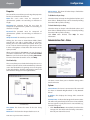
1. Double-click the Network Neighborhood (or My
Network Places) icon on the desktop.
Normally, no changes are required to each PC.
2. On the “View” menu, select Details. The Comment
column will now be visible.
•• Windows 95/98/ME or later
•• Windows 2000, NT 4.0
•• Network Logon (Windows 95/98/ME only)
Check with your LAN administrator (or Network Storage
Link Administrator) to see if any changes are required.
Network Logon (Windows 95/98/ME only)
3. Locate the Storage Link If it is not listed, double-click
Entire Network. Then double-click the Workgroup that
the Storage Link is in. (By default, the Storage Link is in
Workgroup.)
If your PC uses Windows 2000 or XP, ignore this section.
You do not need to make any changes to your network
configuration.
If your PC uses Windows 95/98/ME, then you must log
on to the network correctly in order to use the Network
Storage Link:
Check your Windows logon by selecting Start, Settings,
Control Panel, Network. Verify that the Primary Network
Logon is set to “Client for Microsoft Networks”. If this is
already set, there is no need to make any changes.
Locating the Storage Link
4. Double-click the icon for the Storage Link.
5. Right-click a folder (directory) to which you have
access, and select Map Network Drive.
6. Select a drive letter for this folder, and check the
Reconnect at Logon checkbox. (If this is not done, the
mapping will be lost when you shut down your PC.)
Network Logon
Network Storage Link for USB 2.0 Disk Drives
13