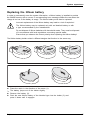
1
Operating Manual
ESPRIMO E5xx/E7xx/E9xx
System
Thank you for buying an innovative product from Fujitsu.
Latest information about our products, useful tips, updates etc. is available
on our website: "http://www.fujitsu.com/fts/"
You can receive automatic driver updates from: "http://support.ts.fujitsu.com/download"
Should you have any technical questions, please contact:
our Hotline/Service Desk (see Service Desk list or from the Internet at:
"http://support.ts.fujitsu.com/contact/servicedesk")
• Your sales partner
• Your sales office
We hope you enjoy using your new Fujitsu system!
•
Published by
Fujitsu Technology Solutions GmbH
Mies-van-der-Rohe-Straße 8
80807 Munich, Germany
Contact
http://www.fujitsu.com/fts/
Copyright
© Fujitsu Technology Solutions GmbH 2012. All rights reserved.
Publication Date
10/2012
Order No.: A26361-K1337-Z320-2-7619, edition 2
ESPRIMO E5xx/E7xx/E9xx
Operating Manual
Your ESPRIMO
5
Ports and operating elements
7
Important notes
10
Getting started
13
Operation
23
Problem solutions and tips
31
System expansions
35
Technical specification
66
Index
67
Remarks
Information on the product description meets the design specifications of Fujitsu and
is provided for comparison purposes. Several factors may cause the actual results to
differ. Technical data is subject to change without prior notification. Fujitsu rejects any
responsibility with regard to technical or editorial mistakes or omissions.
Trademarks
Fujitsu, the Fujitsu logo and ESPRIMO are registered trademarks of Fujitsu Limited or its
subsidiaries in the United States of America and other countries.
Kensington and MicroSaver are registered trademarks of ACCO World Corporation.
Microsoft and Windows are trademarks or registered trademarks of the Microsoft
Corporation in the United States and/or other countries.
All other trademarks specified here are the property of their respective owners.
Copyright
No part of this publication may be copied, reproduced or translated without
the prior written consent of Fujitsu.
No part of this publication may be saved or transferred by any electronic means
without the written approval of Fujitsu.
Contents
Contents
Your ESPRIMO . . . . . . . . . . . . . . . . . . . . . . . . . . . . . . . . . . . . . . . . . . . . . . . . . . . . . . . . . . . . . . . . . . . . . . . . .
Validity of the Reference Manual . . . . . . . . . . . . . . . . . . . . . . . . . . . . . . . . . . . . . . . . . . . . . . . . . . . . . . . . .
Notational conventions . . . . . . . . . . . . . . . . . . . . . . . . . . . . . . . . . . . . . . . . . . . . . . . . . . . . . . . . . . . . . . . . . .
5
5
6
Ports and operating elements . . . . . . . . . . . . . . . . . . . . . . . . . . . . . . . . . . . . . . . . . . . . . . . . . . . . . . . . .
Front . . . . . . . . . . . . . . . . . . . . . . . . . . . . . . . . . . . . . . . . . . . . . . . . . . . . . . . . . . . . . . . . . . . . . . . . . . . . . . . . . . .
Rear . . . . . . . . . . . . . . . . . . . . . . . . . . . . . . . . . . . . . . . . . . . . . . . . . . . . . . . . . . . . . . . . . . . . . . . . . . . . . . . . . . .
7
7
7
Important notes . . . . . . . . . . . . . . . . . . . . . . . . . . . . . . . . . . . . . . . . . . . . . . . . . . . . . . . . . . . . . . . . . . . . . . . .
Safety information . . . . . . . . . . . . . . . . . . . . . . . . . . . . . . . . . . . . . . . . . . . . . . . . . . . . . . . . . . . . . . . . . . . . . . .
Transporting the device . . . . . . . . . . . . . . . . . . . . . . . . . . . . . . . . . . . . . . . . . . . . . . . . . . . . . . . . . . . . . . . . . .
Cleaning the device . . . . . . . . . . . . . . . . . . . . . . . . . . . . . . . . . . . . . . . . . . . . . . . . . . . . . . . . . . . . . . . . . . . . .
Energy saving, disposal and recycling . . . . . . . . . . . . . . . . . . . . . . . . . . . . . . . . . . . . . . . . . . . . . . . . . . . .
CE marking . . . . . . . . . . . . . . . . . . . . . . . . . . . . . . . . . . . . . . . . . . . . . . . . . . . . . . . . . . . . . . . . . . . . . . . . . . . .
FCC Compliance Statement . . . . . . . . . . . . . . . . . . . . . . . . . . . . . . . . . . . . . . . . . . . . . . . . . . . . . . . . . . . . .
FCC Class B Compliance Statement . . . . . . . . . . . . . . . . . . . . . . . . . . . . . . . . . . . . . . . . . . . . . . . . . .
FCC Radiation Exposure Statement . . . . . . . . . . . . . . . . . . . . . . . . . . . . . . . . . . . . . . . . . . . . . . . . . .
10
10
10
11
11
11
12
12
12
Getting started . . . . . . . . . . . . . . . . . . . . . . . . . . . . . . . . . . . . . . . . . . . . . . . . . . . . . . . . . . . . . . . . . . . . . . . . .
Unpacking and checking the delivery . . . . . . . . . . . . . . . . . . . . . . . . . . . . . . . . . . . . . . . . . . . . . . . . . . . . .
Steps for initial setup . . . . . . . . . . . . . . . . . . . . . . . . . . . . . . . . . . . . . . . . . . . . . . . . . . . . . . . . . . . . . . . . . . . .
Setting up the device . . . . . . . . . . . . . . . . . . . . . . . . . . . . . . . . . . . . . . . . . . . . . . . . . . . . . . . . . . . . . . . . . . . .
Vertical operating position (optional) . . . . . . . . . . . . . . . . . . . . . . . . . . . . . . . . . . . . . . . . . . . . . . . . . .
Connecting the device to the mains supply . . . . . . . . . . . . . . . . . . . . . . . . . . . . . . . . . . . . . . . . . . . . . . . .
Connecting external devices . . . . . . . . . . . . . . . . . . . . . . . . . . . . . . . . . . . . . . . . . . . . . . . . . . . . . . . . . . . . .
Connecting the cables . . . . . . . . . . . . . . . . . . . . . . . . . . . . . . . . . . . . . . . . . . . . . . . . . . . . . . . . . . . . . . .
Disconnecting the cables . . . . . . . . . . . . . . . . . . . . . . . . . . . . . . . . . . . . . . . . . . . . . . . . . . . . . . . . . . . .
Ports on the device . . . . . . . . . . . . . . . . . . . . . . . . . . . . . . . . . . . . . . . . . . . . . . . . . . . . . . . . . . . . . . . . . .
Connecting a monitor . . . . . . . . . . . . . . . . . . . . . . . . . . . . . . . . . . . . . . . . . . . . . . . . . . . . . . . . . . . . . . . .
Connecting the mouse . . . . . . . . . . . . . . . . . . . . . . . . . . . . . . . . . . . . . . . . . . . . . . . . . . . . . . . . . . . . . . .
Connecting the keyboard . . . . . . . . . . . . . . . . . . . . . . . . . . . . . . . . . . . . . . . . . . . . . . . . . . . . . . . . . . . .
Connecting external devices to the serial interface . . . . . . . . . . . . . . . . . . . . . . . . . . . . . . . . . . . . .
Connecting external devices to the USB ports . . . . . . . . . . . . . . . . . . . . . . . . . . . . . . . . . . . . . . . . .
Switching on for the first time: installing the software . . . . . . . . . . . . . . . . . . . . . . . . . . . . . . . . . . . . . . .
Switching on the monitor and device . . . . . . . . . . . . . . . . . . . . . . . . . . . . . . . . . . . . . . . . . . . . . . . . . .
Installing the software . . . . . . . . . . . . . . . . . . . . . . . . . . . . . . . . . . . . . . . . . . . . . . . . . . . . . . . . . . . . . . .
13
13
13
14
15
16
17
17
17
18
18
19
19
20
20
21
21
22
Operation . . . . . . . . . . . . . . . . . . . . . . . . . . . . . . . . . . . . . . . . . . . . . . . . . . . . . . . . . . . . . . . . . . . . . . . . . . . . . .
Switch the device on . . . . . . . . . . . . . . . . . . . . . . . . . . . . . . . . . . . . . . . . . . . . . . . . . . . . . . . . . . . . . . . . . . . .
Switching on a device when the lithium battery is discharged (0-Watt devices) . . . . . . . . . . . . . . .
Switching off the device . . . . . . . . . . . . . . . . . . . . . . . . . . . . . . . . . . . . . . . . . . . . . . . . . . . . . . . . . . . . . . . . .
Indicators on the device . . . . . . . . . . . . . . . . . . . . . . . . . . . . . . . . . . . . . . . . . . . . . . . . . . . . . . . . . . . . . . . . .
Keyboard . . . . . . . . . . . . . . . . . . . . . . . . . . . . . . . . . . . . . . . . . . . . . . . . . . . . . . . . . . . . . . . . . . . . . . . . . . . . . . .
Important keys and keyboard shortcuts . . . . . . . . . . . . . . . . . . . . . . . . . . . . . . . . . . . . . . . . . . . . . . . .
Settings in BIOS Setup . . . . . . . . . . . . . . . . . . . . . . . . . . . . . . . . . . . . . . . . . . . . . . . . . . . . . . . . . . . . . . . . . .
Property and data protection . . . . . . . . . . . . . . . . . . . . . . . . . . . . . . . . . . . . . . . . . . . . . . . . . . . . . . . . . . . . .
Anti-theft protection and lead-sealing . . . . . . . . . . . . . . . . . . . . . . . . . . . . . . . . . . . . . . . . . . . . . . . . . .
Mechanical casing lock (optional) . . . . . . . . . . . . . . . . . . . . . . . . . . . . . . . . . . . . . . . . . . . . . . . . . . . . .
BIOS setup security functions . . . . . . . . . . . . . . . . . . . . . . . . . . . . . . . . . . . . . . . . . . . . . . . . . . . . . . . .
Access authorisation via SmartCard . . . . . . . . . . . . . . . . . . . . . . . . . . . . . . . . . . . . . . . . . . . . . . . . . .
Operating the SmartCard reader (optional) . . . . . . . . . . . . . . . . . . . . . . . . . . . . . . . . . . . . . . . . . . . .
23
23
23
24
25
26
26
28
28
28
29
29
30
30
Fujitsu
3
Contents
Problem solutions and tips . . . . . . . . . . . . . . . . . . . . . . . . . . . . . . . . . . . . . . . . . . . . . . . . . . . . . . . . . . . .
Help if problems occur . . . . . . . . . . . . . . . . . . . . . . . . . . . . . . . . . . . . . . . . . . . . . . . . . . . . . . . . . . . . . . . . . . .
Troubleshooting . . . . . . . . . . . . . . . . . . . . . . . . . . . . . . . . . . . . . . . . . . . . . . . . . . . . . . . . . . . . . . . . . . . . . . . . .
Power indicator remains off after you have switched on your device . . . . . . . . . . . . . . . . . . . . .
The device cannot be switched off with the ON/OFF switch. . . . . . . . . . . . . . . . . . . . . . . . . . . . .
The device cannot be switched on with the ON/OFF switch (0-Watt devices) . . . . . . . . . . . . .
Monitor remains blank . . . . . . . . . . . . . . . . . . . . . . . . . . . . . . . . . . . . . . . . . . . . . . . . . . . . . . . . . . . . . . .
No mouse pointer displayed on the screen . . . . . . . . . . . . . . . . . . . . . . . . . . . . . . . . . . . . . . . . . . . .
Time and/or date is not correct . . . . . . . . . . . . . . . . . . . . . . . . . . . . . . . . . . . . . . . . . . . . . . . . . . . . . . .
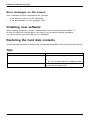
Error messages on the screen . . . . . . . . . . . . . . . . . . . . . . . . . . . . . . . . . . . . . . . . . . . . . . . . . . . . . . . .
Installing new software . . . . . . . . . . . . . . . . . . . . . . . . . . . . . . . . . . . . . . . . . . . . . . . . . . . . . . . . . . . . . . . . . .
Restoring the hard disk contents . . . . . . . . . . . . . . . . . . . . . . . . . . . . . . . . . . . . . . . . . . . . . . . . . . . . . . . . .
Tips . . . . . . . . . . . . . . . . . . . . . . . . . . . . . . . . . . . . . . . . . . . . . . . . . . . . . . . . . . . . . . . . . . . . . . . . . . . . . . . . . . . .
31
31
31
31
32
32
32
33
33
34
34
34
34
System expansions . . . . . . . . . . . . . . . . . . . . . . . . . . . . . . . . . . . . . . . . . . . . . . . . . . . . . . . . . . . . . . . . . . . .
Information about boards . . . . . . . . . . . . . . . . . . . . . . . . . . . . . . . . . . . . . . . . . . . . . . . . . . . . . . . . . . . . . . . .
Removing the casing cover . . . . . . . . . . . . . . . . . . . . . . . . . . . . . . . . . . . . . . . . . . . . . . . . . . . . . . . . . . . . . .
Reattaching the casing cover. . . . . . . . . . . . . . . . . . . . . . . . . . . . . . . . . . . . . . . . . . . . . . . . . . . . . . . . . . . . .
Opening the drive cage . . . . . . . . . . . . . . . . . . . . . . . . . . . . . . . . . . . . . . . . . . . . . . . . . . . . . . . . . . . . . . . . . .
Closing the drive cage . . . . . . . . . . . . . . . . . . . . . . . . . . . . . . . . . . . . . . . . . . . . . . . . . . . . . . . . . . . . . . . . . . .
Overview of drive bays and drives in your device . . . . . . . . . . . . . . . . . . . . . . . . . . . . . . . . . . . . . . . . . .
Installing and removing the accessible 51/4 inch drive . . . . . . . . . . . . . . . . . . . . . . . . . . . . . . . . . . . . . .
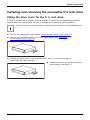
Fitting the drive cover for the 5 1/4 inch drive . . . . . . . . . . . . . . . . . . . . . . . . . . . . . . . . . . . . . . . . . . .
Installing an accessible drive . . . . . . . . . . . . . . . . . . . . . . . . . . . . . . . . . . . . . . . . . . . . . . . . . . . . . . . . .
Removing an accessible drive . . . . . . . . . . . . . . . . . . . . . . . . . . . . . . . . . . . . . . . . . . . . . . . . . . . . . . . .
Installing/removing a SmartCard reader, WLAN module or multicard reader (optional, 3½
inch) . . . . . . . . . . . . . . . . . . . . . . . . . . . . . . . . . . . . . . . . . . . . . . . . . . . . . . . . . . . . . . . . . . . . . . . . . . . . . . . . . . .
Preparing to install/remove components . . . . . . . . . . . . . . . . . . . . . . . . . . . . . . . . . . . . . . . . . . . . . . .
Attaching the WLAN module to the module carrier . . . . . . . . . . . . . . . . . . . . . . . . . . . . . . . . . . . . .
Screwing the SmartCard reader onto the module holder . . . . . . . . . . . . . . . . . . . . . . . . . . . . . . . .
Installing a multicard reader or module carrier containing a SmartCard reader and/or WLAN
module . . . . . . . . . . . . . . . . . . . . . . . . . . . . . . . . . . . . . . . . . . . . . . . . . . . . . . . . . . . . . . . . . . . . . . . . . . . . .
Removing the module carrier with SmartCard reader and/or WLAN module or multicard
reader . . . . . . . . . . . . . . . . . . . . . . . . . . . . . . . . . . . . . . . . . . . . . . . . . . . . . . . . . . . . . . . . . . . . . . . . . . . . . .
Removing the SmartCard reader from the module holder . . . . . . . . . . . . . . . . . . . . . . . . . . . . . . .
Removing the WLAN module from carrier . . . . . . . . . . . . . . . . . . . . . . . . . . . . . . . . . . . . . . . . . . . . .
Completing installation/removal of components . . . . . . . . . . . . . . . . . . . . . . . . . . . . . . . . . . . . . . . .
Installing and removing the hard disk drive . . . . . . . . . . . . . . . . . . . . . . . . . . . . . . . . . . . . . . . . . . . . . . . .
Installing a hard disk drive . . . . . . . . . . . . . . . . . . . . . . . . . . . . . . . . . . . . . . . . . . . . . . . . . . . . . . . . . . .
Removing the hard disk drive . . . . . . . . . . . . . . . . . . . . . . . . . . . . . . . . . . . . . . . . . . . . . . . . . . . . . . . .
Installing and removing boards . . . . . . . . . . . . . . . . . . . . . . . . . . . . . . . . . . . . . . . . . . . . . . . . . . . . . . . . . . .
Installing and removing high-profile boards (device-dependent) . . . . . . . . . . . . . . . . . . . . . . . . .
Installing and removing low-profile boards (device-dependent) . . . . . . . . . . . . . . . . . . . . . . . . . .
Installing and removing heat sinks . . . . . . . . . . . . . . . . . . . . . . . . . . . . . . . . . . . . . . . . . . . . . . . . . . . . . . . .
Removing the heat sink . . . . . . . . . . . . . . . . . . . . . . . . . . . . . . . . . . . . . . . . . . . . . . . . . . . . . . . . . . . . . .
Installing the heat sink . . . . . . . . . . . . . . . . . . . . . . . . . . . . . . . . . . . . . . . . . . . . . . . . . . . . . . . . . . . . . . .
Mainboard expansions . . . . . . . . . . . . . . . . . . . . . . . . . . . . . . . . . . . . . . . . . . . . . . . . . . . . . . . . . . . . . . . . . .
Upgrading main memory . . . . . . . . . . . . . . . . . . . . . . . . . . . . . . . . . . . . . . . . . . . . . . . . . . . . . . . . . . . . .
Processor, replacing . . . . . . . . . . . . . . . . . . . . . . . . . . . . . . . . . . . . . . . . . . . . . . . . . . . . . . . . . . . . . . . . .
Replacing the lithium battery . . . . . . . . . . . . . . . . . . . . . . . . . . . . . . . . . . . . . . . . . . . . . . . . . . . . . . . . .
35
36
37
38
39
40
40
41
41
42
44
48
49
49
50
51
51
53
55
55
59
63
63
63
63
63
64
65
Technical specification . . . . . . . . . . . . . . . . . . . . . . . . . . . . . . . . . . . . . . . . . . . . . . . . . . . . . . . . . . . . . . . . .
66
Index . . . . . . . . . . . . . . . . . . . . . . . . . . . . . . . . . . . . . . . . . . . . . . . . . . . . . . . . . . . . . . . . . . . . . . . . . . . . . . . . . .
67
4
45
45
46
46
47
Fujitsu
Your ESPRIMO
Your ESPRIMO
Overview
... is available with various configuration levels which differ in terms of hardware and software
equipment. You can install additional drives (for example a DVD drive) and other boards.
This manual tells you how to start using your device and how to operate it in daily use.
This manual applies for all configuration levels. Depending on the chosen configuration
level, some of the hardware components described may not be available on your PC.
Please also read the notes about your operating system.
Depending on the configuration selected, the operating system is preinstalled
on your hard disk (e.g. Windows).
Further information on this device is provided:
•
•
•
•
•
•
•
in
in
in
in
in
in
in
the poster "Getting Started"
the "Safety/regulations" manual
the "Warranty" manual
the operating manual for the monitor
the manual for the mainboard
your operating system documentation
the information files (e.g. *.PDF, *.HTML, *.DOC, *.CHM, *.TXT, *.HLP)
Some of the manuals listed can be found in electronic form on the "Drivers & Utilities" DVD.
You can access and view the required information using the Acrobat Reader
program, which is also included on the DVD. You can of course also
print out a copy of the manual if you prefer.
Validity of the Reference Manual
This Reference Manual is valid for the following systems:
•
•
•
ESPRIMO E500, E510
ESPRIMO E700, E705, E710, E720
ESPRIMO E900, E910, E920
Fujitsu
5
Your ESPRIMO
Notational conventions
Pay particular attention to text marked with this symbol. Failure to observe
these warnings could pose a risk to health, damage the device or lead
to loss of data. The warranty will be invalidated if the device becomes
defective through failure to observe these warnings.
Indicates important information for the proper use of the device.
►
Indicates an activity that must be performed
Indicates a result
This font
indicates data entered using the keyboard in a program dialogue or at
the command line, e.g. your password (Name123) or a command used to
start a program (start.exe)
indicates information that is displayed on the screen by a program, e.g.:
Installation is complete.
indicates
"This font"
• terms and texts used in a software interface, e.g.: Click on Save
• names of programs or files, e.g. Windows or setup.exe.
indicates
This font
This font
•
•
Key
This font
6
cross-references to another section, e.g. "Safety information"
cross-references to an external source, e.g. a web address: For more
information, go to "http://www.fujitsu.com/fts"
• Names of CDs, DVDs and titles or designations for other materials,
e.g.: "CD/DVD Drivers & Utilities" or "Safety/Regulations" manual
indicates a key on the keyboard, e.g: F10
indicates terms and texts that are emphasised or highlighted, e.g.: Do
not switch off the device
Fujitsu
Ports and operating elements
Ports and operating elements
Ports
This chapter presents the individual hardware components of your device. This will provide
you with an overview of the ports and operating elements on the device. Please familiarise
yourself with these components before starting to work with your device.
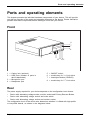
Front
8
7
6
1
2
3
1 = Casing lock (optional)
2 = USB ports (number of ports is
device-dependent)
3 = Microphone port
4 = Headphone port
5
6
7
8
=
=
=
=
4 5
ON/OFF switch
module bay for 3 1/2 inch drive
Insert/eject button (CD/DVD)
module bay for 5 1/4 inch drive
Rear
The power supply required for your device depends on the configuration level chosen:
• Device with alternating voltage socket, monitor socket and Primary Resume Button.
• Device with alternating voltage socket and main switch
• Device with alternating voltage socket and monitor socket
The configuration level of the device also determines whether it is fitted with high-profile
or low-profile boards, as shown in the diagrams below.
Fujitsu
7
Ports and operating elements
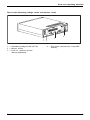
Device with alternating voltage socket, monitor socket and Primary Resume Button.
5
4
1 2 3
1 = Alternating voltage socket (AC IN)
2 = Monitor socket
3 = Primary Resume Button
4 = Ports for external devices
(device-dependent)
5 = Slot covers (shown here: low-profile
board cage)
Device with alternating voltage socket and main switch
4
3
1
1 = Alternating voltage socket (AC IN)
2 = Main switch
3 = Ports for external devices
(device-dependent)
8
2
4 = Slot covers (shown here: low-profile
boards)
Fujitsu
Ports and operating elements
Device with alternating voltage socket and monitor socket
4
3
1 2
1 = Alternating voltage socket (AC IN)
2 = Monitor socket
3 = Ports for external devices
(device-dependent)
Fujitsu
4 = Slot covers (shown here: low-profile
boards)
9
Important notes
Important notes
Notes
Importantnotes
In this chapter you will find information regarding safety which it is essential to
take note of when working with your device.
Safety information
Note
Safetyinformation
Please note the information provided in the "Safety/regulations" manual
and in the following safety notes.
When installing and operating the device, please observe the notes on
environmental conditions in Chapter "Technical specification", Page 66 as well
as the instructions in Chapter "Getting started", Page 13.
When setting up the device, make sure there is clearance all around it so that
the casing receives enough ventilation. In order to avoid overheating, do not
cover the ventilation areas of the monitor or the device.
You must only operate the device if the rated voltage used by the
device is set to the local mains voltage.
The main switch (if present) and the ON/OFF switch do not disconnect the
device from the mains voltage. To completely disconnect from the mains
voltage, remove the power plug from the power socket.
Replace the lithium battery on the mainboard in accordance with the instructions
in "Replacing the lithium battery", Page 65.
Caution, components in the system can get very hot.
The activities described in these instructions must always be
performed with the greatest care.
Repairs to the device must only be performed by qualified technicians.
Incorrect repairs could put the user at great risk or cause serious damage
to the equipment (electric shock, risk of fire).
Transporting the device
Retransportation
Transportation
Device,
Transport all parts separately in their original packaging or in a packaging which
protects them from knocks and jolts, to the new site.
Do not unpack them until all transportation manoeuvres are completed.
If the device is brought from a cold environment into the room where it will be used,
condensation may occur. Before operating the device, wait until it is absolutely dry
and has reached approximately the same temperature as the installation site.
10
Fujitsu
Important notes
Cleaning the device
System unit,see Device
Retransportation
Transportation
Device,
Turn off all power and equipment switches and disconnect the power
plug from the mains outlet.
Do not clean any interior parts yourself, leave this job to a service technician.
Do not use any cleaning agents that contain abrasives or may corrode
plastic (alcohol, thinner or acetone).
Never clean the device with water! Water entering into the device could
present a serious risk to users (e.g. electric shock).
Ensure that no liquid enters the system.
The surface can be cleaned with a dry cloth. If particularly dirty, use a cloth that has been
moistened in mild domestic detergent and then carefully wrung out.
Use disinfectant wipes to clean the keyboard and the mouse.
Energy saving, disposal and recycling
Drivers&
Recycling
Energysaving
Disposal
User
DocumentationDVD
UtilitiesDVD
Further information can be found on the "Drivers & Utilities" DVD.
CE marking
Lowvoltagedirective
Electromagneticcompatibility
Notes
CEmarking
The shipped version of this device complies with the requirements of European Union directives
2004/108/EC "Elektromagnetische Verträglichkeit", 2006/95/EC "Niederspannungsrichtlinie" and
2009/125/EC "Ökodesign Richtlinie".
CE marking for devices with radio component
This equipment complies with the requirements of Directive 1999/5/EC of the European Parliament
and Commission from 9 March, 1999 governing Radio and Telecommunications Equipment
and mutual recognition of conformity.
This equipment can be used in the following countries:
Belgium
Bulgaria
Denmark
Estonia
Finland
France
UK
Ireland
Iceland
Latvia
Liechtenstein
Lithuania
Malta
Netherlands
Norway
Poland
Portugal
Rumania
Germany
Greece
Italy
Luxembourg
Austria
Sweden
Spain
Switzerland
Slovakia
Slovenia
Hungary
Czech Republic
Cyprus
Contact the corresponding government office in the respective country for current information on
possible operating restrictions. If your country is not included in the list, then please contact
the corresponding supervisory authority as to whether the use of this product is permitted in
your country.
Fujitsu
11
Important notes
FCC Compliance Statement
If the device complies with the FCC regulations, the FCC sign can be found on the type rating plate.
FCC Class B Compliance Statement
DOC (INDUSTRY CANADA) NOTICES
Notice to Users of Radios and Television :
This class B digital apparatus complies with Canadian ICES-003.
The following statement applies to the products covered in this manual, unless otherwise specified
herein. The statement for other products will appear in the accompanying documentation.
NOTE:
This equipment has been tested and found to comply with the limits for a "Class B" digital
device, pursuant to Part 15 of the FCC rules and meets all requirements of the Canadian
Interference-Causing Equipment Standard ICES-003 for digital apparatus. These limits are
designed to provide reasonable protection against harmful interference in a residential installation.
This equipment generates, uses and can radiate radio frequency energy and, if not installed
and used in strict accordance with the instructions, may cause harmful interference to radio
communications. However, there is no guarantee that interference will not occur in a particular
installation. If this equipment does cause harmful interference to radio or television reception,
which can be determined by turning the equipment off and on, the user is encouraged to
try to correct the interference by one or more of the following measures:
•
•
•
Reorient or relocate the receiving antenna.
Increase the separation between equipment and the receiver.
Connect the equipment into an outlet on a circuit different from that to
which the receiver is connected.
• Consult the dealer or an experienced radio/TV technician for help.
Fujitsu not responsible for any radio or television interference caused by unauthorized modifications
of this equipment or the substitution or attachment of connecting cables and equipment other
than those specified by Fujitsu. The correction of interferences caused by such unauthorized
modification, substitution or attachment will be the responsibility of the user.
The use of shielded I/O cables is required when connecting this equipment to any and all optional
peripheral or host devices. Failure to do so may violate FCC and ICES rules.
FCC Radiation Exposure Statement
This equipment complies with FCC radiation exposure limits set forth for an uncontrolled environment.
The transmitters in this device must not be co-located or operated in conjunction
with any other antenna or transmitter.
To prevent radio interference to the licensed service, this device is intended to be
operated indoors and away from windows to provide maximum shielding. Equipment (or
its transmit antenna) that is installed outdoors is subject to licensing.
Users are not authorized to modify this product. Any modifications invalidate the warranty.
This equipment may not be modified, altered, or changed in any way without signed
written permission from Fujitsu. Unauthorized modification will void the equipment
authorization from the FCC and Industry Canada and the warranty.
12
Fujitsu
Getting started
Getting started
Gettingstarted
Please observe the safety information in the "Important notes", Page 10 chapter.
Unpacking and checking the delivery
It is recommended not to throw away the original packaging material! It may be
required for reshipment at some later date.
Packaging,
Contentsofdelivery
Packaging
►
►
►
►
Unpack all the individual parts.
Check the contents of the package for any visible damage caused during transport.
Check whether the delivery conforms to the details in the delivery note.
Should you discover that the delivery does not correspond to the delivery
note, notify your local sales outlet immediately.
Steps for initial setup
Preparingforuse,
Preparingforfirstuse,overview
Only a few steps are necessary to put your new device into operation for the first time:
• Select a location for device and set up device
• Connect external devices such as mouse, keyboard and monitor
• Check the voltage at the mains outlet and connect the device to an electrical outlet
• Switch the device on
You will learn more about the individual steps in the following sections.
External devices
If you have received other external devices in addition to your own device (e.g.
a printer), do not connect these until after the initial installation. The following
sections describe how to connect these external devices.
Drives and boards
If you have received drives or boards with your device, please do not install
them until after first-time setup. How to install drives and boards is described
in the "System expansions", Page 35 chapter.
Fujitsu
13
Getting started
Setting up the device
Device,
Ergonomic
Videoworkstation
When installing your device, please read the recommendations and
safety notes in the "Safety" manual.
We recommend that you place your device on a surface with good anti-slip qualities.
In view of the multitude of different finishes and varnishes used on furniture, it is
possible that the rubber feet will mark the surface they stand on.
Depending on the location of your device, bothersome vibrations and noises may
occur. To prevent this, a distance of at least 10 mm / 0.39 in should be maintained
from other devices on casing sides without ventilation surfaces.
In order to avoid overheating, do not cover the ventilation areas
on the monitor or the device.
A minimum distance of 200 mm / 7.87 in from the device must be
observed for ventilation areas.
Do not stack several devices on top of each other.
Do not expose the device to extreme ambient conditions (see "Technical specification",
Page 66, "Ambient conditions"). Protect the device against dust, humidity and heat.
Operating position
You can use the device in a vertical or horizontal operating position.
With the aid of suitable feet, it is possible to use the device in a vertical operating
position (see "Vertical operating position (optional)", Page 15).
14
Fujitsu
Getting started
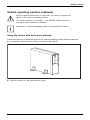
Vertical operating position (optional)
Use the optional rubber feet or base feet if you wish to operate the
device in the vertical operating position.
The set-up direction is compulsory: The ON/OFF switch must be at
the top to ensure sufficient ventilation.
Operation in a vertical operating position is not permitted in Taiwan.
Base feet
Operatingposition,vertical
Verticaloperatingposition
Sidecover
Using the device with base feet (optional)
Proceed as follows to operate the device in the vertical operating position with the base feet:
► If necessary, disconnect the cables connected to the device.
► Place the device on the base feet as shown.
Fujitsu
15
Getting started
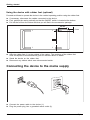
Using the device with rubber feet (optional)
Proceed as follows to operate the device in the vertical operating position using the rubber feet:
► If necessary, disconnect the cables connected to the device.
► First, position the casing vertically so that the ON/OFF switch is located at the bottom.
► Pull off the foil from the rubber feet that you will find in the accessories package.
40 mm
1
1
1
1
6 mm
► Affix the rubber feet (1) to the outside of the casing. The positions of the rubber feet
must correspond to the dimensions given so that the device is stable.
► Stand the device on the rubber feet.
► Reconnect any cables which were disconnected earlier.
Connecting the device to the mains supply
Mainsadapter
1
2
► Connect the power cable to the device (1).
► Plug the power plug into a grounded mains outlet (2).
16
Fujitsu
Getting started
Connecting external devices
Read the documentation on the external device before connecting it.
With the exception of USB devices, always remove all power plugs
before connecting external devices!
Do not connect or disconnect cables during a thunderstorm.
Always take hold of the actual plug. Never unplug a cable by pulling the cable itself.
Connect and disconnect the cables in the order described below.
Connecting the cables
► Turn off all power and equipment switches.
► Remove all power plugs from the grounded mains outlets.
► Connect all the cables to the device and the external devices. Please make sure that you
always observe the safety notes provided in "Important notes", Page 10.
► Plug all data communication cables into the appropriate sockets.
► Plug all power cables into the grounded mains outlets.
Cable,
Cord
USB devices are hot-pluggable. This means you can connect and disconnect
USB cables while your device is switched on.
Additional information can be found in "Connecting external devices to the USB
ports", Page 20 and in the documentation for the USB devices.
Disconnecting the cables
►
►
►
►
Switch off all affected devices.
Remove all power plugs from the grounded mains outlets.
Unplug all data communication cables from the appropriate sockets.
Disconnect all of the cables from the device and from the external devices.
Cable,
Fujitsu
17
Getting started
Ports on the device
Device,
Externaldevices,
Interfaces
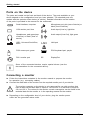
The ports are located on the front and back of the device. The ports available on your
device depend on the configuration level you have selected. The standard ports are
marked with the symbols shown below (or similar). Detailed information on the location
of the ports is provided in the manual for the mainboard.
Serial interface, turquoise
Microphone port, pink (rear of device) or
black (front of device)
Serialinterface
Microphoneport
VGA monitor port, blue
Audio input (Line In), light blue
Monitorport
Linein
Audioinput
Headphones, pale green(rear
of device) or black (front of
device)
Audio output (Line Out), light green
Lineout
Audiooutput
Headphones
USB - Universal Serial Bus,
black
LAN
LAN port
LANport
UniversalSerialBus
PS/2 mouse port, green
PS/2 keyboard port, purple
PS/2mouseport
Mouseport
DVI-I monitor port
Keyboardport
DP
DisplayPort
Some of the connected devices require special drivers (see the
documentation for the connected device).
Connecting a monitor
► Follow the instructions contained in the monitor manual to prepare the monitor
for operation (e.g. connecting cables).
► Connect the data cable of the monitor into the required monitor port of your device.
Monitor
The monitor connector on the device is only approved for use with monitors that
have a rated current less than or equal to 1.0 A at 230 V or less than or equal to
2.0 A at 100 V. The values for the monitor current consumption can be found in the
technical data for the monitor or in the operating manual for the monitor.
► Depending on the configuration level of your device, plug the monitor power
cable into the grounded mains outlet.
18
Fujitsu
Getting started
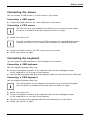
Connecting the mouse
You can connect a USB mouse or a PS/2 mouse to your device.
Connecting,
Mouse,
Connecting a USB mouse
► Connect the USB mouse to one of the USB ports on the device.
USBport
USBport,
Connecting a PS/2 mouse
The PS/2 mouse is only detected by the device if you connect the mouse when
the device is switched off and then switch the device on again.
► Switch your device off.
If you do not attach a mouse to the PS/2 mouse port, you can disable the mouse
controller in the BIOS Setup in order to free the IRQ12 for a different application.
► Connect the PS/2 mouse to the PS/2 mouse port of the device.
► Switch your device on again.
Connecting,
PS/2mouse,
Connecting the keyboard
You can connect a USB keyboard or a PS/2 keyboard to your device.
Connecting,
Keyboard,
Connecting a USB keyboard
Use the supplied keyboard cable only.
Connecting,
USBport,
► Plug the rectangular connector of the keyboard cable into the rectangular socket
on the underside or on the rear of the keyboard.
► Insert the flat rectangular USB plug of the keyboard cable into one of the device’s USB ports.
USBport
Connecting a PS/2 keyboard
Use the supplied keyboard cable only.
Connecting,
ConnectingaPS/2keyboard
The PS/2 keyboard is only detected by the device if you connect the keyboard
when the device is switched off and then switch the device on again.
► Switch your device off.
► Plug the rectangular connector of the keyboard cable into the rectangular socket
on the underside or on the rear of the keyboard.
► Plug the round plug of the keyboard cable into the keyboard port on the device.
► Switch your device on again.
Keyboard,
Fujitsu
19
Getting started
Connecting external devices to the serial interface
Devices,
Externaldevices,
Serialinterface,
Serialinterface
External devices can be connected to the serial interface (e.g. a printer or modem).
► Connect the data cable to the external device.
► Connect the data cable to the corresponding serial interface.
For an exact description of how to connect external devices to the corresponding
port, please see the external device documentation.
Port settings
Serialinterface,
You can change the port settings (e.g. address, interrupt) in the BIOS Setup.
Device drivers
Device drivers,
The devices connected to the serial interface require drivers. Your operating system
already includes many drivers. If the required drive is missing, install it. The latest
drivers are usually available on the Internet or will be supplied on a data carrier.
Connecting external devices to the USB ports
Devices,
Externaldevices,
USBport,
USBdevices,
You can connect a wide range of external devices to the USB ports (e.g.
printer, scanner, modem or keyboard).
USB devices are hot-pluggable. This means you can connect and disconnect
USB cables while your device is switched on.
Additional information can be found in the documentation for the USB devices.
► Connect the data cable to the external device.
► Connect the data cable to one of the USB ports on your device.
Device drivers
The external USB devices you connect to the USB ports usually require no
driver of their own, as the required software is already included in the operating
system. However, if the external USB device requires its own software, please
install it from the data carrier provided with the USB device.
To ensure the transmission capacity of USB 2.0, the cable from the external USB
device to the USB port of your device must not be longer than 3 m.
20
Fujitsu
Getting started
Switching on for the first time: installing the software
Software,
Installing,
Once the installation has been started the device must not be switched
off, unless the installation has been completed.
During installation, the device may only be rebooted when you are requested to do so!
The installation will otherwise not be carried out correctly and the contents
of the hard disk must be completely restored.
If the device is integrated into a network, the user and server details as well as
the network protocol are required during the software installation.
Contact your network administrator if you have any questions about these settings.
When you switch on the device for the first time, the supplied software
is installed and configured. Plan a reasonable amount of time for this,
as this process must not be interrupted.
You may need the licence number for Windows during the installation. The licence
number is located on a sticker on your device.
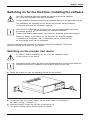
Switching on the monitor and device
In order to avoid overheating, do not cover the ventilation areas
of the monitor or the device.
Depending on the variant, the device may be equipped with a main power switch on
the back of the device in addition to the ON/OFF button on the front.
► Switch the monitor on (see the operating manual for the monitor).
1
2
► On devices with main power switch: set the main switch on the back of
the device to the "I" position (1).
► Press the ON/OFF switch on the front of the device (2).
The power indicator glows and the device is started.
Fujitsu
21
Getting started
Installing the software
► During installation, follow the on-screen instructions.
► If anything is unclear regarding the data you are asked to input, read the
online Help in your operating system.
Installing,
Software,
You will find more information on the system, as well as drivers, utilities and updates on
the "Drivers & Utilities" DVD and on the Internet at "http://www.fujitsu.com/fts/support".
You will find information and help on the Windows operating system functions
on the Internet at "http://windows.microsoft.com"
22
Fujitsu
Operation
Operation
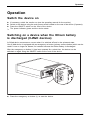
Switch the device on
► If necessary, switch the monitor on (see the operating manual for the monitor).
► Switch on the device using the main power switch located on the rear of the device (if present).
► Press the ON/OFF switch on the front of the device.
The power indicator glows and the device starts.
Monitor,
Device,
Switching on a device when the lithium battery
is discharged (0-Watt devices)
A 0-Watt device consumes no current when it is switched off and in the quiescent state.
Your 0-Watt device is equipped with an emergency on button (primary resume button) which can be
used if it can no longer be started, for instance because the lithium battery is discharged.
After the emergency on button (1) has been pressed for a short time, the device can be
switched on again using the ON/OFF switch at the front of the device.
1
► Press the emergency on button (1) to start the device.
Fujitsu
23
Operation
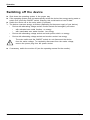
Switching off the device
► Shut down the operating system in the proper way.
► If the operating system does not automatically switch the device into energy-saving mode or
switch it off, press the ON/OFF switch. Warning, this could lead to a loss of data!
► Switch the device off at the main switch (if present).
The device consumes energy as follows (depending on the power supply of your device):
• Device with alternating voltage socket, monitor socket and emergency on button:
• with activated zero watts function: no energy
• with unactivated zero watts function: low energy
• Device with alternating voltage socket and main power switch: no energy
• Device with alternating voltage socket and monitor socket: low energy
Monitor,
Device,
The main switch and the ON/OFF switch do not disconnect the device
from the mains voltage. To completely disconnect from the mains voltage,
remove the power plug from the power socket.
► If necessary, switch the monitor off (see the operating manual for the monitor).
24
Fujitsu
Operation
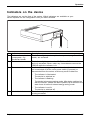
Indicators on the device
Device
Indicators,
The indicators are on the front of the casing. Which indicators are available on your
device depends on the configuration level you have selected.
1
No. Indicator
1
Indicator for optional
components, e.g.
SmartCard reader
2
Drive indicator
3
Power-on indicator
2 3
4
Description
The indicator lights up when optional components, e.g. SmartCard
reader, are accessed.
The indicator lights up when the CD-ROM or DVD drive in the
device is accessed. Never under any circumstances remove the
CD/DVD while the indicator is lit.
Caution: When energy saving mode is active, the device must
not be switched off at the main power switch (if present) or
disconnected from the mains, as this may result in data loss.
•
4
Hard disk indicator
Fujitsu
The indicator is illuminated:
The device is switched on.
• The indicator is flashing:
The device is in energy-saving mode. After being switched on
with the ON/OFF switch, the device powers up or returns to the
state it was in before it entered energy-saving mode.
• The indicator is not lit:
The device is switched off.
The indicator lights up when the hard disk drive in the device
is being accessed.
25
Operation
Keyboard
Alphanumeric
Keyboard,
Keyboard
Cursor
Function
Keys,
Numeric
keys
keypad
keys keypad
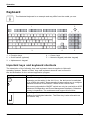
The illustrated keyboard is an example and may differ from the model you use.
1
2
3
1 = Function keys
2 = On/off switch (optional)
3 = Alphanumeric keypad
4
5
4 = Cursor keys
5 = Numeric keypad (calculator keypad)
Important keys and keyboard shortcuts
Keyboardshortcuts
Keys
The description of the following keys and keyboard shortcuts applies to Microsoft
operating systems. Details of other keys and keyboard shortcuts can be found in
the documentation for the relevant application program.
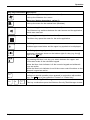
Key / key combination Description
On/off switch (optional)
Button,
ON/OFFswitch
Depending on the setting in the BIOS Setup, the device can be switched
on or off with this switch. Some operating systems allow you to configure
additional functions of the ON/OFF switch in the Control Panel.
With some keyboards the ON/OFF switch can only be used with an ACPI
(Advanced Configuration and Power Management Interface). Otherwise
the key is inoperative. The mainboard must support this function.
Enter key
Keys,
confirms the highlighted selection. The Enter key is also referred to as
the "Return" key.
26
Fujitsu
Operation
Key / key combination Description
Windows key (device-dependent: variant 1)
Keys,
calls up the Windows Start menu.
Keys,
Menu key (device-dependent: variant 1)
calls up the menu for the marked item (Windows).
Windows key (device-dependent: variant 2)
The Windows key switches between the start screen and the application
which was used last.
Menu key (device-dependent: variant 2)
The Menu key opens the menu for the active application.
Keys,
Shift key
enables upper-case letters and the upper key symbols to be displayed.
Keys,
Alt Gr key (country-dependent)
produces a character shown on the bottom right of a key (e.g. the @
sign on the Q key).
Num Lock key
Keys,
By pressing the Num Lock key you switch between the upper- and
lower-case levels of the calculator keypad.
When the Num Lock indicator is lit the numeric keypad and arithmetic
keys are active.
When the Num Lock indicator is not lit the cursor control functions on the
Numeric keypad are active.
Ctrl key
Keys
Keys,
Ctrl
performs a special operation when pressed in conjunction with another
key. The Ctrl key is also called the "Control" or "Control key".
Windows Security/Task Manager
keyboardshortcuts
Keys
Ctrl+Alt+Del
Ctrl
Fujitsu
+
Alt
+
Del
This key combination opens the Windows Security/Task Manager window.
27
Operation
Settings in BIOS Setup
System
BIOS
Setup,
Setup,
Setup
settings,
In BIOS Setup, you can set the system functions and the hardware configuration of the device.
When the PC is delivered, the default entries are valid (see "BIOS Setup" manual or manual for
the mainboard). You can customise these settings to your requirements in the BIOS Setup.
Property and data protection
Property protection
Securitymeasures
Dataprotection
Software functions and mechanical locking offer a broad range of functions for protecting your
device and your personal data from unauthorised access. You can also combine these functions.
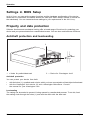
Anti-theft protection and lead-sealing
Chain
KensingtonLock
Anti-theftprotection
Lead-sealing
Casing,
Device,
2
1
1 = Holes for padlock/lead-seal
2 = Device for "Kensington Lock"
Anti-theft protection
You can protect your device from theft
•
•
with the holes (1), a padlock and a chain, which you have connected to a fixed object beforehand.
with the Kensington Lock device (2) and a Kensington MicroSaver. Consult
the manual for your Kensington Lock.
Lead-sealing
The casing can be sealed to prevent it being opened by unauthorised persons. To do this, feed
the sealing chain through the holes (1) and seal the chain with the lead seal.
28
Fujitsu
Operation
Mechanical casing lock (optional)
Lock lock
Casing
mechanicallock
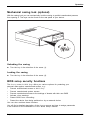
With the casing lock you can mechanically lock the casing to prohibit unauthorised persons
from opening it. The keys can be found on the rear panel of your device.
2
1
Unlocking the casing
► Turn the key in the direction of the arrow (1).
Locking the casing
► Turn the key in the direction of the arrow (2).
BIOS setup security functions
BIOS Setup
Securityfunctions
The Security menu in BIOS Setup offers you various options for protecting your
personal data against unauthorized access, e.g.:
• Prevent unauthorized access to BIOS Setup
• Prevent unauthorised system access
• Prevent unauthorised access to the settings of boards with their own BIOS
• Activate virus warnings
• Protect BIOS from overwriting
• Protect the device from being switched on by an external device
You can also combine these functions.
You will find a detailed description of the Security menus and how to assign passwords
in the manual for the mainboard or in the "BIOS Setup" manual.
Fujitsu
29
Operation
Access authorisation via SmartCard
Accesspermission,SmartCard
Securityfunctions,
In systems equipped with a SmartCard reader, access can be restricted to those
users who have a corresponding SmartCard.
Operating the SmartCard reader (optional)
Operation is not permitted in Taiwan.
► Connect the external SmartCard reader to your system as described in
the instructions for the SmartCard reader.
After the device is switched on, you will be prompted to insert your SmartCard.
SmartCard reader,
30
Fujitsu
Problem solutions and tips
Problem solutions and tips
Comply with the safety information in the "Safety" manual and the chapter
"Getting started", Page 13, when attaching or detaching cables.
If a fault occurs, try to rectify it in accordance with the measures described in the following documents:
•
•
•
•
in
in
in
in
this chapter
the documentation relating to the peripheral devices
the Help sections for the individual programs
the documentation for the operating system in use.
Help if problems occur
Should you encounter a problem with your computer that you cannot resolve yourself:
► Note the ID number of your device. The ID number is found on the type rating
plate on the back, the underside or the top of the casing.
► For further clarification of the problem, contact the Service Desk for your country (see the
Service Desk list or visit the Internet at "http://support.ts.fujitsu.com/contact/servicedesk"). When
you do this, please have ready the identity number and serial number of your system.
Troubleshooting
Power indicator remains off after you have switched
on your device
Cause
The mains voltage supply is faulty.
Internal power supply overloaded.
Fujitsu
Remedy
► Check that the power cable is correctly
plugged into the device and into a grounded
mains outlet.
► Check that the main switch at the rear of the
monitor is set to the "I" position.
► Switch the device on.
► Pull the power plug of the device out of the
mains outlet.
► Wait for about 3 minutes.
► Plug the power plug into a properly grounded
mains outlet again.
► Switch the device on.
31
Problem solutions and tips
The device cannot be switched off with the ON/OFF switch.
Cause
Remedy
System crash
► Keep the on/off switch pressed for at least 4
seconds until the machine switches off.
Caution: This can lead to a loss of data!
This procedure does not allow the operating
system to shut down in an orderly way. The next
time the system is started there may well be
error messages.
The device cannot be switched on with the ON/OFF
switch (0-Watt devices)
Cause
The lithium battery is discharged.
Remedy
► Press the emergency on button at the
rear of the device, see chapter "Switching
on a device when the lithium battery is
discharged (0-Watt devices)", Page 23.
Monitor remains blank
Cause
Monitor is switched off.
Power saving has been activated (screen is
blank)
Remedy
► Switch your monitor on.
► Press any key on the keyboard.
or
Brightness control is set to dark
►
Power cable not connected
►
►
►
►
32
► Deactivate the screen saver. If
necessary, enter the appropriate
password.
Adjust the brightness control. For detailed
information, please refer to the operating
manual supplied with your monitor.
Switch off the monitor and the device.
Check that the monitor power cable is
properly connected to the monitor and to
a grounded mains outlet or to the monitor
socket of the device.
Check that the device power cable is
properly plugged into the device and a
grounded mains outlet.
Switch on the monitor and the device.
Fujitsu
Problem solutions and tips
Cause
Monitor cable not connected
Incorrect setting for the monitor
Remedy
► Switch off the monitor and the device.
► Check that the monitor cable is properly
connected to the device and monitor.
► Switch on the monitor and the device.
► Restart the system.
► Press F8 while the system is booting.
► Start the system in Safe Mode.
► Set up the monitor as described in the
documentation for your operating system
and monitor.
No mouse pointer displayed on the screen
Cause
The mouse is not correctly connected.
The mouse controller is not enabled.
Remedy
► Shut down the operating system properly.
► Switch the device off.
► Check that the mouse cable is properly
connected to the system unit. If you use an
adapter or extension lead with the mouse
cable, check the connections.
► Switch the device on.
► Check in the BIOS-Setup whether the mouse
controller is enabled.
► Check that the mouse driver is properly
installed and is present when the application
programme is started. Detailed information
can be found in the user guide for the mouse
and application programme.
Time and/or date is not correct
Cause
Time and date are incorrect.
Remedy
► Set the correct time and date within the
operating system you are using.
or
The lithium battery is discharged.
Fujitsu
► Set the correct time and/or date in the
BIOS Setup.
► If the time and date are repeatedly wrong
when you switch on your device, replace the
lithium battery (see "Replacing the lithium
battery", Page 65).
33
Problem solutions and tips
Error messages on the screen
Error messages and their explanations are provided:
•
•
in the technical manual for the mainboard
in the documentation for the programs used
Installing new software
When installing programs or drivers, important files may be overwritten and modified. To
be able to access the original data in the event of any problems following installation,
you should backup your hard disk prior to installation.
Restoring the hard disk contents
You will find the instructions for restoring the contents of the hard disk in the "Recovery Guide" manual.
Tips
Topic
Out of system resources
Tip
► Close unnecessary applications.
or
Other manuals
34
► Run the applications in a different order.
Further manuals are provided as PDF files on
the "Drivers & Utilities" DVD.
Fujitsu
System expansions
System expansions
System expansion
Device,
Upgrades,
Servicing
Components
Repairs to the device must only be performed by qualified technicians. Incorrect repairs
may greatly endanger the user (electric shock, fire risk) and will invalidate your warranty.
After consulting the Hotline/Help Desk, you may remove and install the components
described in this manual yourself.
As the device has to be shut down in order to install/deinstall system hardware
components, it is a good idea to print out the relevant sections of this chapter beforehand.
The following illustrations may differ slightly from your device, depending on its configuration level.
If further documentation was delivered with your device, please also read this through carefully.
In addition, before removing or installing system components, please pay attention to the following:
The device must be switched off when installing/removing the system
expansions and may not be in energy-saving mode.
Remove the power plug before opening the device.
Be careful that no wires become trapped when removing or installing components.
When installing components that become very hot, make sure that the maximum
permissible temperature of the components in operation is not exceeded.
An update of the BIOS may be required for a system expansion or hardware
upgrade. Further information can be found in the BIOS help section or if
necessary in the Technical Manual for the mainboard.
Fujitsu
35
System expansions
Information about boards
Take care with the locking mechanisms (catches and centring pins) when you
are replacing boards or components on boards.
Note that some components on the mainboard may be very hot if the device was
in use shortly before the casing was removed.
To prevent damage to the board or the components and conductors on it, please take care when
you insert or remove boards. Make sure expansion boards are inserted straightly.
Never use sharp objects (screwdrivers) for leverage.
Boards with electrostatic sensitive devices (ESD) are identifiable by the label
shown.
When handling boards fitted with ESDs, you must always observe the
following points:
•
•
•
•
36
You must always discharge static build up (e.g. by touching a grounded
object) before working.
The equipment and tools you use must be free of static charges.
Only touch or hold the boards by the edge or, if present, at the areas
marked green (Touch Points).
Never touch pins or conductors on boards fitted with ESDs.
Fujitsu
System expansions
Removing the casing cover
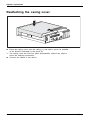
► Switch the device off.
The device must not be in the energy-saving mode!
► Remove any plugged-in wires which are in the way.
3
2
1
► Slide the retaining mechanism in the direction of the arrow (1).
► Slide the casing cover a small distance in the direction indicated by the arrow (2) and lift it off (3).
Fujitsu
37
System expansions
Reattaching the casing cover.
1
2
► Place the casing cover onto the casing (1) and slide it as far as possible
in the direction indicated by the arrow (2).
The casing cover will click into place automatically, without any need to
move the retaining mechanism.
► Connect the cables to the device.
38
Fujitsu
System expansions
Opening the drive cage
Drive cage
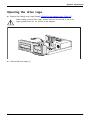
► Remove the casing cover (see Chapter "Removing the casing cover", Page 37).
When folding out the drive cage, ensure that you do not fold it out to an
angle greater than 90°, as shown in the diagram.
1
► Fold out the drive cage (1).
Fujitsu
39
System expansions
Closing the drive cage
Drive cage
Take care not to trap any cables when folding the drive cage into the closed position.
Make sure that the retaining mechanism on the memory module is closed.
1
► Fold the drive cage to the closed position (1).
► Fit the casing cover back onto the casing (see Chapter "Reattaching the casing cover.", Page 38).
Overview of drive bays and drives in your device
The casing can accommodate several accessible and non-accessible drives:
•
•
•
one drive bay for an accessible 5 1/4 inch drive
one drive bay for an accessible 3 1/2 inch drive
one drive bay for an non-accessible 3 1/2 inch drive (hard disk)
"Accessible drives" are e.g. DVD or CD ROM drives, into which a data medium can be
inserted from outside. "Non-accessible drives" are for example hard disk drives.
40
Fujitsu
System expansions
Installing and removing the accessible 51/4 inch drive
Fitting the drive cover for the 5 1/4 inch drive
In order to use the locking function for the accessible 51/4 drive, the corresponding drive cover
must be fitted to the drive before the drive is installed in the casing. Proceed as follows:
The drive cover can be found either on the drive place holder or on the installed drive.
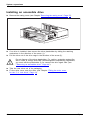
► Remove the casing cover (see Chapter "Removing the casing cover", Page 37).
► Remove the accessible drive or the drive place holder (see "Removing
an accessible drive", Page 44).
1
► Release the drive cover in the direction of the arrow (1) from the drive/drive
placeholder that was removed.
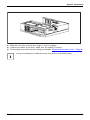
► Attach the drive cover onto the drive/drive
place holder to be fitted (1).
1
Fujitsu
41
System expansions
Installing an accessible drive
► Remove the casing cover (see Chapter "Removing the casing cover", Page 37).
2
1
► If no drive is installed, then remove the drive placeholder by sliding the retaining
mechanism in the direction of the arrow (1).
► Pull the drive out of the drive cage in the direction of the arrow (2).
Do not dispose of the drive placeholder. For cooling, protection against fire,
and in order to comply with EMC (electromagnetic compatibility) regulations,
you must refit the placeholder if you remove the drive again later (see
""Removing an accessible drive", Page 44").
► Take the new drive out of its packaging.
► Fit the drive cover onto the drive (see Chapter "Fitting the drive cover
for the 5 1/4 inch drive", Page 41).
42
Fujitsu
System expansions
1
► Slide the new drive into the drive cage (1) until it engages.
► Connect the cables to the drive. Make sure the polarity is correct.
► Fit the casing cover back onto the casing (see Chapter "Reattaching the casing cover.", Page 38).
It may be necessary to modify the entry for the drive in the BIOS Setup.
Fujitsu
43
System expansions
Removing an accessible drive
► Remove the casing cover (see Chapter "Removing the casing cover", Page 37).
► Disconnect any cables connected to the drive.
2
1
► Slide the retaining mechanism in the direction of the arrow (1).
► Pull the drive out of the drive cage in the direction of the arrow (2).
► If you do not install a new drive, then a drive placeholder must be installed in the drive
bay to prevent any foreign objects from entering the casing.
► Fit the casing cover back onto the casing (see Chapter "Reattaching the casing cover.", Page 38).
It may be necessary to modify the entry for the drive in the BIOS Setup.
44
Fujitsu
System expansions
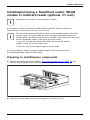
Installing/removing a SmartCard reader, WLAN
module or multicard reader (optional, 3½ inch)
Operation of the module is not permitted in Taiwan.
It is possible to install a SmartCard and/or WLAN module for wireless LAN (Local
Area Network) in the drive bay for the 3½ inch drive.
The SmartCard reader and WLAN module can be installed together in the same
module carrier. The two boards can also be installed individually without the
second board. The WLAN module must be installed in the lower slot of the carrier
and the SmartCard reader in the upper slot of the carrier.
If you want to install the SmartCard reader and the WLAN module
together, install the WLAN module first.
To remove, carry out the above steps in reverse order.
It is also possible to install a multicard reader instead of the module carrier for
the SmartCard reader and/or WLAN module.
Preparing to install/remove components
► Remove the casing cover (see Chapter "Removing the casing cover", Page 37) and
take the blanking plate off the drive bay in the casing cover.
1
1
► Remove the cover plate from the drive bay for the 3½-inch drive (1).
Fujitsu
45
System expansions
Attaching the WLAN module to the module carrier
► With the component side facing downwards,
slide the WLAN module in the direction
of the arrow (1) into the guide on
the module holder (a).
► Fasten the WLAN module in place
with the screw (2).
2
a
a
1
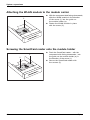
Screwing the SmartCard reader onto the module holder
2
2
a
a
46
► Push the SmartCard reader - with the
component side facing downwards - into
the guide on the module holder (a) in
the direction of the arrow (1).
► Secure the SmartCard reader with
the screws (2).
1
Fujitsu
System expansions
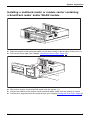
Installing a multicard reader or module carrier containing
a SmartCard reader and/or WLAN module
1
► Slide the module carrier/multicard reader into the drive casing in the direction of the arrow (1).
► Fold out the drive cage (see Chapter "Opening the drive cage", Page 39).
1
1
► Secure the module carrier/multicard reader with the screws (1).
► Connect the cables to the module carrier/multicard reader. Make sure the polarity is correct.
► Fold the drive cage back into the closed position (see Chapter"Closing the drive cage", Page 40).
Fujitsu
47
System expansions
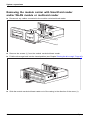
Removing the module carrier with SmartCard reader
and/or WLAN module or multicard reader
► Disconnect any cables connected to the module carrier/multicard reader.
1
1
► Remove the screws (1) from the module carrier/multicard reader.
► Fold the drive cage back into the closed position (see Chapter"Closing the drive cage", Page 40).
1
► Slide the module carrier/multicard reader out of the casing in the direction of the arrow (1).
48
Fujitsu
System expansions
Removing the SmartCard reader from the module holder
1
1
► Undo the screws (1).
► Pull the SmartCard reader out of the module
holder in the direction of the arrow (2).
Removing the WLAN module from carrier
1
Fujitsu
► Loosen the screw (1).
► Pull the WLAN module out of the module
carrier in the direction of the arrow.
49
System expansions
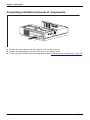
Completing installation/removal of components
1
1
► Fasten the cover plate to the drive bay for the 3½-inch drive (1).
► Fasten the blanking plate onto the drive bay in the casing cover.
► Fit the casing cover back onto the casing (see Chapter "Reattaching the casing cover.", Page 38).
50
Fujitsu
System expansions
Installing and removing the hard disk drive
Installing a hard disk drive
► Remove the casing cover (see Chapter "Removing the casing cover", Page 37).
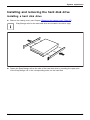
EasyChange rails for the hard disk drive are located in the drive cage.
► Fasten the EasyChange rails to the side of the hard disk drive by inserting the upper pins
of the EasyChange rail in the corresponding holes on the hard disk.
Fujitsu
51
System expansions
1
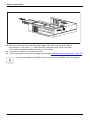
► Slide the hard disk drive with the EasyChange rails fitted into the drive cage in
the direction of the arrow (1). Check that the component side of the hard disk
drive faces downwards towards the base of the casing.
► Connect the cables to the hard disk drive.
► Fit the casing cover back onto the casing (see Chapter "Reattaching the casing cover.", Page 38).
It may be necessary to modify the entry for the drive in the BIOS Setup accordingly.
52
Fujitsu
System expansions
Removing the hard disk drive
► Remove the casing cover (see Chapter "Removing the casing cover", Page 37).
► Disconnect any cables connected to the hard disk drive.
2
1
1
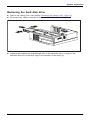
► Slightly press together the EasyChange rails on the hard disk drive (1) and pull the
hard disk drive out of the drive cage in the direction of the arrow (2).
Fujitsu
53
System expansions
► Pull the EasyChange rails off the hard disk drive.
► If you no longer need the EasyChange rails, secure them again at their location in the drive cage.
► Fit the casing cover back onto the casing (see Chapter "Reattaching the casing cover.", Page 38).
It may be necessary to modify the entry for the drive in the BIOS Setup.
54
Fujitsu
System expansions
Installing and removing boards
Depending on the device variant, your device will be equipped to accept either
high-profile boards or low-profile boards.
Installing and removing high-profile boards
(device-dependent)
You can install additional modules in order to increase the performance of your machine.
The number, position and arrangement of the board slots on the mainboard can be found in
the manual for the mainboard. Boards may already be installed on shipment.
Board,
A slot cover is provided for every slot. If no board is installed, the slot cover
must be used to protect the slot.
When you install a board, do not discard the corresponding slot cover.
For cooling, protection against fire and in order to comply with EMC (electromagnetic
compatibility) regulations, you must refit the slot cover if you remove the board.
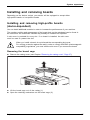
Removing the board cage
► Remove the casing cover (see Chapter "Removing the casing cover", Page 37).
1
2
► Lift the board cage out of the casing (1).
► Open the retaining mechanism on the board cage (2).
Fujitsu
55
System expansions
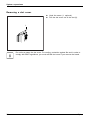
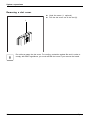
Removing a slot cover.
► Undo the screw (1, optional).
► Pull the slot cover out of the slot (2).
1
2
Do not throw away the slot cover. For cooling, protection against fire and in order to
comply with EMC regulations, you must refit the slot cover if you remove the board.
56
Fujitsu
System expansions
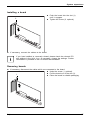
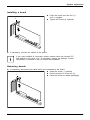
Installing a board
► Push the board into the slot (1)
until it engages.
► Tighten the screw (2, optional).
2
1
► If necessary, connect the cables to the board.
If you have installed or removed a board, please check the relevant PCI
slot settings in the BIOS Setup. If necessary, change the settings. Further
information is provided in the PCI board documentation.
Removing boards
► If necessary, disconnect the cables which are connected to the board.
► Undo the screw (1, optional).
► Pull the board out of the slot (2).
1
► Place the board in suitable packaging.
2
Fujitsu
57
System expansions
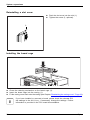
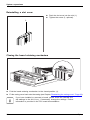
Reinstalling a slot cover
► Push the slot cover into the slot (1).
► Tighten the screw (2, optional).
2
1
Installing the board cage
2
1
► Close the retaining mechanism on the board cage (1).
► Insert the board cage into the casing (1).
► Fit the casing cover back onto the casing (see Chapter "Reattaching the casing cover.", Page 38).
If you have installed or removed a board, please check the relevant PCI
slot settings in the BIOS Setup. If necessary, change the settings. Further
information is provided in the PCI board documentation.
58
Fujitsu
System expansions
Installing and removing low-profile boards (device-dependent)
Low-profileboard
For every slot there is a slot cover provided. If no board is installed, the slot cover protects the slot.
When you install a board, do not discard the corresponding slot cover.
For cooling, protection against fire and in order to comply with EMC regulations,
you must refit the slot cover if you remove the board.
Opening the board retaining mechanism
► Remove the casing cover (see Chapter "Removing the casing cover", Page 37).
1
► Fold out the board retaining mechanism (1).
Fujitsu
59
System expansions
Removing a slot cover.
► Undo the screw (1, optional).
► Pull the slot cover out of the slot (2).
1
2
Do not throw away the slot cover. For cooling, protection against fire and in order to
comply with EMC regulations, you must refit the slot cover if you remove the board.
60
Fujitsu
System expansions
Installing a board
► Push the board into the slot (1)
until it engages.
► Tighten the screw (2, optional).
2
1
► If necessary, connect the cables to the board.
If you have installed or removed a board, please check the relevant PCI
slot settings in the BIOS Setup. If necessary, change the settings. Further
information is provided in the PCI board documentation.
Removing boards
► If necessary, disconnect the cables which are connected to the board.
► Undo the screw (1, optional).
► Pull the board out of the slot (2).
1
► Place the board in suitable packaging.
2
Fujitsu
61
System expansions
Reinstalling a slot cover
► Push the slot cover into the slot (1).
► Tighten the screw (2, optional).
2
1
Closing the board retaining mechanism
1
► Fold the board retaining mechanism to the closed position (1).
► Fit the casing cover back onto the casing (see Chapter "Reattaching the casing cover.", Page 38).
If you have installed or removed a board, please check the relevant PCI
slot settings in the BIOS Setup. If necessary, change the settings. Further
information is provided in the PCI board documentation.
62
Fujitsu
System expansions
Installing and removing heat sinks
Removing the heat sink
► Remove the casing cover (see Chapter "Removing the casing cover", Page 37).
► Disconnect the fan cables from the mainboard.
► Undo the screws (1).
1
► Remove the heat sink from the casing (2).
1
1
2 1
Never operate the device without the heat sink fitted! Reinstall the
heat sink before switching on the device.
Installing the heat sink
2
2
1
2
2
► Insert the heat sink into the casing (1),
making sure to correctly align the screw
holes on the heat sink with the screw holes
on the mainboard and taking note of the
arrows on the heat sink. The arrows must
point to the rear of the device.
► Tighten the screws (2) in a crosswise
fashion.
► Connect the fan cables to the mainboard.
► Fit the casing cover back onto the casing (see Chapter "Reattaching the casing cover.", Page 38).
Mainboard expansions
Details on how to upgrade the main memory or the processor of your device
can be found in the manual for the mainboard.
Lithium battery
Upgrades
Mainboard
Mainmemory
Processor
Upgrading main memory
► Remove the casing cover (see Chapter "Removing the casing cover", Page 37).
► Upgrade the memory according to the description in the manual for the mainboard.
► Fit the casing cover back onto the casing (see Chapter "Reattaching the casing cover.", Page 38).
Mainmemory,
Fujitsu
63
System expansions
Processor, replacing
►
►
►
►
►
64
Remove the casing cover (see Chapter "Removing the casing cover", Page 37).
Remove the heat sink (see "Removing the heat sink", Page 63).
Upgrade the processor according to the description in the manual for the mainboard.
Reinstall the heat sink (see "Installing the heat sink", Page 63).
Fit the casing cover back onto the casing (see Chapter "Reattaching the casing cover.", Page 38).
Processor,replacing
Fujitsu
System expansions
Replacing the lithium battery
In order to permanently save the system information, a lithium battery is installed to provide
the CMOS-memory with a current. A corresponding error message notifies the user when the
charge is too low or the battery is empty. The lithium battery must then be replaced.
Incorrect replacement of the lithium battery may lead to a risk of explosion!
The lithium battery may be replaced only with an identical battery or with
a type recommended by the manufacturer.
Do not dispose of lithium batteries with household waste. They must be disposed
of in accordance with local regulations concerning special waste.
Ensure that you observe the correct polarity when replacing the lithium battery!
Lithium battery, battery
Replacing,lithium
Replacing,
Battery
The lithium battery holder exists in different designs that function in the same way.
3
2
1
2
1
3
► Press the catch in the direction of the arrow (1).
The battery jumps out of the holder slightly.
► Remove the battery (2).
► Push the new lithium battery of the identical type into the holder (3) and
press it down until it engages.
Fujitsu
65
Technical specification
Technical specification
Electrical data
Safety standards complied with:
Protection class:
Rated voltage range:
Rated frequency:
Max. rated current:
Device with monitor socket:
of which Value for monitor socket:
Device without monitor socket:
Dimensions
Width/depth/height:
IEC 60950, EN 60950, UL 60950 CSA
22.2 No.60950-1
I
100 V – 240 V
50 Hz – 60 Hz
100 V – 240 V
5.0 A – 2.5 A
100 V – 240 V
2.0 A – 1.0 A
100 V – 240 V
3.5 – 1.5 A
340 mm / 383 mm / 98 mm /
13.39 in x 15.09 in x 3.86 in
Weight
In basic configuration:
Environmental conditions
Environment class (3K2):
approx. 8 kg / 17.64 lbs
Environment class (2K2):
Temperature:
Operating (3K2):
DIN IEC 721 part 3-2
DIN IEC 721 part 3-3
10 °C .... 35 °C /
50 °F ... 95 °F
Transportation (2K2):
–25 °C .... 60 °C /
–13 °F ... 140 °F
The formation of condensation is not permitted while the device is in operation !
Clearance required to ensure adequate ventilation:
Without air vents
min. 10 mm / 0.39 in
With air vents
min. 200 mm / 7.87 in
The data sheet for this device provides further technical data. The data sheet
can be found on our website "http://fujitsu.com/fts/".
66
Fujitsu
Index
Index
A
Access permission, SmartCard
Alphanumeric keypad 26
Anti-theft protection 28
Audio input 18
Audio output 18
30
B
Base feet 15
Battery 65
BIOS Setup 28
security functions 29
BIOS Setup,
configuration 28
settings 28
system settings 28
Board,
installing 55
removing 55
Button,
ON/OFF switch 26
C
Cable,
connecting 17
disconnecting 17
Casing
Mechanical lock 29
Casing lock 29
Casing mechanical lock 29
Casing,
lead-sealing 28
CE marking 11
Chain 28
Components
installing/removing 35
Connecting a PS/2 keyboard
Connecting,
keyboard 19
mouse 19
PS/2 keyboard 19
PS/2 mouse 19
USB keyboard 19
Contents of delivery 13
Cord
see Cable 17
Ctrl+Alt+Del 27
Cursor keys 26
Fujitsu
D
Data protection 28
Device
indicators 25
Device drivers,
serial interface 20
Device,
anti-theft protection 28
lead-sealing 28
ports 18
setting up 14
switching off 24
switching on 23
transporting 10–11
upgrades 35
Devices,
connecting 20
Disposal 11
Drive cage
closing 40
opening 39
Drivers & Utilities DVD 11
E
Electromagnetic compatibility
Energy saving 11
Ergonomic
video workstation 14
External devices,
connecting 20
ports 18
F
Function keys
19
26
G
Getting started
H
Headphones
11
13
18
I
Important notes 10
Indicators,
device 25
Installing,
software 21–22
switching on for the first time
21
67
Index
Interfaces
18
K
Kensington Lock 28
Keyboard 26
Keyboard port 18
keyboard shortcuts 27
Keyboard shortcuts 26
Keyboard,
alphanumeric keypad
connecting 19
cursor keys 26
function keys 26
numeric keypad 26
port 19
Keys 26
Ctrl 27
Ctrl+Alt+Del 27
Keys,
Alt Gr 27
Control 27
Ctrl key 27
cursor keys 26
Enter 26
Enter key 26
menu key 27
Num Lock 27
Return 26
shift 27
shift key 27
Start key 27
L
LAN port 18
Lead-sealing 28
Line in 18
Line out 18
Lithium battery 63
Lithium battery,
replacing 65
Lock 29
Low voltage directive 11
Low-profile board 59
M
Main memory 63
Main memory,
upgrading 63
Mainboard
Upgrades 63
Mains adapter
connecting 16
68
26
Microphone port 18
Monitor
connecting 18
Monitor port 18
Monitor,
switching off 24
switching on 23
Mouse port 18
Mouse,
connecting 19
N
Note
safety 10
Notes
CE marking 11
important 10
Numeric keypad 26
O
ON/OFF switch 26
Operating position, vertical
Overview
Device 5
15
P
Packaging 13
Packaging,
unpacking 13
Ports 7
Preparing for first use, overview
Preparing for use,
overview 13
Processor 63
Processor, replacing 64
Property protection 28
PS/2 mouse port 18
PS/2 mouse,
connecting 19
port 19
R
Recycling 11
Replacing,
lithium battery 65
Replacing, lithium battery
Retransportation 10–11
S
Safety information
13
65
10
Fujitsu
Index
Security functions
BIOS Setup 29
Security functions,
SmartCard 30
Security measures 28
Serial interface 18, 20
Serial interface,
connecting devices 20
settings 20
Servicing 35
Setup,
see BIOS Setup 28
Side cover 15
SmartCard reader,
operating 30
Software,
installing 21–22
System expansion 35
System settings,
BIOS Setup 28
System unit, see Device 11
T
Transportation
Fujitsu
U
Universal Serial Bus 18
Upgrades
Mainboard 63
Upgrades,
device 35
USB devices,
connecting 20
USB port 19
USB port,
connecting devices 20
connecting keyboard 19
connecting the mouse 19
User Documentation DVD 11
V
Vertical operating position
Video workstation 14
15
10–11
69