1
Troubleshooting
!
Check that the Network Connection for the wireless client is
configured properly. Select AP (Infrastructure) when connecting
to an access point and select Ad-Hoc mode when connecting
without an access point. Double-click on the WLAN icon in the
taskbar > click on Configuration to change the settings for the
wireless adapter.
!
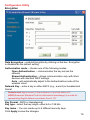
If Security is enabled, make sure that the correct encryption keys
are entered on both the DWL-G520 and the access point. Doubleclick on the WLAN icon in the taskbar > click Encryption. Check to
see that the key selected is set to the same key as other devices on
the network.
7. How can I troubleshoot distance issues using the DWL-G520.
!
Move the DWL-G520 and Access Point or Wireless router into
the same room and then test the wireless connection.
!
Change the channel of the Access Point.
!
Move devices within the line of sight
37